> ## Documentation Index
> Fetch the complete documentation index at: https://docs.myfundingmachine.com/llms.txt
> Use this file to discover all available pages before exploring further.
# Embed the Apply for Funding Form
> Grab the embed code for your Apply for Funding form in LeadBuilt and paste it onto any website so visitors can apply directly from your site.
# Embed the Apply for Funding Form
The **Apply for Funding** form is the front door for new applicants. Embedding it on your website (instead of linking out to LeadBuilt) keeps visitors on your domain, looks more professional, and lets you style the surrounding page however you want.
This guide walks you through finding the form in LeadBuilt and copying the embed code so you can paste it into your site builder.
## Before You Start
* You need access to your LeadBuilt sub-account.
* You need somewhere to paste the embed code — your website builder, WordPress page, Webflow embed block, etc.
* The form **1. MAIN Apply For Funding Form** ships pre-built with your Funding Machine sub-account. You don't need to build it from scratch.
## Step-by-Step
From the left sidebar in LeadBuilt, click **Sites**. This is where funnels, websites, and forms live.
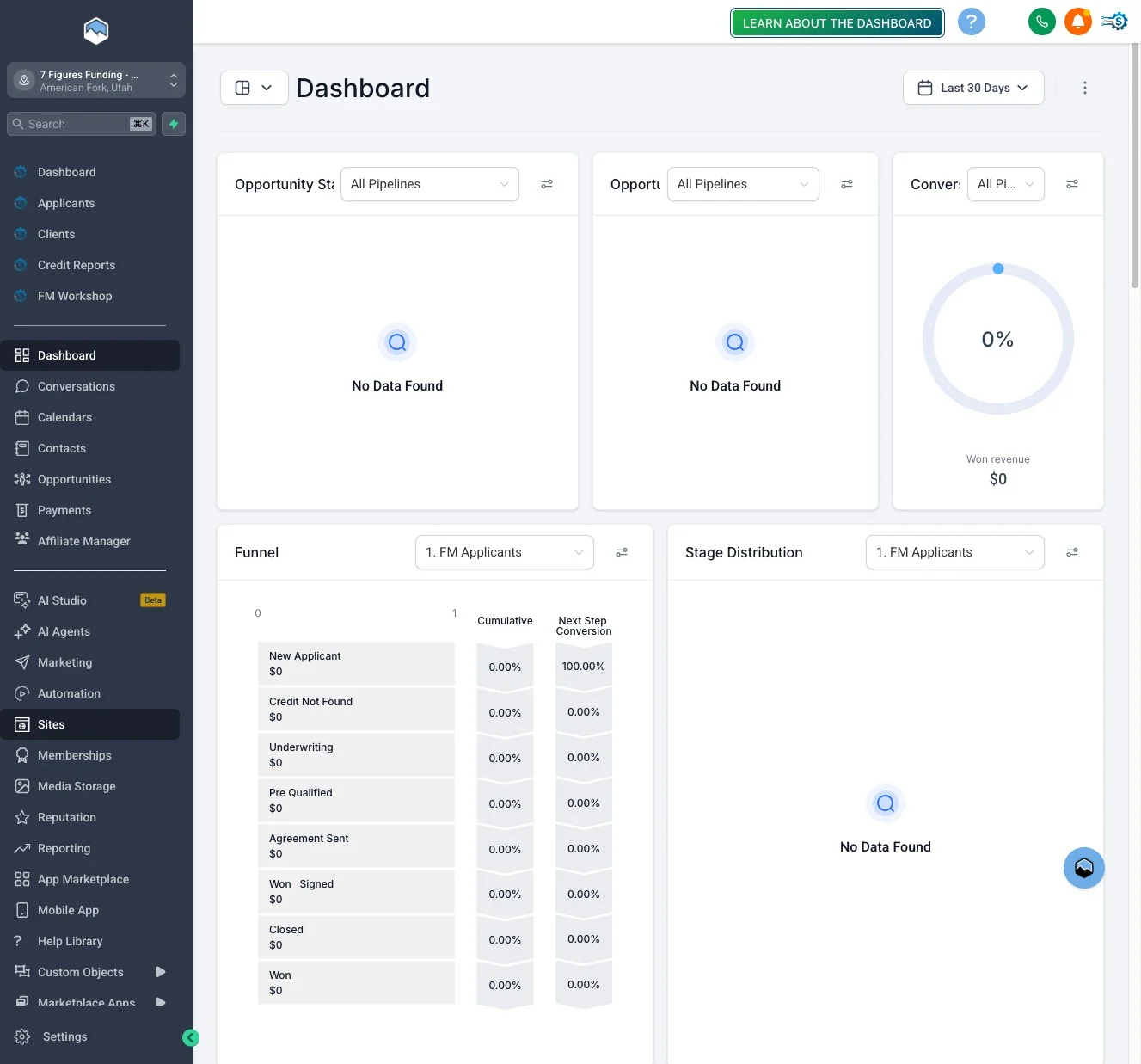 In the Sites top navigation, click **Forms**.
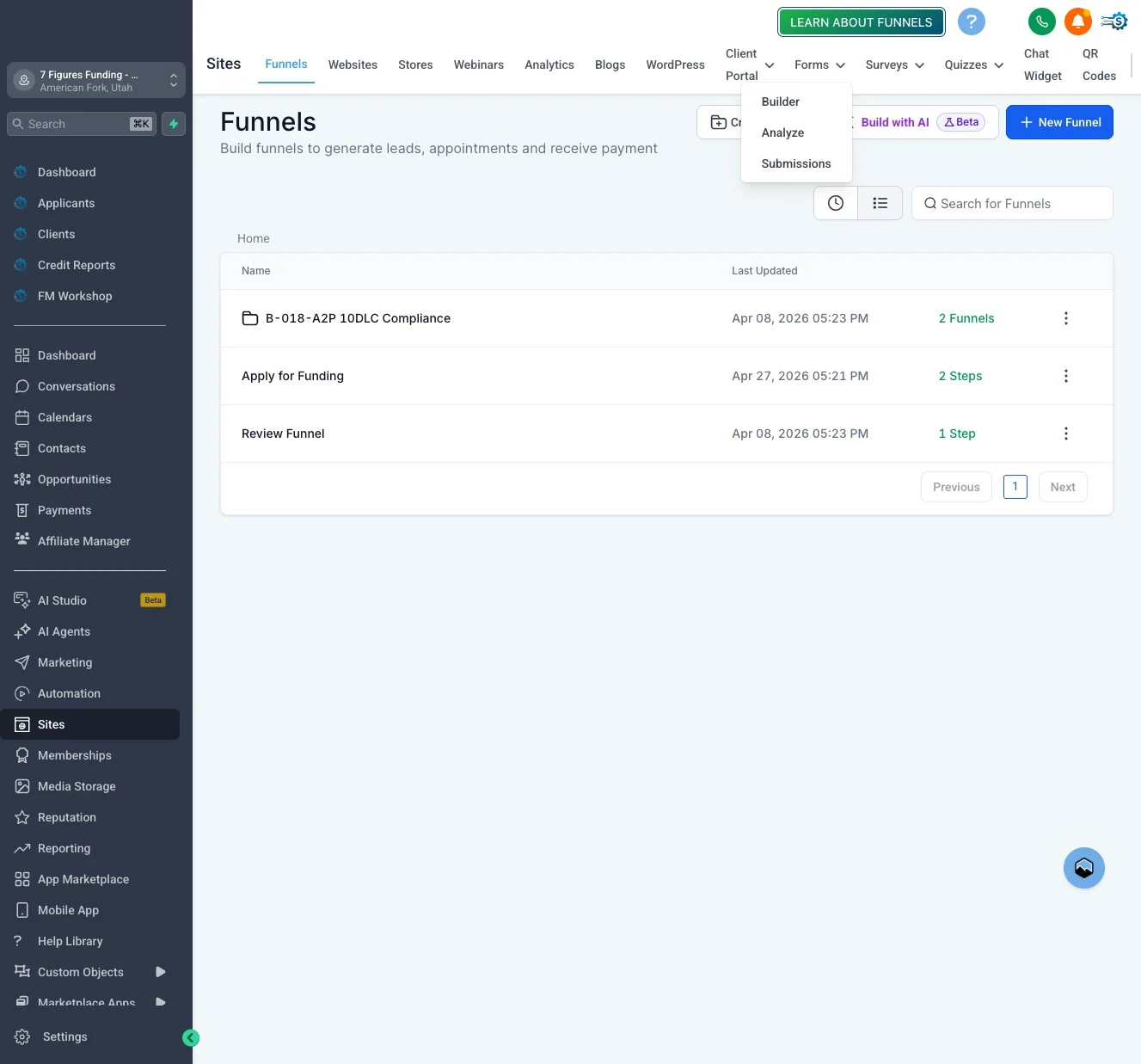 Click the **Builder** tab to see the list of forms in your account.
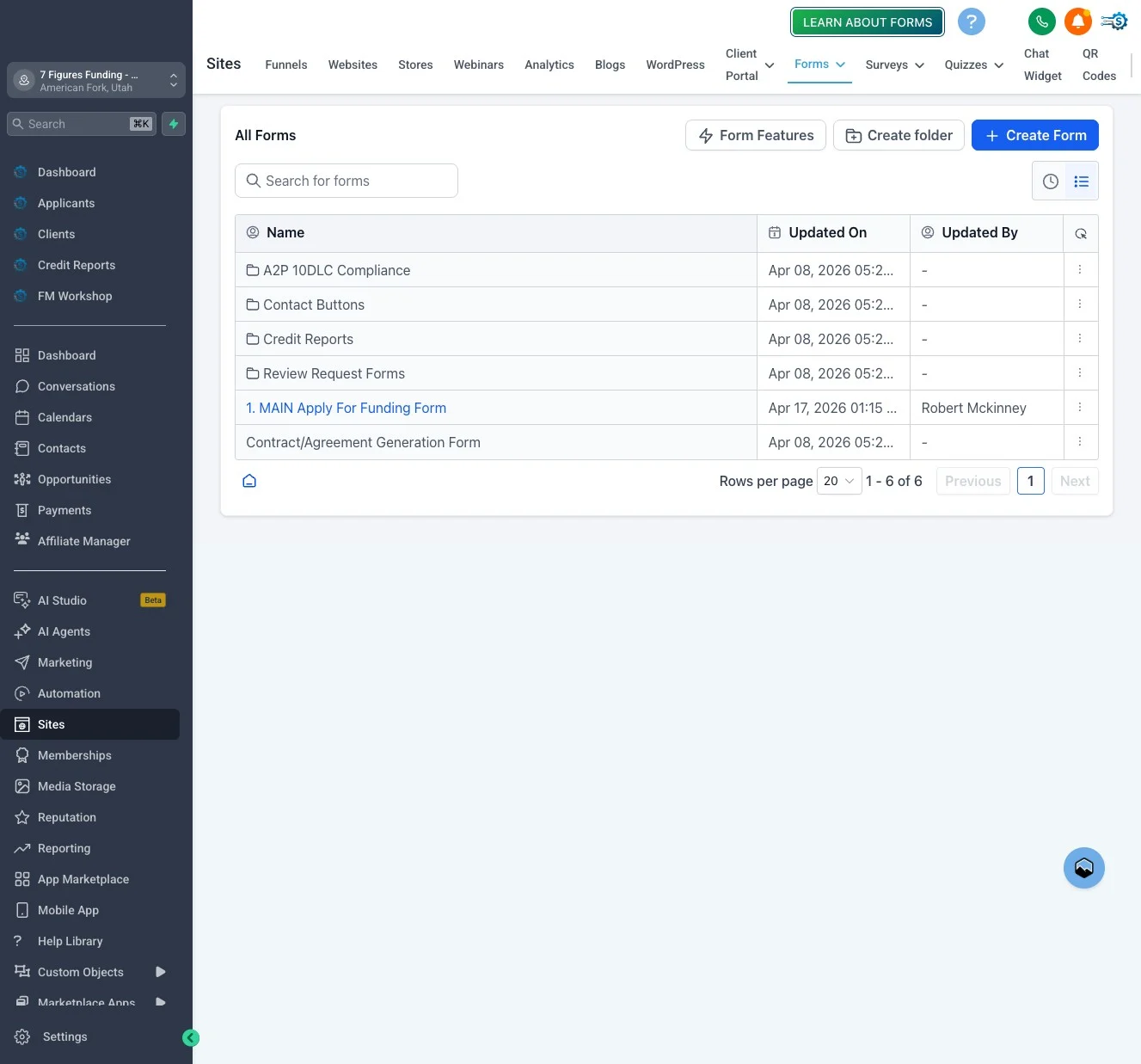
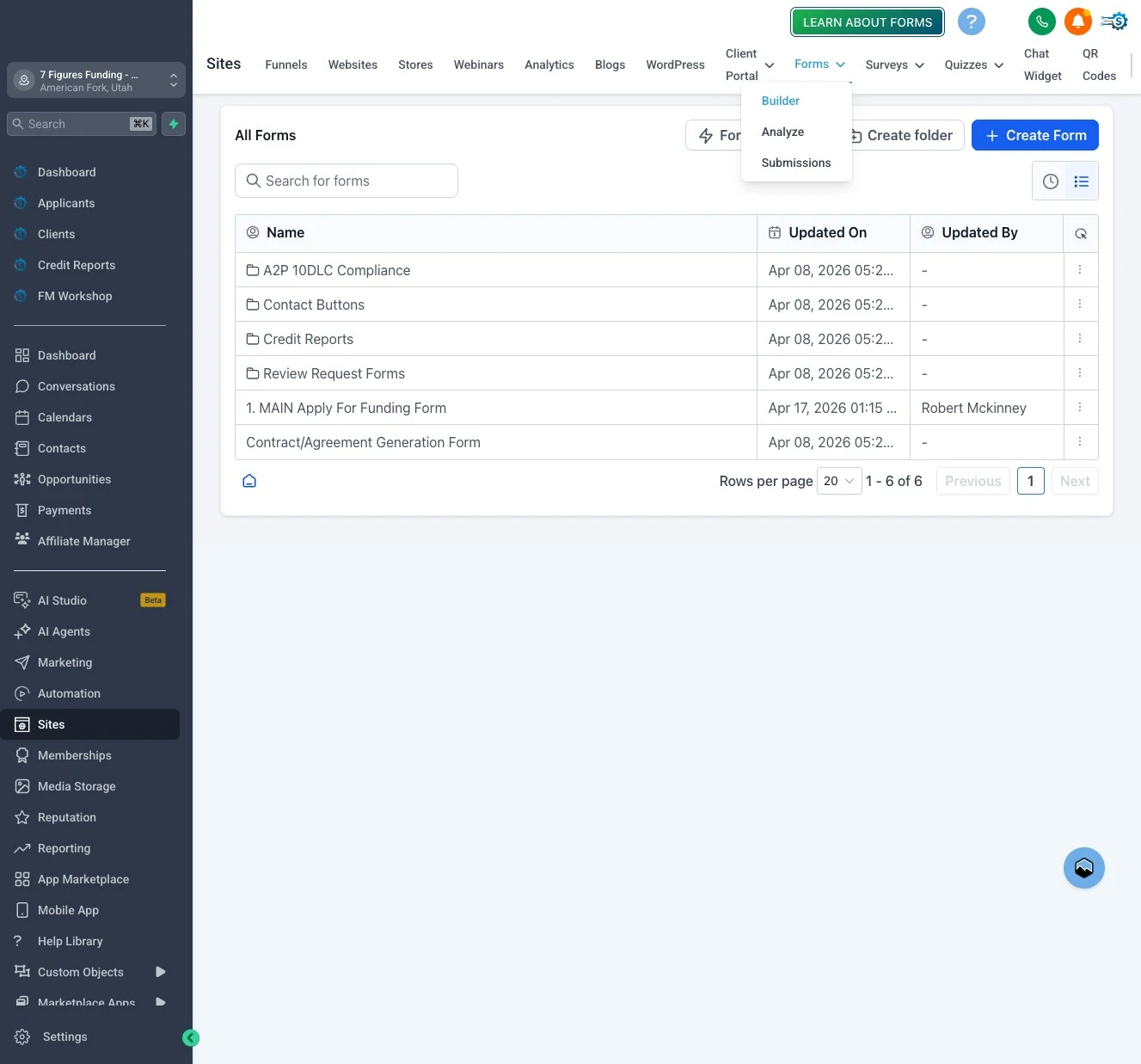 Open **1. MAIN Apply For Funding Form**. This is the pre-built funding application included with your account.
If you've cloned the form to make a custom version, open that one instead — the embed steps are identical.
Open **1. MAIN Apply For Funding Form**. This is the pre-built funding application included with your account.
If you've cloned the form to make a custom version, open that one instead — the embed steps are identical.
 In the form editor, click **Integrate** to open the embed-code panel.
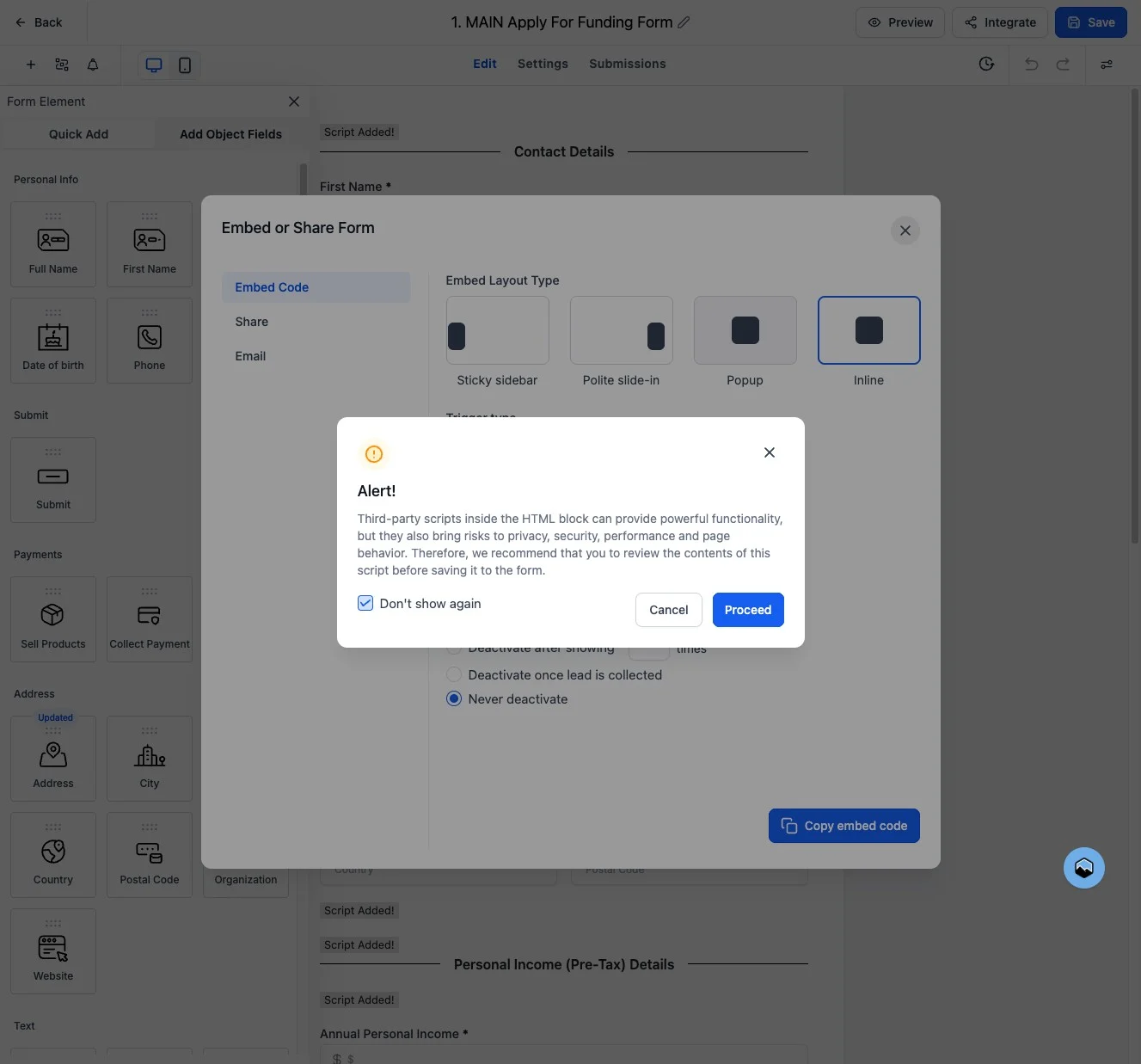
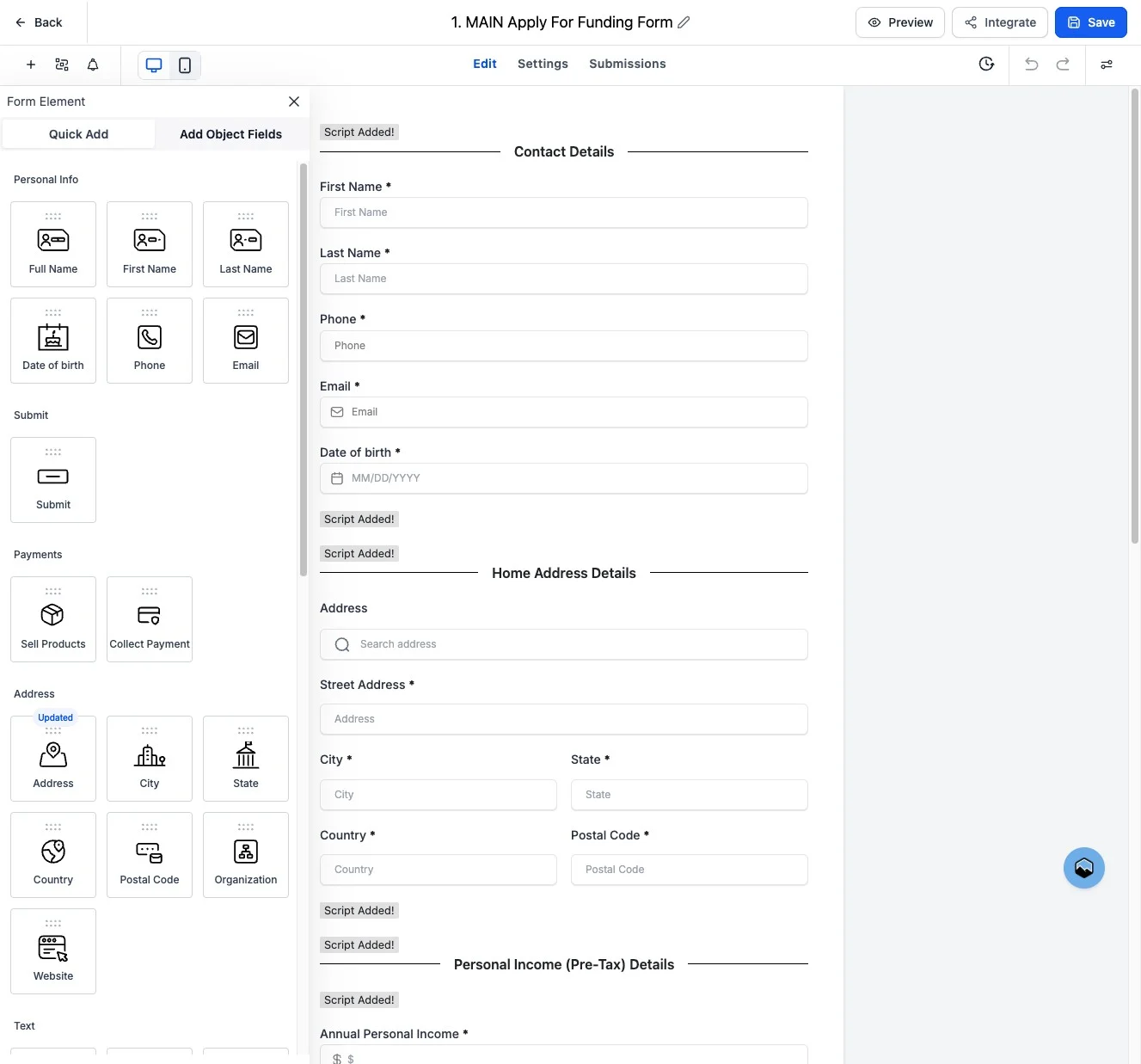 If a tutorial popup appears, click **Don't show again** to dismiss it.
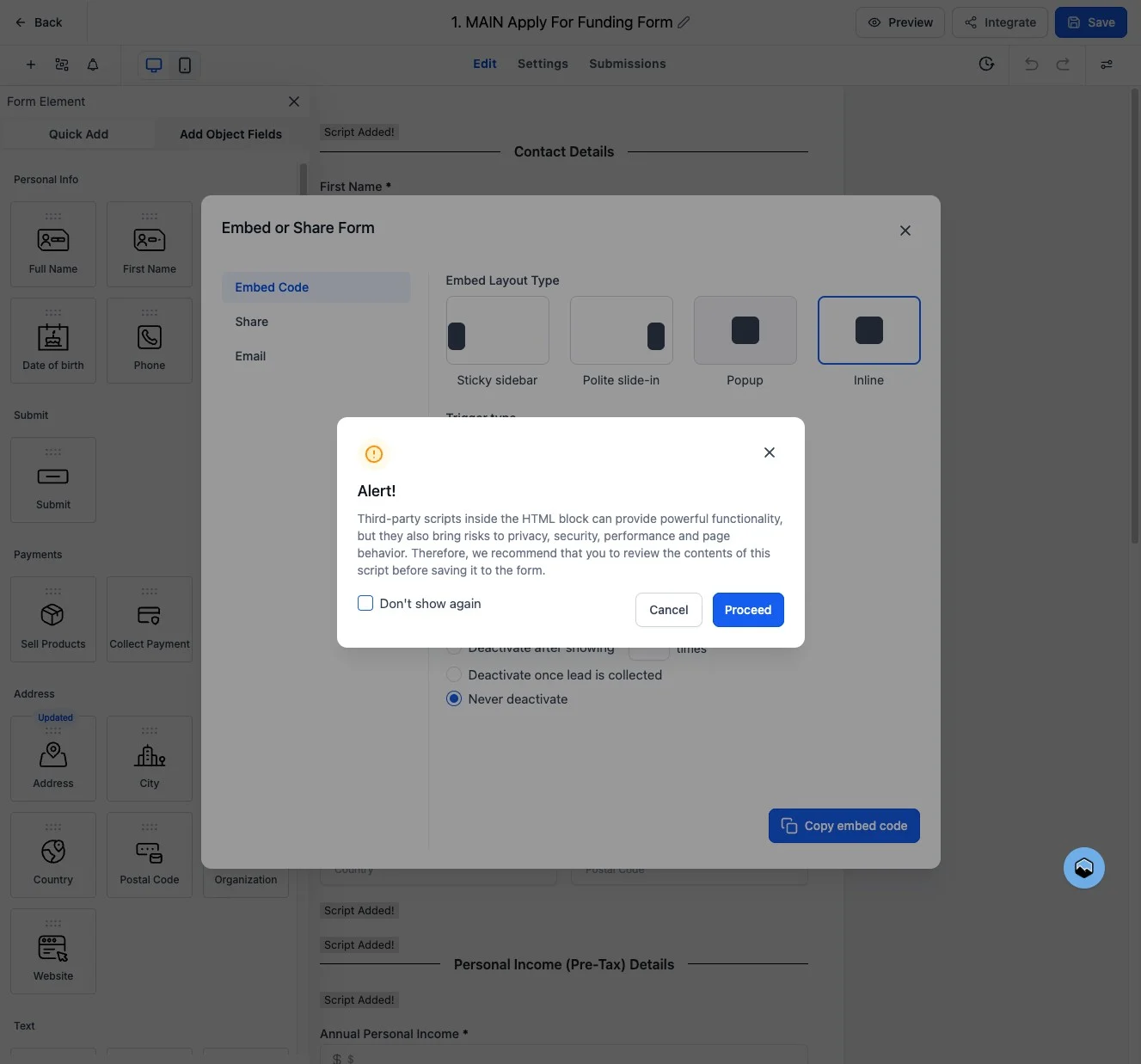 Click **Proceed** to confirm and continue to the embed-code view.
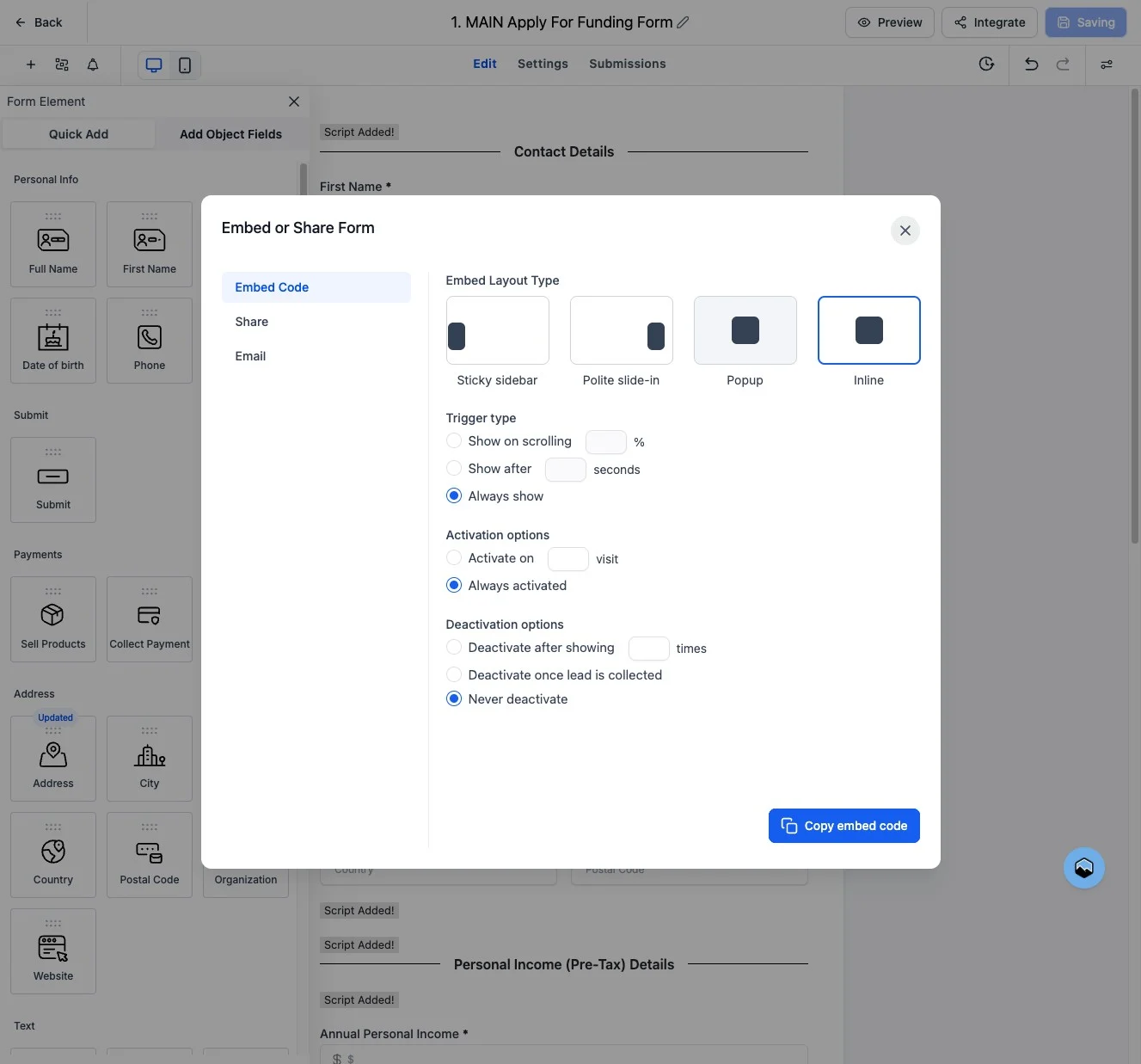
 Click **Copy embed code**. The embed snippet is now on your clipboard — paste it into the HTML/embed block on your website.
 ## Where to Paste the Code
The copied snippet is a small block of HTML/JavaScript. Paste it wherever your site builder accepts custom HTML:
| Builder | Where to paste |
| ----------------------------------- | ------------------------------------------------------------- |
| **WordPress (Block editor)** | Add a **Custom HTML** block and paste the code |
| **WordPress (Classic / Elementor)** | Use an **HTML** widget |
| **Webflow** | Drop in an **Embed** element |
| **Squarespace** | Add a **Code** block |
| **Wix** | Use **Embed → HTML iframe / Custom Code** |
| **Plain HTML site** | Paste between `` tags where you want the form to appear |
Embeds load over HTTPS, so the page hosting the form must also be served over HTTPS. Most modern site builders enforce this automatically.
## Verifying It Works
1. Publish the page on your website.
2. Open the page in an incognito window (so you're testing as a visitor, not logged in to LeadBuilt).
3. Fill out and submit a test application.
4. Check **Applicants** in Funding Machine — your test submission should appear within a minute.
Use an obvious test name like **"Test Test"** so you can find and delete the dummy submission later.
## Tips
* **Don't modify the embed snippet.** The script tag and ID are how LeadBuilt knows which form rendered. Editing them will break submissions.
* **Re-copy after major form changes.** Field changes inside the form editor are picked up automatically, but if you change the form's height or layout settings, copy a fresh embed code.
* **One form, many pages.** The same embed code can live on as many pages as you want — every submission still routes to the same form in LeadBuilt.
## Frequently Asked Questions
Yes. Style changes you make inside the LeadBuilt form builder (colors, fonts, spacing) flow through to every embedded copy automatically. You don't need to re-copy the embed code.
Every submission creates an applicant in your Funding Machine sub-account, just like submissions made directly in LeadBuilt. From there, the standard processing workflow takes over.
Yes. Clone the MAIN form to create variants (different lead sources, A/B tests, partner-specific versions) and copy each one's embed code separately.
Make sure the embed snippet was pasted into a **Custom HTML / Embed** block, not a plain text block. Also verify the page is published, not in draft, and that your site builder hasn't stripped the `
## Where to Paste the Code
The copied snippet is a small block of HTML/JavaScript. Paste it wherever your site builder accepts custom HTML:
| Builder | Where to paste |
| ----------------------------------- | ------------------------------------------------------------- |
| **WordPress (Block editor)** | Add a **Custom HTML** block and paste the code |
| **WordPress (Classic / Elementor)** | Use an **HTML** widget |
| **Webflow** | Drop in an **Embed** element |
| **Squarespace** | Add a **Code** block |
| **Wix** | Use **Embed → HTML iframe / Custom Code** |
| **Plain HTML site** | Paste between `` tags where you want the form to appear |
Embeds load over HTTPS, so the page hosting the form must also be served over HTTPS. Most modern site builders enforce this automatically.
## Verifying It Works
1. Publish the page on your website.
2. Open the page in an incognito window (so you're testing as a visitor, not logged in to LeadBuilt).
3. Fill out and submit a test application.
4. Check **Applicants** in Funding Machine — your test submission should appear within a minute.
Use an obvious test name like **"Test Test"** so you can find and delete the dummy submission later.
## Tips
* **Don't modify the embed snippet.** The script tag and ID are how LeadBuilt knows which form rendered. Editing them will break submissions.
* **Re-copy after major form changes.** Field changes inside the form editor are picked up automatically, but if you change the form's height or layout settings, copy a fresh embed code.
* **One form, many pages.** The same embed code can live on as many pages as you want — every submission still routes to the same form in LeadBuilt.
## Frequently Asked Questions
Yes. Style changes you make inside the LeadBuilt form builder (colors, fonts, spacing) flow through to every embedded copy automatically. You don't need to re-copy the embed code.
Every submission creates an applicant in your Funding Machine sub-account, just like submissions made directly in LeadBuilt. From there, the standard processing workflow takes over.
Yes. Clone the MAIN form to create variants (different lead sources, A/B tests, partner-specific versions) and copy each one's embed code separately.
Make sure the embed snippet was pasted into a **Custom HTML / Embed** block, not a plain text block. Also verify the page is published, not in draft, and that your site builder hasn't stripped the `