> ## Documentation Index
> Fetch the complete documentation index at: https://docs.myfundingmachine.com/llms.txt
> Use this file to discover all available pages before exploring further.
# Enroll a Partner in a Campaign
> Add an existing CRM contact to a partner campaign from Funding Machine, and set a workflow ID override when the naming convention does not apply.
# Enroll a Partner in a Campaign
Enrolling adds a partner's CRM contact to your campaign's enrollment workflow, which creates the affiliate enrollment and generates their referral link. It is admin-only and requires the partner to already have a CRM contact — Funding Machine does not create contacts, and for brand-new partners a [sign-up link](/operators/partners/referral-links) is usually the better route.
## Step-by-Step
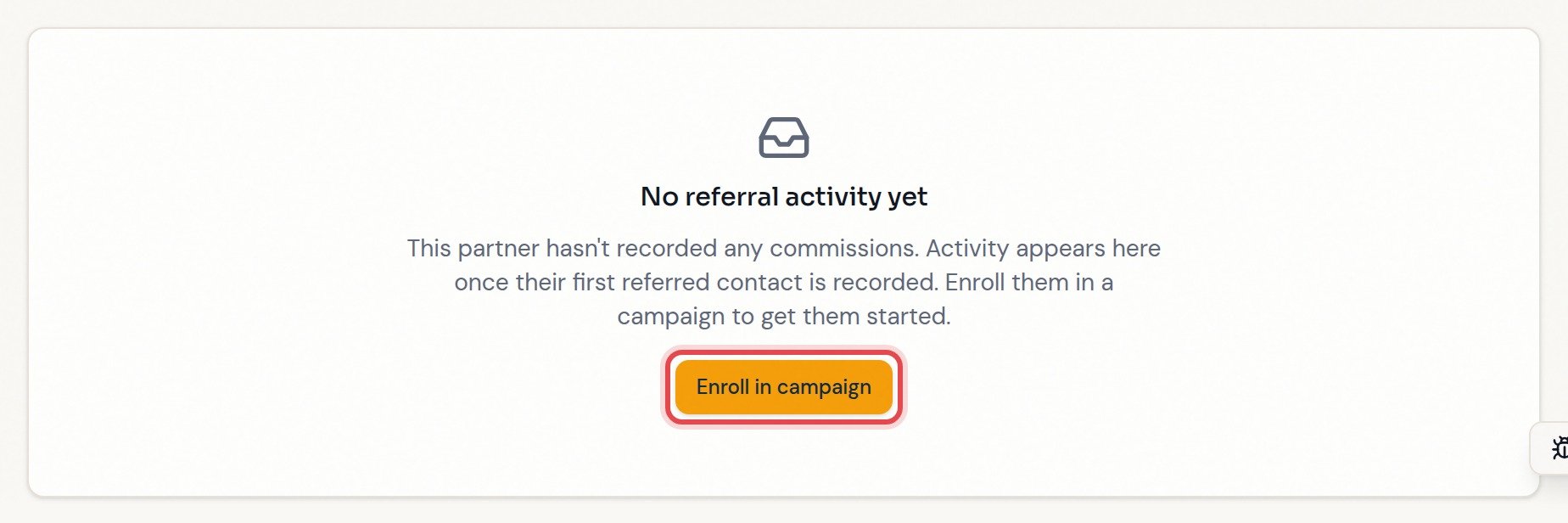
A partner with no commissions shows **No referral activity yet** with an **Enroll in campaign** shortcut. For an active partner, open their **Settings** tab directly.
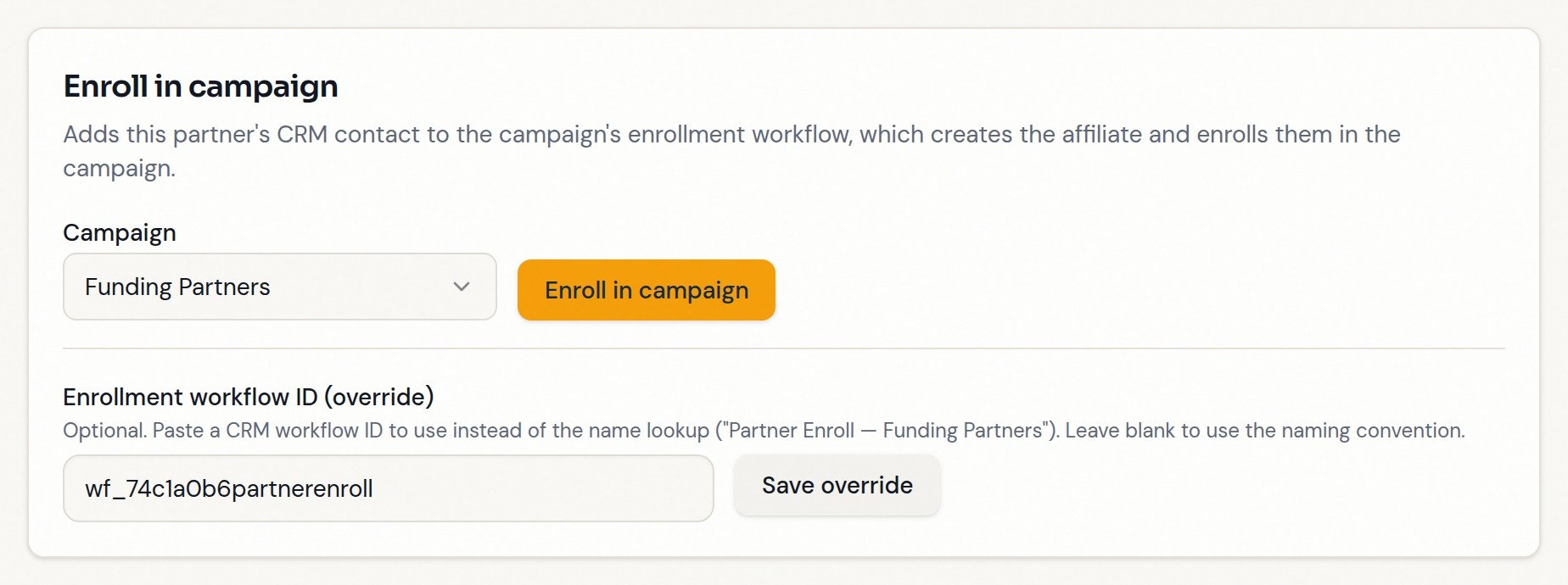
 It holds the campaign picker, the enroll button, and the optional workflow ID override.
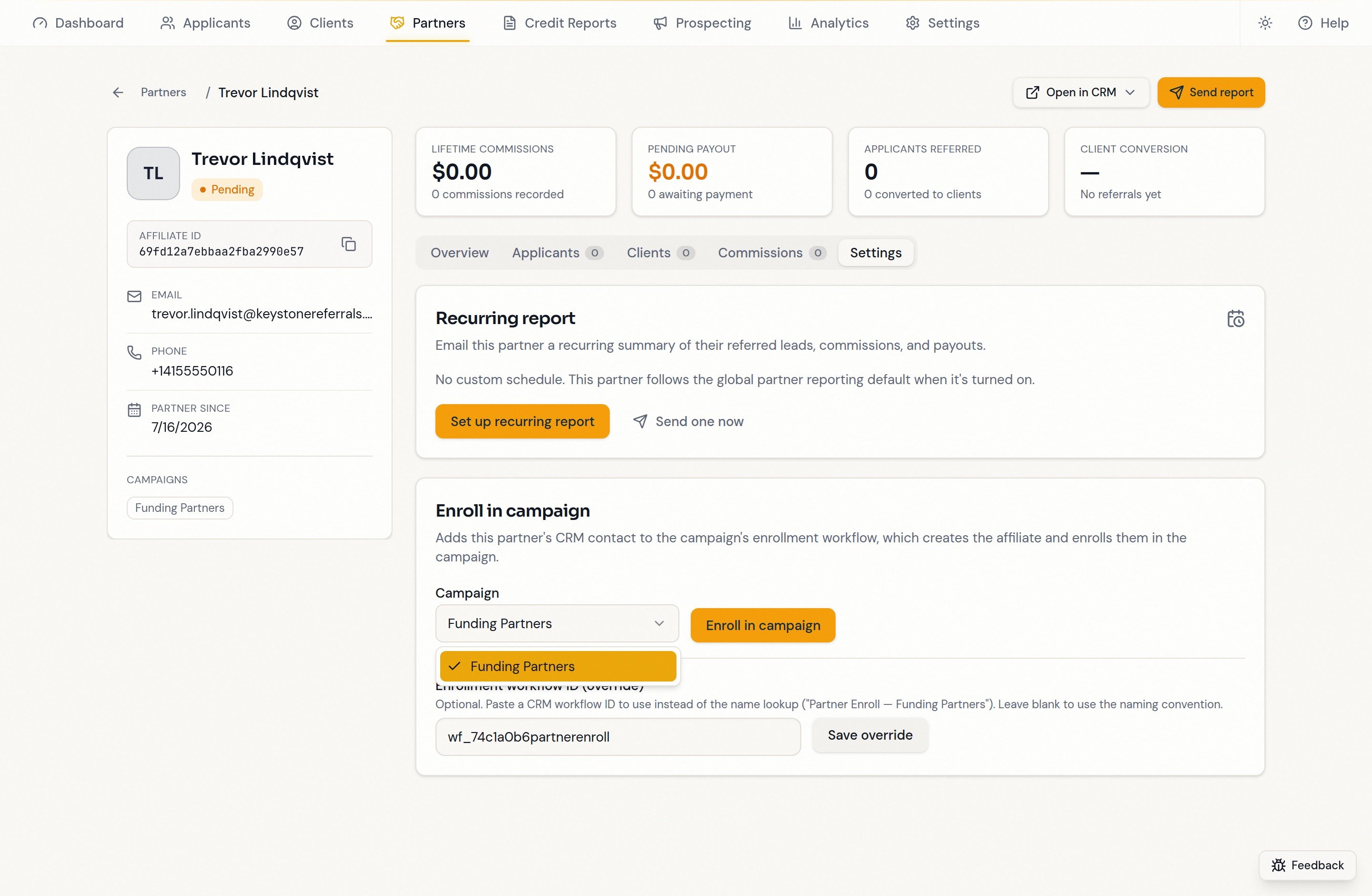
 Only campaigns synced from your CRM appear.
 Enrollment is not instant: your CRM workflow creates the affiliate record, and the referral code arrives on the next sync. Wait, then click **Refresh from CRM** on the Partners page.
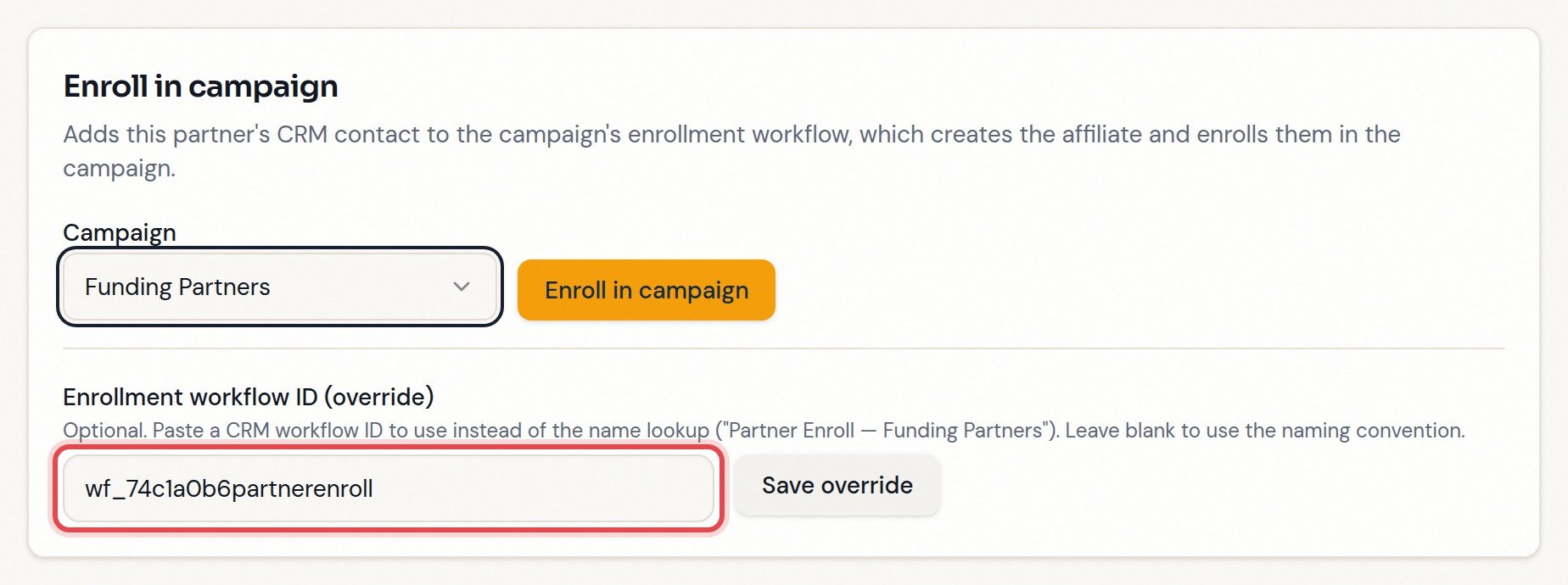
By default Funding Machine looks for a published workflow named `Partner Enroll — {Campaign Name}` (exact em dash `—`, not a hyphen). If yours is named differently, paste its workflow ID and click **Save override**. Blank goes back to name lookup; the override survives syncs. Use it only with a verified workflow ID — a wrong one enrolls into the wrong automation or fails silently.
Enrollment is not instant: your CRM workflow creates the affiliate record, and the referral code arrives on the next sync. Wait, then click **Refresh from CRM** on the Partners page.
By default Funding Machine looks for a published workflow named `Partner Enroll — {Campaign Name}` (exact em dash `—`, not a hyphen). If yours is named differently, paste its workflow ID and click **Save override**. Blank goes back to name lookup; the override survives syncs. Use it only with a verified workflow ID — a wrong one enrolls into the wrong automation or fails silently.
 ## Why enrollment works this way
The CRM's Affiliate Manager does not accept new affiliates through its connected-app interface, so Funding Machine uses the one supported path: adding a contact to a workflow you have already built and published. That is why enrollment is eventually consistent, and why the workflow must be published before you enroll anyone.
## If "Enroll in campaign" is greyed out
The card names the cause:
* **"No campaigns synced for this location yet."** No campaign data has reached Funding Machine. Confirm the campaign is published in your CRM, then **Refresh from CRM**. If no campaign exists yet, complete [Getting started](/operators/partners/getting-started#step-1-domain-and-campaign).
* **"This partner has no linked CRM contact, so they can't be enrolled from here."** The affiliate reached Funding Machine without a contact attached — usually one typed straight into Affiliate Manager instead of imported from a contact. Nothing on this page can attach one. What to do next depends on the affiliate's history:
* **No activity and no partner-specific settings** (e.g. a test partner): confirm first that there is no custom report schedule and no manual referral-link override, then in **Affiliate Manager → Affiliates**, delete the unlinked affiliate and re-add the person with **Add → Import from Contacts**, then **Refresh from CRM**.
* **Anything else: do not delete it.** See the warning below; raise it with support.
**Never delete an affiliate that has campaign, commission, payout, or referral activity, a custom report schedule, or a manual referral-link override.** All of it stays keyed to the original affiliate record: re-importing the contact creates a *second* affiliate identity, splits the partner's history across the two, and strands per-partner schedules and link overrides on the old one. Adding the contact to your enrollment workflow instead *may* avoid the split, but only if your workflow attaches contacts to existing affiliates — confirm that in your CRM, or raise it with support.
## FAQ
No published workflow matches `Partner Enroll — {Campaign Name}` and no override is set. Create and publish the workflow, or paste its ID into the override field.
Expected in the first minutes — the CRM workflow runs, then the next sync brings the result here. **Refresh from CRM** pulls immediately.
No campaign has reached this account yet. Expand **Setup & health** on the Partners page and confirm your application domain — Funding Machine then creates the *Funding Partners* campaign as a draft in your CRM. Publish the draft, then click **Refresh from CRM**. See [Getting Started](/operators/partners/getting-started#step-1-domain-and-campaign).
## Why enrollment works this way
The CRM's Affiliate Manager does not accept new affiliates through its connected-app interface, so Funding Machine uses the one supported path: adding a contact to a workflow you have already built and published. That is why enrollment is eventually consistent, and why the workflow must be published before you enroll anyone.
## If "Enroll in campaign" is greyed out
The card names the cause:
* **"No campaigns synced for this location yet."** No campaign data has reached Funding Machine. Confirm the campaign is published in your CRM, then **Refresh from CRM**. If no campaign exists yet, complete [Getting started](/operators/partners/getting-started#step-1-domain-and-campaign).
* **"This partner has no linked CRM contact, so they can't be enrolled from here."** The affiliate reached Funding Machine without a contact attached — usually one typed straight into Affiliate Manager instead of imported from a contact. Nothing on this page can attach one. What to do next depends on the affiliate's history:
* **No activity and no partner-specific settings** (e.g. a test partner): confirm first that there is no custom report schedule and no manual referral-link override, then in **Affiliate Manager → Affiliates**, delete the unlinked affiliate and re-add the person with **Add → Import from Contacts**, then **Refresh from CRM**.
* **Anything else: do not delete it.** See the warning below; raise it with support.
**Never delete an affiliate that has campaign, commission, payout, or referral activity, a custom report schedule, or a manual referral-link override.** All of it stays keyed to the original affiliate record: re-importing the contact creates a *second* affiliate identity, splits the partner's history across the two, and strands per-partner schedules and link overrides on the old one. Adding the contact to your enrollment workflow instead *may* avoid the split, but only if your workflow attaches contacts to existing affiliates — confirm that in your CRM, or raise it with support.
## FAQ
No published workflow matches `Partner Enroll — {Campaign Name}` and no override is set. Create and publish the workflow, or paste its ID into the override field.
Expected in the first minutes — the CRM workflow runs, then the next sync brings the result here. **Refresh from CRM** pulls immediately.
No campaign has reached this account yet. Expand **Setup & health** on the Partners page and confirm your application domain — Funding Machine then creates the *Funding Partners* campaign as a draft in your CRM. Publish the draft, then click **Refresh from CRM**. See [Getting Started](/operators/partners/getting-started#step-1-domain-and-campaign).