> ## Documentation Index
> Fetch the complete documentation index at: https://docs.myfundingmachine.com/llms.txt
> Use this file to discover all available pages before exploring further.
# Get Started with Partners
> One-time setup: confirm your application domain, let Funding Machine create the campaign, automate partner signup, and test a partner.
# Get Started with Partners
Setup is two steps in **Setup & health**, done once: confirm your application domain (Funding Machine then creates the *Funding Partners* campaign for you), then automate partner signup. There is no separate login — opening Funding Machine from your CRM signs you in.
## Step 1: Domain and campaign
Every partner referral link lands on your **Apply for Funding** funnel, so Funding Machine needs that funnel served from a domain connected in your CRM before it can create the campaign.
In **Setup & health**, check what **Connect your application domain** reports. Any subdomain attached to the Apply for Funding funnel works. After attaching one, click **Re-check domain** rather than waiting.
Once the domain is confirmed, the same step offers **Create the Funding Partners campaign**, with funnel and commission settings prefilled.
The campaign arrives as a draft. Open **Marketing → Affiliate Manager → Campaigns**, check the reward, and publish. Partners can't enroll or get attributed links until it is live.
**Do not add a second *Funding Partners* campaign by hand.** Duplicates cannot be deleted through the CRM's API, and partners enrolled in the wrong one get links that attribute nowhere useful.
*Could not be confirmed* means the check failed on our side — nothing to change in your CRM; retry, then contact support. *Connect a domain* means the funnel genuinely has no domain attached.
## Step 2: Automate partner signup
Each campaign needs a published CRM enrollment workflow named `Partner Enroll — [Campaign Name]` that adds the contact as an affiliate and enrolls them in the matching campaign (see [Enroll a Partner](/operators/partners/enroll-a-partner) for overrides). **Setup & health** cannot verify the workflow exists — the [test below](#test-a-partner) does.
Selecting the sign-up form is optional if you add every partner by hand in your CRM. The enrollment workflow itself is required for **Enroll in campaign** and for attributed sign-up assets.
## Step-by-Step
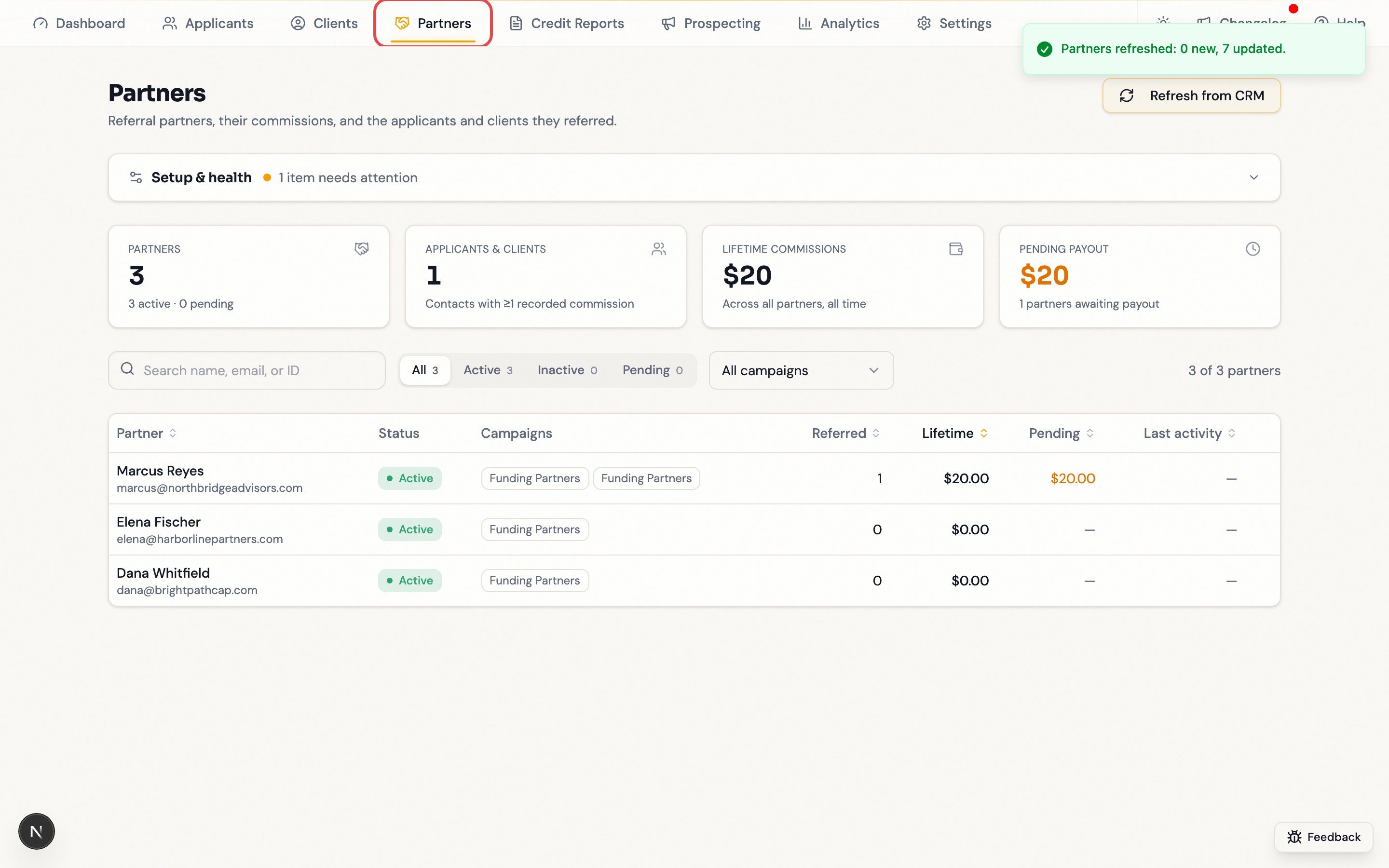 **Setup & health** sits under the header, then four account totals, then the partner table. Anything urgent appears as a banner on top.
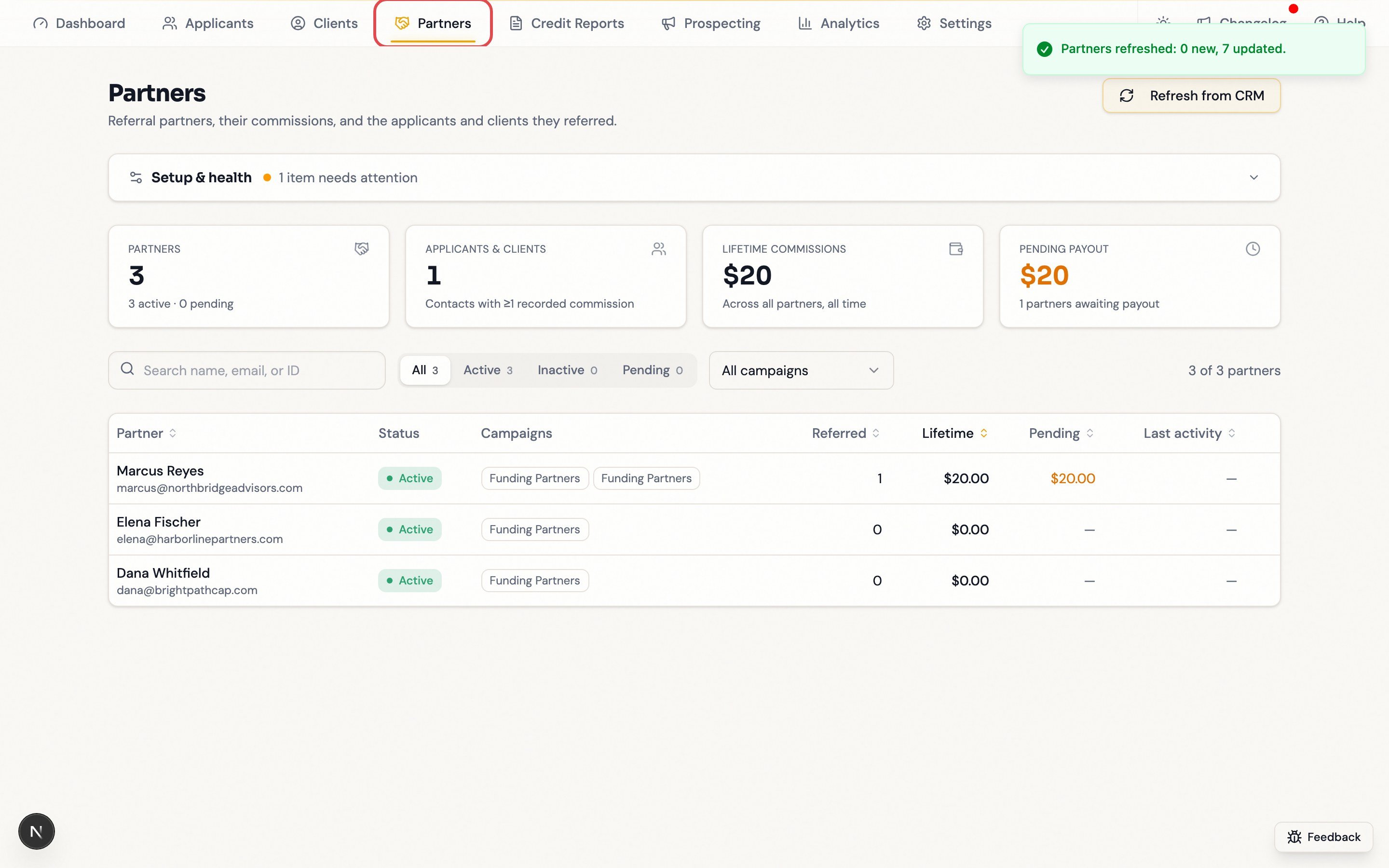 The collapsed row summarizes where you stand: *All set* with the last sync time, or a named action.
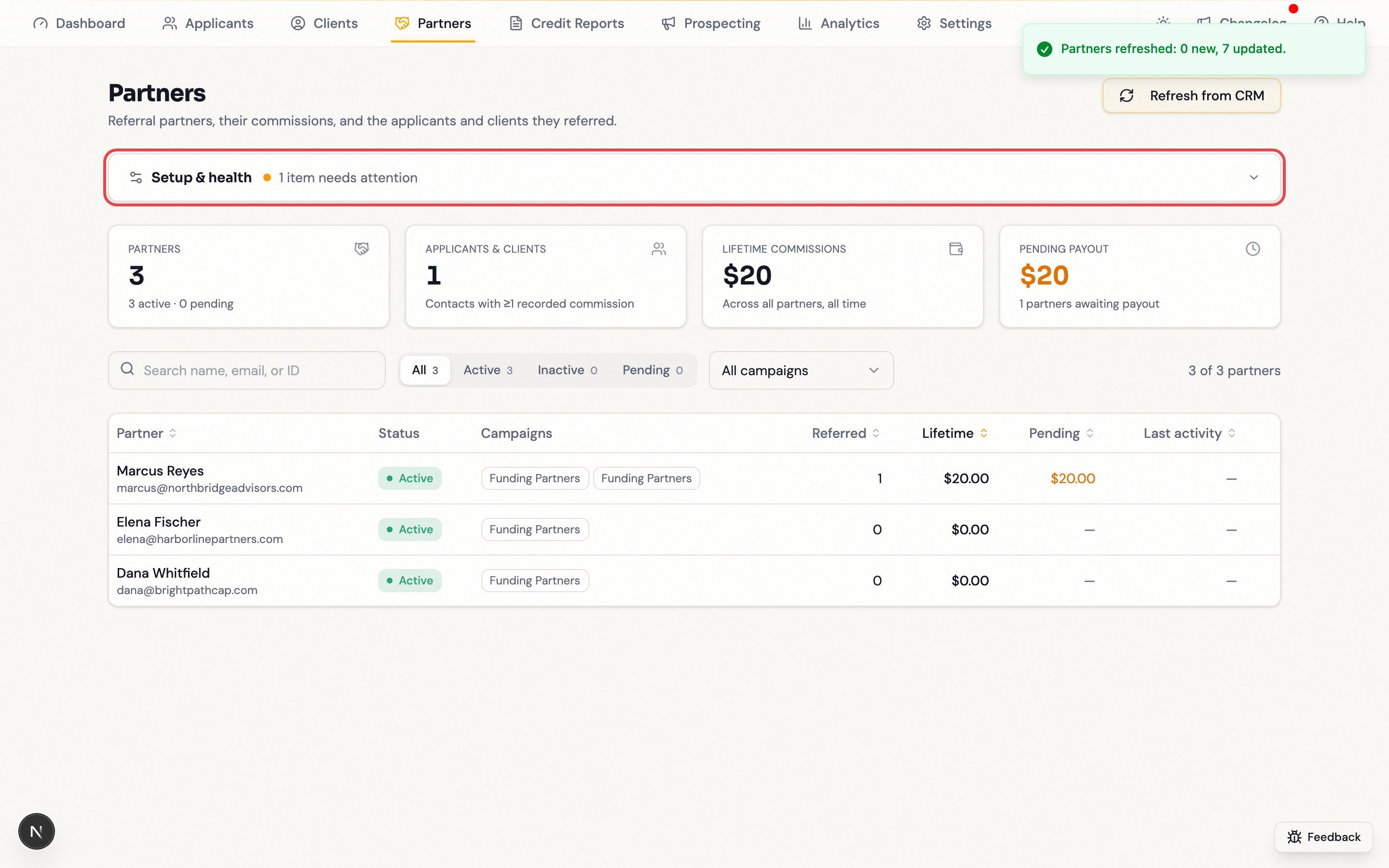 **Health** reports cached data, last sync, and whether commissions carry the referred-contact link. Fix amber warnings at the source in your CRM, then refresh. If **Lead linking** reads `No cached commission carries a referred contact id`, contact support — no referrals will link until it's resolved.
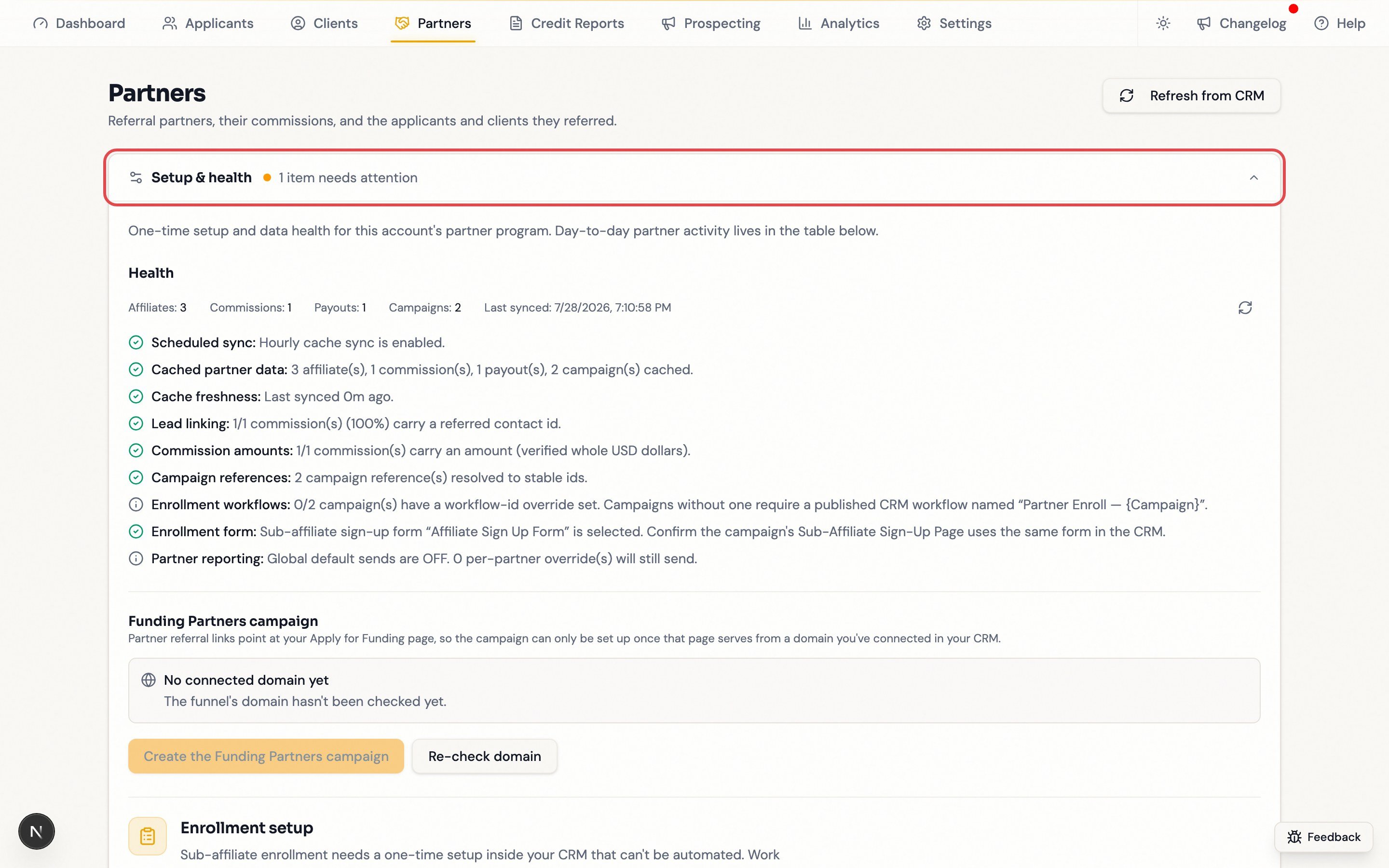 Scroll to step 2, **Automate partner signup**. Entries marked **Do this in your CRM** must be done there. The last entry is done here: pick the sign-up form your campaign's **Sub-Affiliate Sign-Up Page** uses.
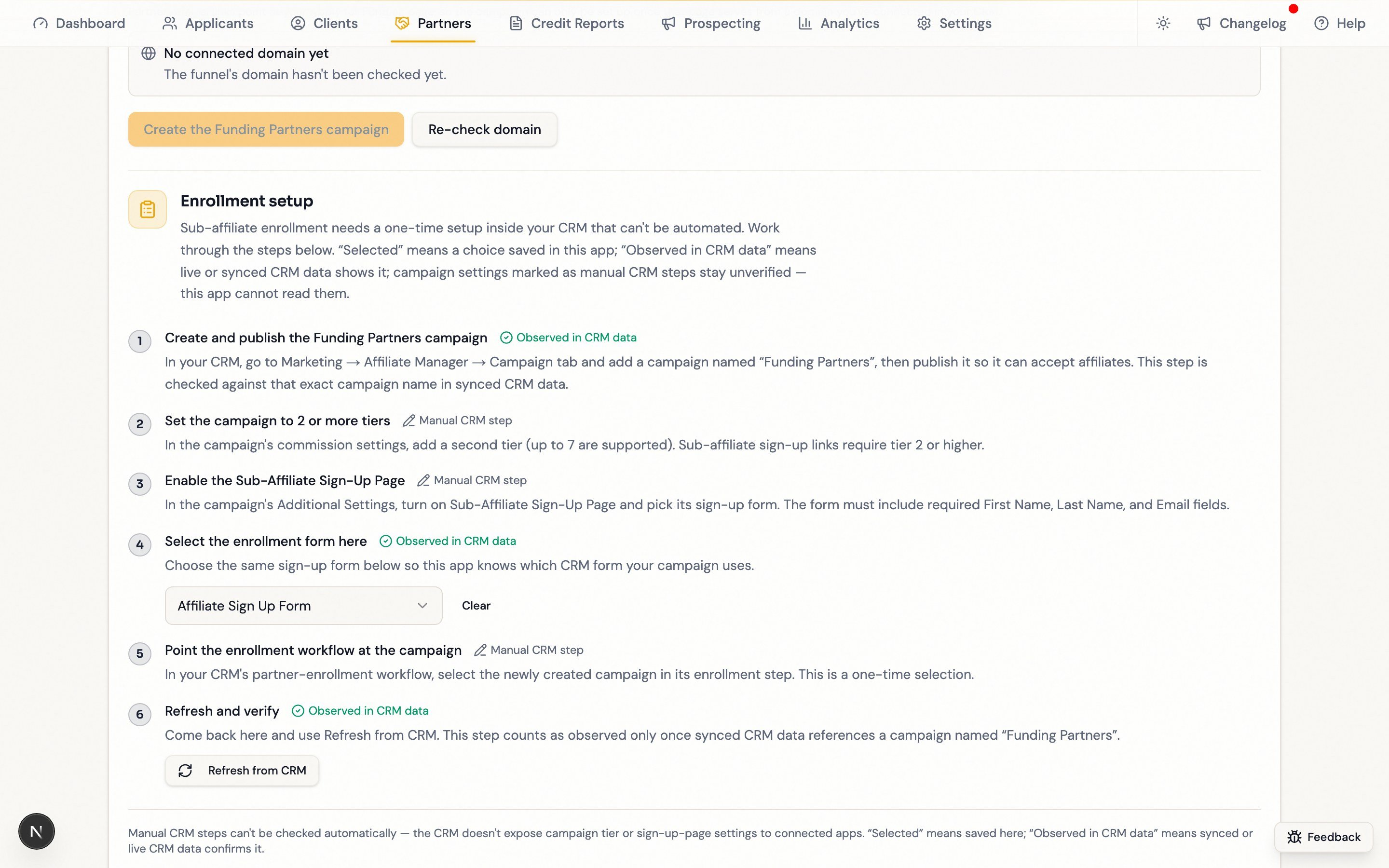 **Match the form exactly.** Pick the wrong form and every attributed sign-up link points at the wrong place. Check the campaign's **Additional Settings → Sub-Affiliate Sign-Up Page** in your CRM.
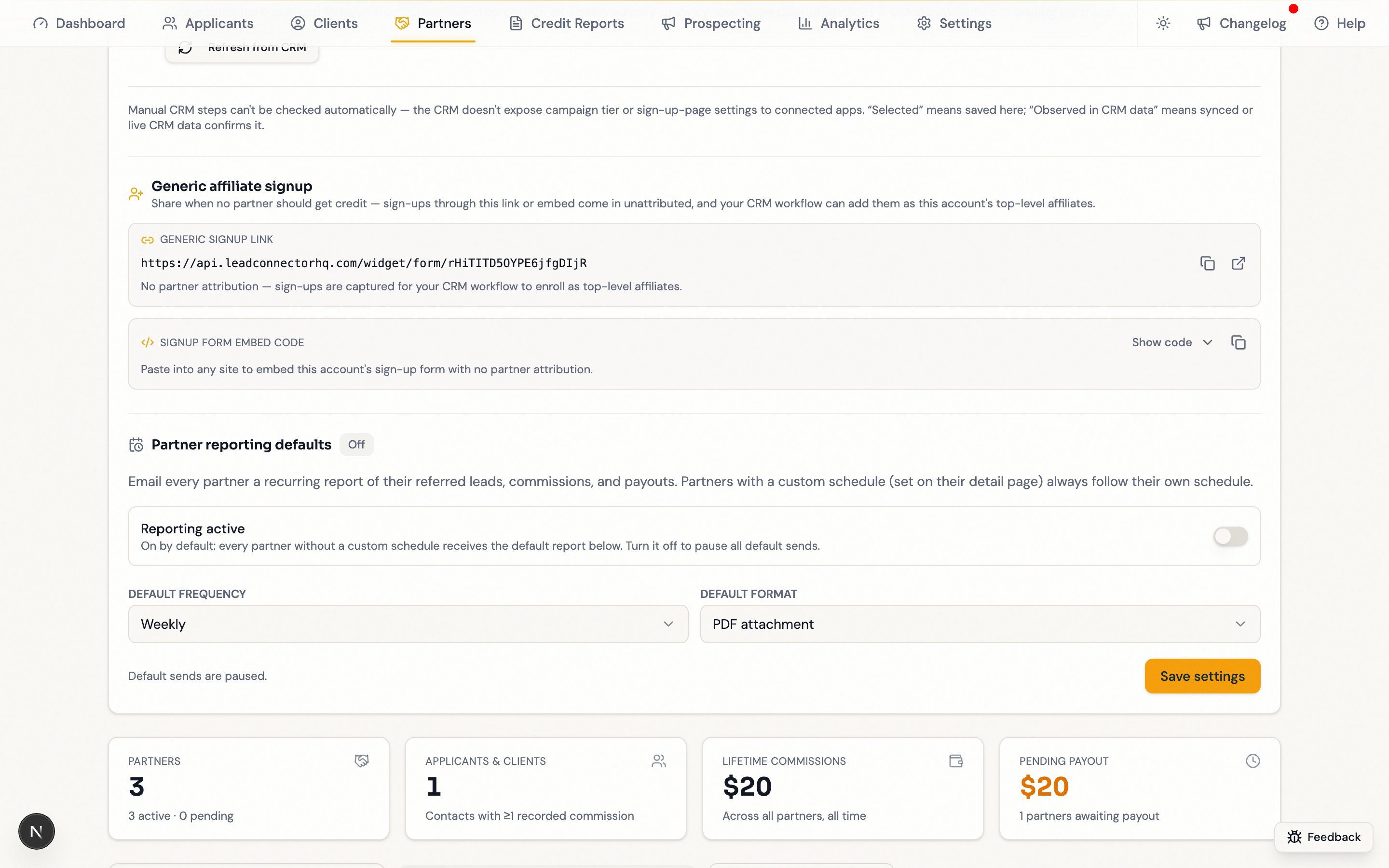
Pulls partners, commissions, and payouts immediately. Sync otherwise runs about hourly.
**Match the form exactly.** Pick the wrong form and every attributed sign-up link points at the wrong place. Check the campaign's **Additional Settings → Sub-Affiliate Sign-Up Page** in your CRM.
Pulls partners, commissions, and payouts immediately. Sync otherwise runs about hourly.
 ## Test a partner
Start in your CRM: the partner table only lists people who exist as affiliates there, and enrollment only works for an affiliate **built from a CRM contact**. An affiliate typed straight into Affiliate Manager can arrive with no linked contact and a disabled enroll control.
In **Contacts**, create something like *Test Partner (QA)* with an email your team controls. Do not use a team member's or a client's personal information.
In **Marketing → Affiliate Manager → Affiliates**, choose **Add → Import from Contacts** and import it. Do **not** use **New Affiliate** or **Upload Affiliate** — neither starts from a contact. (Submitting through the **Generic signup link** also works if your CRM workflow converts sign-ups into affiliates.)
Back in **Partners**, click **Refresh from CRM**. The test partner appears once sync picks it up.
Open the partner and check **Open in CRM** offers **Contact record**. If it's missing, the partner has no linked contact — see [Enroll a Partner](/operators/partners/enroll-a-partner#if-enroll-in-campaign-is-greyed-out) before going further.
On **Settings**, pick the campaign and click **Enroll in campaign** (admin-only). This confirms your `Partner Enroll — {Campaign Name}` workflow can be found.
Your CRM workflow creates the enrollment; it is not instant.
The **Overview** tab should show a referral link and attributed signup assets. Submit one synthetic lead through the attributed signup link and confirm it appears under the partner after the CRM records the commission.
## Generic signup assets
**Generic affiliate signup** (inside **Setup & health**) recruits partners when no existing partner should get credit: an unattributed signup link and an embed code. Your CRM workflow turns those sign-ups into top-level affiliates. For a referral that should credit a specific partner, use that partner's [attributed assets](/operators/partners/referral-links) instead.
## You are set up when
* [ ] **Setup & health** reads *All set* with a last-sync time
* [ ] **Enrollment form** shows your campaign's sign-up form
* [ ] The campaign is published with 2+ tiers (sub-affiliate signup links only work from tier 2 up)
* [ ] The test partner appears, shows **Contact record** under **Open in CRM**, enrolls, and gets a referral link
* [ ] A test lead through the attributed link lands under the right partner
Do the CRM-side steps first, refresh after every CRM change, and note amounts are whole dollars exactly as your CRM shows them. If anything fails, see [Troubleshooting](/operators/partners/troubleshooting).
## Test a partner
Start in your CRM: the partner table only lists people who exist as affiliates there, and enrollment only works for an affiliate **built from a CRM contact**. An affiliate typed straight into Affiliate Manager can arrive with no linked contact and a disabled enroll control.
In **Contacts**, create something like *Test Partner (QA)* with an email your team controls. Do not use a team member's or a client's personal information.
In **Marketing → Affiliate Manager → Affiliates**, choose **Add → Import from Contacts** and import it. Do **not** use **New Affiliate** or **Upload Affiliate** — neither starts from a contact. (Submitting through the **Generic signup link** also works if your CRM workflow converts sign-ups into affiliates.)
Back in **Partners**, click **Refresh from CRM**. The test partner appears once sync picks it up.
Open the partner and check **Open in CRM** offers **Contact record**. If it's missing, the partner has no linked contact — see [Enroll a Partner](/operators/partners/enroll-a-partner#if-enroll-in-campaign-is-greyed-out) before going further.
On **Settings**, pick the campaign and click **Enroll in campaign** (admin-only). This confirms your `Partner Enroll — {Campaign Name}` workflow can be found.
Your CRM workflow creates the enrollment; it is not instant.
The **Overview** tab should show a referral link and attributed signup assets. Submit one synthetic lead through the attributed signup link and confirm it appears under the partner after the CRM records the commission.
## Generic signup assets
**Generic affiliate signup** (inside **Setup & health**) recruits partners when no existing partner should get credit: an unattributed signup link and an embed code. Your CRM workflow turns those sign-ups into top-level affiliates. For a referral that should credit a specific partner, use that partner's [attributed assets](/operators/partners/referral-links) instead.
## You are set up when
* [ ] **Setup & health** reads *All set* with a last-sync time
* [ ] **Enrollment form** shows your campaign's sign-up form
* [ ] The campaign is published with 2+ tiers (sub-affiliate signup links only work from tier 2 up)
* [ ] The test partner appears, shows **Contact record** under **Open in CRM**, enrolls, and gets a referral link
* [ ] A test lead through the attributed link lands under the right partner
Do the CRM-side steps first, refresh after every CRM change, and note amounts are whole dollars exactly as your CRM shows them. If anything fails, see [Troubleshooting](/operators/partners/troubleshooting).