> ## Documentation Index
> Fetch the complete documentation index at: https://docs.myfundingmachine.com/llms.txt
> Use this file to discover all available pages before exploring further.
# Partners Overview
> What the Partners workspace is, how it relates to the CRM's Affiliate Manager, and where every partner task is documented.
# Partners Overview
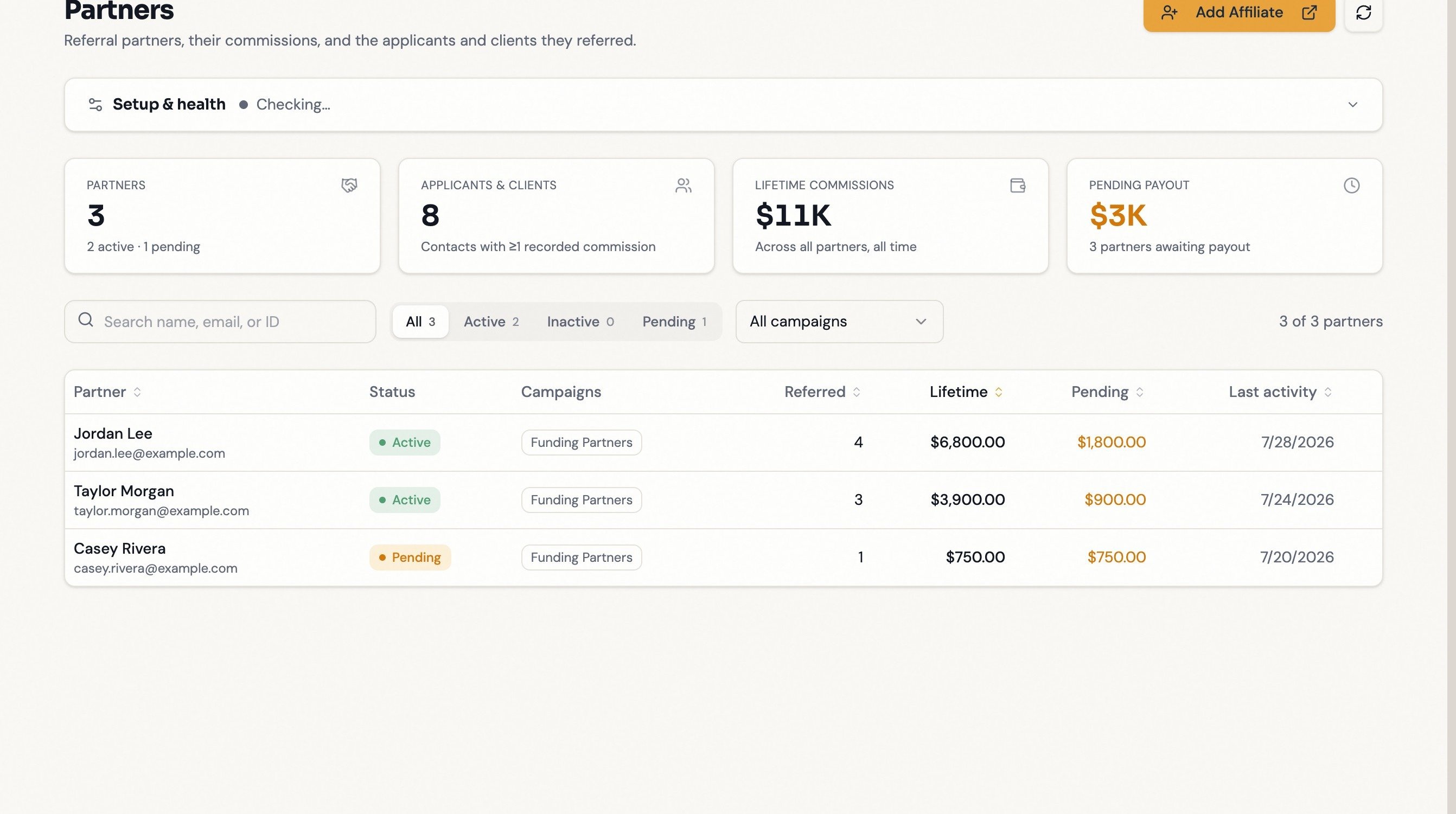
**Partners** in the Funding Machine top navigation shows your referral partners next to the applicants and clients they referred: who is sending you business, what they have earned, and which referrals funded.
Partners and "affiliates" are the same people, on two screens:
* The CRM's **[Affiliate Manager](/operators/affiliates/index)** is the source of record. Partners are stored there as *affiliates*, and that is where you manage campaigns, partner records, commission rules, payouts, the portal, media, and settings.
* **Partners** (this workspace) reads that data hourly and joins it to your applicants, clients, and funding results. It also owns report schedules, one-time report sends, and manual referral-link overrides, and it can create the required **Funding Partners** campaign for you.
When a CRM menu or screenshot says **Affiliate**, it means the same partner. These docs say "partner" for the person and keep **Affiliate Manager** for the CRM feature. Don't confuse this workspace with **Prospecting** partners, who buy leads — different records, different billing.
Referral partners never log in here — Partners is internal to your team. Operators can view every partner; **Setup & health**, report scheduling, one-time sends, and the referral-link override are admin-only. If you don't see **Setup & health**, nothing is broken — it doesn't render for ordinary operators.
## The four things you'll do here
| Task | Where |
| ---------------------------------------------------------------------- | ---------------------------------------------------------------------------------------------------------------- |
| Complete one-time setup | [Getting started](/operators/partners/getting-started) |
| Find a partner and read their referrals, funnel, and commission ledger | [Partner directory](/operators/partners/partner-directory), [Partner record](/operators/partners/partner-record) |
| Share referral links and sign-up embeds | [Referral links](/operators/partners/referral-links) |
| Email partners their performance reports | [Partner reports](/operators/partners/partner-reports) |
Everything else — creating partners, campaigns, commission rates, payouts — is administered in the CRM. See the [Affiliate Manager guides](/operators/affiliates/index).
## How the data gets here
Funding Machine syncs partners, campaigns, commissions, and payouts from your CRM about once an hour (**Refresh from CRM** pulls immediately). Each commission names the contact it was earned on; Funding Machine matches that contact to your pipeline and shows the stage, decision, credit score, and funded amount on the partner's record.
A referred contact appears under a partner only **after their first commission record exists in the CRM** — even if the contact is already in your pipeline. This is the most common "referrals are missing" cause. See [Troubleshooting](/operators/partners/troubleshooting).
## Touring a partner record
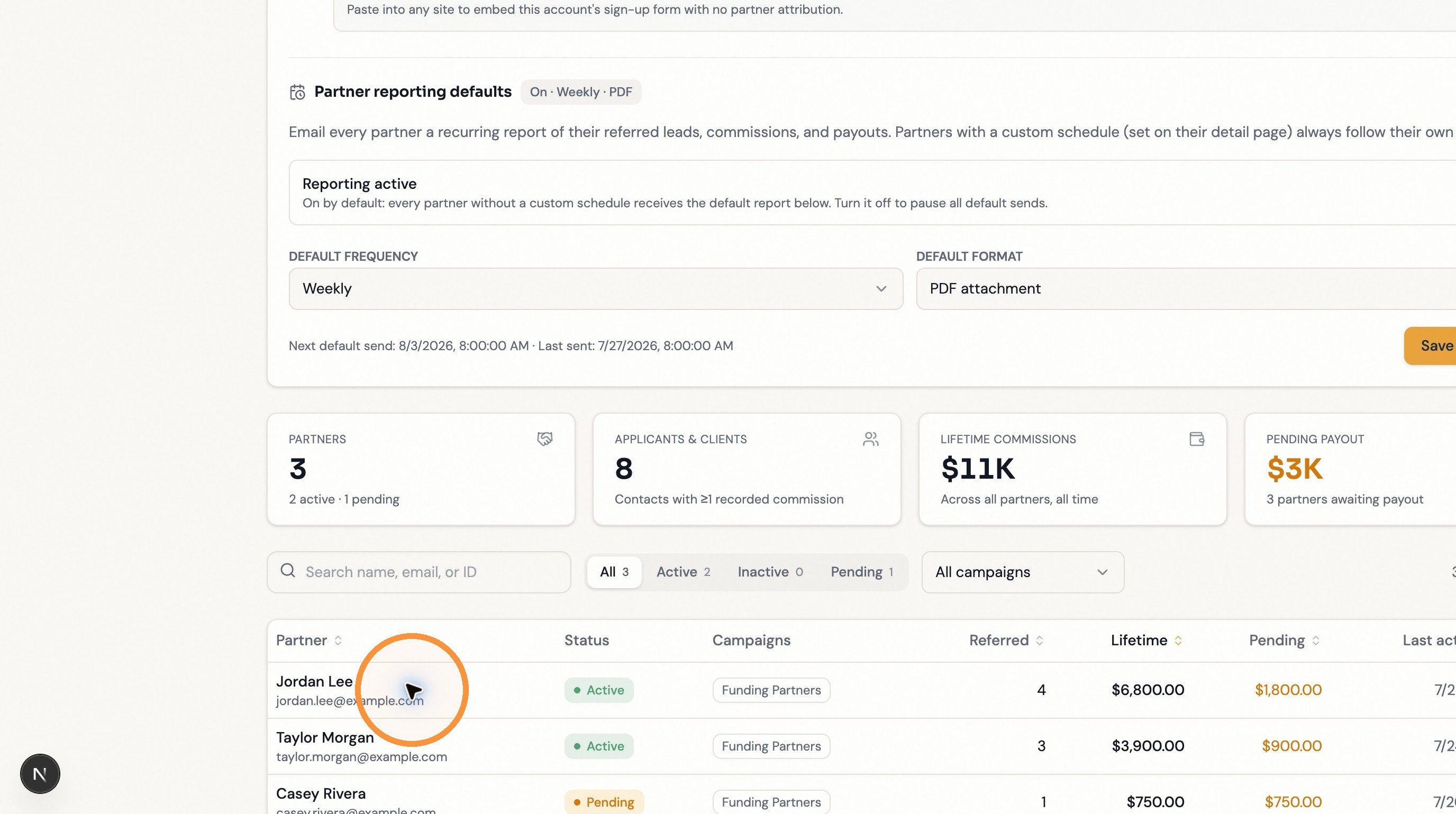
The workspace opens with four account-wide totals and your searchable partner table. Admins also see the **Setup & health** row, which reports the last sync and whether commissions carry the referred-contact link.
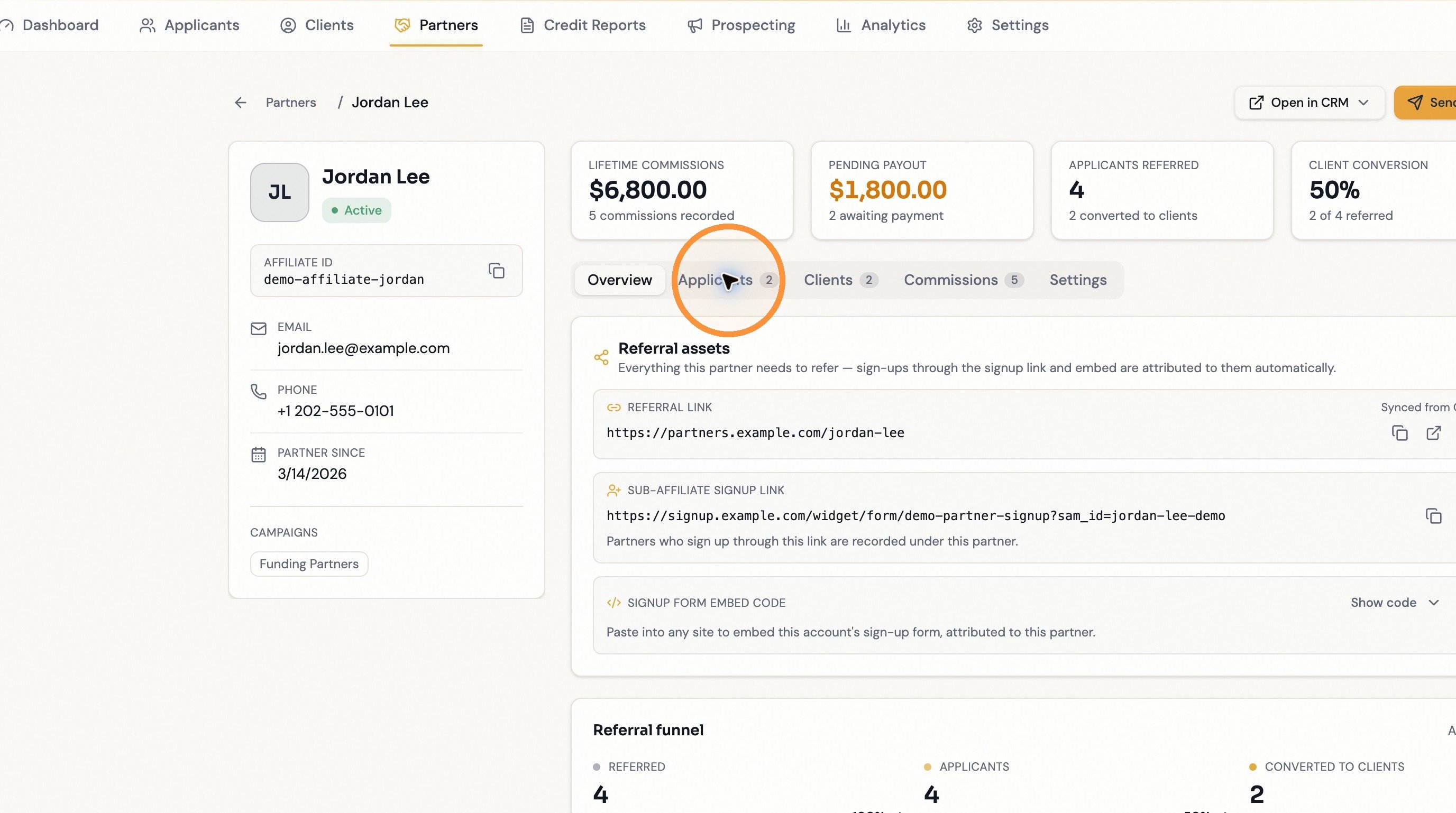
 Their record opens: identity on the left, performance KPIs on top, tabs below.
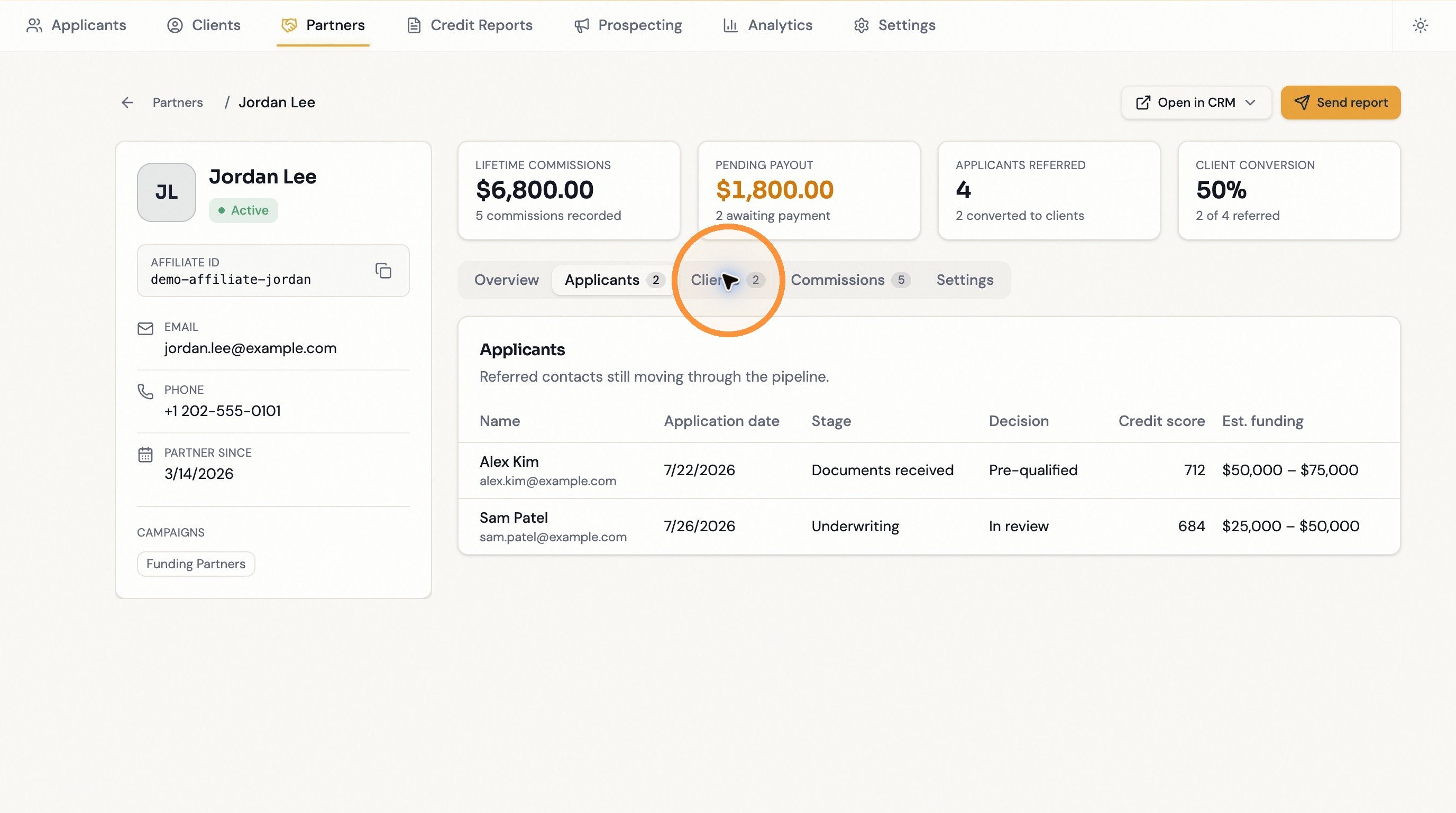
 Referred contacts still moving through your pipeline, with stage, decision, credit score, and estimated funding.
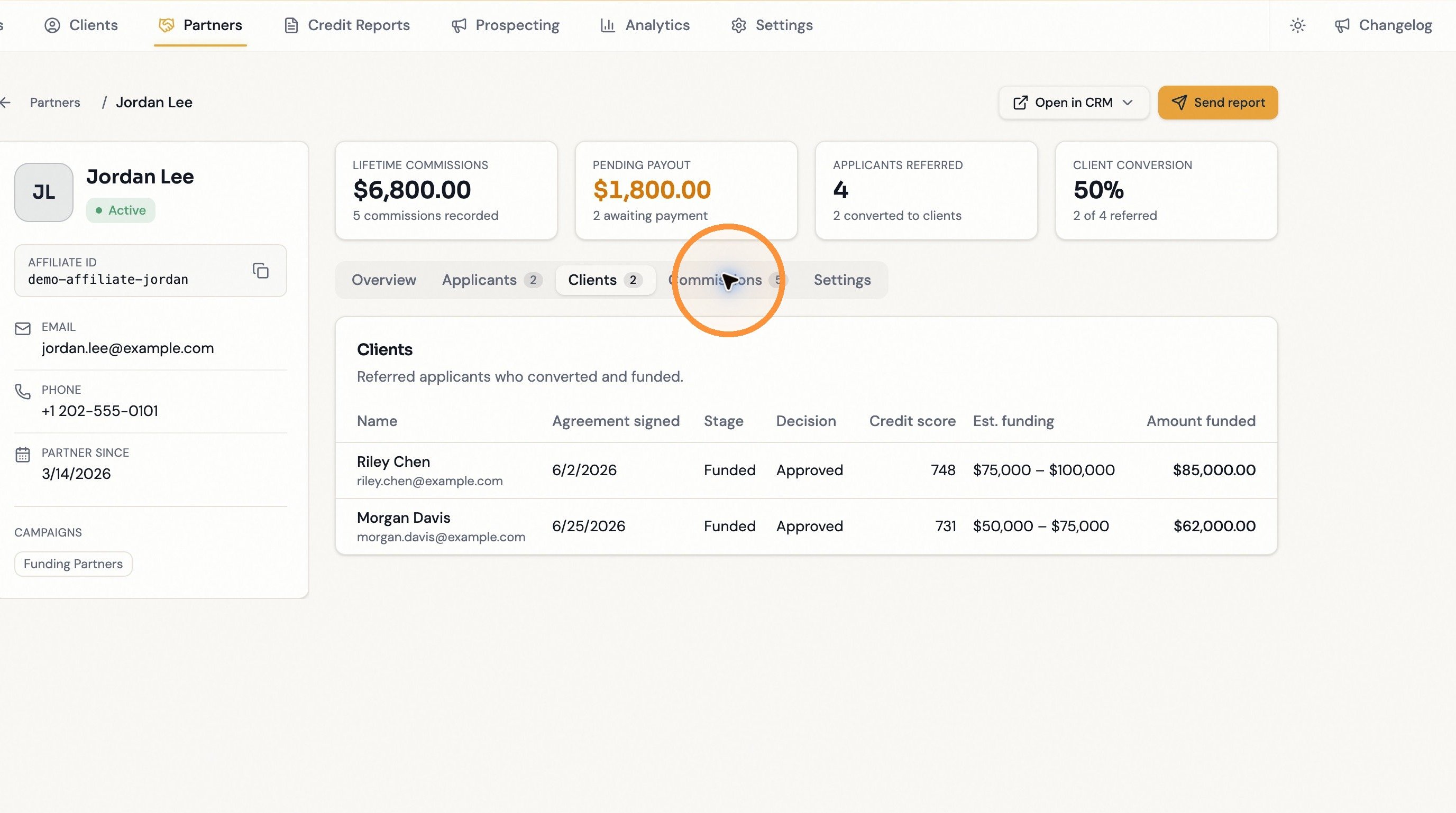
 Referrals that funded, with the agreement-signed date and amount. A dash means no value yet — not a broken referral.
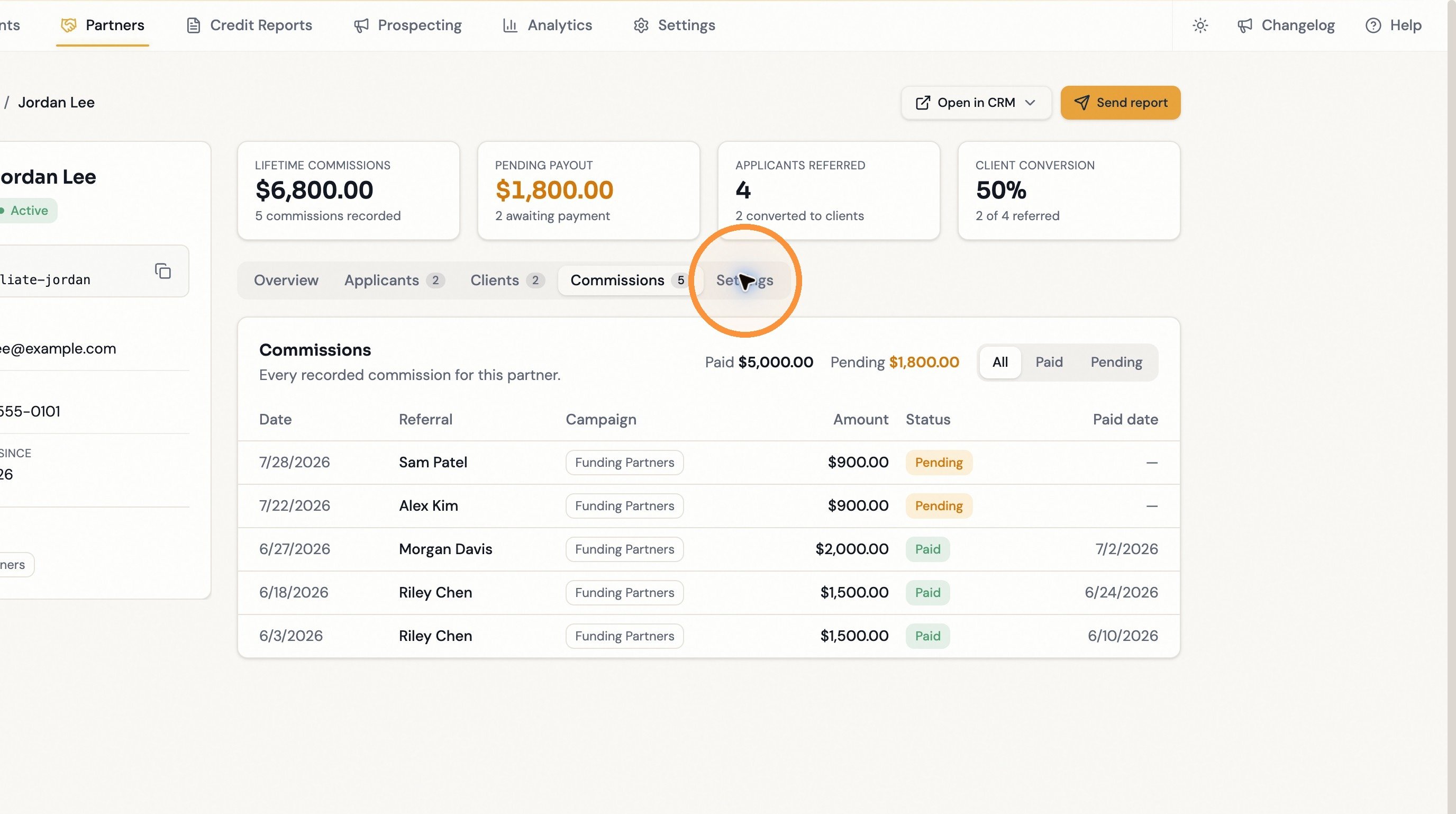
 The full ledger — date, contact, campaign, amount, paid or pending. Read-only; amounts and payouts are managed in your CRM.
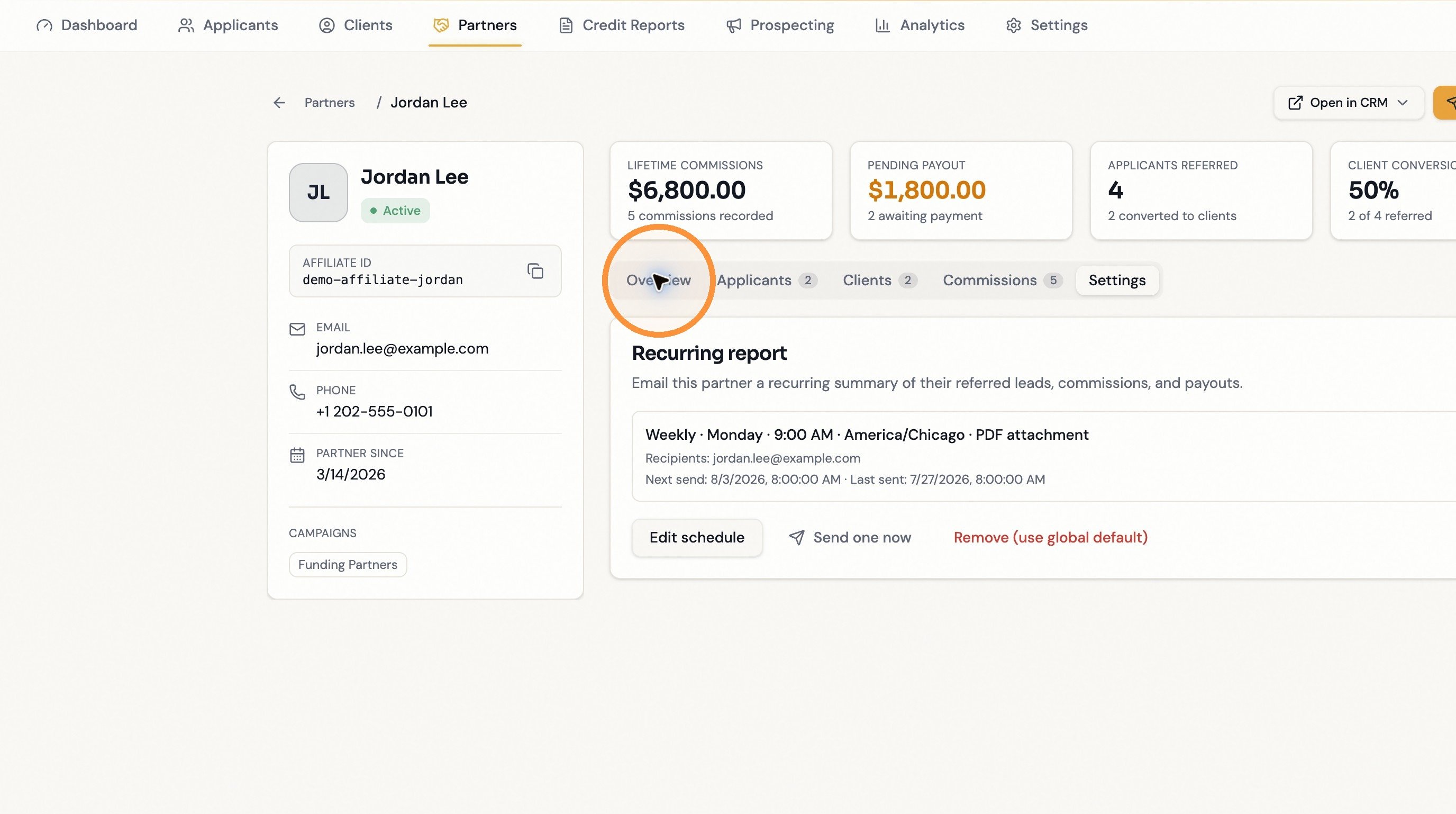
 This partner's recurring report schedule. Non-admins don't see this tab.
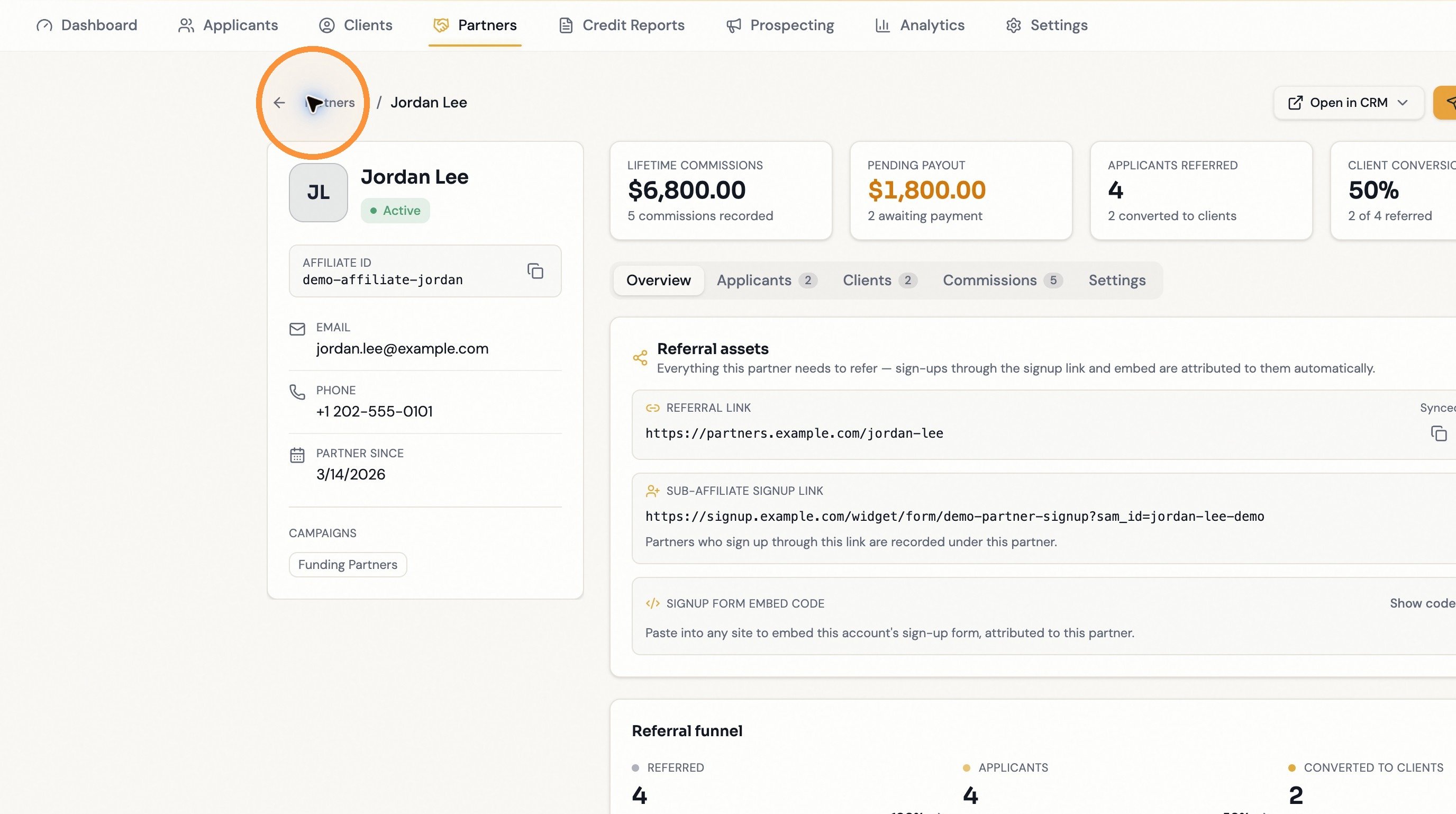
 The partner's referral assets and the **Referred → Applicants → Converted to clients** funnel.
 Back to the full partner list.
 For a deeper read of one partner — each KPI and the **Open in CRM** deep links — see [Partner record](/operators/partners/partner-record).
## Where to start
One-time setup: domain, campaign, and partner signup.
Missing partners, missing referrals, stale totals.
For a deeper read of one partner — each KPI and the **Open in CRM** deep links — see [Partner record](/operators/partners/partner-record).
## Where to start
One-time setup: domain, campaign, and partner signup.
Missing partners, missing referrals, stale totals.