> ## Documentation Index
> Fetch the complete documentation index at: https://docs.myfundingmachine.com/llms.txt
> Use this file to discover all available pages before exploring further.
# Send Partner Reports
> Set the account-wide reporting default, give a single partner a custom recurring schedule, and send a one-time performance report on demand.
# Send Partner Reports
Partner reports email each partner their own referred leads, commissions, and payouts. Three controls resolve in a fixed order: a partner's custom schedule wins, otherwise the account default applies, otherwise nothing sends. Everything on this page is **admin-only**.
On the Partners page, expand **Setup & health** and scroll to the last section. Its badge summarizes the current setting, e.g. `On · Weekly · PDF`.
 Screenshots on this page predate the **Setup & health** section; the written steps and labels are current.
Set **Reporting active**, choose **Default frequency** (daily, weekly, monthly) and **Default format** (PDF attachment or CSV download link), then **Save settings**.
Screenshots on this page predate the **Setup & health** section; the written steps and labels are current.
Set **Reporting active**, choose **Default frequency** (daily, weekly, monthly) and **Default format** (PDF attachment or CSV download link), then **Save settings**.
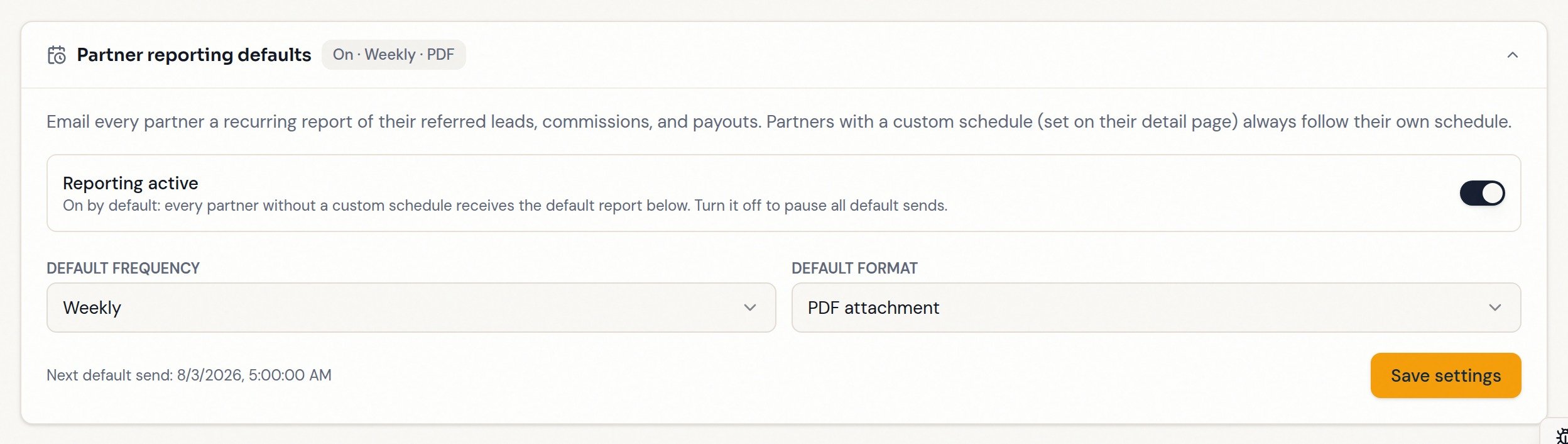 The default applies to **every partner without a custom schedule** — turning it on starts emailing all of them. Confirm your partner list and email addresses first.
**Recurring report** shows whether they follow the account default or have their own schedule.
The default applies to **every partner without a custom schedule** — turning it on starts emailing all of them. Confirm your partner list and email addresses first.
**Recurring report** shows whether they follow the account default or have their own schedule.
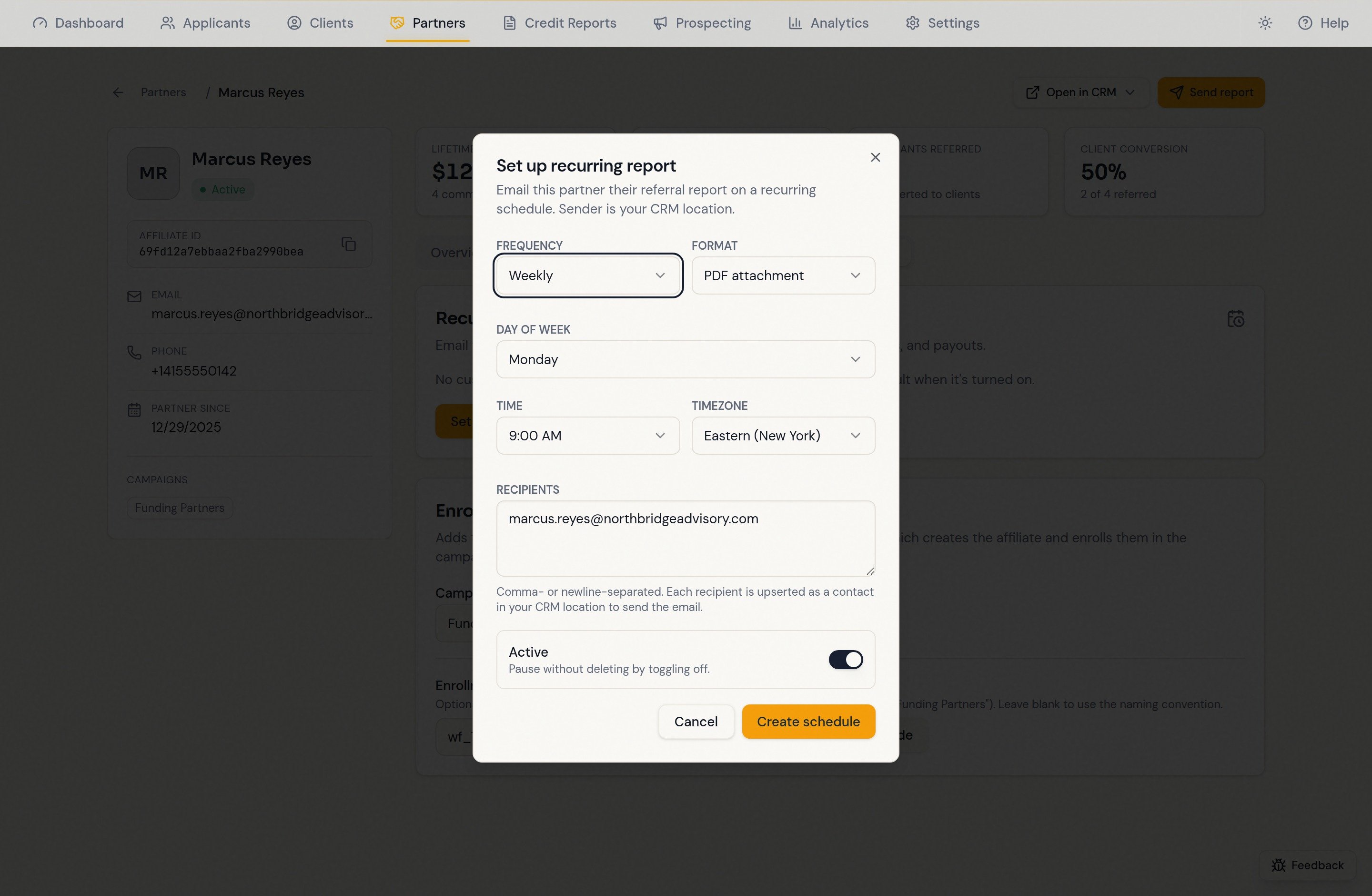
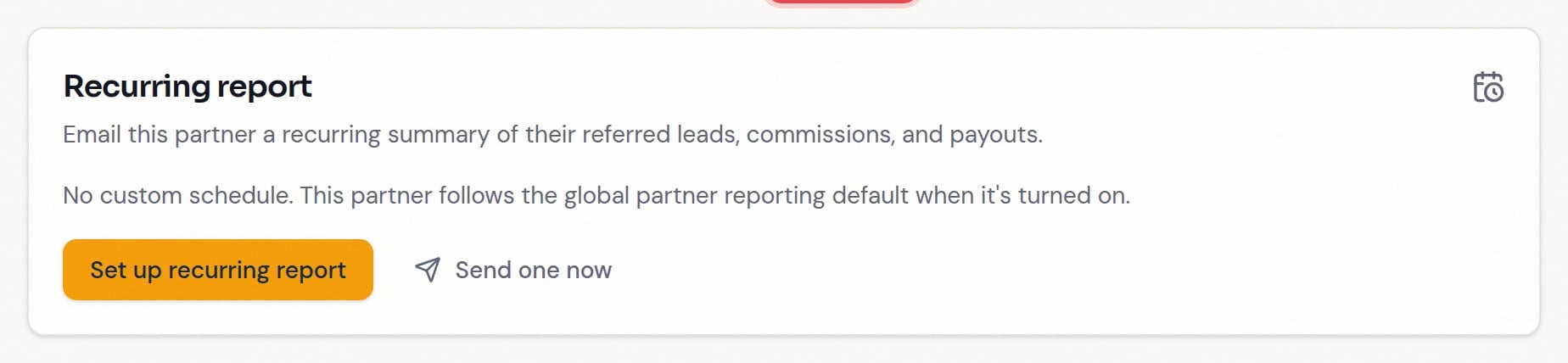 Choose frequency, format, day, time, and timezone, and confirm recipients (prefilled with the partner's email; up to 20, comma-separated). Click **Create schedule** — or **Save changes** when editing an existing one. A custom schedule fires on its own settings whether or not the account default is on; **Remove (use global default)** puts the partner back on the default.
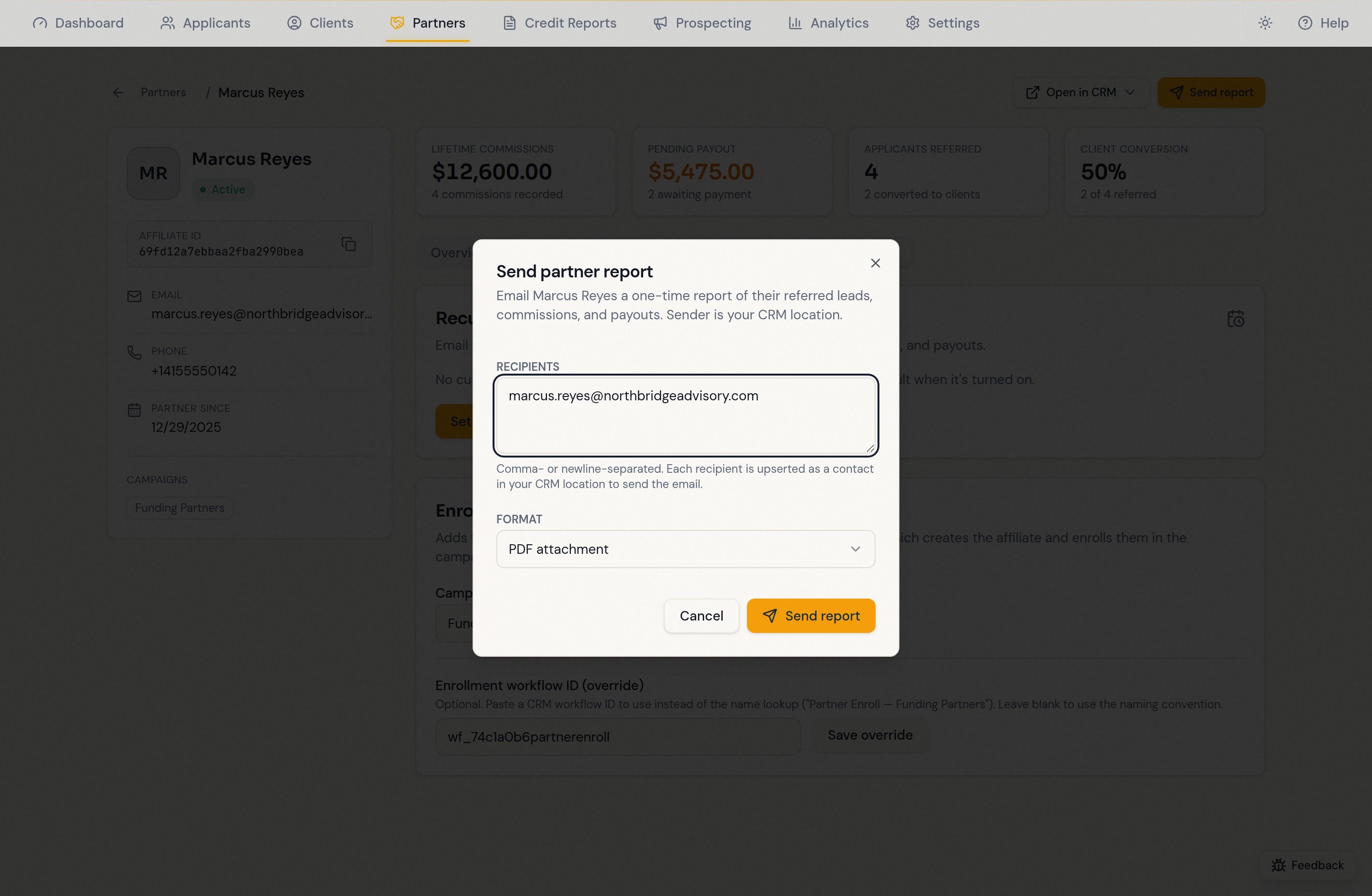
 Click **Send report** in the record header — for a partner call or after a big month — then check the recipients and format and send. Does not change any schedule.
 ## What the partner receives
Their own referred contacts and funnel positions, commissions with paid/pending status, and recorded payouts — as a branded PDF attachment or a CSV download link. The email sends from your CRM location, so recipients are created or updated as contacts there.
## Tips
* **Weekly PDF is the safe default**; reserve custom schedules for exceptions.
* A delivery problem is recorded as a *Last send issue* line on the schedule card.
* Pause the account default while the email sender or reporting data is under maintenance.
## FAQ
On their **Settings** tab check, in order: a custom schedule exists and isn't paused; the account default is on if there's no custom schedule; the recipient address is right. Then test with **Send report** instead of waiting for the next run.
The dialog reports exactly that and rewrites the recipient field to the failed addresses only — sending again retries just those.
It stops default sends. Partners with a custom schedule keep receiving theirs, by design.
## What the partner receives
Their own referred contacts and funnel positions, commissions with paid/pending status, and recorded payouts — as a branded PDF attachment or a CSV download link. The email sends from your CRM location, so recipients are created or updated as contacts there.
## Tips
* **Weekly PDF is the safe default**; reserve custom schedules for exceptions.
* A delivery problem is recorded as a *Last send issue* line on the schedule card.
* Pause the account default while the email sender or reporting data is under maintenance.
## FAQ
On their **Settings** tab check, in order: a custom schedule exists and isn't paused; the account default is on if there's no custom schedule; the recipient address is right. Then test with **Send report** instead of waiting for the next run.
The dialog reports exactly that and rewrites the recipient field to the failed addresses only — sending again retries just those.
It stops default sends. Partners with a custom schedule keep receiving theirs, by design.