> ## Documentation Index
> Fetch the complete documentation index at: https://docs.myfundingmachine.com/llms.txt
> Use this file to discover all available pages before exploring further.
# Partner Prospecting Workflow
> How partner teams work BusinessLoans.com prospecting leads, review conversations, update stages, and use the partner-facing prospecting module.
# Partner Prospecting Workflow
This guide shows the partner-facing prospecting workflow for every partner team. It covers how users view incoming BusinessLoans.com leads, open a lead, review the conversation, update stages, and keep routing settings accurate.
This is the public user guide. It intentionally avoids admin-only prospecting pages, campaign setup, allocation controls, billing reconciliation, and internal routing tools.
## Step-by-step
In Funding Machine, click **Prospecting** in the left navigation.
The prospecting dashboard shows today's delivered leads, the monthly plan count, booking link health, lifecycle totals, and the most recent leads.
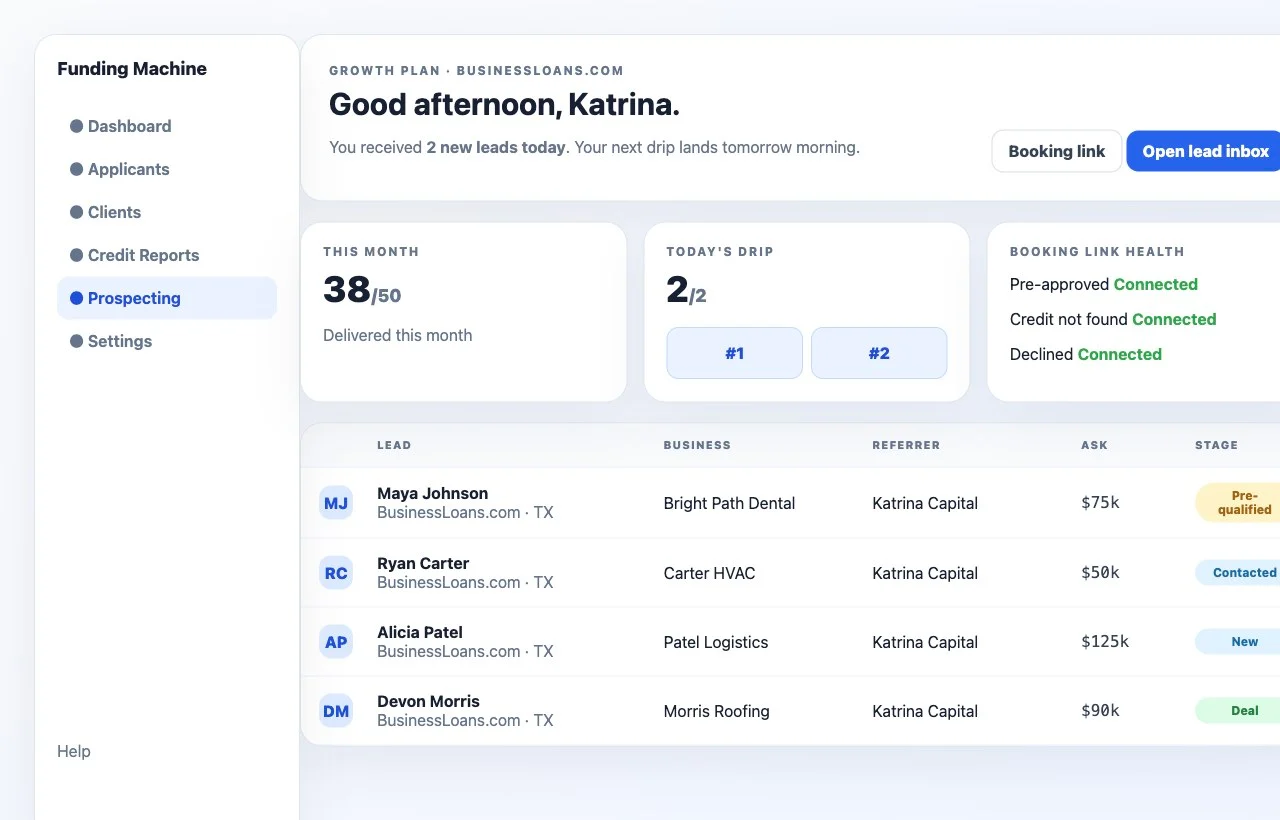 Click **Open lead inbox** or **All leads**.
The lead inbox is the main work queue. Users should start with new or recently delivered leads, then review each lead before calling, emailing, or texting.
Click **Open lead inbox** or **All leads**.
The lead inbox is the main work queue. Users should start with new or recently delivered leads, then review each lead before calling, emailing, or texting.
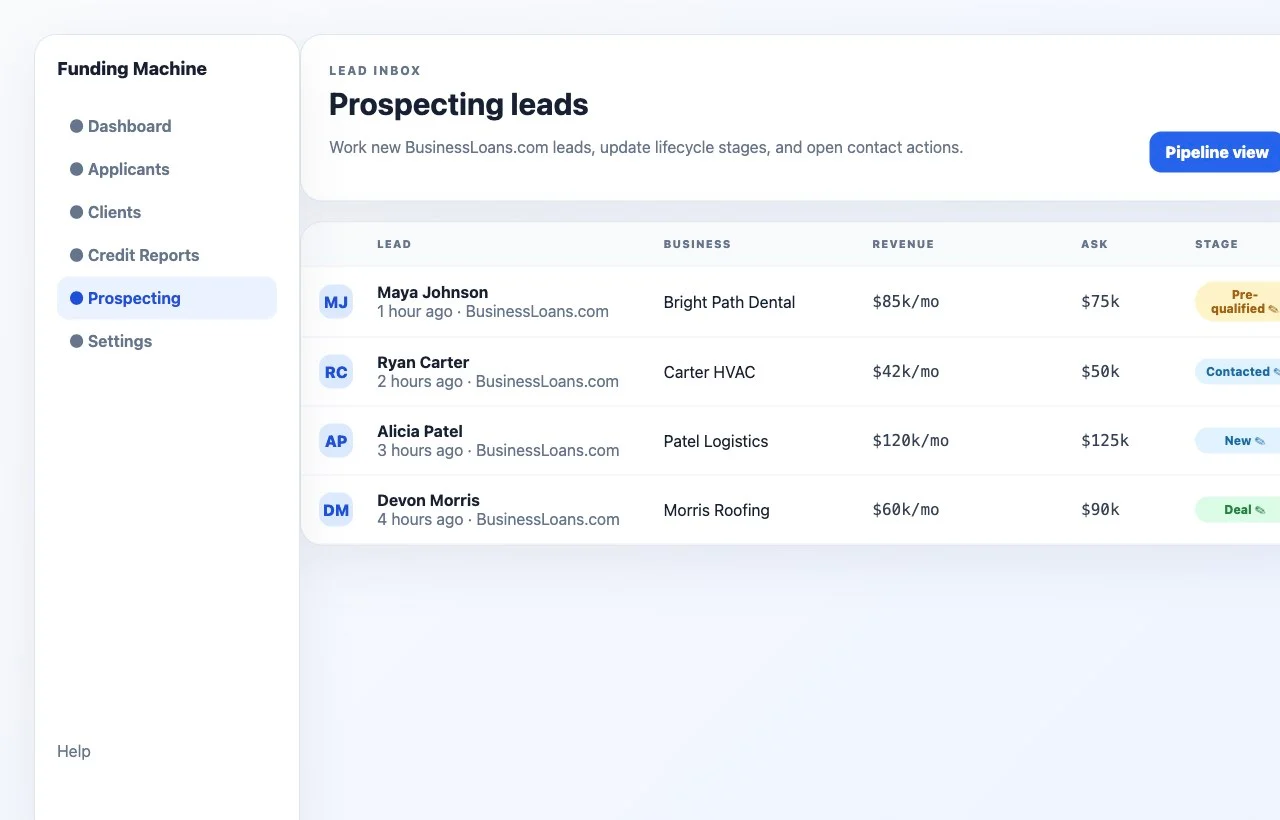 Click any lead row to open the lead detail drawer.
The drawer shows contact information, business details, requested funding amount, monthly revenue, partner links, renewal status, conversation history, timeline, notes, and call, email, and SMS actions.
Click any lead row to open the lead detail drawer.
The drawer shows contact information, business details, requested funding amount, monthly revenue, partner links, renewal status, conversation history, timeline, notes, and call, email, and SMS actions.
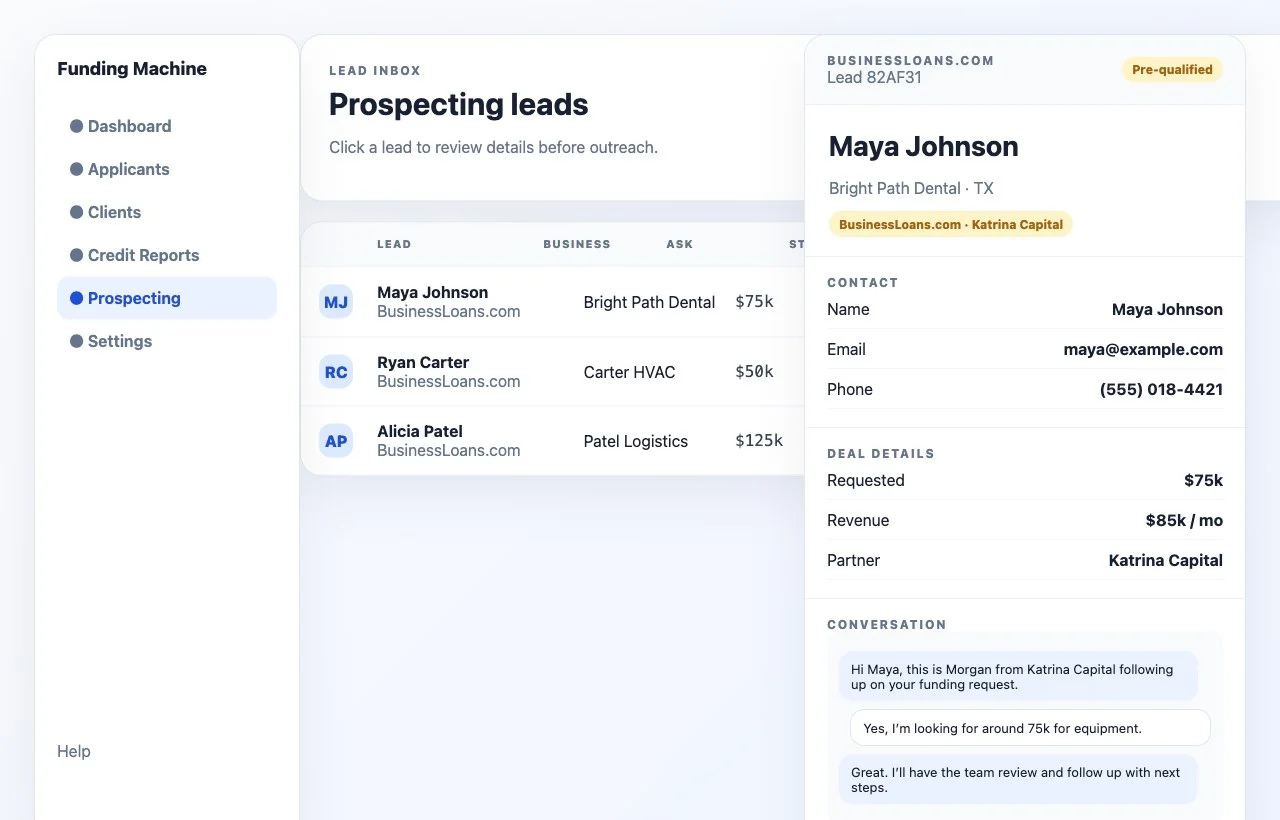 Before outreach, scroll to **Conversation** and read the latest messages.
This helps the team avoid duplicate outreach and keeps follow-up aligned with what Morgan or the previous setter already said.
Before outreach, scroll to **Conversation** and read the latest messages.
This helps the team avoid duplicate outreach and keeps follow-up aligned with what Morgan or the previous setter already said.
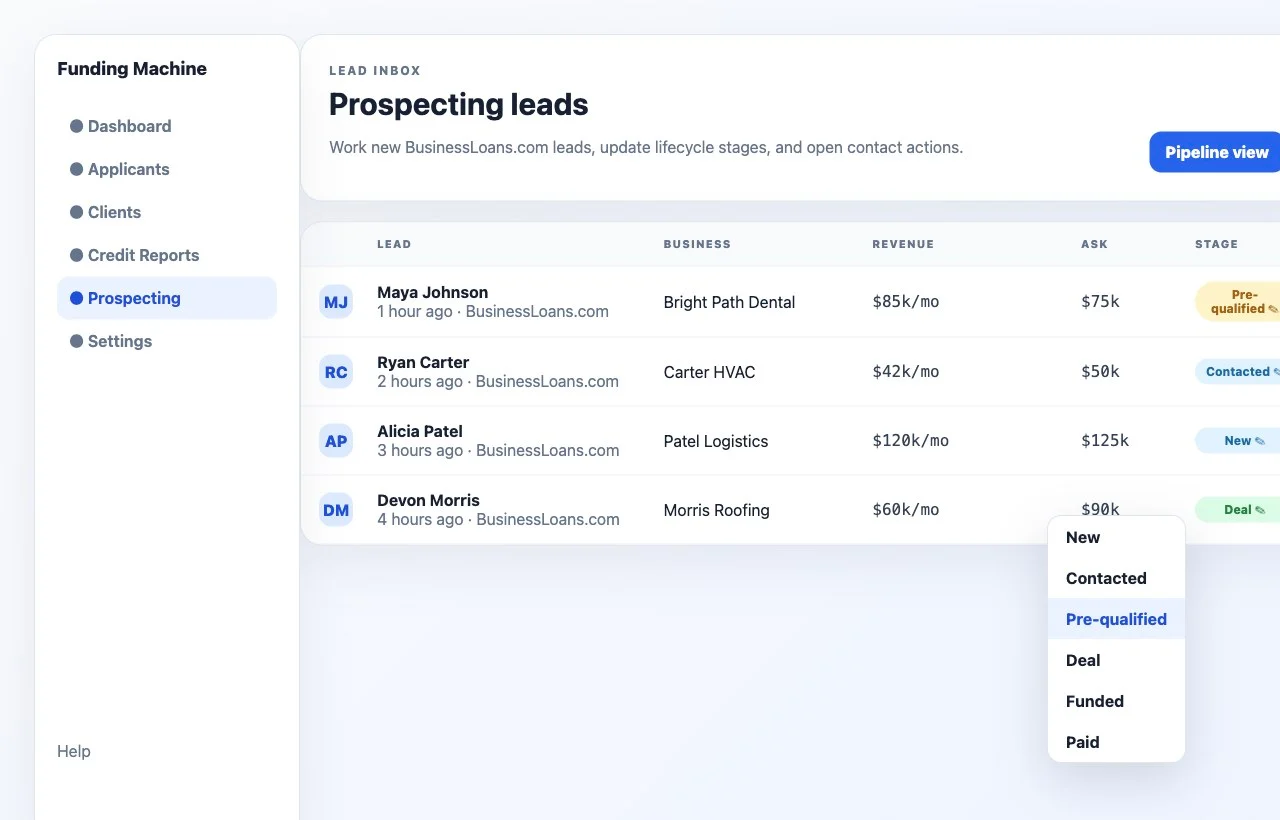
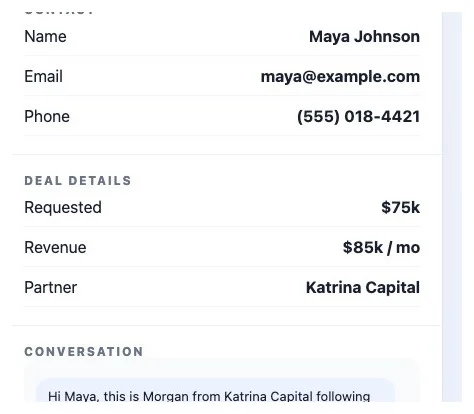 Use the stage control from the inbox row or the lead detail drawer.
Keep the stage current after each touch so the rest of the team knows what happened and what should happen next.
Use the stage control from the inbox row or the lead detail drawer.
Keep the stage current after each touch so the rest of the team knows what happened and what should happen next.
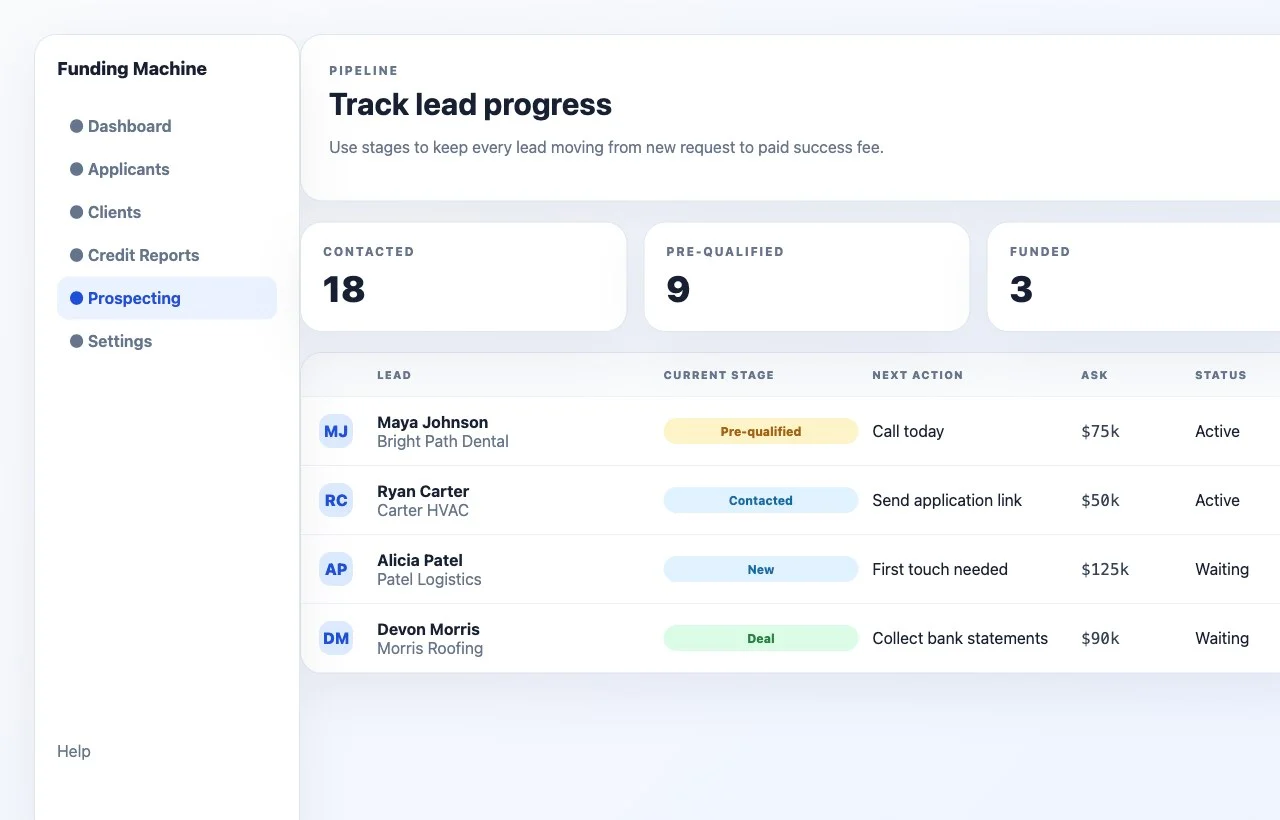
 Open **Pipeline view** to see lead progress across the funnel.
Use this view to spot leads that are stuck, see what needs follow-up, and confirm which leads have moved toward deal, funded, and paid.
Open **Pipeline view** to see lead progress across the funnel.
Use this view to spot leads that are stuck, see what needs follow-up, and confirm which leads have moved toward deal, funded, and paid.
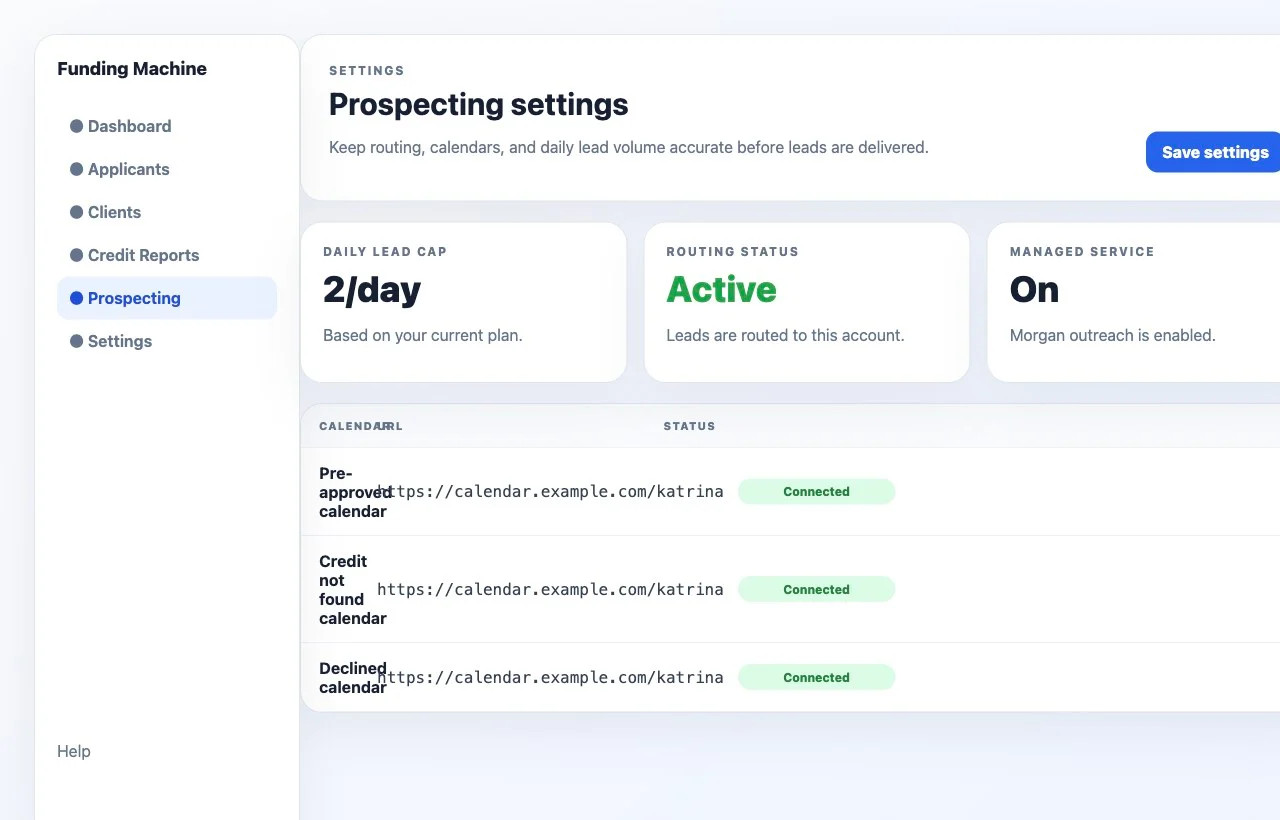
 Open **Settings** when routing or calendar links need to be checked.
Confirm the daily lead cap, routing status, managed service status, and booking links. Missing calendar links can block routing, so keep them current.
Open **Settings** when routing or calendar links need to be checked.
Confirm the daily lead cap, routing status, managed service status, and booking links. Missing calendar links can block routing, so keep them current.
 ## Recommended daily workflow
1. Open **Prospecting**.
2. Check today's drip count and recent leads.
3. Open the lead inbox.
4. Start with the newest unworked leads or the highest-priority follow-ups.
5. Open each lead and review contact details, business details, and conversation history.
6. Call, email, or text the lead.
7. Add any needed notes.
8. Update the lead stage.
9. Use Pipeline view to confirm nothing is stuck.
## Stage definitions
| Stage | When to use it |
| ------------- | ----------------------------------------------------------- |
| New | The lead arrived and has not been worked yet. |
| Contacted | The team called, emailed, texted, or otherwise reached out. |
| Pre-qualified | The lead looks like a potential fit and is moving forward. |
| Deal | The lead is actively being worked as a funding opportunity. |
| Funded | The client received funding. |
| Paid | The success fee or partner payment has been completed. |
Update the stage immediately after outreach. The inbox and pipeline are only useful if the stages reflect reality.
## What users should review before outreach
* Contact name, email, and phone
* Business name and state
* Requested funding amount
* Monthly revenue
* Source and referring partner
* Conversation history
* Prior call, SMS, or email attempts
* Notes and timeline activity
* Partner application and booking links
## What to send partners
Share this page with any partner team that receives BusinessLoans.com prospecting leads. The most important habit is simple: open the lead, read the history, contact the lead, then update the stage before moving on.
## Troubleshooting
### No leads are visible
Check that the user is in the correct account and that the lead filters are not hiding active leads.
### Conversation history is empty
Refresh the lead. If it still does not show, escalate with the lead name, account, and screenshot.
### A lead is in the wrong stage
Open the stage menu and move the lead to the correct stage.
### Booking links show missing
Open **Settings** and add the missing calendar URL. Routing can fail closed when required booking links are missing.
### A lead looks routed to the wrong account
Escalate with the lead name, expected account, visible account, and screenshot.
## Recommended daily workflow
1. Open **Prospecting**.
2. Check today's drip count and recent leads.
3. Open the lead inbox.
4. Start with the newest unworked leads or the highest-priority follow-ups.
5. Open each lead and review contact details, business details, and conversation history.
6. Call, email, or text the lead.
7. Add any needed notes.
8. Update the lead stage.
9. Use Pipeline view to confirm nothing is stuck.
## Stage definitions
| Stage | When to use it |
| ------------- | ----------------------------------------------------------- |
| New | The lead arrived and has not been worked yet. |
| Contacted | The team called, emailed, texted, or otherwise reached out. |
| Pre-qualified | The lead looks like a potential fit and is moving forward. |
| Deal | The lead is actively being worked as a funding opportunity. |
| Funded | The client received funding. |
| Paid | The success fee or partner payment has been completed. |
Update the stage immediately after outreach. The inbox and pipeline are only useful if the stages reflect reality.
## What users should review before outreach
* Contact name, email, and phone
* Business name and state
* Requested funding amount
* Monthly revenue
* Source and referring partner
* Conversation history
* Prior call, SMS, or email attempts
* Notes and timeline activity
* Partner application and booking links
## What to send partners
Share this page with any partner team that receives BusinessLoans.com prospecting leads. The most important habit is simple: open the lead, read the history, contact the lead, then update the stage before moving on.
## Troubleshooting
### No leads are visible
Check that the user is in the correct account and that the lead filters are not hiding active leads.
### Conversation history is empty
Refresh the lead. If it still does not show, escalate with the lead name, account, and screenshot.
### A lead is in the wrong stage
Open the stage menu and move the lead to the correct stage.
### Booking links show missing
Open **Settings** and add the missing calendar URL. Routing can fail closed when required booking links are missing.
### A lead looks routed to the wrong account
Escalate with the lead name, expected account, visible account, and screenshot.