

Step 1: Navigate to Custom Values in Settings
Go to Settings and click on Custom Values in the left sidebar.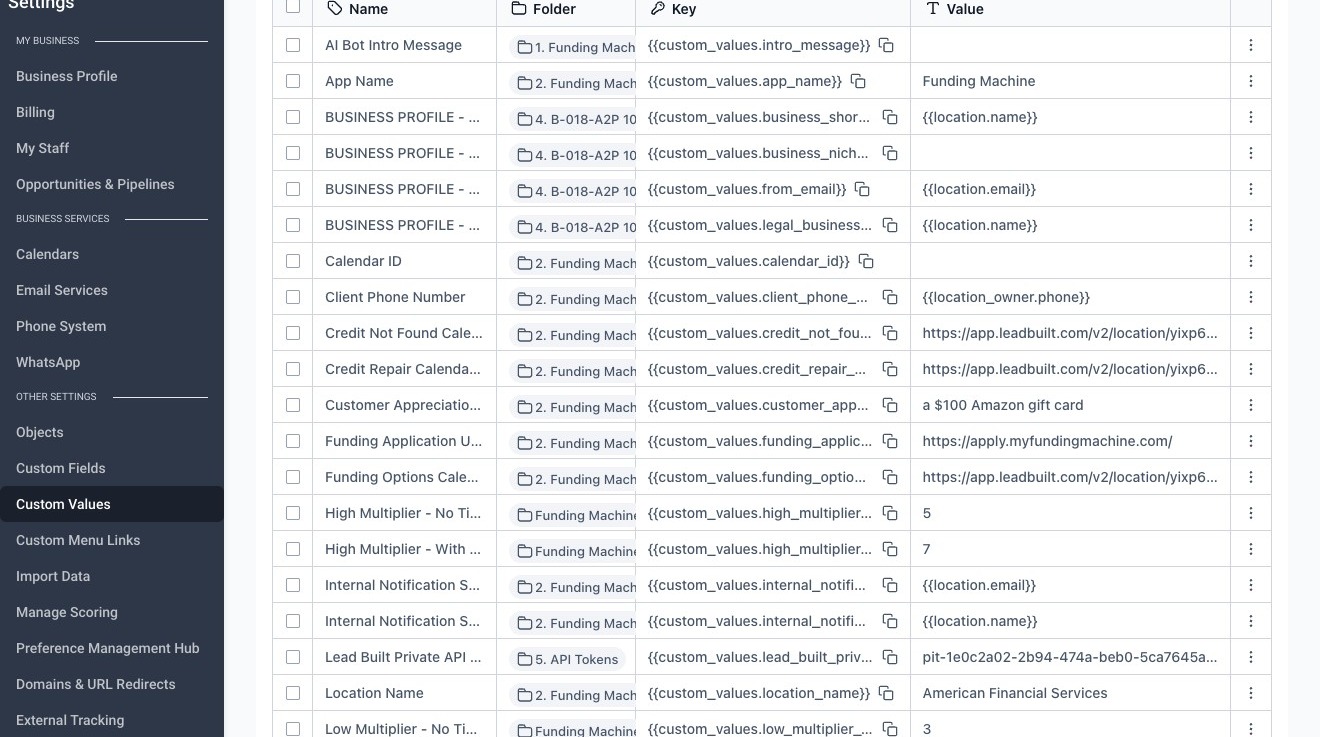
Step 2: Select the Folders Tab
Click the Folders tab to browse custom values by folder.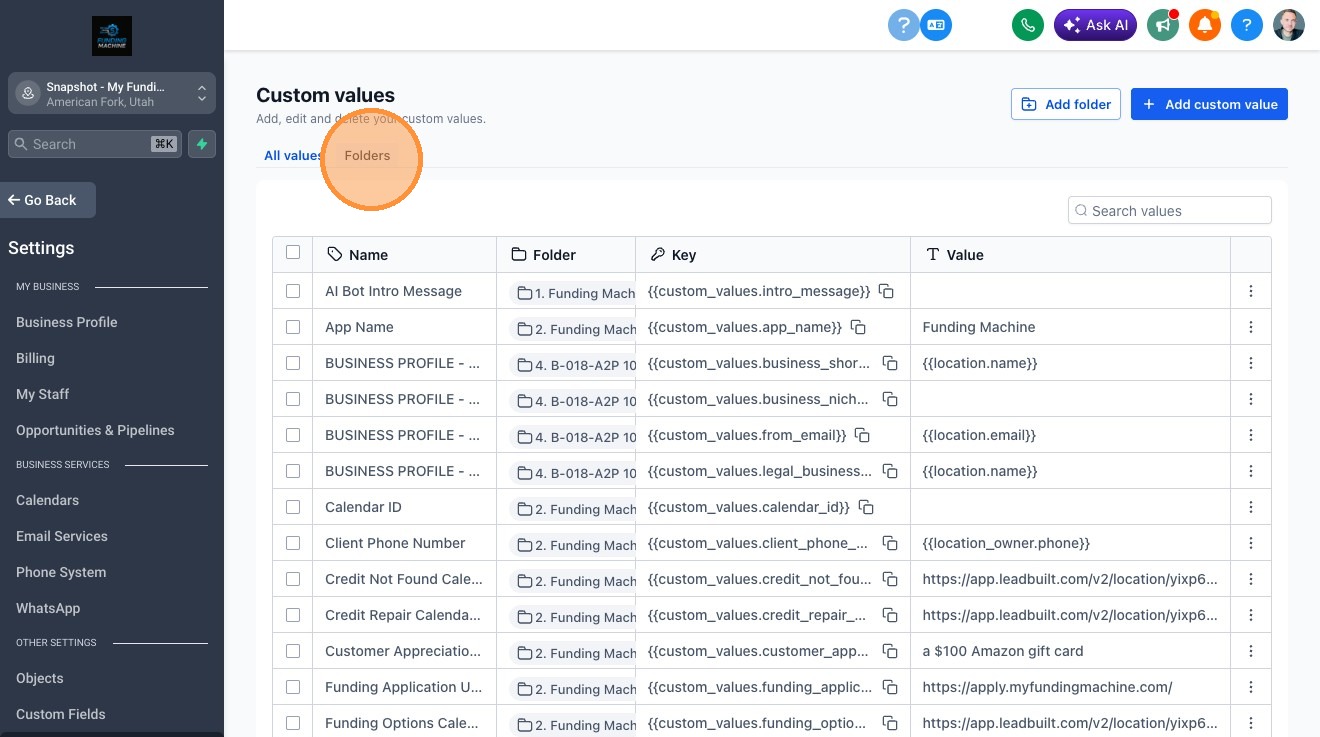
Step 3: Open the Funding Machine Base Variables Folder
Click “2. Funding Machine Base Variables - v1” to open the folder.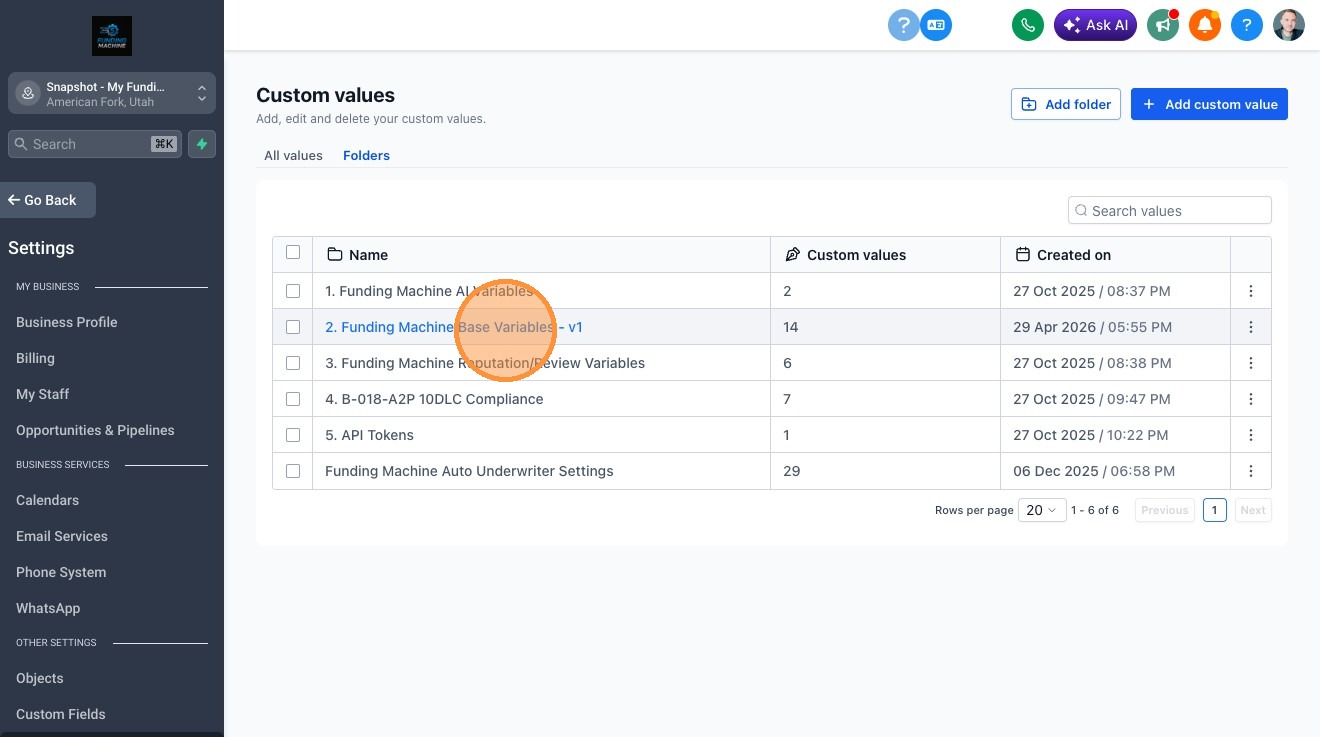
Step 4: Search for the Custom Value
Type “new fm lead” in the Search values field to find the relevant custom value.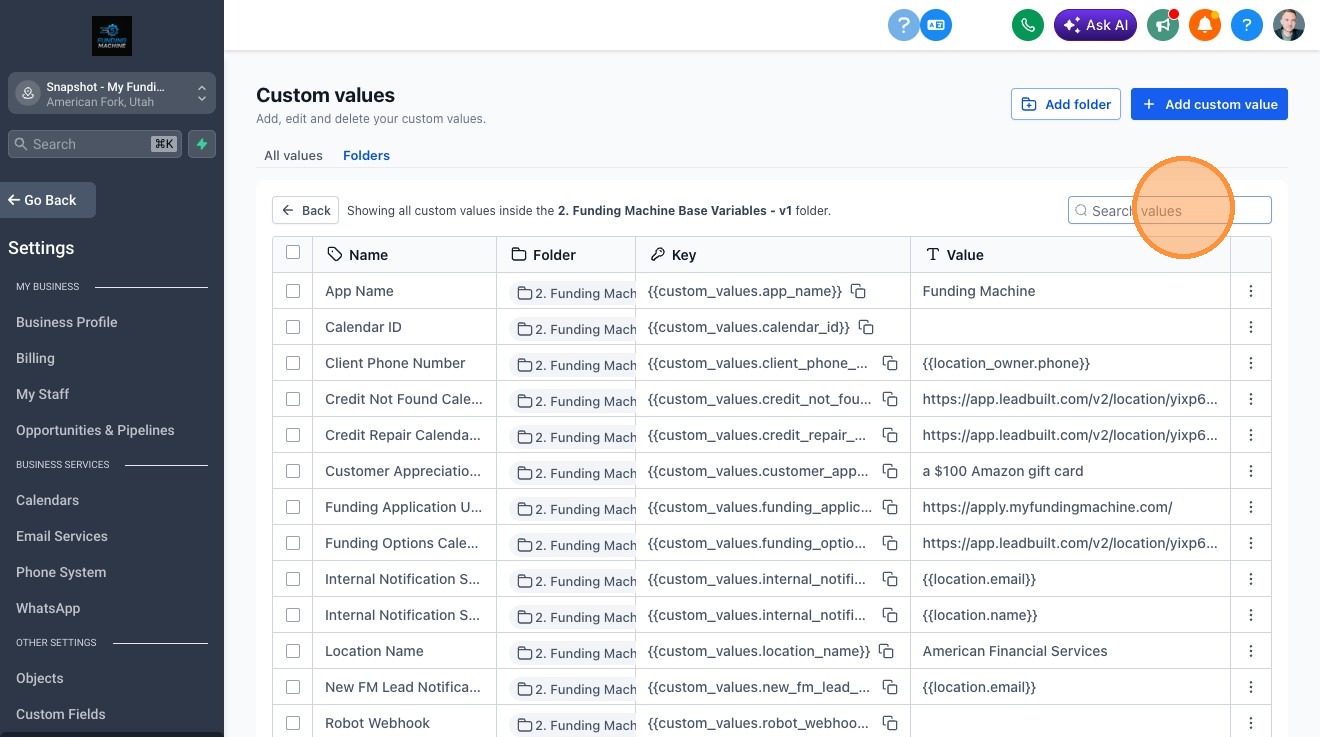
Step 5: Open the Options Menu
Click the more options menu icon (⋮) next to the custom value.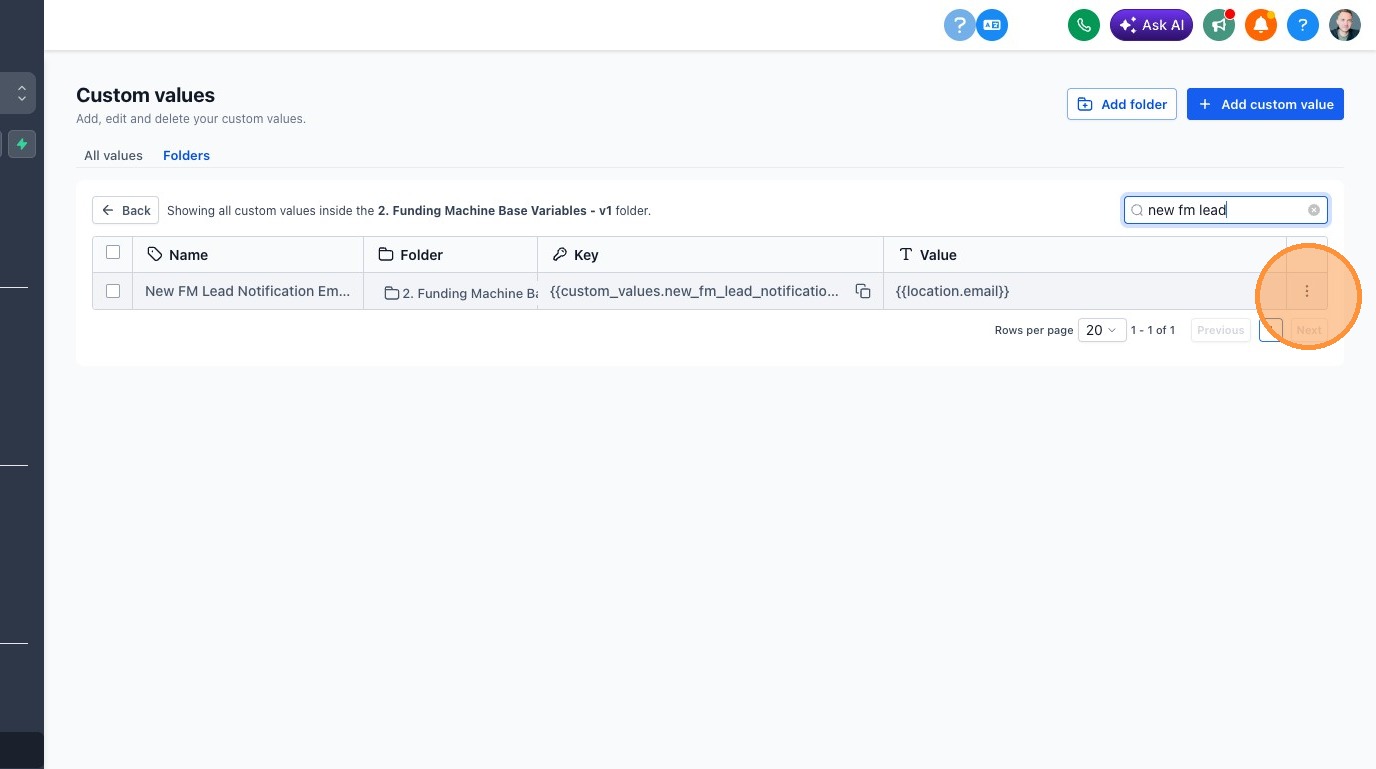
Step 6: Click Edit
Select Edit from the dropdown menu.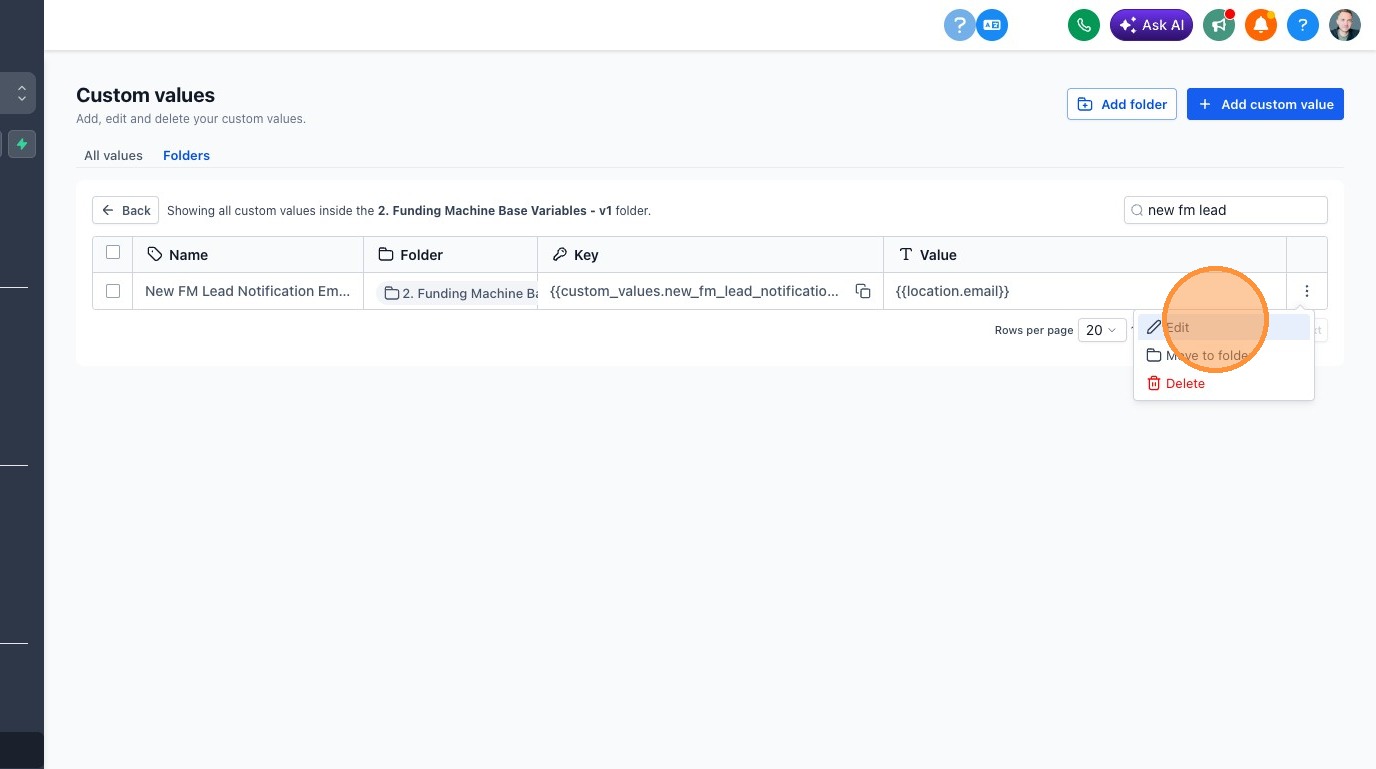
Step 7: Enter the New Email Address
Type the new email address into the Value field.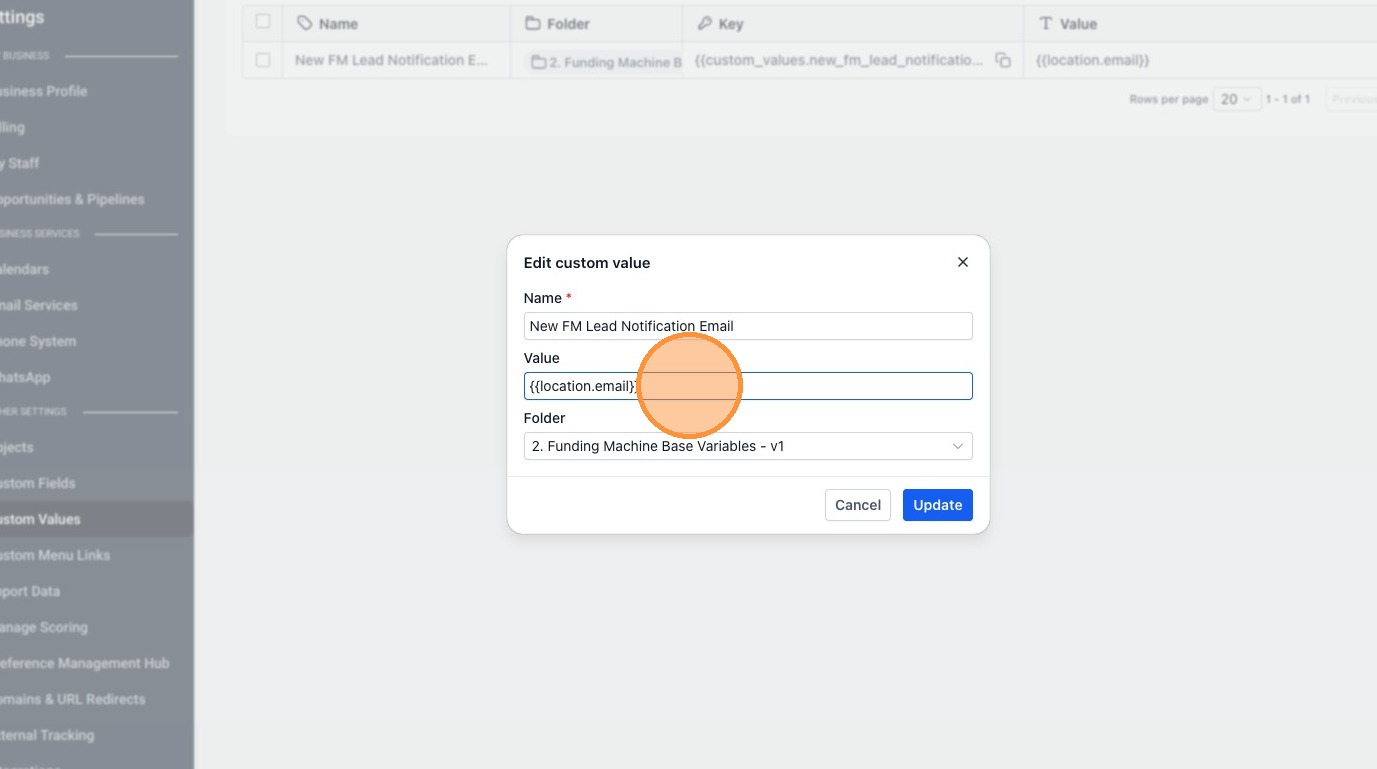
Step 8: Save Your Changes
Click Update to save the new email address.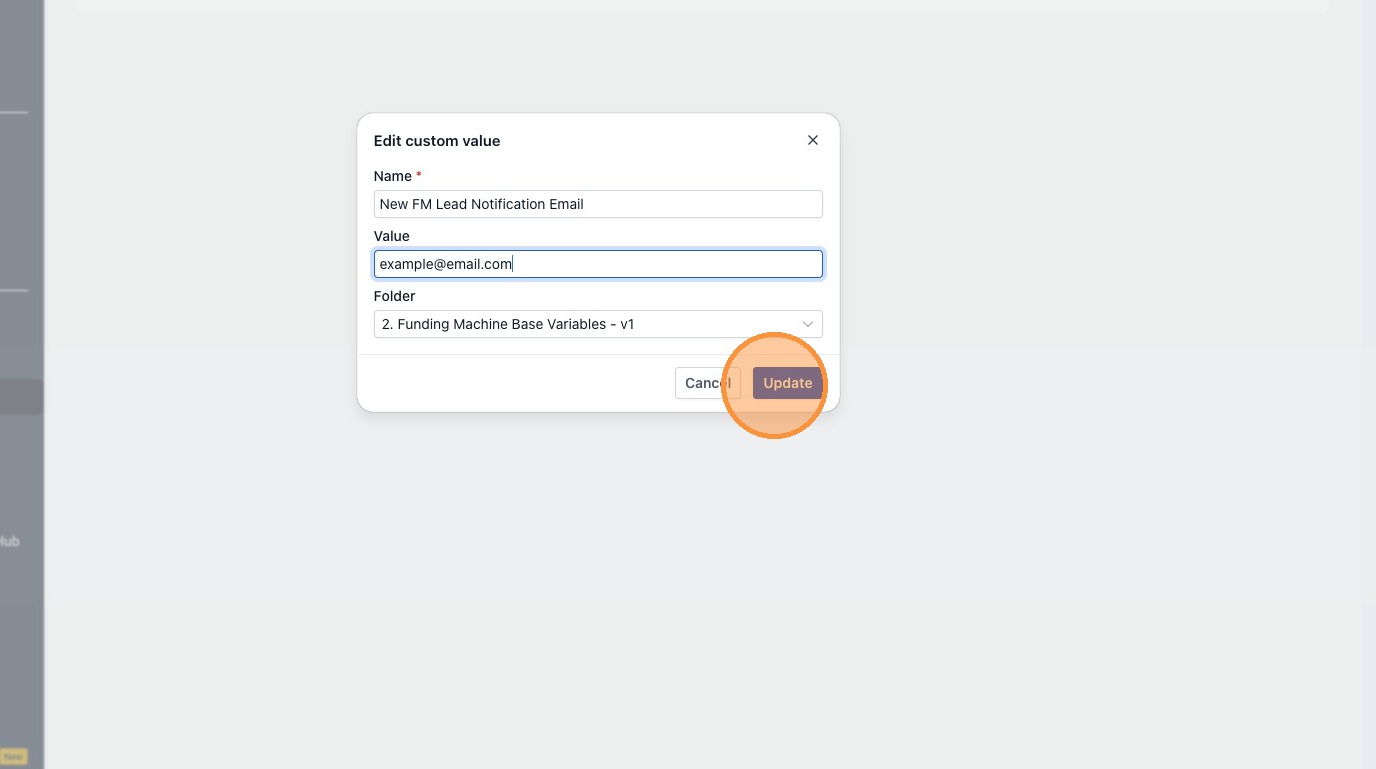
Your new lead notification email has been updated. Going forward, all new FM lead notifications will be sent to the email address you entered.
Related pages
New Lead workflow action
Swap the Custom Webhook step in your new-lead workflow for the Funding Machine ‘Create Funding Machine Applicant’ action. Same intake, same credit-report behavior, no URL or secret to maintain.
Notifications
Set client message rules, review pending messages, and manage team alerts.
Embed the funding form
Grab the embed code for your Apply for Funding form in LeadBuilt and paste it onto any website so visitors can apply directly from your site.