

Embed the Apply for Funding Form
The Apply for Funding form is the front door for new applicants. Embedding it on your website (instead of linking out to LeadBuilt) keeps visitors on your domain, looks more professional, and lets you style the surrounding page however you want. This guide walks you through finding the form in LeadBuilt and copying the embed code so you can paste it into your site builder.Prefer an interactive walkthrough?
Prefer an interactive walkthrough?
Before You Start
- You need access to your LeadBuilt sub-account.
- You need somewhere to paste the embed code — your website builder, WordPress page, Webflow embed block, etc.
- The form 1. MAIN Apply For Funding Form ships pre-built with your Funding Machine sub-account. You don’t need to build it from scratch.
Step-by-Step
1
1. Click "Sites"
From the left sidebar in LeadBuilt, click Sites. This is where funnels, websites, and forms live.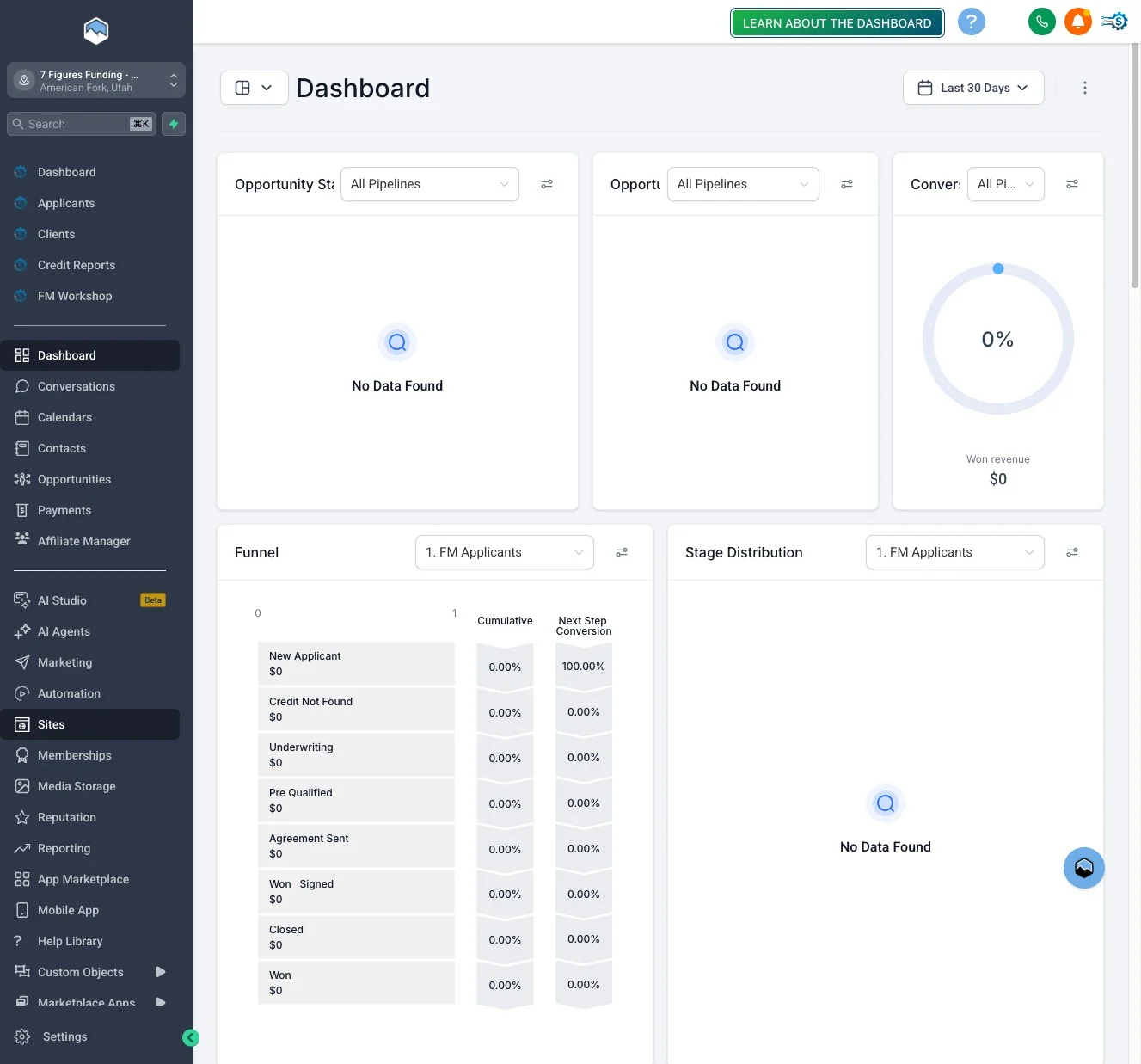
2
2. Click "Forms"
In the Sites top navigation, click Forms.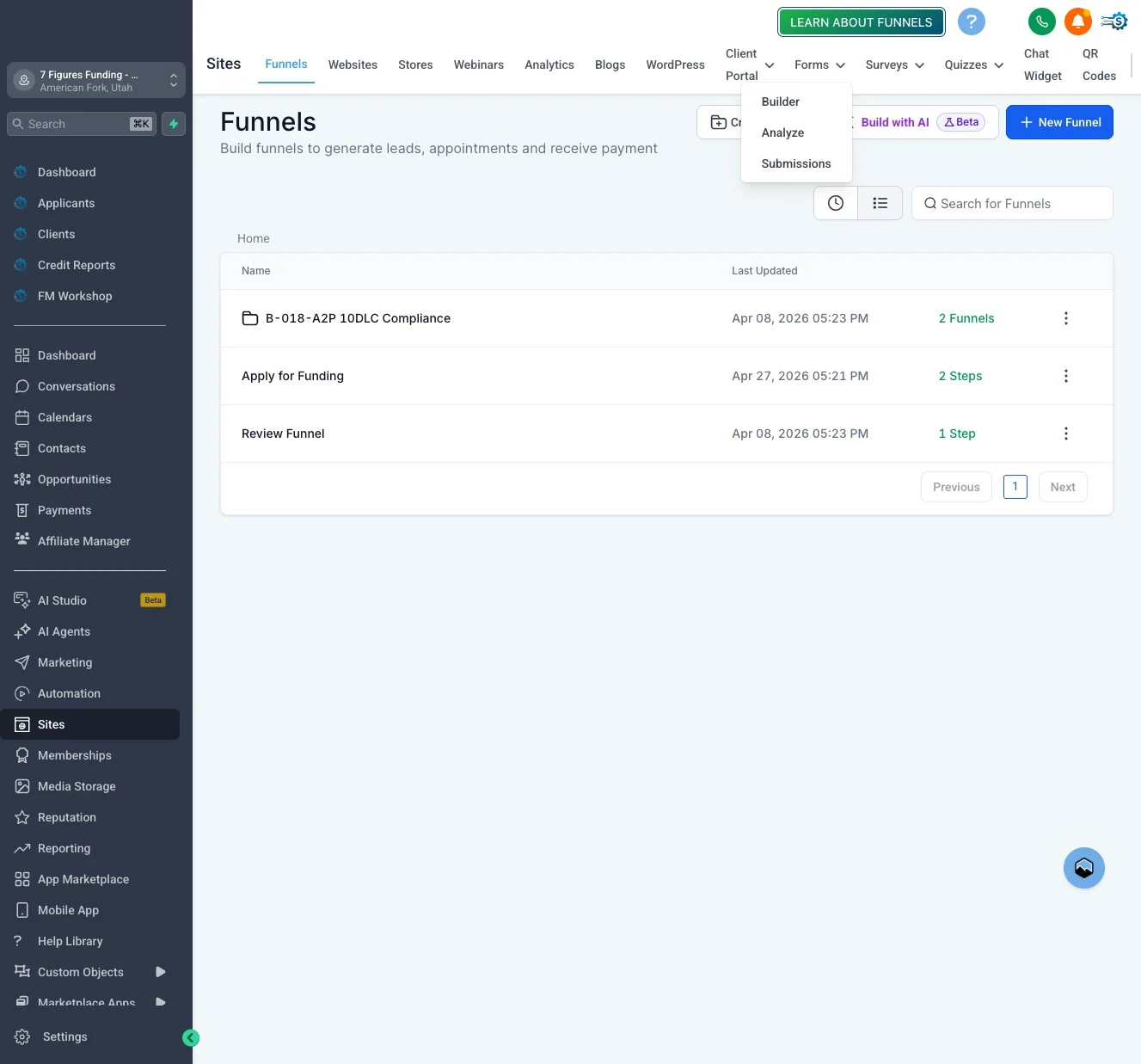
3
3. Click "Builder"
Click the Builder tab to see the list of forms in your account.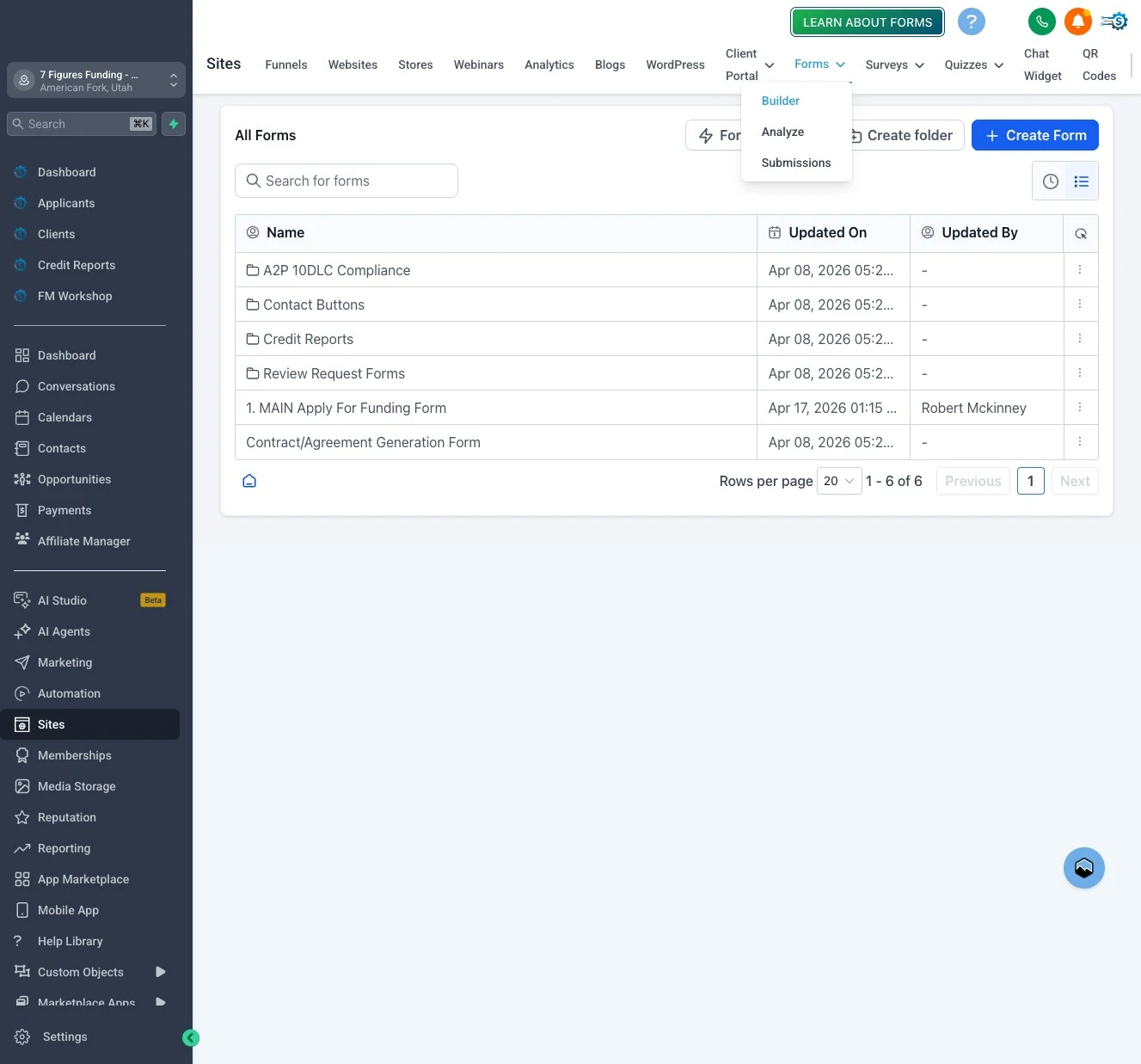
4
4. Click "1. MAIN Apply For Funding Form"
Open 1. MAIN Apply For Funding Form. This is the pre-built funding application included with your account.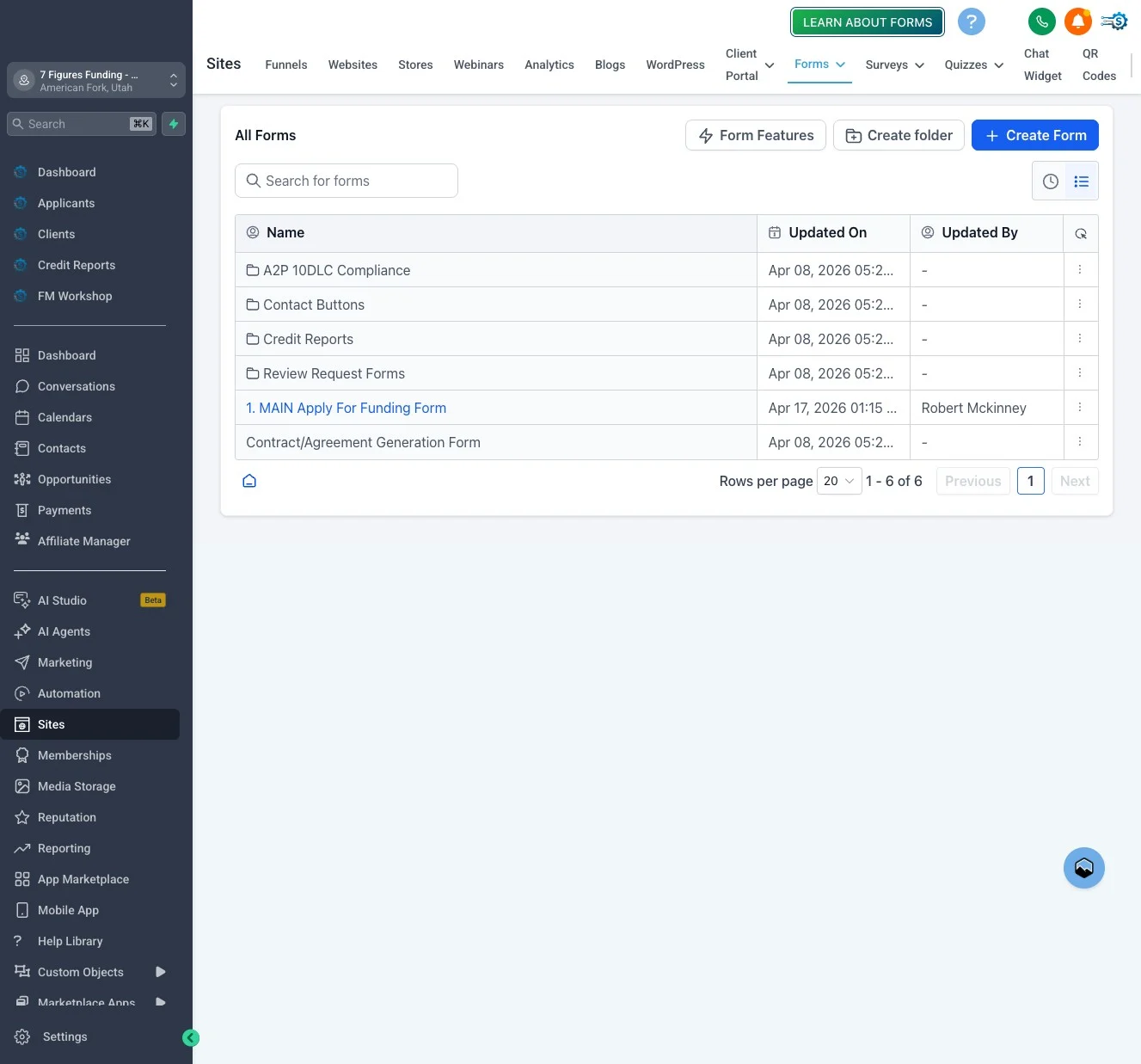
5
5. Click "Integrate"
In the form editor, click Integrate to open the embed-code panel.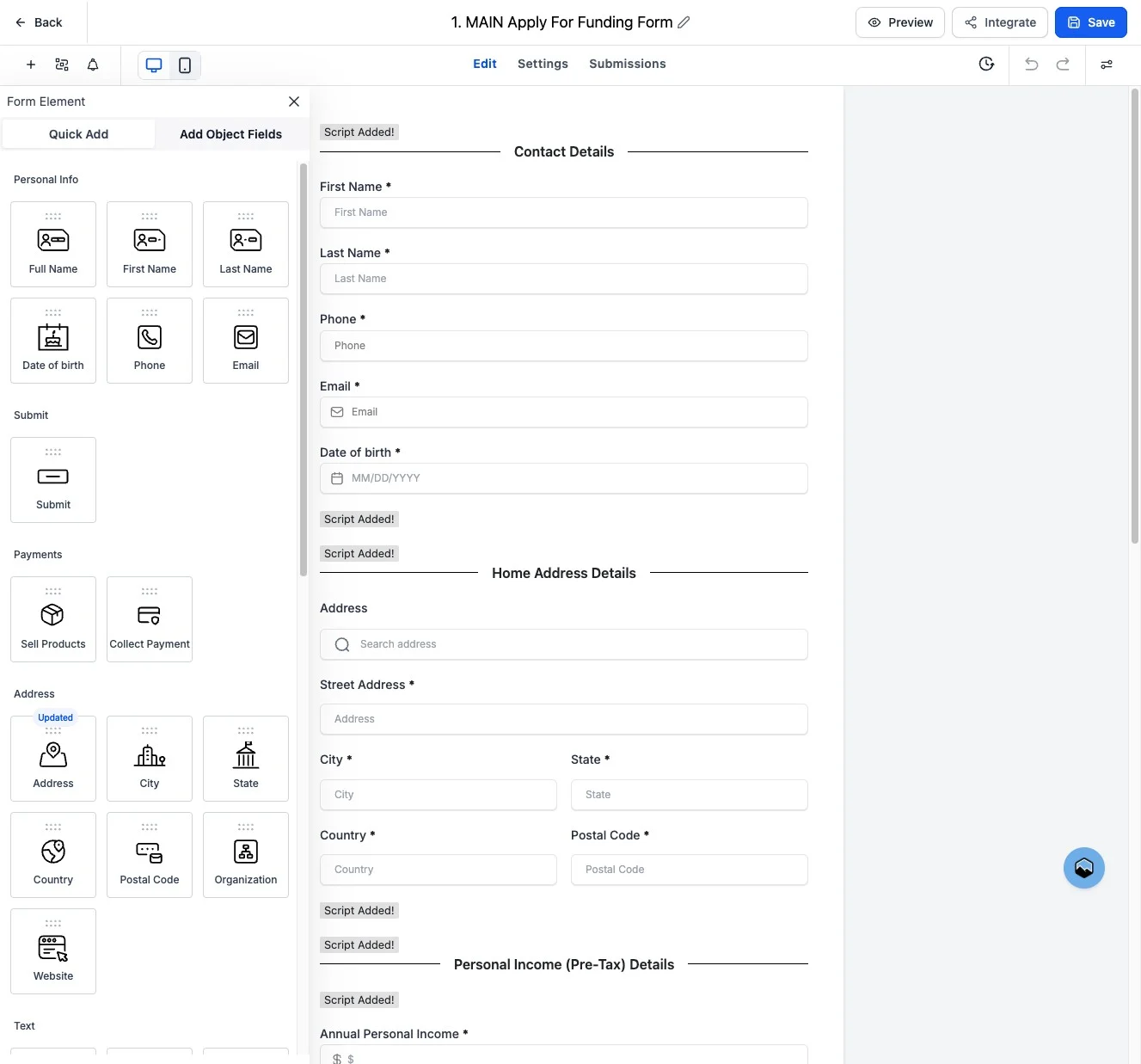
6
6. Click "Don't show again"
If a tutorial popup appears, click Don’t show again to dismiss it.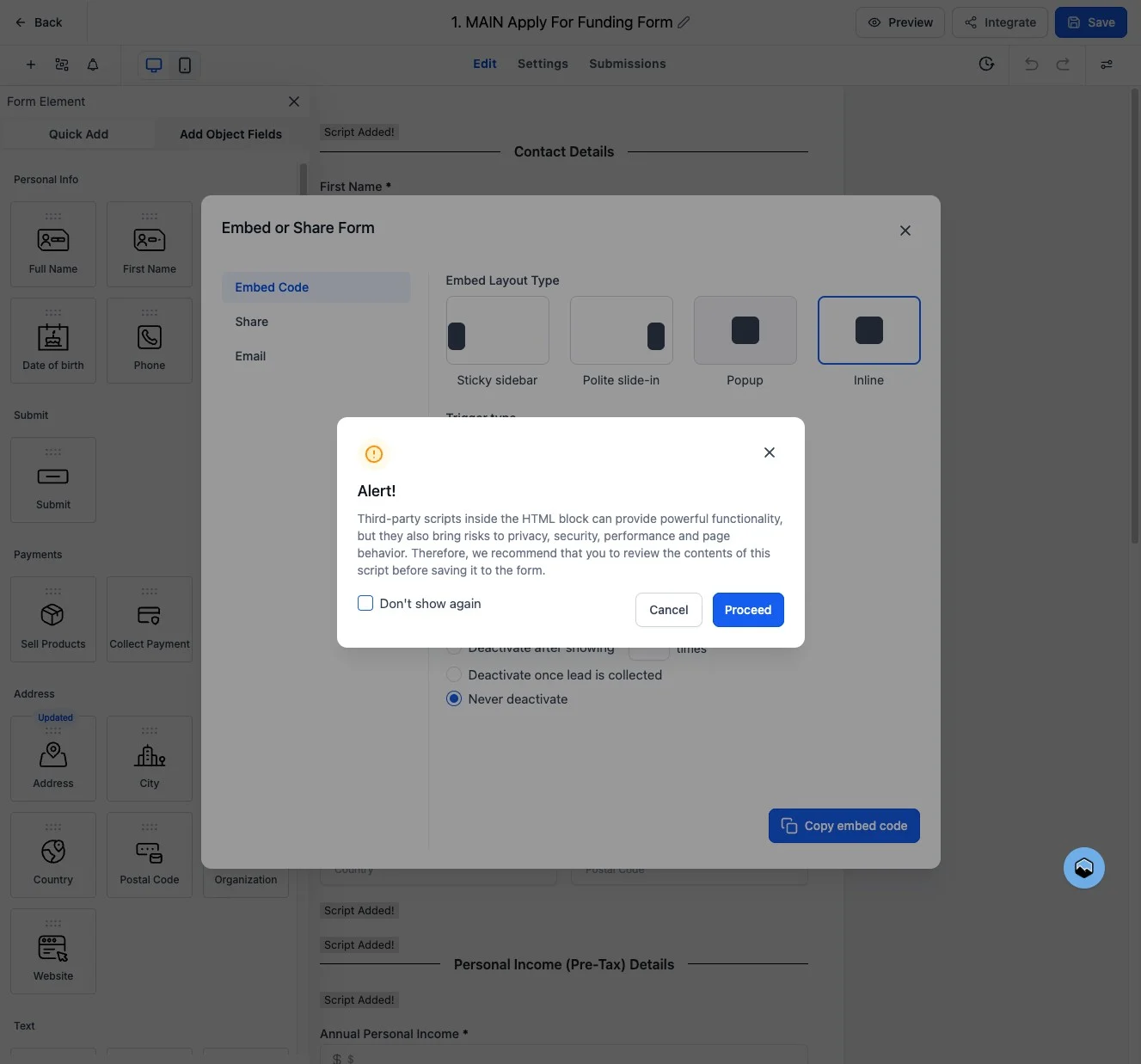
7
7. Click "Proceed"
Click Proceed to confirm and continue to the embed-code view.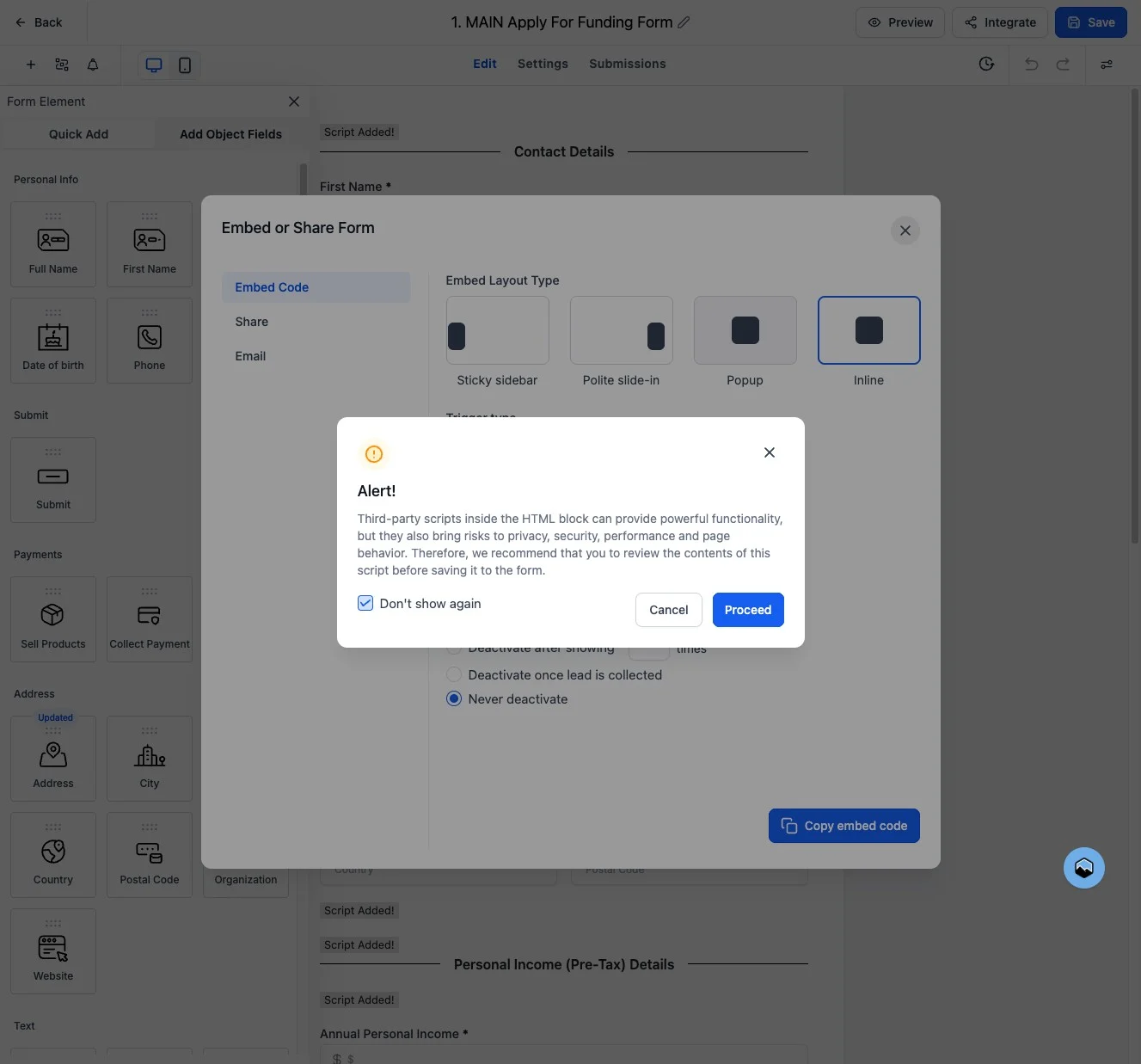
8
8. Click "Copy embed code"
Click Copy embed code. The embed snippet is now on your clipboard — paste it into the HTML/embed block on your website.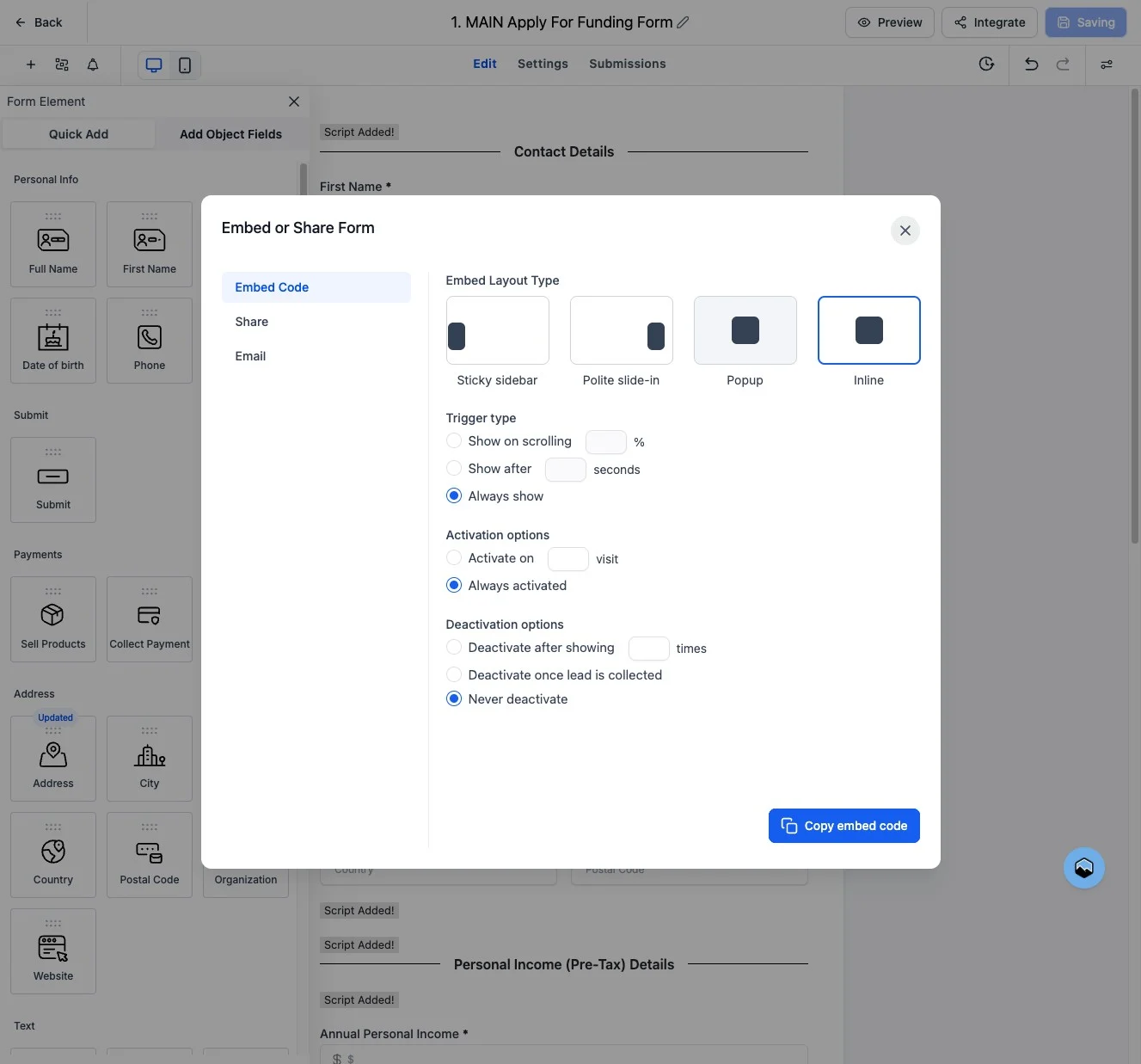
Where to Paste the Code
The copied snippet is a small block of HTML/JavaScript. Paste it wherever your site builder accepts custom HTML:Embeds load over HTTPS, so the page hosting the form must also be served over HTTPS. Most modern site builders enforce this automatically.
Verifying It Works
- Publish the page on your website.
- Open the page in an incognito window (so you’re testing as a visitor, not logged in to LeadBuilt).
- Fill out and submit a test application.
- Check Applicants in Funding Machine — your test submission should appear within a minute.
Tips
- Don’t modify the embed snippet. The script tag and ID are how LeadBuilt knows which form rendered. Editing them will break submissions.
- Re-copy after major form changes. Field changes inside the form editor are picked up automatically, but if you change the form’s height or layout settings, copy a fresh embed code.
- One form, many pages. The same embed code can live on as many pages as you want — every submission still routes to the same form in LeadBuilt.
Frequently Asked Questions
Can I customize the look of the embedded form?
Can I customize the look of the embedded form?
Yes. Style changes you make inside the LeadBuilt form builder (colors, fonts, spacing) flow through to every embedded copy automatically. You don’t need to re-copy the embed code.
Where do submissions go?
Where do submissions go?
Every submission creates an applicant in your Funding Machine sub-account, just like submissions made directly in the CRM. The application still appears in Applicants when the CRM created the contact a few seconds before the form submission arrived. A repeated delivery of a submission that already has an Applicants opportunity does not create another one. From there, the standard processing workflow takes over.
Can I have more than one Apply for Funding form?
Can I have more than one Apply for Funding form?
Yes. Clone the MAIN form to create variants (different lead sources, A/B tests, partner-specific versions) and copy each one’s embed code separately.
The form isn't appearing on my site — what should I check?
The form isn't appearing on my site — what should I check?
Make sure the embed snippet was pasted into a Custom HTML / Embed block, not a plain text block. Also verify the page is published, not in draft, and that your site builder hasn’t stripped the
<script> tag.Related
Submit a Client
The manual alternative — submit clients yourself from inside Funding Machine.
Applicants
See submissions land in your Applicants list and track them through processing.
Set up an affiliate campaign
Pair the embedded form with an affiliate campaign for paid referral traffic.
Dashboard
Monitor lead flow once submissions start coming in from your website.