

Use the Partner Directory
The Partners workspace is your daily view of the program: four account totals on top, then a table you can search, filter, and sort. Each current CRM affiliate appears once, with its current campaign memberships on that row. Removed affiliates and campaigns stop appearing after a complete sync; historical commissions are retained. See How partner sync works.1
1. Read the account totals

- Partners — total, split into active and pending.
- Applicants & clients — referred contacts linked to a partner, whether by referral attribution (their link or code) or by a commission.
- Lifetime commissions — everything earned, all time.
- Pending payout — earned but not yet paid.
+ (e.g. 5+) means the total is a floor. For applicants, commissions, and payouts, it sums the partners loaded so far and settles as the remaining pages load. The Partners count normally shows the account total; if that count ends in +, it reached the directory scan limit and the real count may be higher. Hover or keyboard-focus a floor-marked total for its explanation. Page through the table to finish loading the rollups.2
2. Search
Type into Search name, email, or ID; the table filters as you type.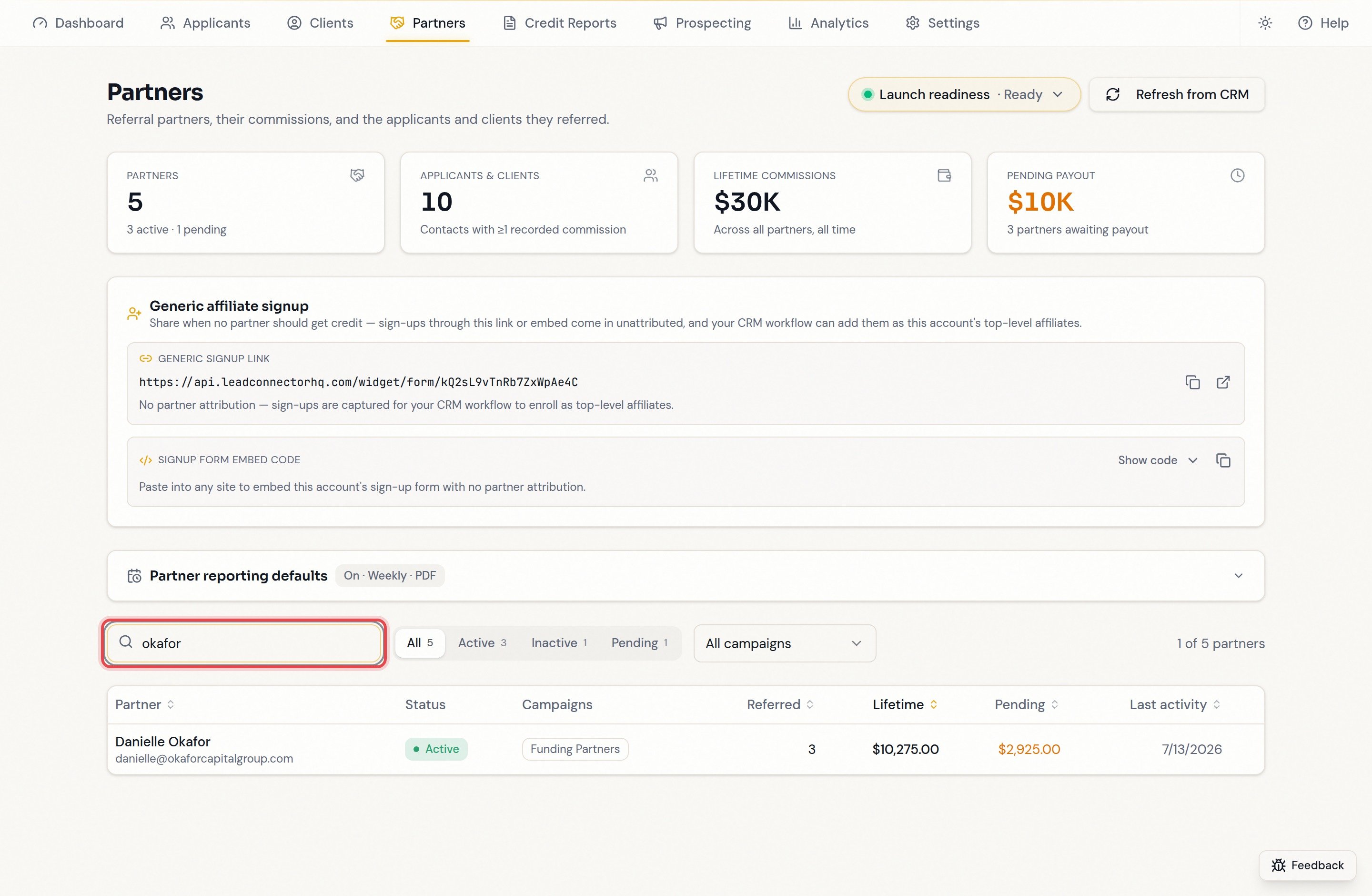
3
3. Filter by status
Active, Inactive, or Pending — each with its own count. Status comes from your CRM; Pending usually means signed up but not yet approved or enrolled.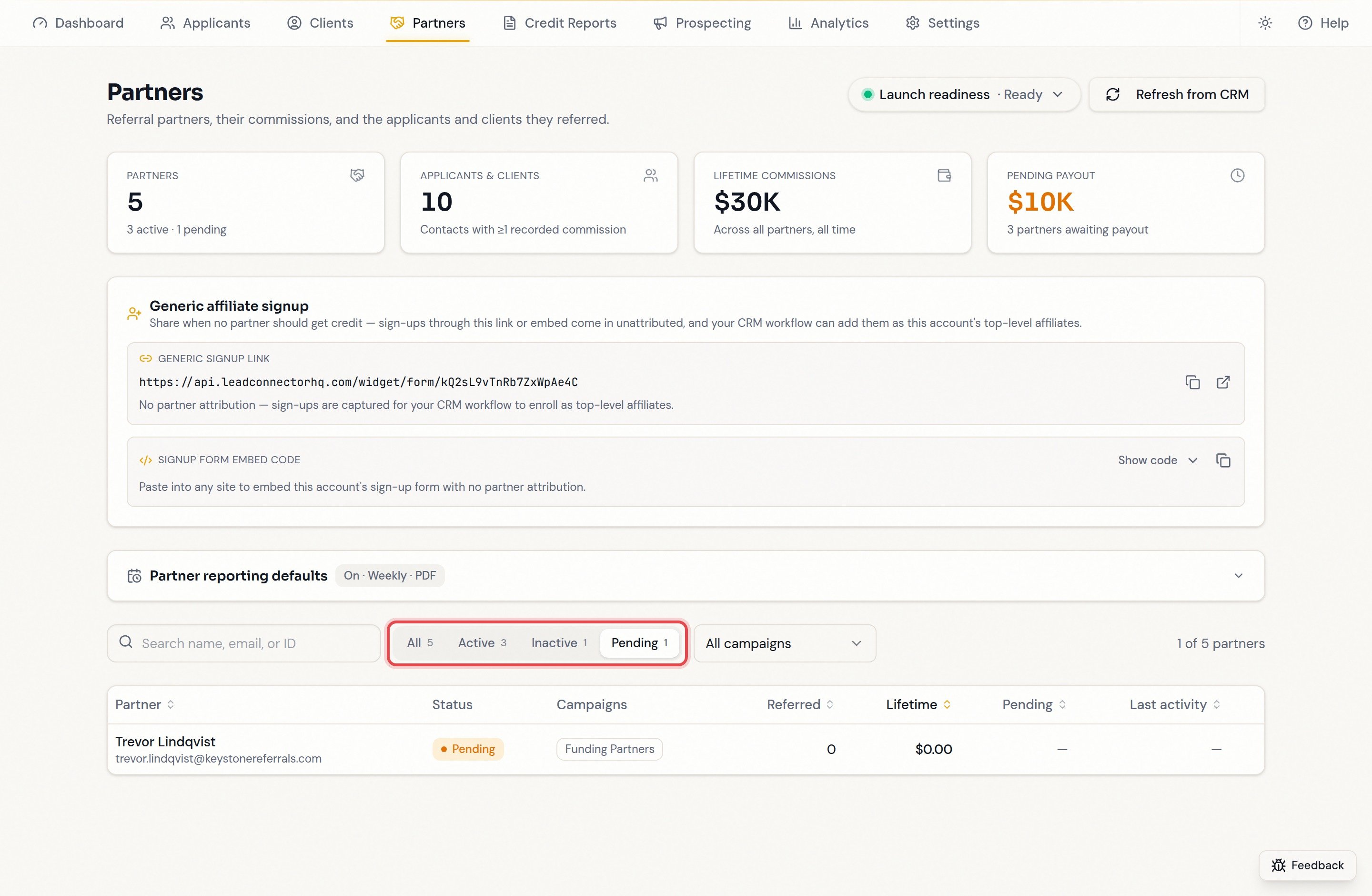
4
4. Filter by campaign
Useful once you run more than one campaign.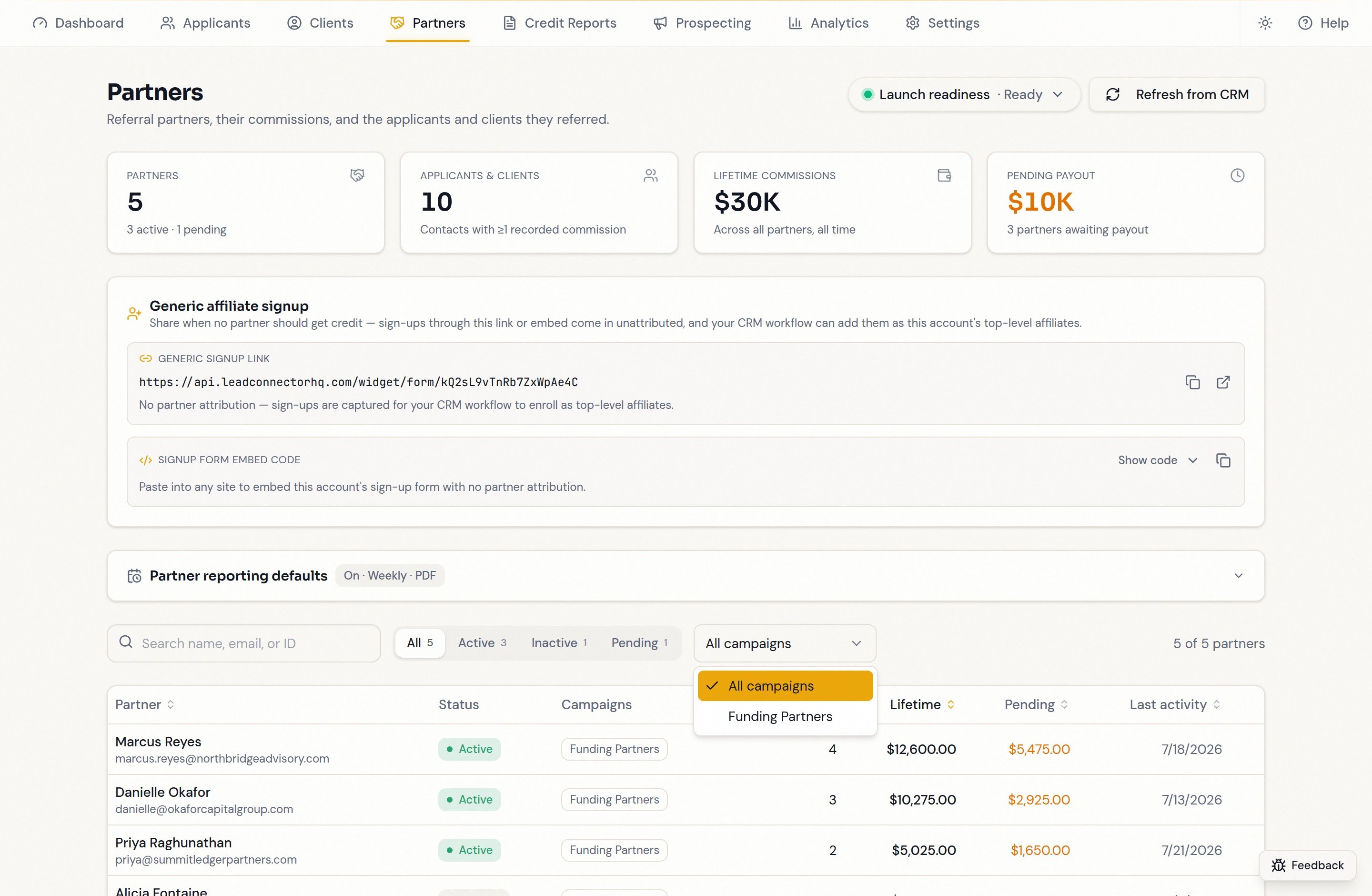
5
5. Sort
Click Partner, Referred, Lifetime, Pending, or Last activity; click again to reverse. Lifetime descending is the default, so top earners lead.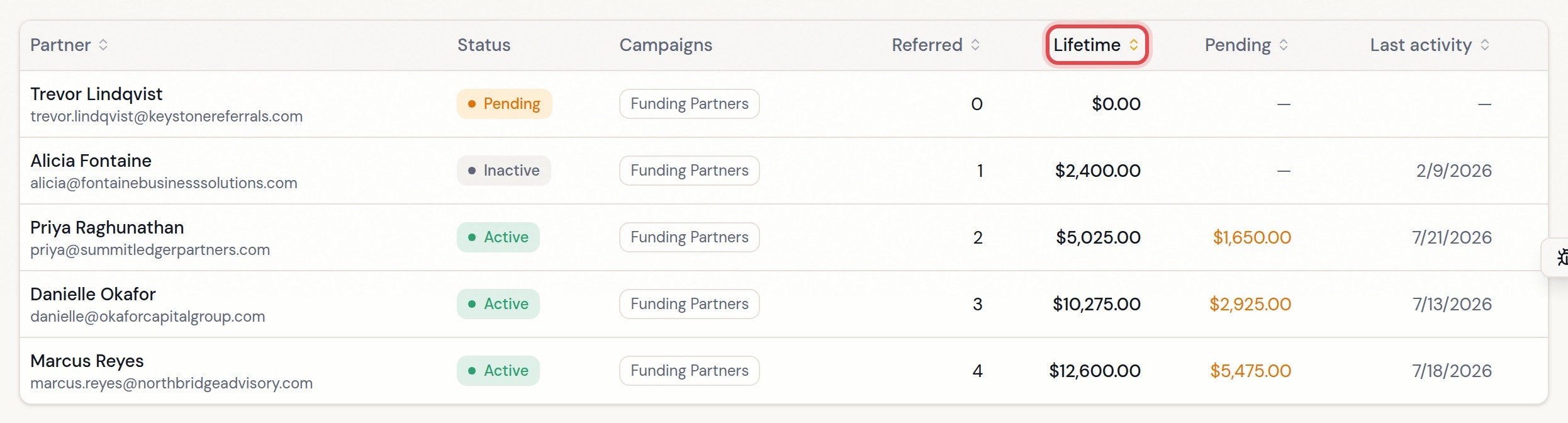
6
6. Open a partner
Click any row to open the partner record.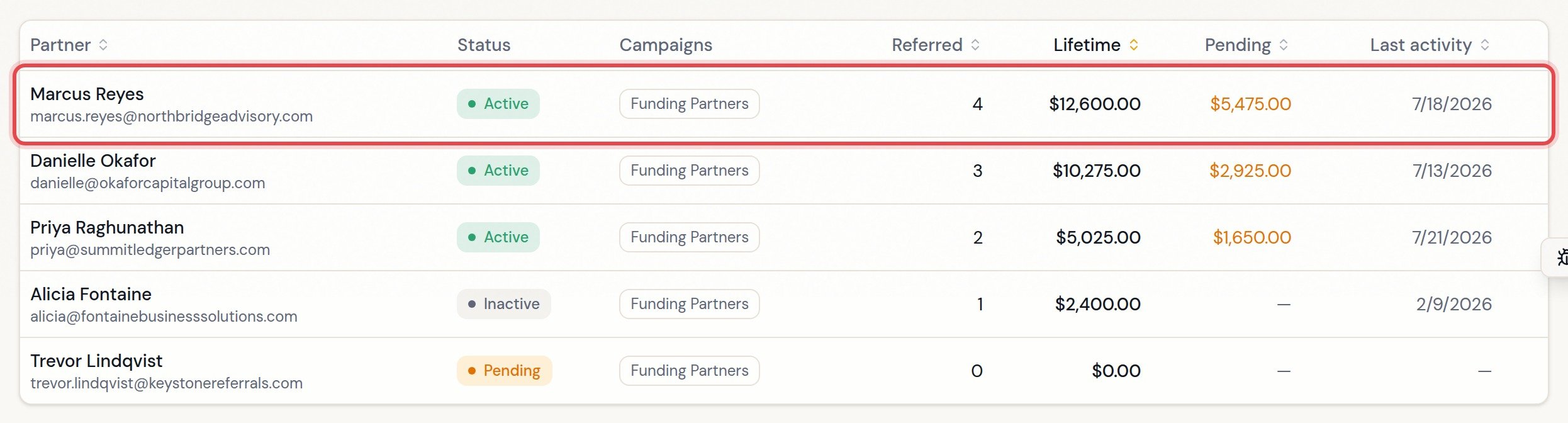
Reading a row
Tips
- A partner with 0 referred and $0 lifetime is usually new — confirm they are enrolled in a campaign.
- Filters stack. If the table looks empty, click Clear search & filters.
- Sorting orders the rows loaded so far; with a
+on the counts, page to the end so every partner is loaded before treating a sort as a ranking.