

Get Started with Partners
Setup lives in Partner program setup and is done once: confirm your application domain and let Funding Machine create the Funding Partners campaign. There is no separate login — opening Funding Machine from your CRM signs you in.Domain and campaign
Every partner referral link lands on your Apply for Funding funnel, so Funding Machine needs that funnel served from a domain connected in your CRM before it can create the campaign.1
Confirm the domain
Click the Settings icon in the header to open the Partner program setup dialog and read the Domain connected / Domain not connected status. Any subdomain attached to the Apply for Funding funnel works. After attaching one, click Re-check domain rather than waiting.
2
Let Funding Machine create the campaign
Once the domain is confirmed, the same step offers Create the Funding Partners campaign, with funnel and commission settings prefilled. Funding Machine creates and publishes it in your CRM.
3
Confirm it in your CRM
Open Marketing → Affiliate Manager → Campaigns and check the reward. If it is still a draft, publish it — partners cannot enroll or get attributed links until it is live.
Could not be confirmed means the check failed on our side — nothing to change in your CRM; retry, then contact support. Connect a domain means the funnel genuinely has no domain attached.
The enrollment workflow (in your CRM)
Each campaign needs a published CRM enrollment workflow namedPartner Enroll — [Campaign Name] that adds the contact as an affiliate and enrolls them in the matching campaign (see Enroll a Partner for overrides). Partner program setup cannot verify the workflow exists — the test below does. It is required for Enroll in campaign and for attributed sign-up assets.
You do not choose a sign-up form. Funding Machine finds your account’s Affiliate Sign Up Form in your CRM on its own and uses it for every partner’s attributed sign-up assets. Nothing to configure — and if it can’t find exactly one form by that name, the partner’s Referral assets card says the assets aren’t available yet rather than guessing.
Step-by-Step
1
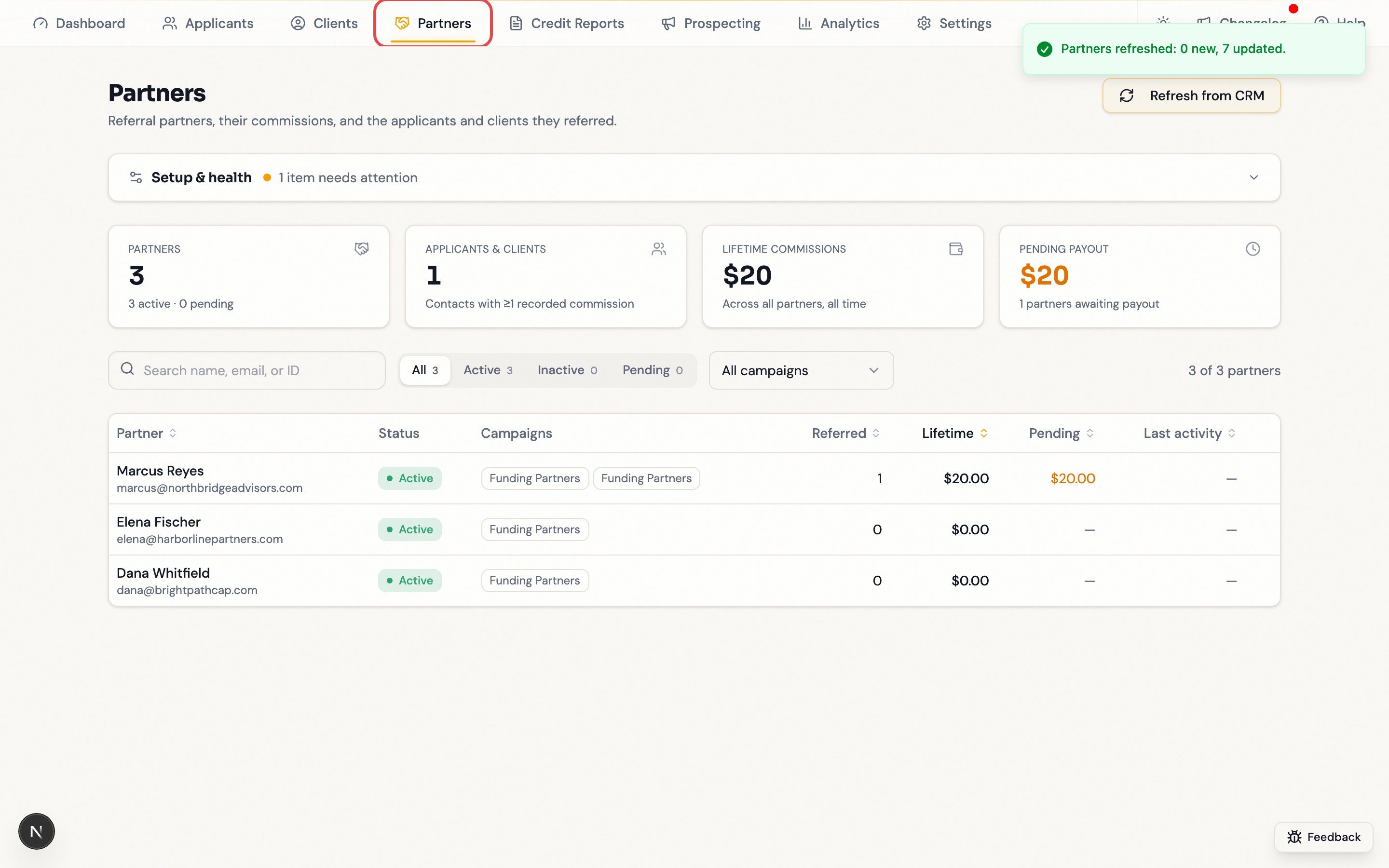
1. Click "Partners"
2
2. Review the workspace
Admins open Partner program setup from the header Settings icon. The page itself shows four account totals and the partner table. Anything urgent appears as a banner on top.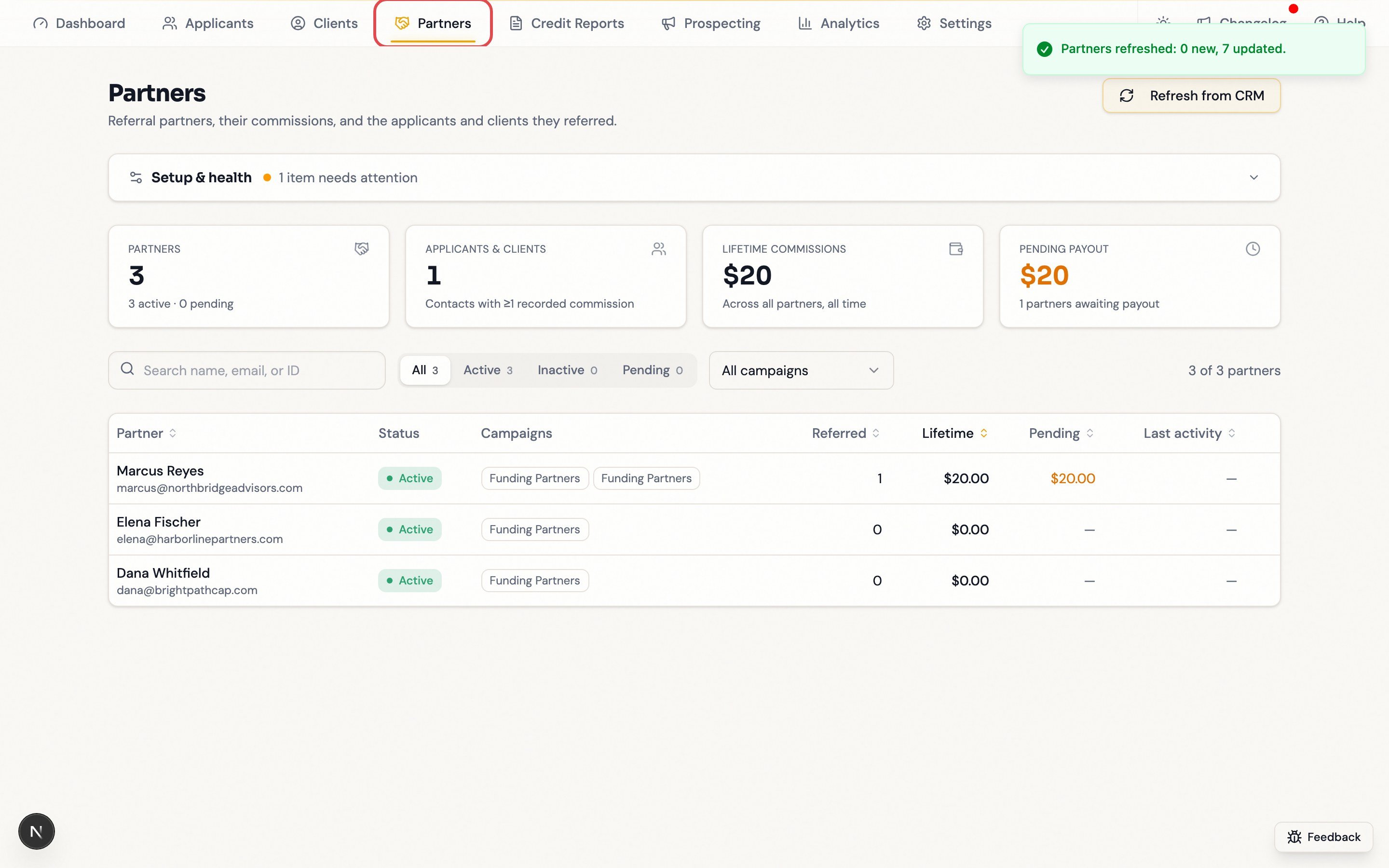
3
3. Open "Partner program setup"
Click the Settings icon. The dialog summarizes the remaining setup action, or reads All set when setup is complete. Close it to return to the partners page.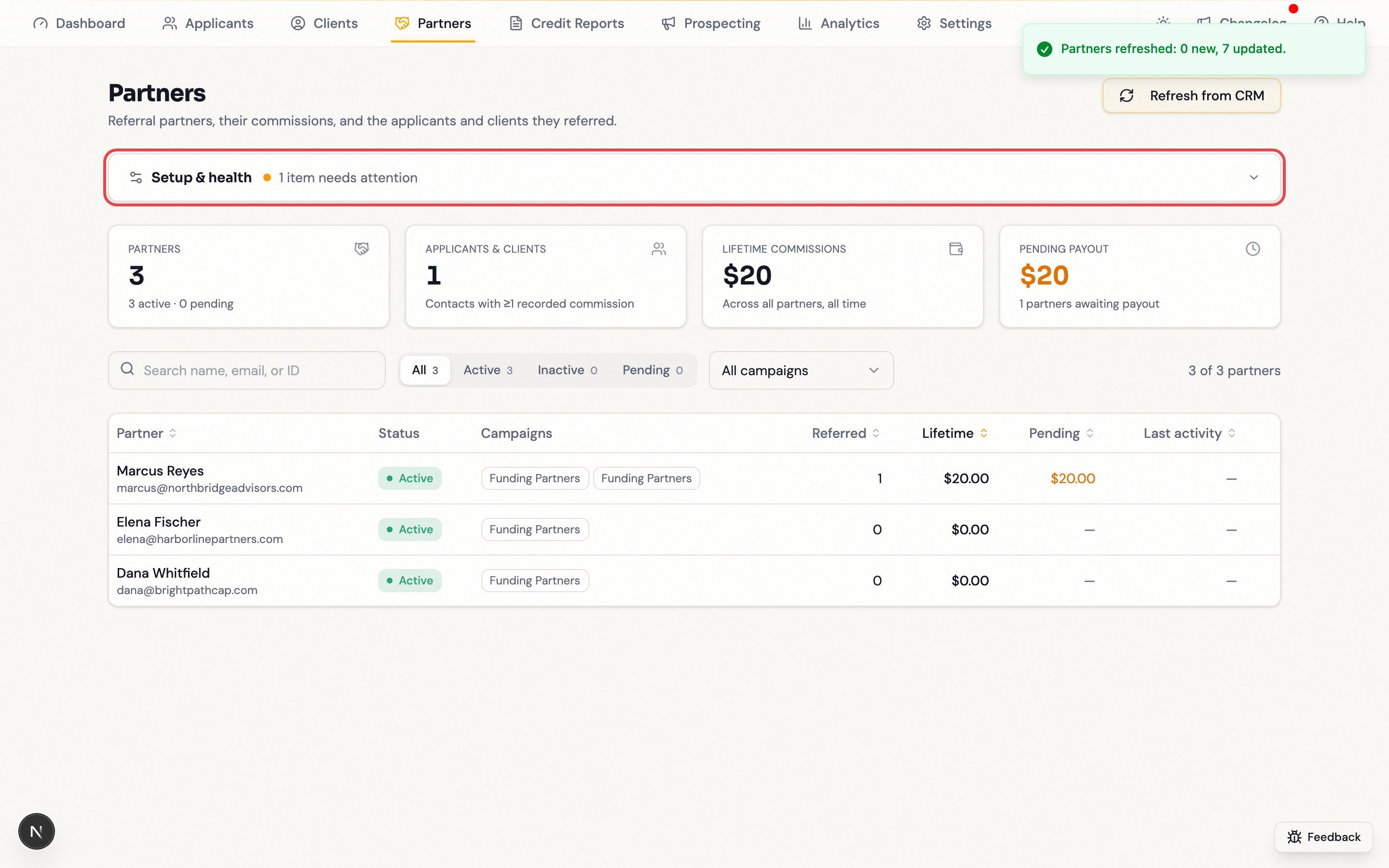
4
4. Click "Refresh from CRM"
Pulls partners, commissions, and payouts immediately. Sync otherwise runs about hourly.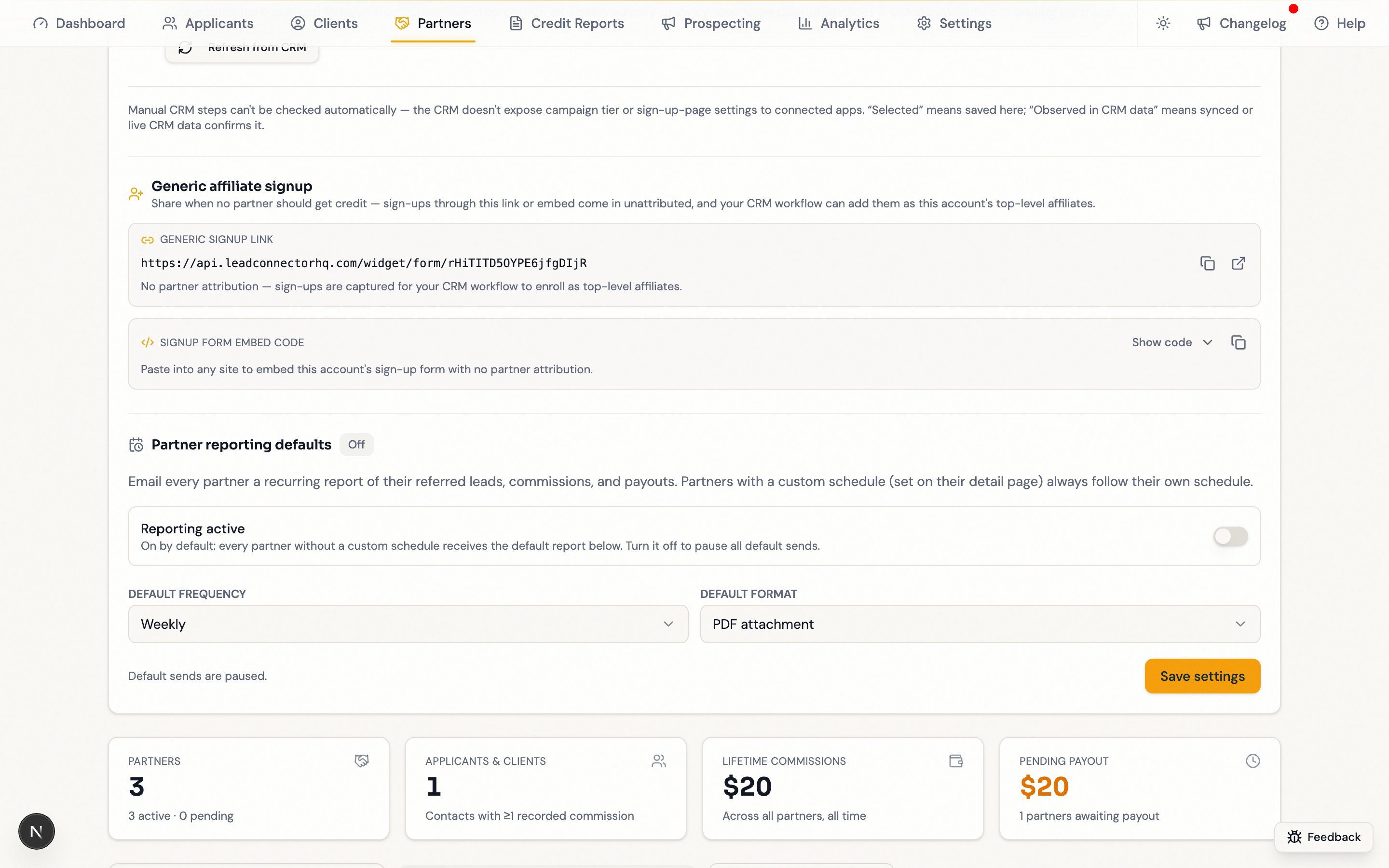
Test a partner
Start in your CRM: the partner table only lists people who exist as affiliates there, and enrollment only works for an affiliate built from a CRM contact. An affiliate typed straight into Affiliate Manager can arrive with no linked contact and a disabled enroll control.1
Create a synthetic CRM contact
In Contacts, create something like Test Partner (QA) with an email your team controls. Do not use a team member’s or a client’s personal information.
2
Turn the contact into the affiliate
In Marketing → Affiliate Manager → Affiliates, choose Add → Import from Contacts and import it. Do not use New Affiliate or Upload Affiliate — neither starts from a contact.
3
Refresh
Back in Partners, click Refresh from CRM. The test partner appears once sync picks it up.
4
Confirm the contact link
Open the partner and check Open in CRM offers Contact record. If it’s missing, the partner has no linked contact — see Enroll a Partner before going further.
5
Enroll in the campaign
On Settings, pick the campaign and click Enroll in campaign (admin-only). This confirms your
Partner Enroll — {Campaign Name} workflow can be found.6
Wait, then refresh again
Your CRM workflow creates the enrollment; it is not instant.
7
Verify assets and attribution
The Overview tab should show a referral link and attributed signup assets. Submit one synthetic lead through the attributed signup link and confirm it appears under the partner after the CRM records the commission.
Recruiting partners with no referrer
To recruit partners when no existing partner should get credit, share your CRM’s Affiliate Sign Up Form directly from your CRM — your CRM workflow turns those sign-ups into top-level affiliates. For a referral that should credit a specific partner, use that partner’s attributed assets instead.You are set up when
- Partner program setup reads All set
- The campaign is published with 2+ tiers (sub-affiliate signup links only work from tier 2 up)
- The test partner appears, shows Contact record under Open in CRM, enrolls, and gets a referral link
- A test lead through the attributed link lands under the right partner