

Partners Overview
Partners in the Funding Machine top navigation shows your referral partners next to the applicants and clients they referred: who is sending you business, what they have earned, and which referrals funded. Partners is available in every account without a Labs opt-in. Access follows your CRM account permissions; reporting and setup controls remain admin-only. Partners and “affiliates” are the same people, on two screens:- The CRM’s Affiliate Manager is the source of record. Partners are stored there as affiliates, and that is where you manage campaigns, partner records, commission rules, payouts, the portal, media, and settings.
- Partners (this workspace) reads that data hourly and joins it to your applicants, clients, and funding results. It also owns report schedules, one-time report sends, and manual referral-link overrides, and it can create the required Funding Partners campaign for you.
When a CRM menu or screenshot says Affiliate, it means the same partner. These docs say “partner” for the person and keep Affiliate Manager for the CRM feature. Don’t confuse this workspace with Prospecting partners, who buy leads — different records, different billing.
The four things you’ll do here
Everything else — creating partners, campaigns, commission rates, payouts — is administered in the CRM. See the Affiliate Manager guides.
How the data gets here
Funding Machine syncs partners, campaigns, commissions, and payouts from your CRM about once an hour (Refresh from CRM pulls immediately). It links a referral to a partner two ways: from the partner’s referral attribution — the referral link or code the CRM records on a contact, which shows up before any money moves — and from commissions, each of which names the contact it was earned on. Either way, Funding Machine matches the contact to your pipeline and shows the stage, decision, credit score, and funded amount on the partner’s record.Touring a partner record
1
1. Click "Partners"
The workspace opens with four account-wide totals and your searchable partner table. Admins open Partner program setup from the header Settings icon for the application domain and the Funding Partners campaign it unlocks.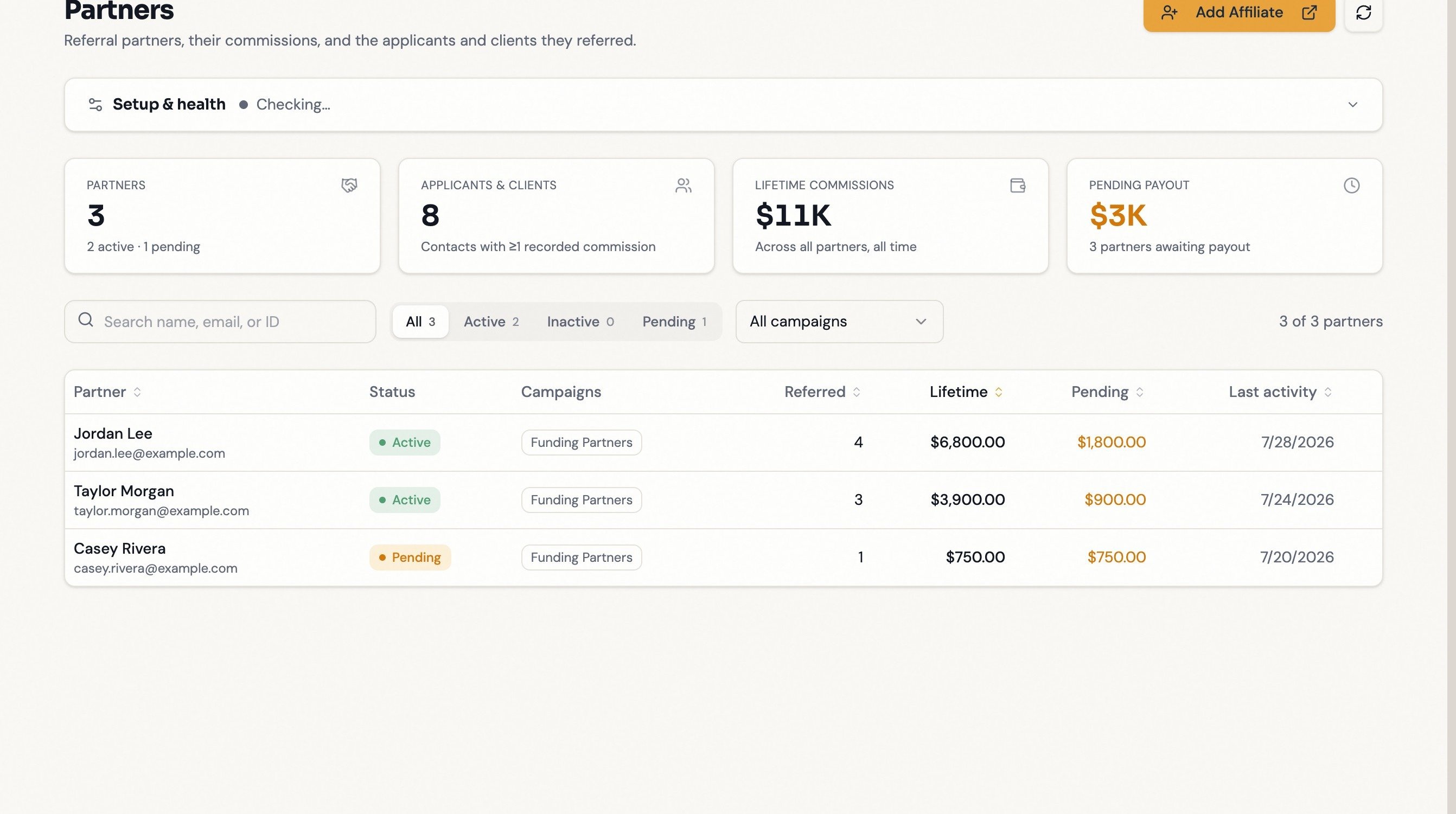
2
2. Select a partner
Their record opens: identity on the left, performance KPIs on top, tabs below.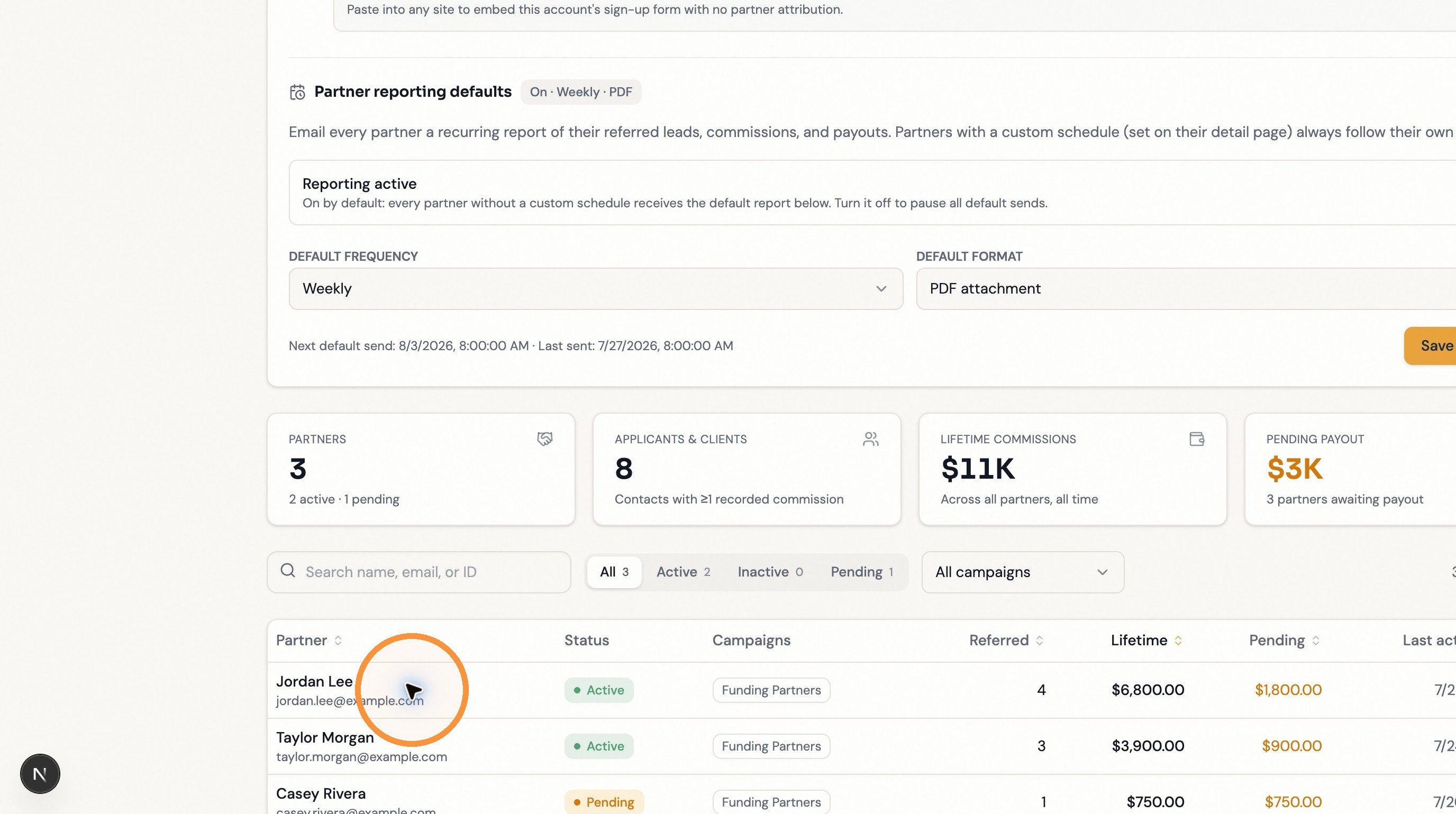
3
3. Click "Applicants"
Referred contacts still moving through your pipeline, with stage, decision, credit score, and estimated funding.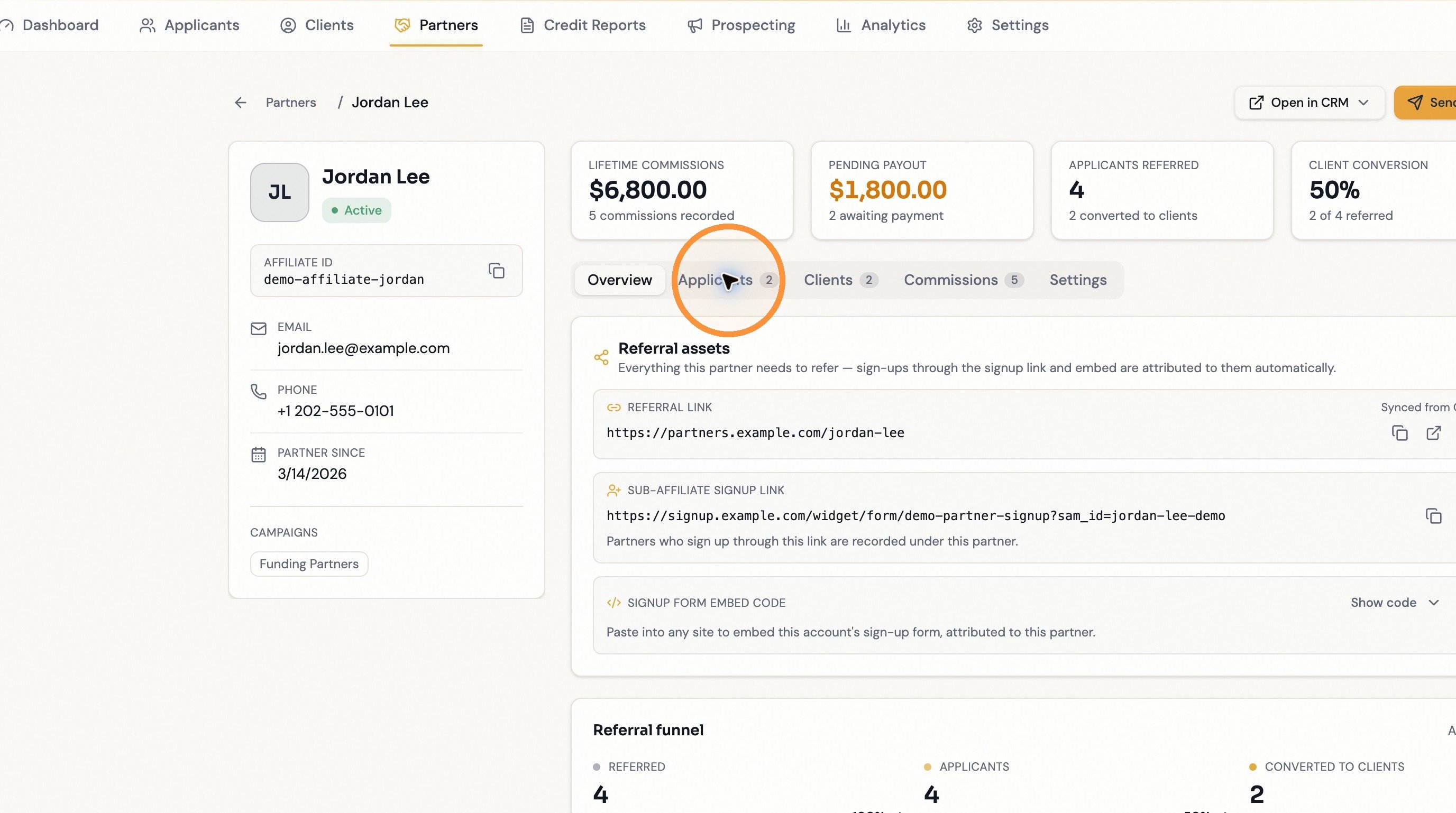
4
4. Click "Clients"
Referrals in the client stage, with the agreement-signed date and any funded amount when available. Clients can still be awaiting funding. A dash in the agreement date means no completed agreement date is recorded; client status alone does not verify a signature.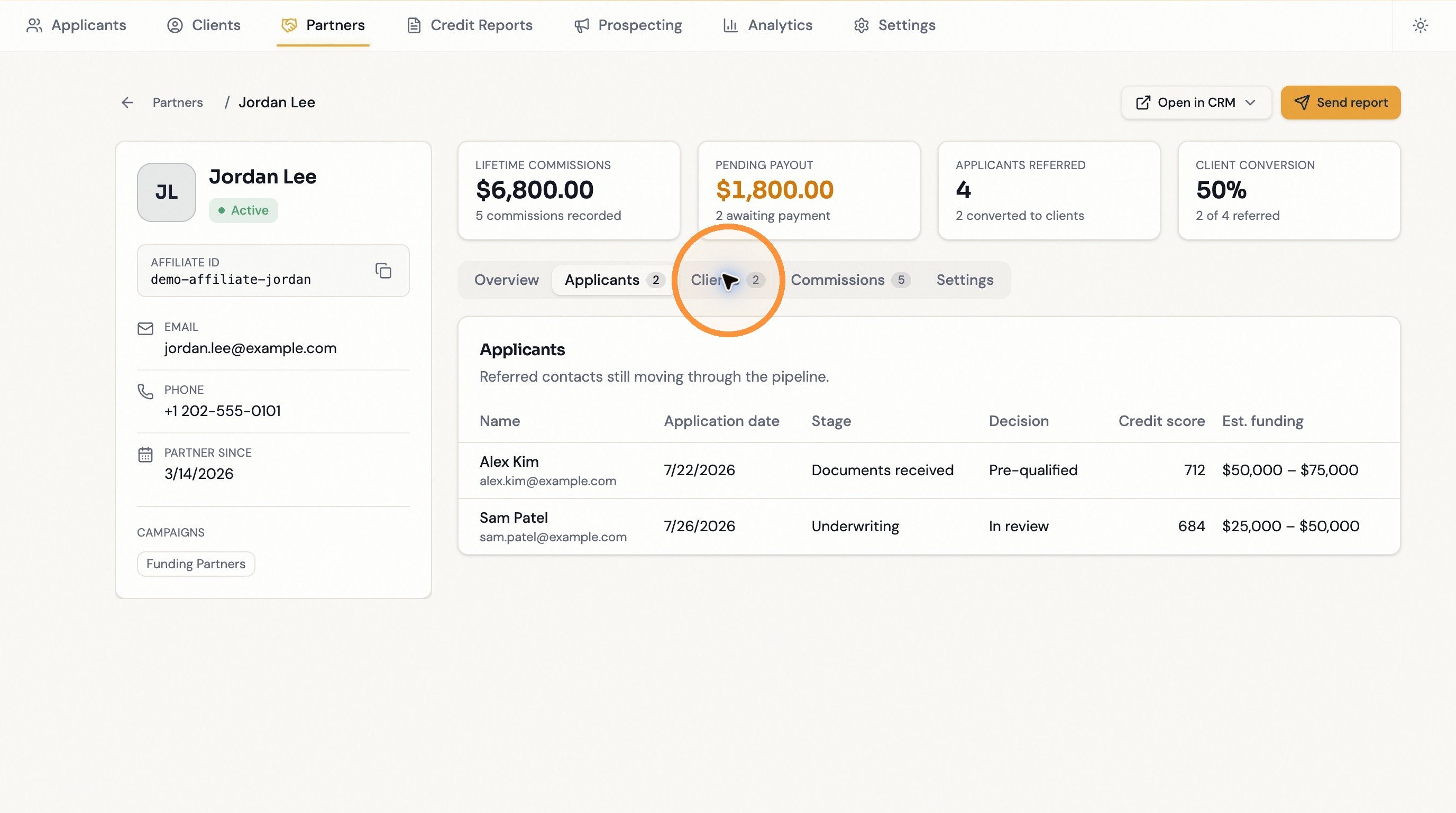
5
5. Click "Commissions"
The full ledger — date, contact, campaign, amount, paid or pending. Read-only; amounts and payouts are managed in your CRM.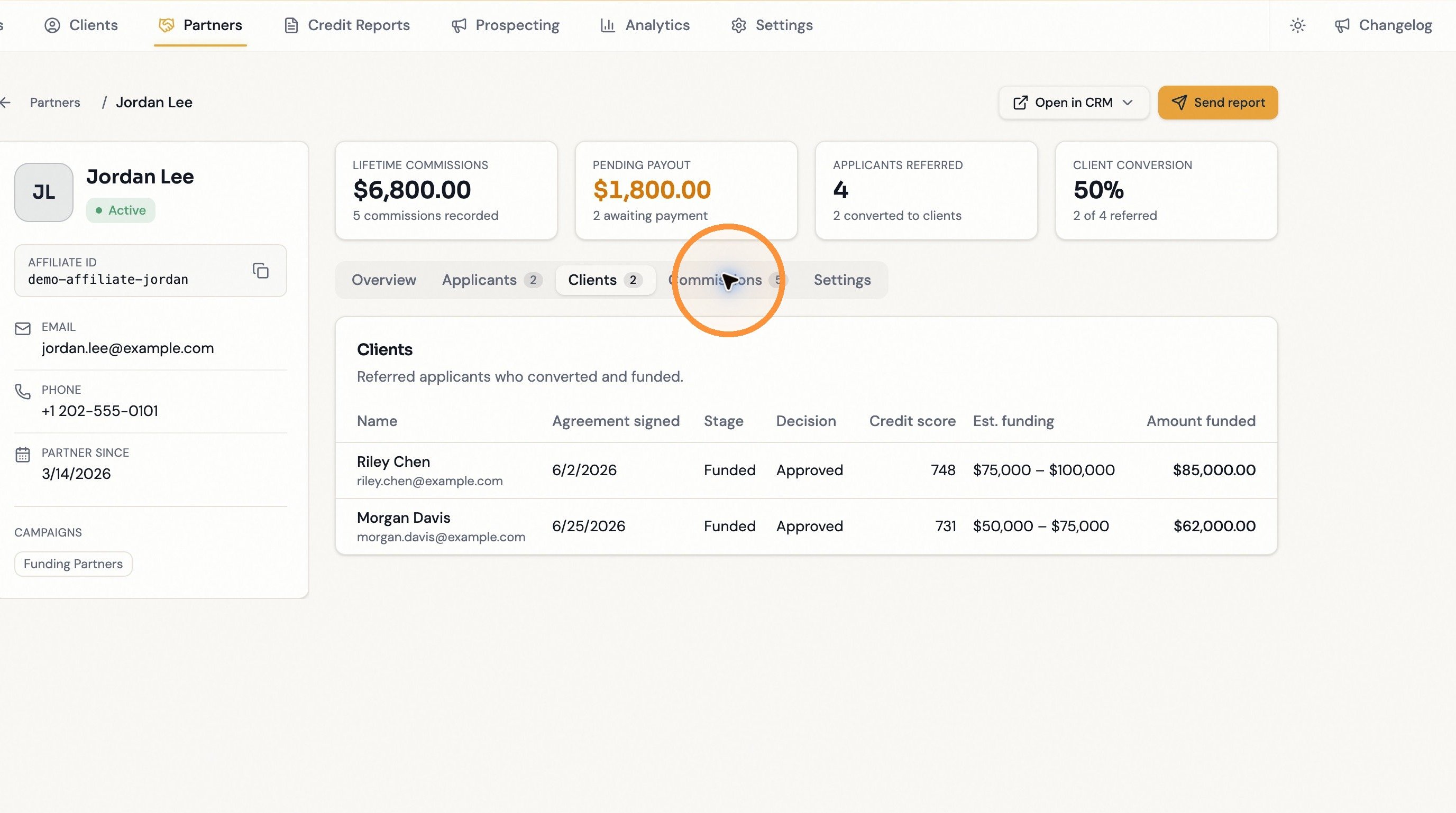
6
6. Click "Settings" (admins)
This partner’s recurring report schedule. Non-admins don’t see this tab.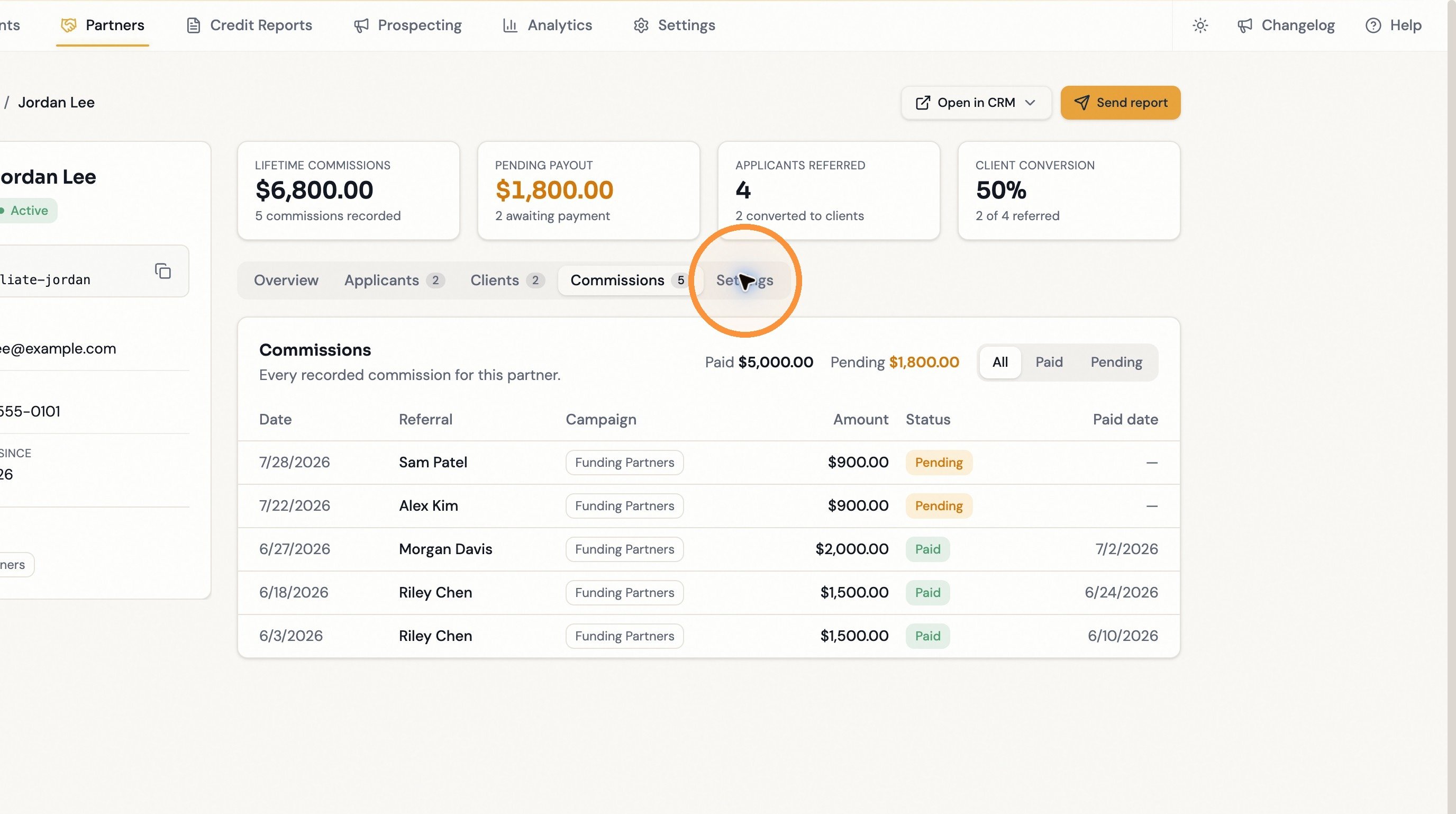
7
7. Click "Overview"
The partner’s referral assets and Referral summary: Total referred = Applicants + Clients. These are separate current statuses, with signing as the normal business transition. Client conversion is shown separately as Clients divided by Total referred. See Referral counts for how client status is recognized when no completed agreement is stored.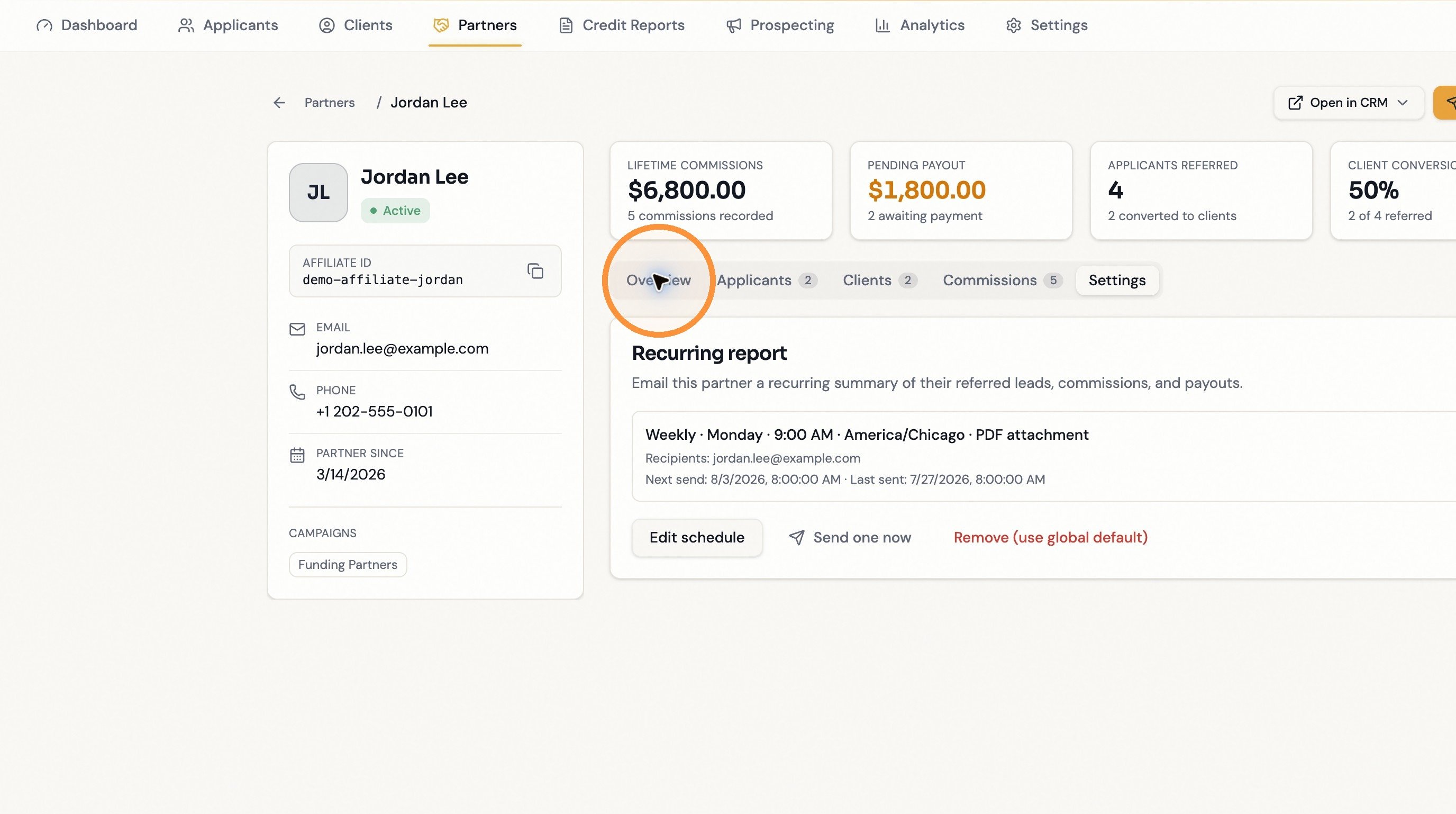
8
8. Click "Partners" in the breadcrumb
Back to the full partner list.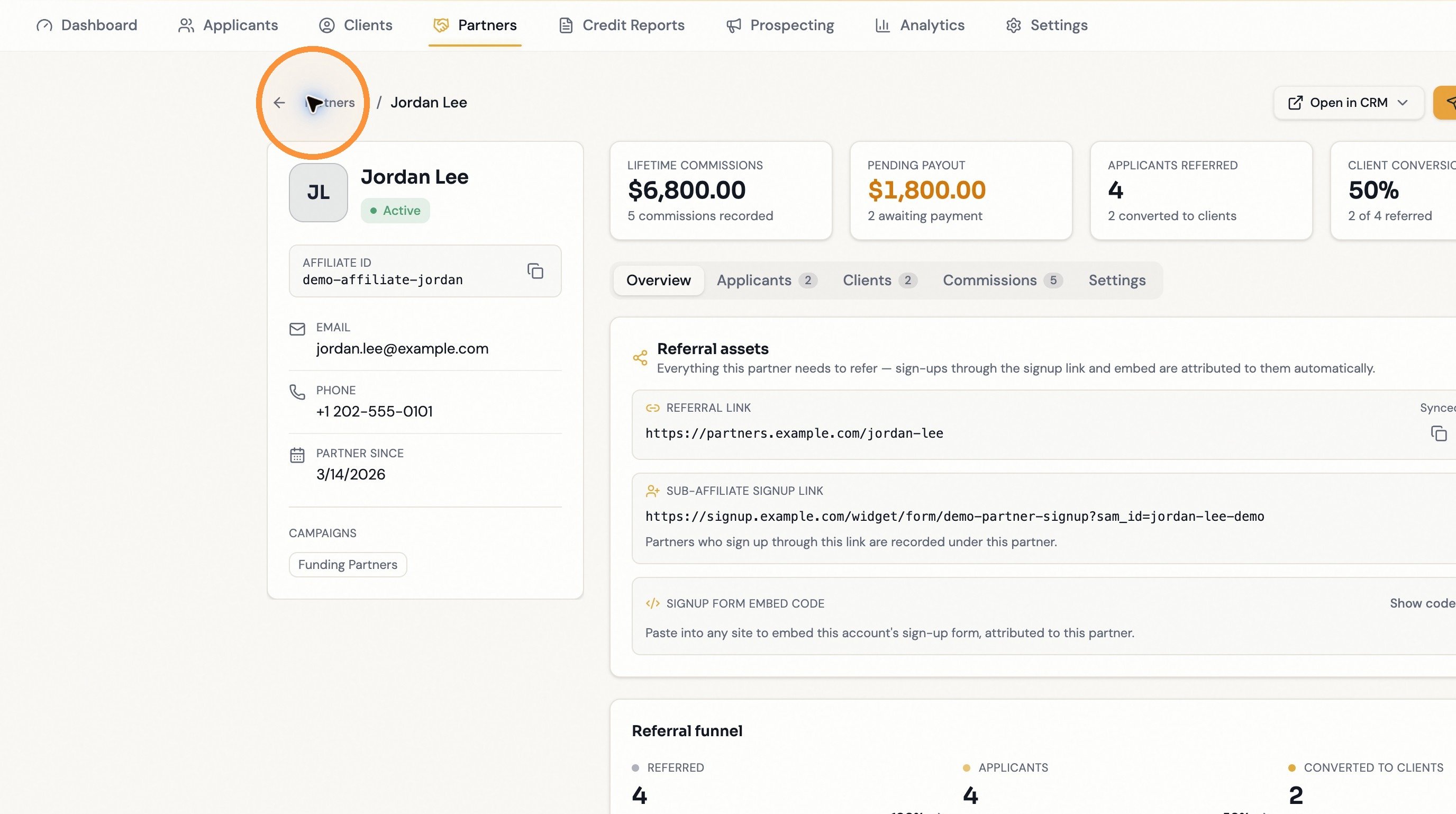
Where to start
Getting Started
One-time setup: domain, campaign, and partner signup.
Troubleshooting & FAQ
Missing partners, missing referrals, stale totals.