

Partner Prospecting Workflow
This guide shows the partner-facing prospecting workflow for every partner team. It covers how users view incoming BusinessLoans.com leads, open a lead, review the conversation, update stages, and keep routing settings accurate.This is the public user guide. It intentionally avoids admin-only prospecting pages, campaign setup, allocation controls, billing reconciliation, and internal routing tools.
Step-by-step
1
1. Open Prospecting
In Funding Machine, click Prospecting in the left navigation.The prospecting dashboard shows today’s delivered leads, the monthly plan count, booking link health, lifecycle totals, and the most recent leads.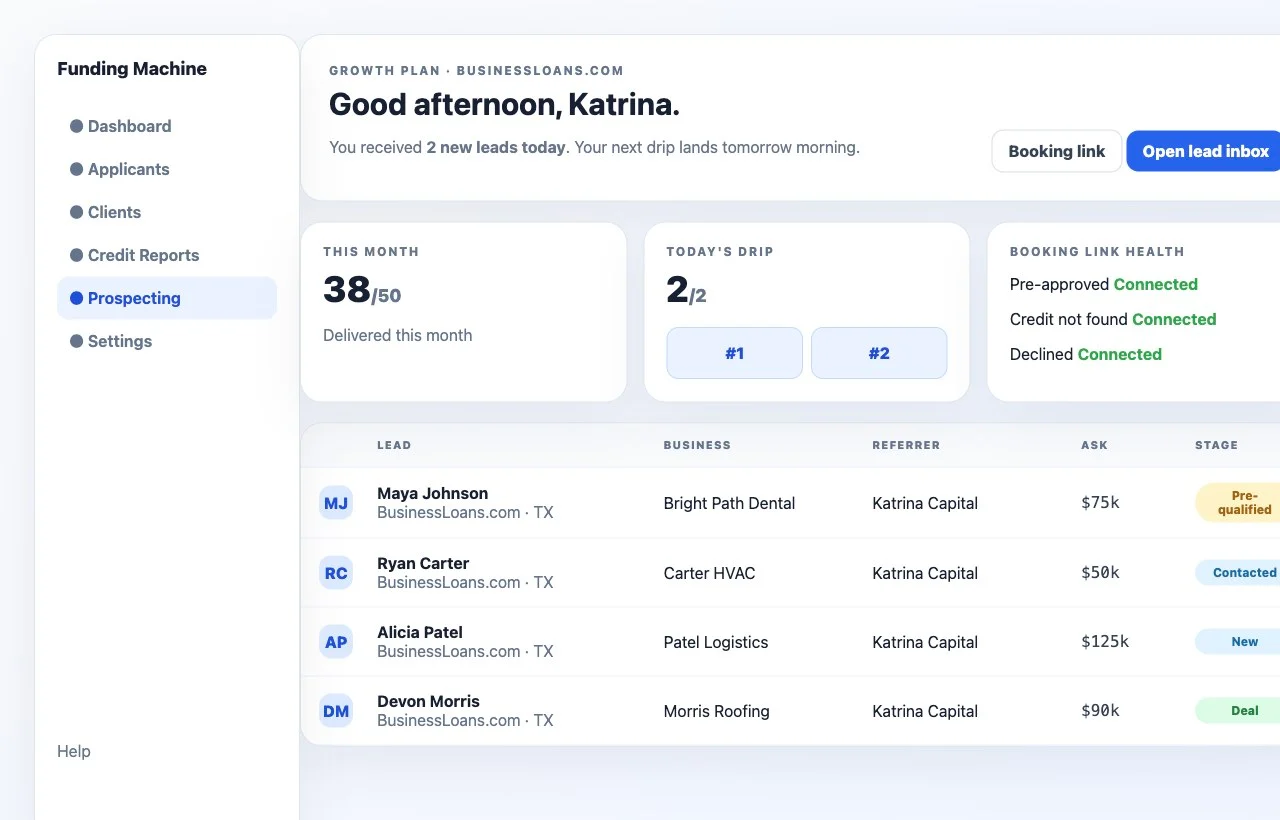
2
2. Open the lead inbox
Click Open lead inbox or All leads.The lead inbox is the main work queue. Users should start with new or recently delivered leads, then review each lead before calling, emailing, or texting.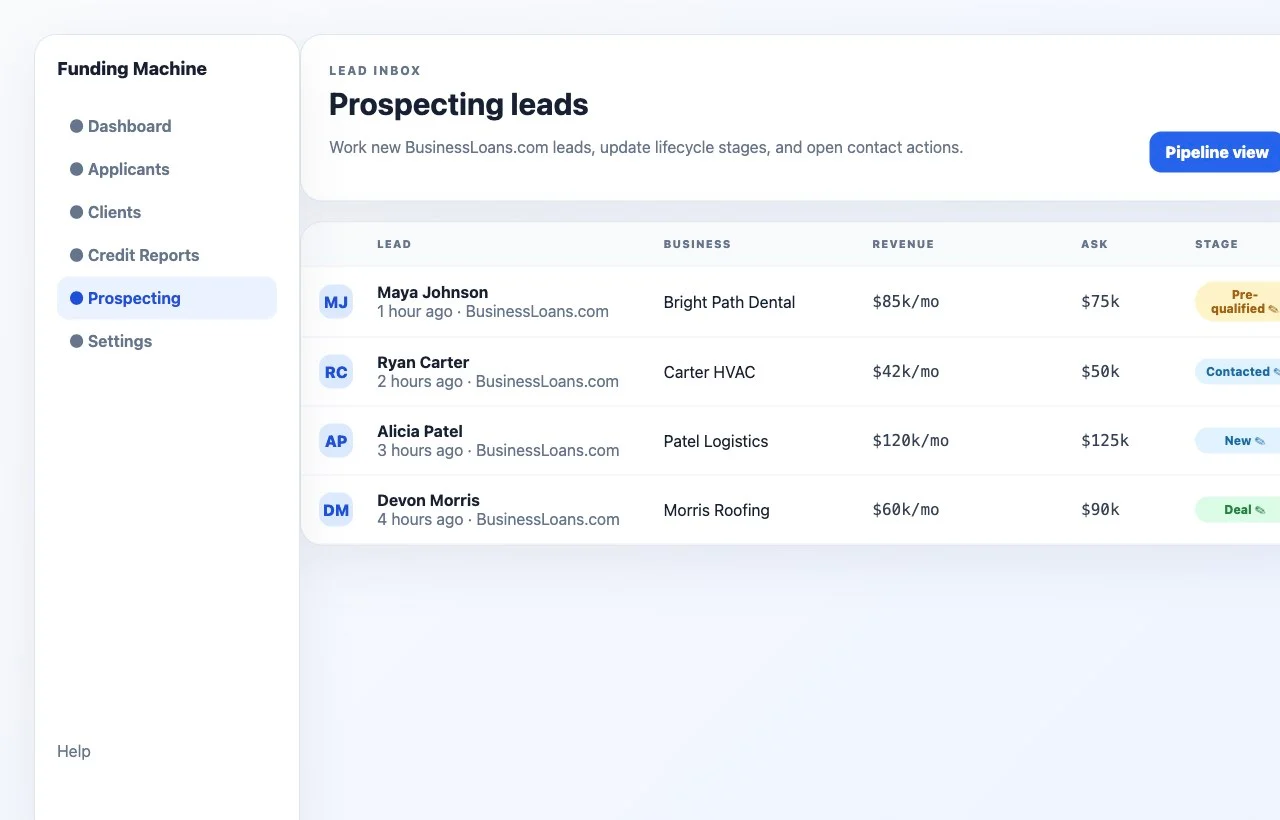
3
3. Open a lead
Click any lead row to open the lead detail drawer.The drawer shows contact information, business details, requested funding amount, monthly revenue, partner links, renewal status, a funding override, conversation history, timeline, notes, and call, email, and SMS actions.Use Funding override when a deal funded outside the records the app can see. Pin the funded amount, date funded, lender name, and product type, and the weekly lender report sends those values for the lead every time it runs. Leave a field blank to keep the derived value, or choose Clear override to return the lead to the derived values.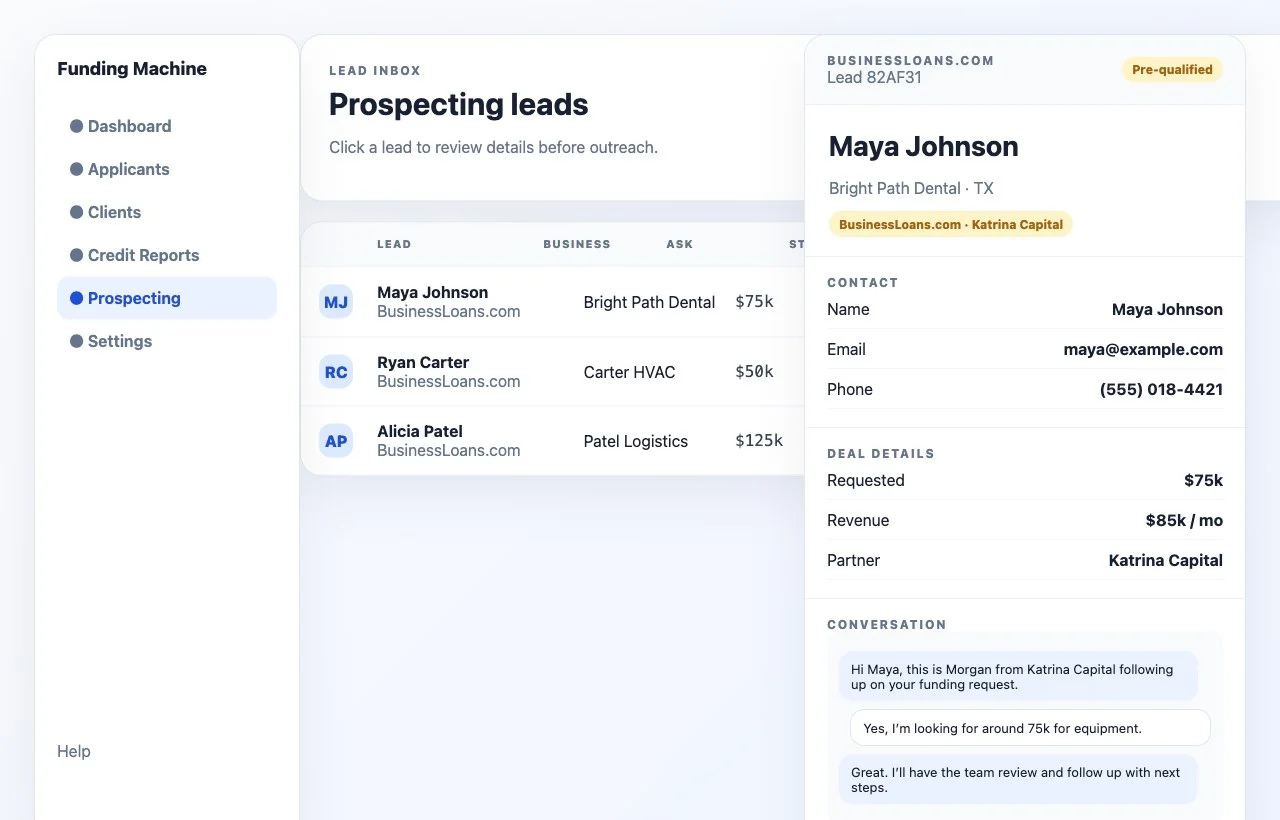
4
4. Review conversation history
Before outreach, scroll to Conversation and read the latest messages.This helps the team avoid duplicate outreach and keeps follow-up aligned with what Morgan or the previous setter already said.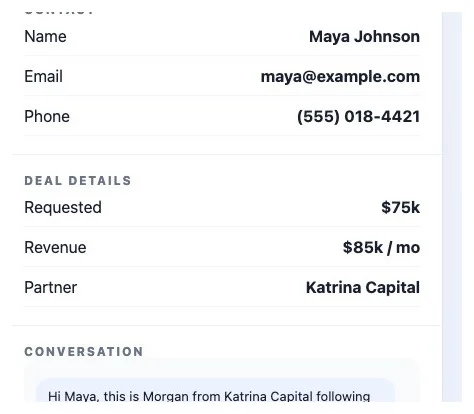
5
5. Update the lead stage
Use the stage control from the inbox row or the lead detail drawer.Keep the stage current after each touch so the rest of the team knows what happened and what should happen next.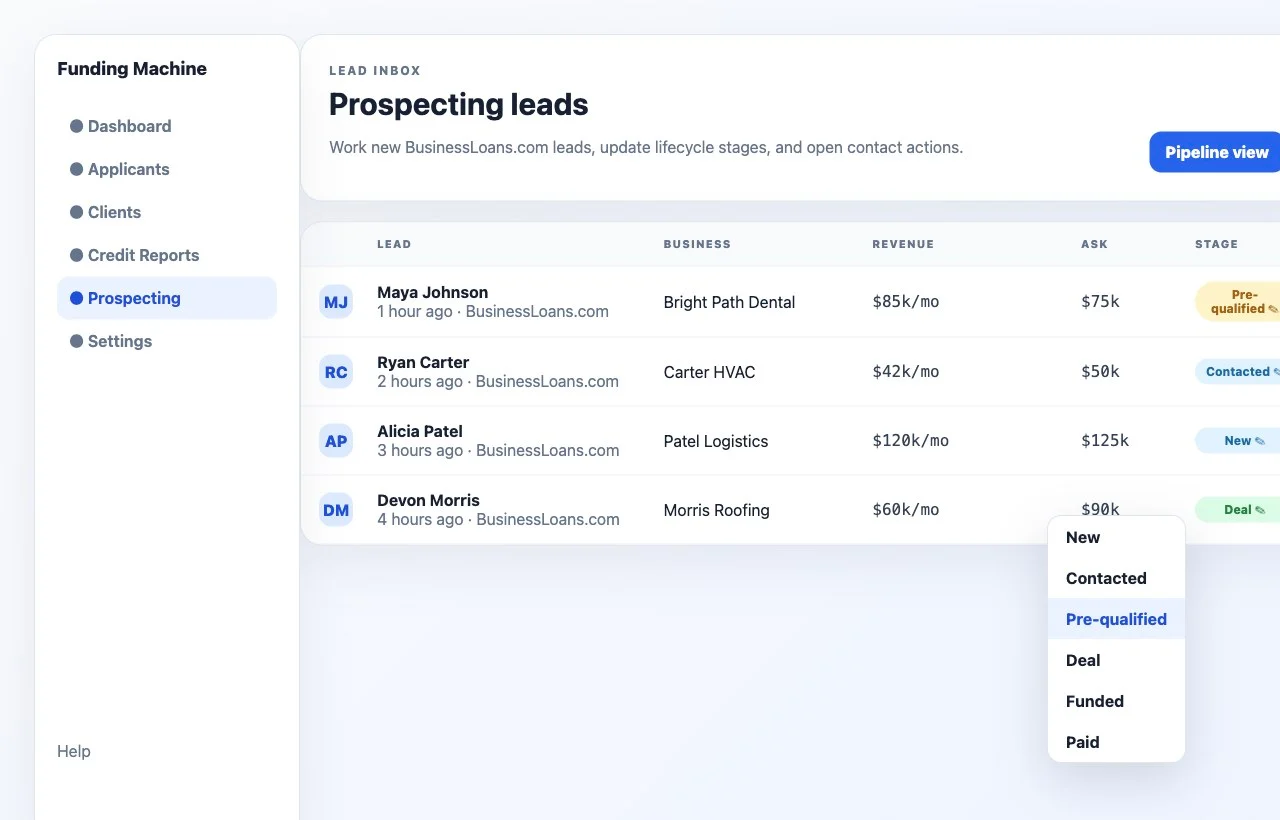
6
6. Check the pipeline
Open Pipeline view to see lead progress across the funnel.Use this view to spot leads that are stuck, see what needs follow-up, and confirm which leads have moved toward deal, funded, and paid.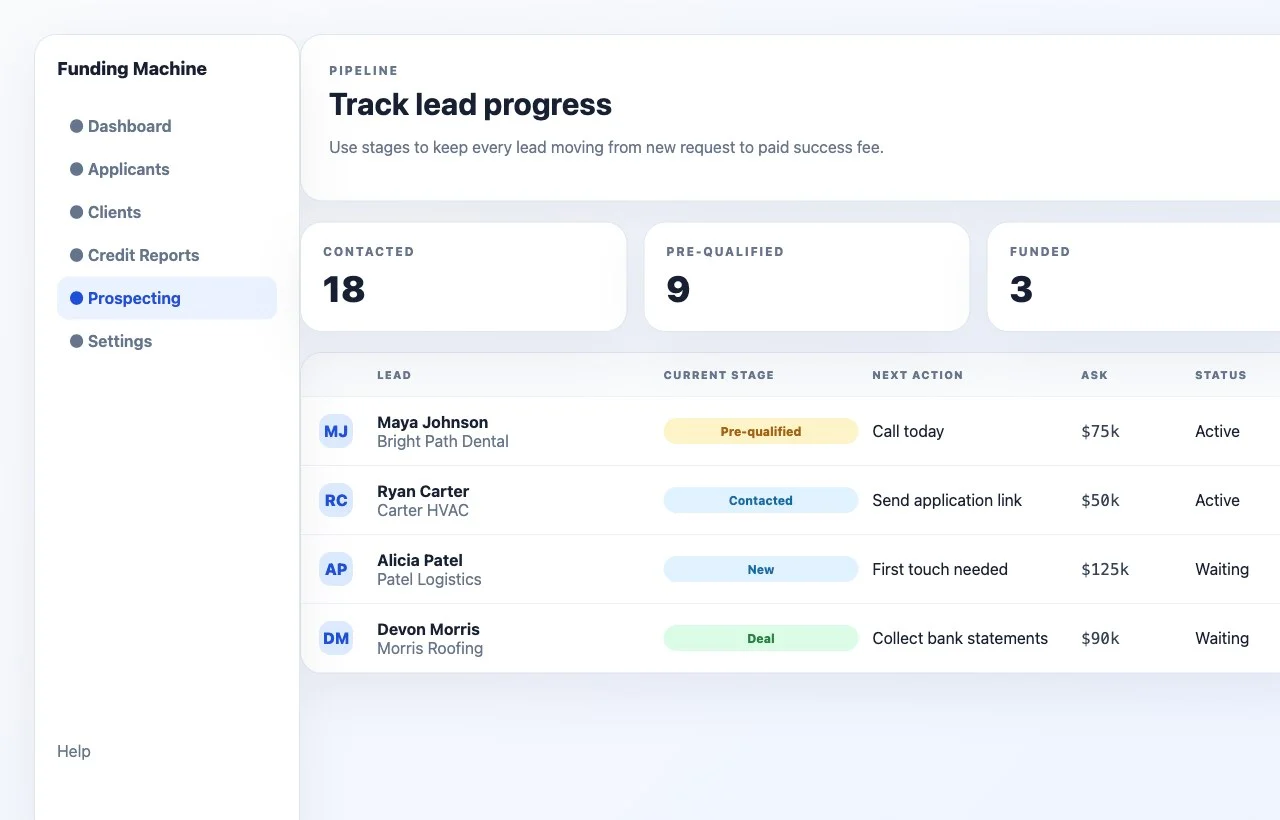
7
7. Review prospecting settings
Open Settings when routing or calendar links need to be checked.Confirm the daily lead cap, routing status, managed service status, and booking links. Missing calendar links can block routing, so keep them current.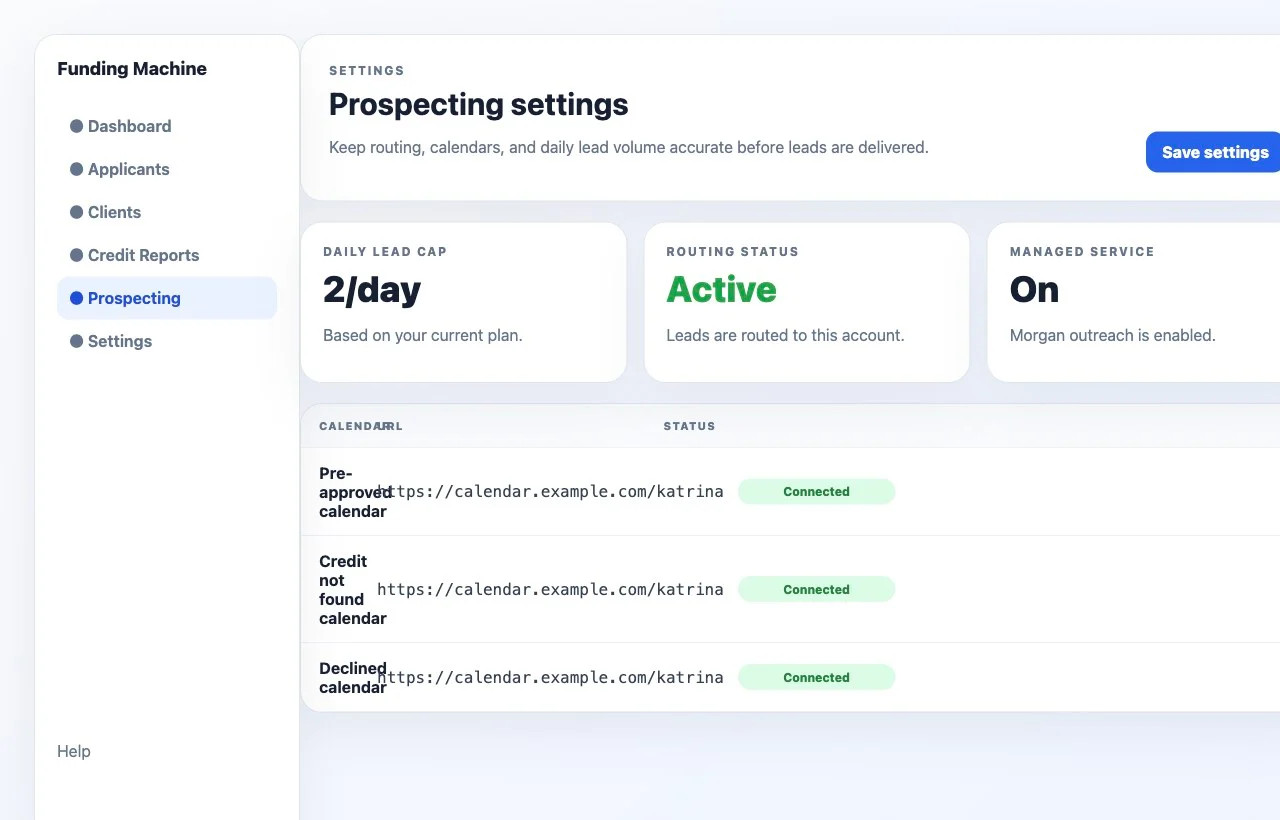
Recommended daily workflow
- Open Prospecting.
- Check today’s drip count and recent leads.
- Open the lead inbox.
- Start with the newest unworked leads or the highest-priority follow-ups.
- Open each lead and review contact details, business details, and conversation history.
- Call, email, or text the lead.
- Add any needed notes.
- Update the lead stage.
- Use Pipeline view to confirm nothing is stuck.
Stage definitions
What users should review before outreach
- Contact name, email, and phone
- Business name and state
- Requested funding amount
- Monthly revenue
- Source and referring partner
- Conversation history
- Prior call, SMS, or email attempts
- Notes and timeline activity
- Partner application and booking links