

- your Company tenant ID
- an API token
The Partner payouts (1099) card shows on the Partners page once the Partner payouts
(1099) feature is turned on under Settings → Labs. See Labs.
Everee’s sandbox is a separate company with its own tenant ID. For Test mode, follow these
steps in your Everee sandbox. For Live mode, follow them in your live Everee account.
Find your Company tenant ID
1
Open the Everee API card
In Everee, go to Settings, then Integrations Hub. On the Everee API card, click
the + icon.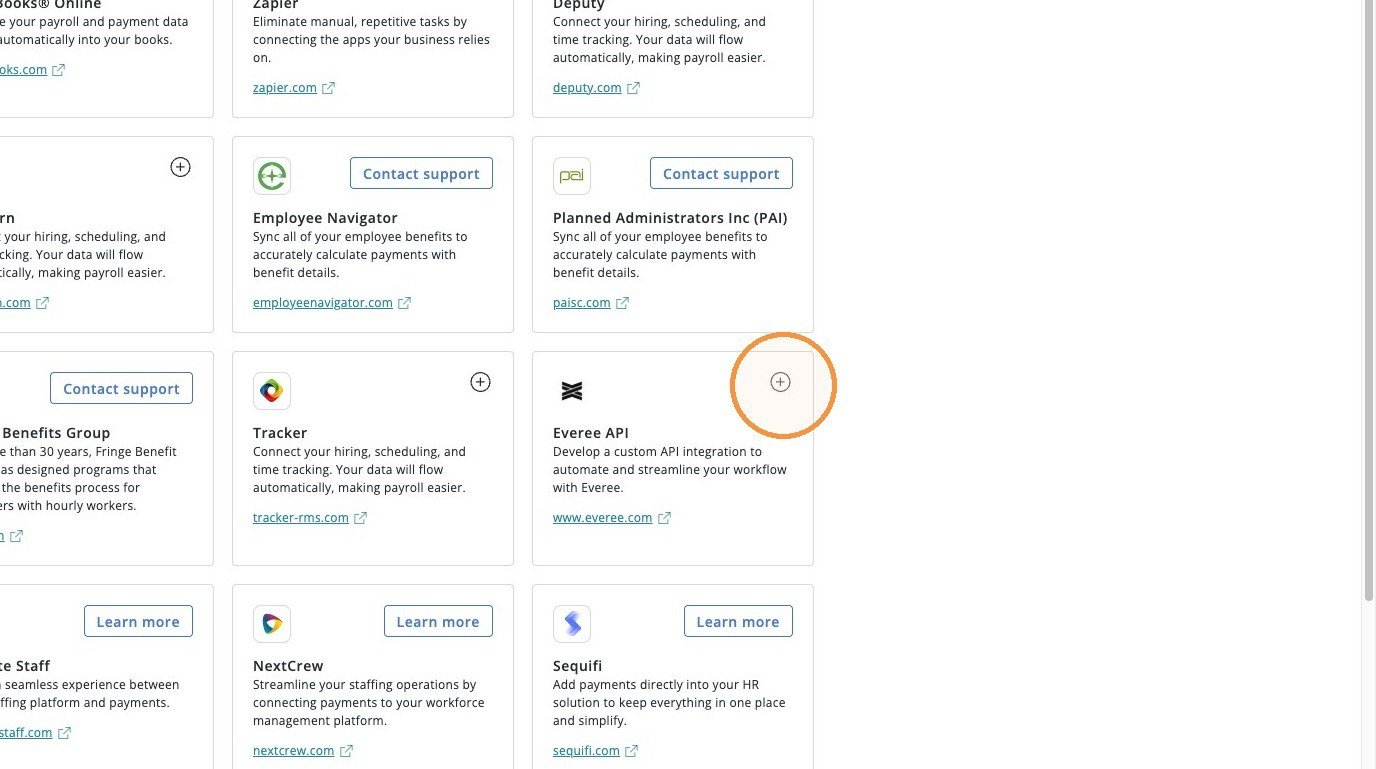
2
Copy your Company tenant ID
The Manage Everee API page opens. Under API tokens, find the line that starts with
Company tenant ID, for example 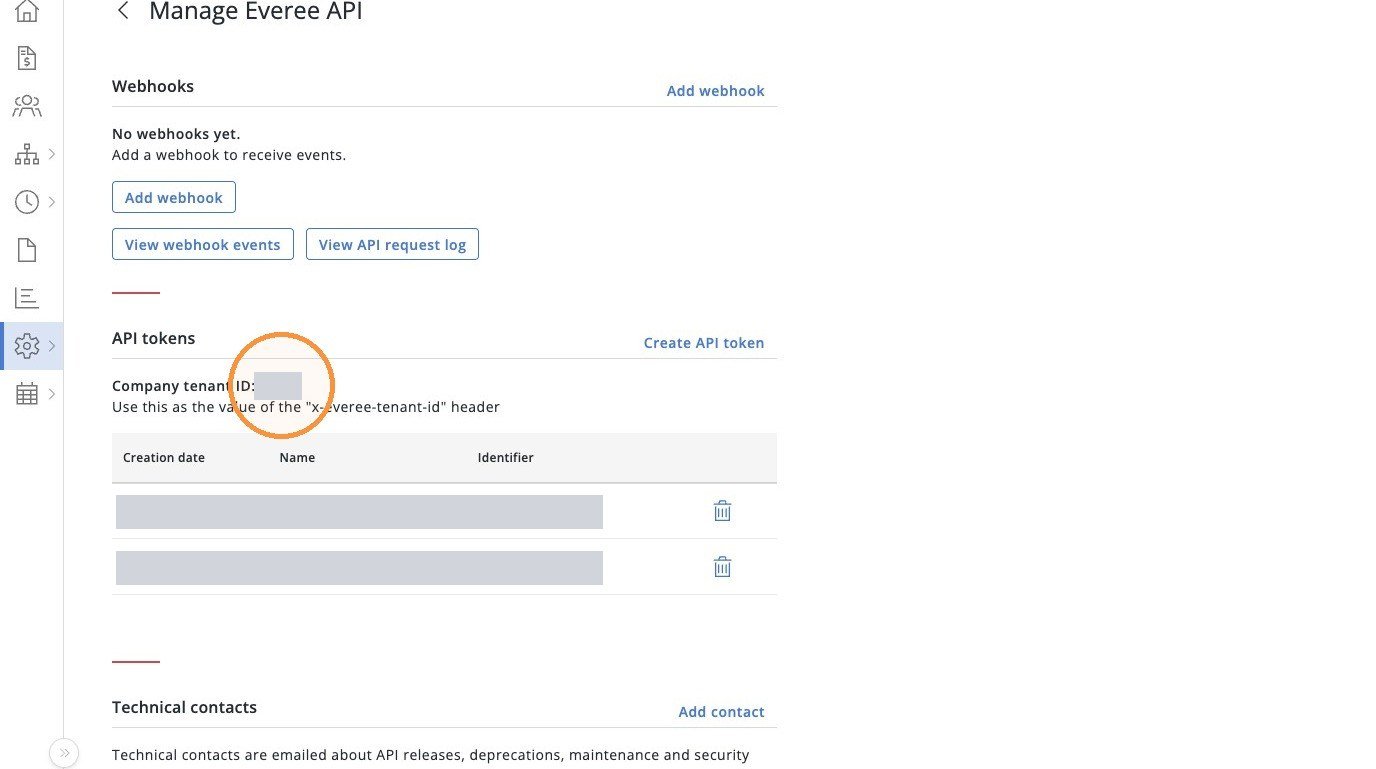
Company tenant ID: 1234. Copy the number. This is your
tenant ID.Create the token
3
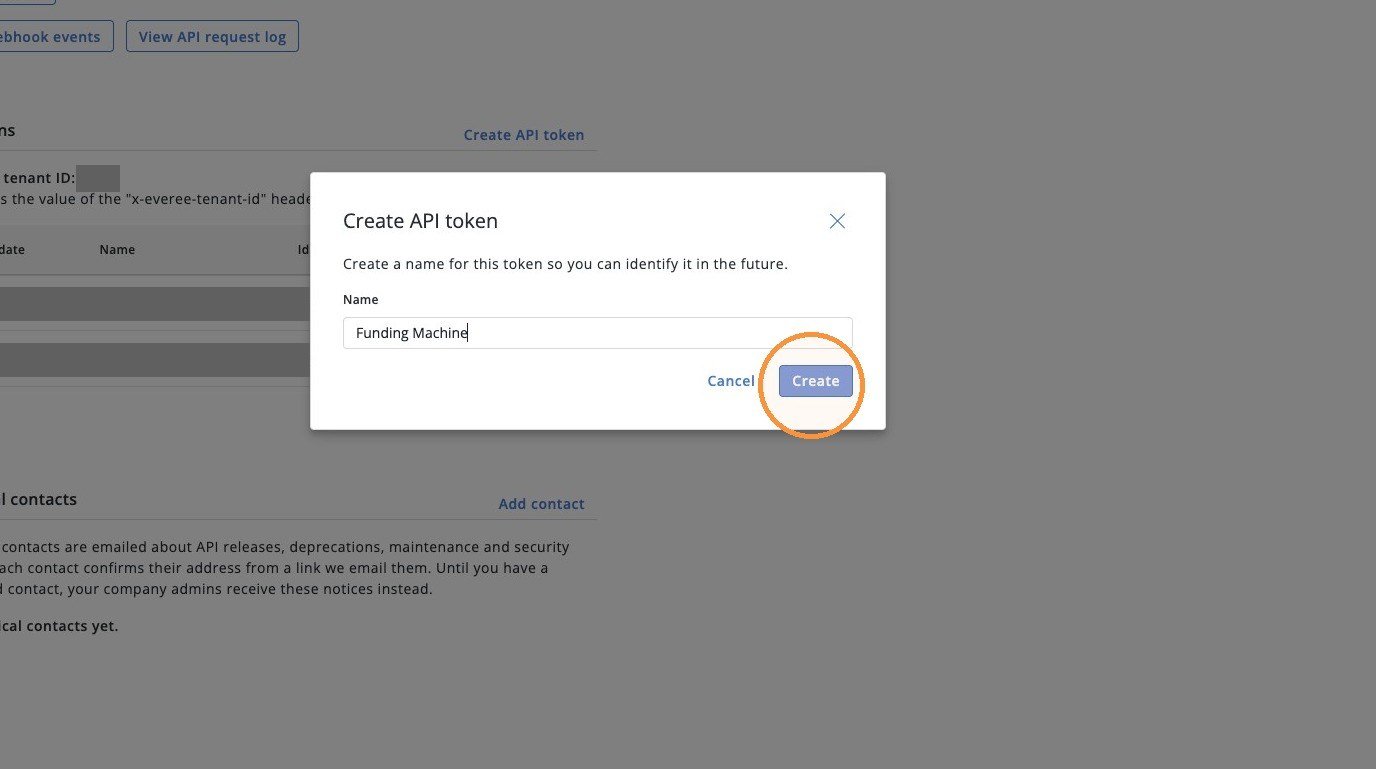
Click "Create API token"
On the same page, click Create API token.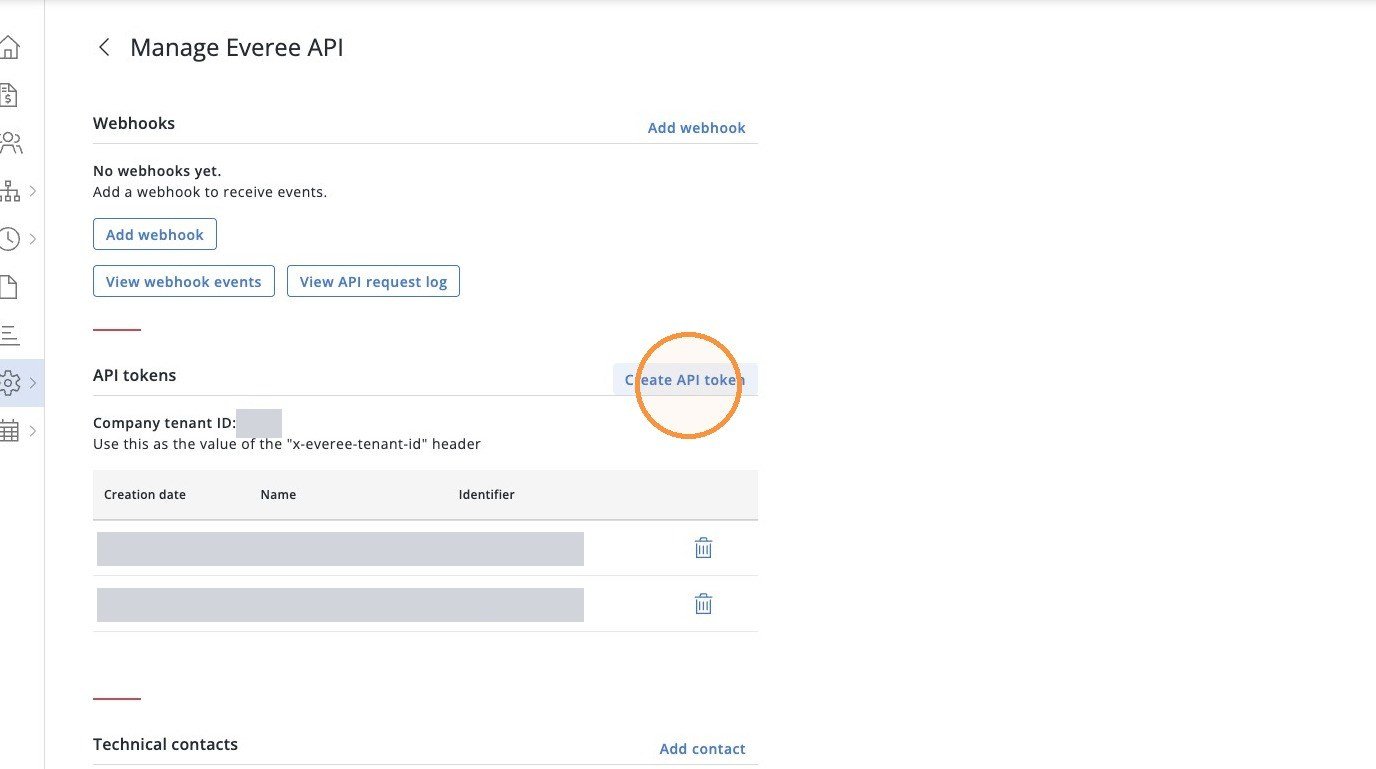
4
Click the Name field
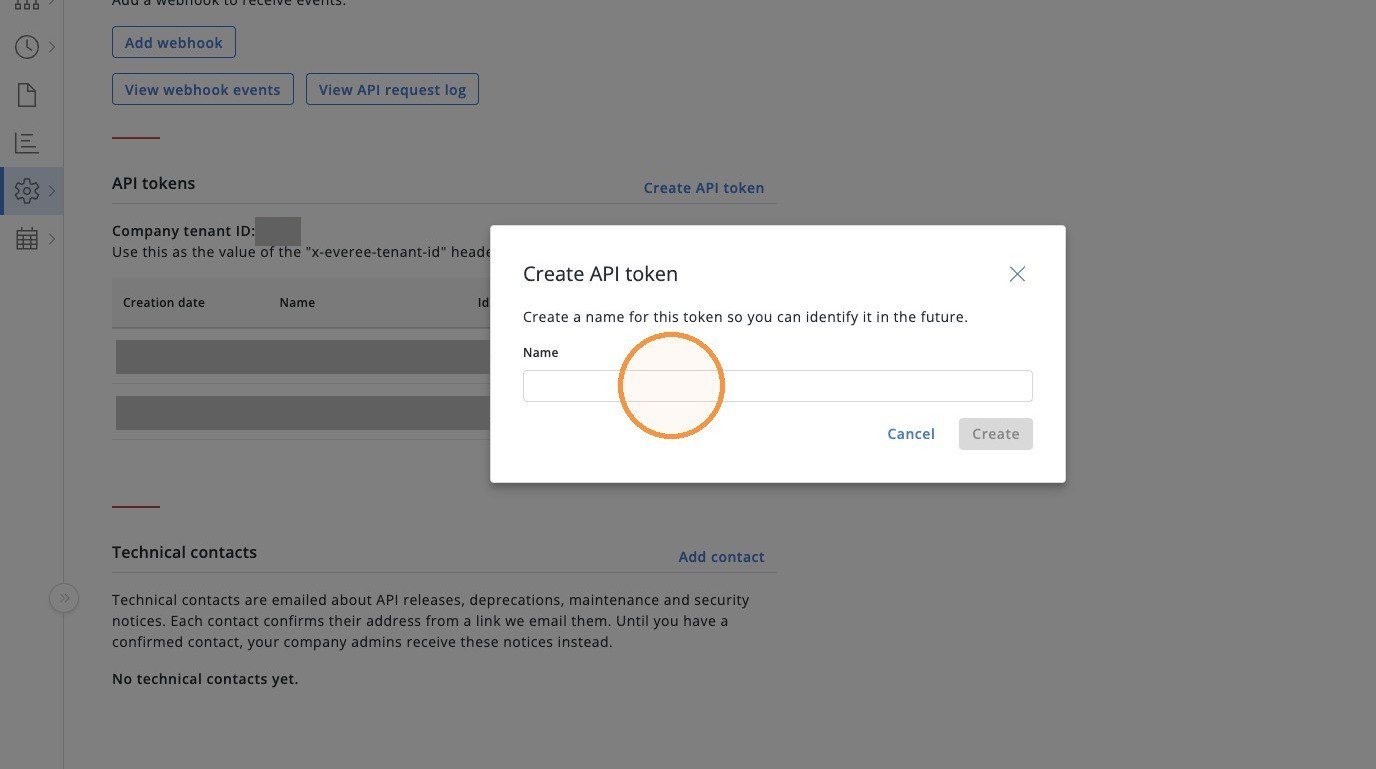
5
Type "Funding Machine"
The name only helps you recognize this token later.
6
Click "Create"
Copy the token
7
Copy the API token
Everee shows your new token. Copy it now. A live token starts with 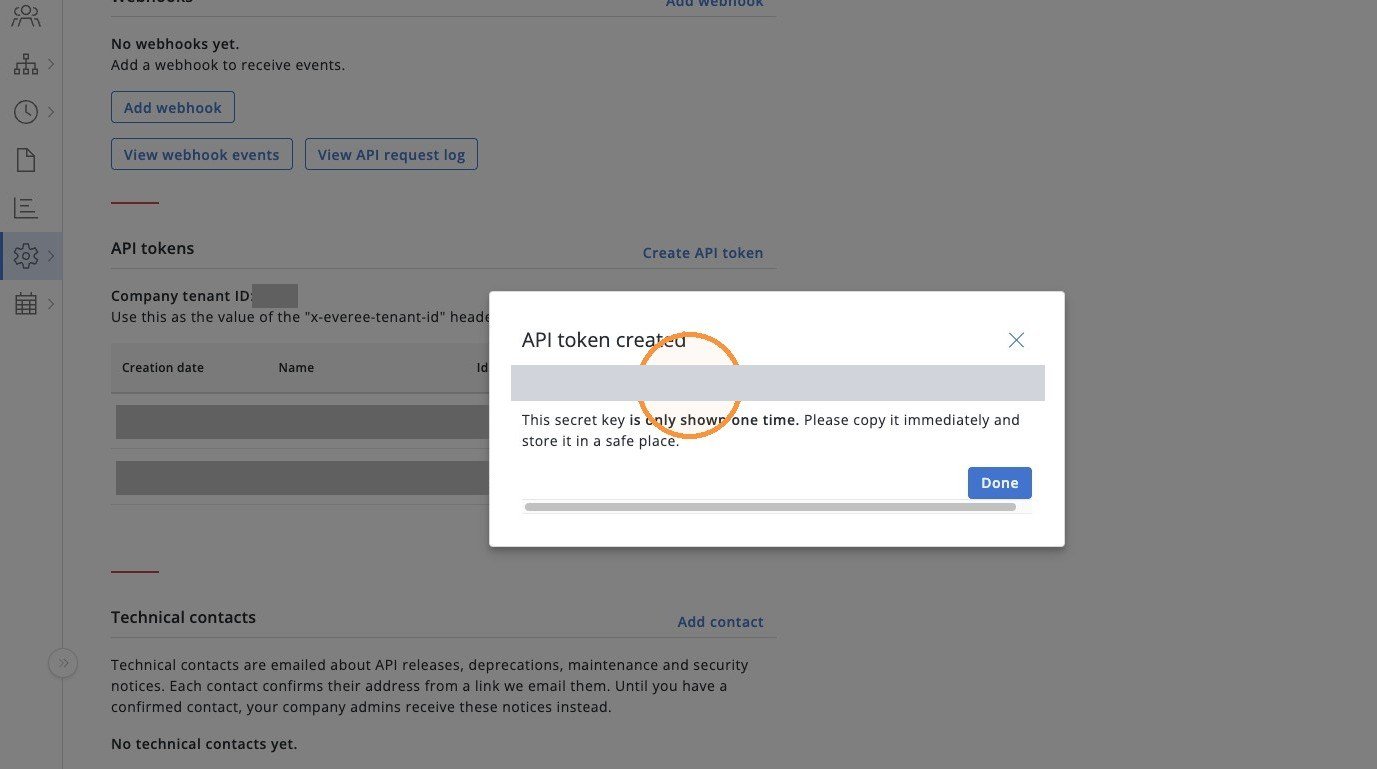
tsk_prod_. A sandbox
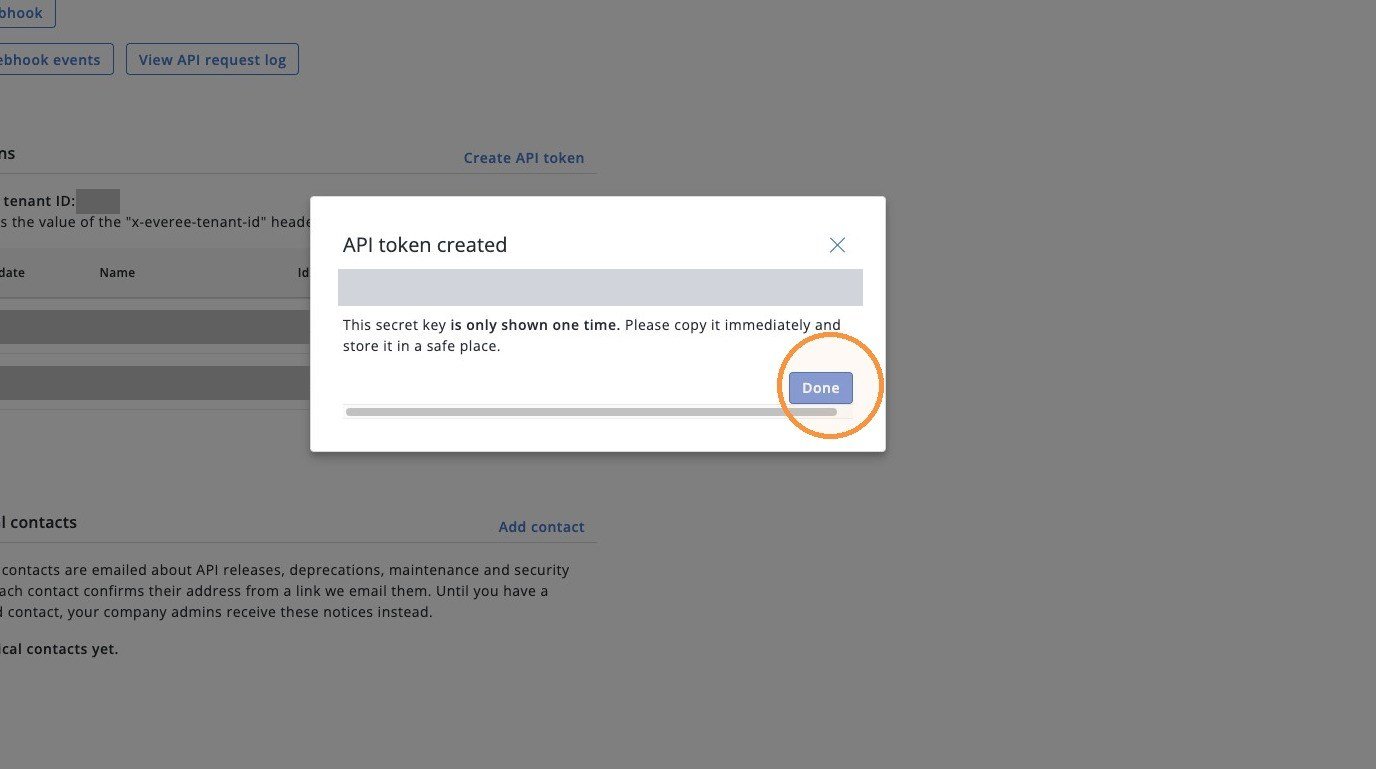
token starts with tsk_test_.8
Click "Done"
Connect it in Funding Machine
1
Open the Partner payouts (1099) card
In Funding Machine, open Partners and find the Partner payouts (1099) card.
2
Pick Test mode or Live mode
Pick the mode that matches your token:
- A token that starts with
tsk_test_is Test mode. - A token that starts with
tsk_prod_is Live mode.
sk_. Pick the mode that matches the Everee account they came from.3
Enter your tenant ID and token
Type your tenant ID in Everee tenant ID. Paste your token in API token.
4
Click Connect
Click Connect Everee Test mode or Connect Everee Live mode. Funding Machine checks
the token with Everee before it saves anything. When it works, the card shows Connected.
Add your other mode later
Once one mode is connected, the card shows a section for the other mode instead. For example, with Test mode in use, the Live mode section has Live mode tenant ID and Live mode API token fields. Enter them and click Save Live mode. Saving doesn’t change which mode is in use. Click Switch to Live mode when you’re ready to use it.Add the webhook
The card connects without the webhook, but don’t skip it. The webhook is how Funding Machine learns that a partner finished Everee onboarding. Without it, the partner’s record keeps showing Onboarding or Invite sent and never shows Active.1
Copy the webhook URL
After you connect, the card shows a Webhook signing section with a webhook URL. Click the
copy button next to it.
2
Add the webhook in Everee
In Everee, go back to Settings, then Integrations Hub, and open the Everee API
card. Under Webhooks, click Add webhook, paste the URL, and save.
3
Copy the signing key
Everee creates a signing key for the webhook. Copy it from the Signing key column of the
Webhooks table.
4
Save it in the card
Back on the Partner payouts (1099) card, paste it into Signing secret and click
Save secret.