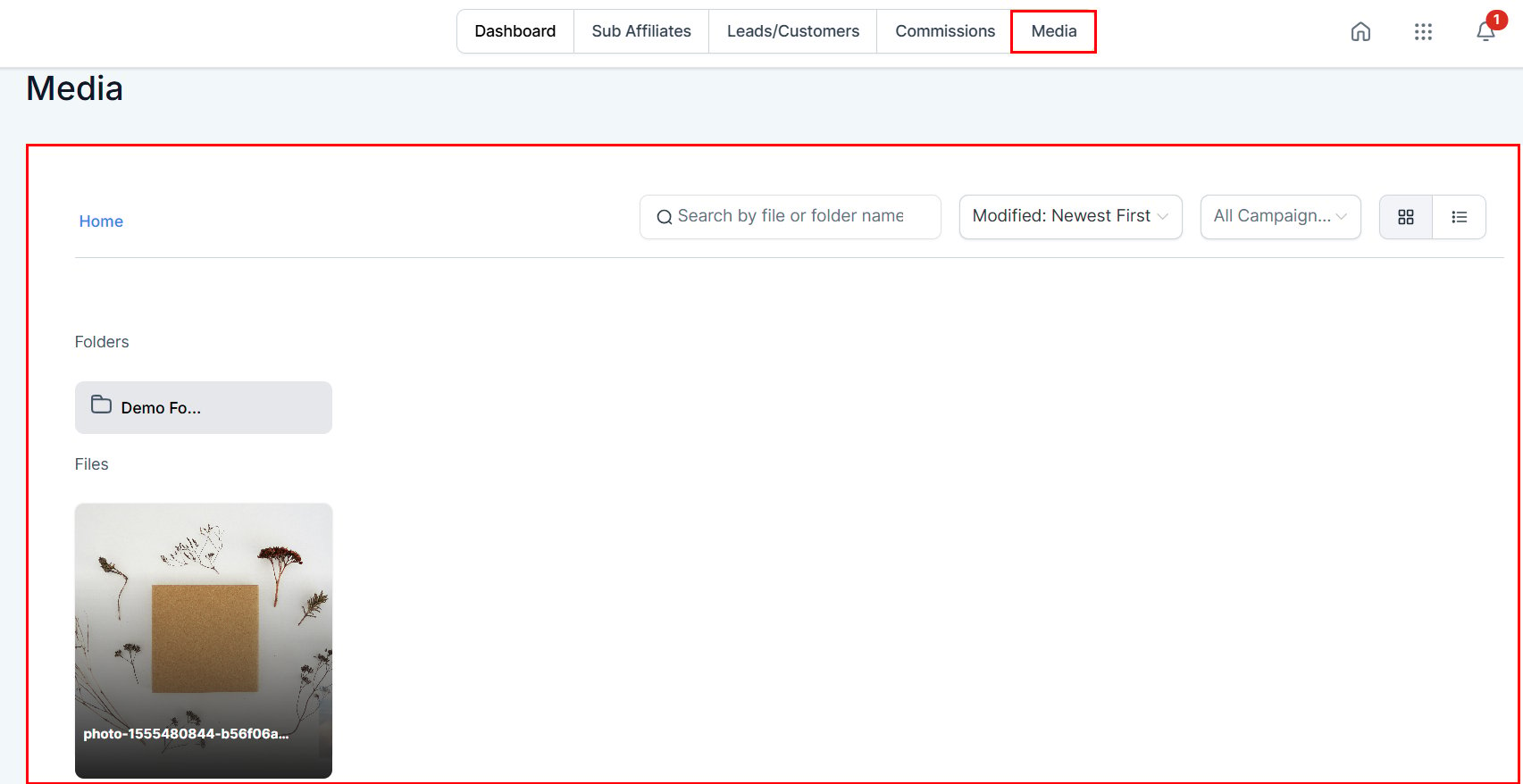

Affiliate Manager Media

The Media Library is where you share creative with partners. Upload files, scope them to specific campaigns or make them universal, and partners copy links or download the assets from the Affiliate Portal.

Access the Media Library

In Marketing → Affiliate Manager, select Media from the dropdown.
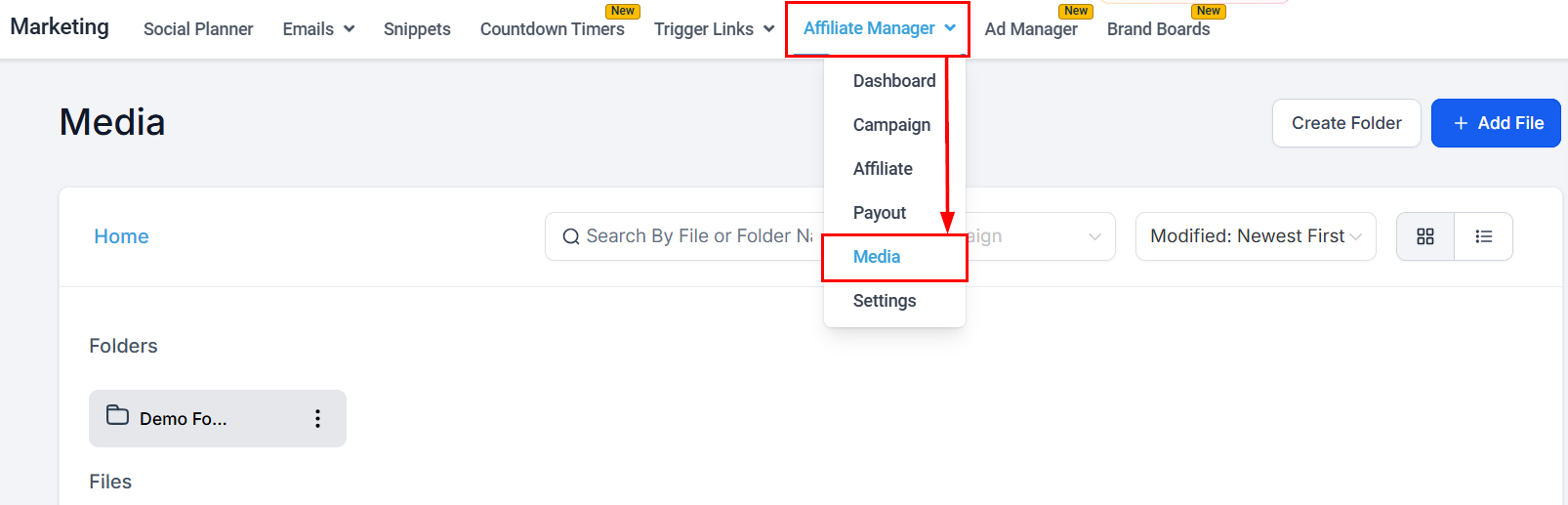
Access the Media Library in the Affiliate Manager

Grouping Files Using Folders

Create folders to group media in one place.
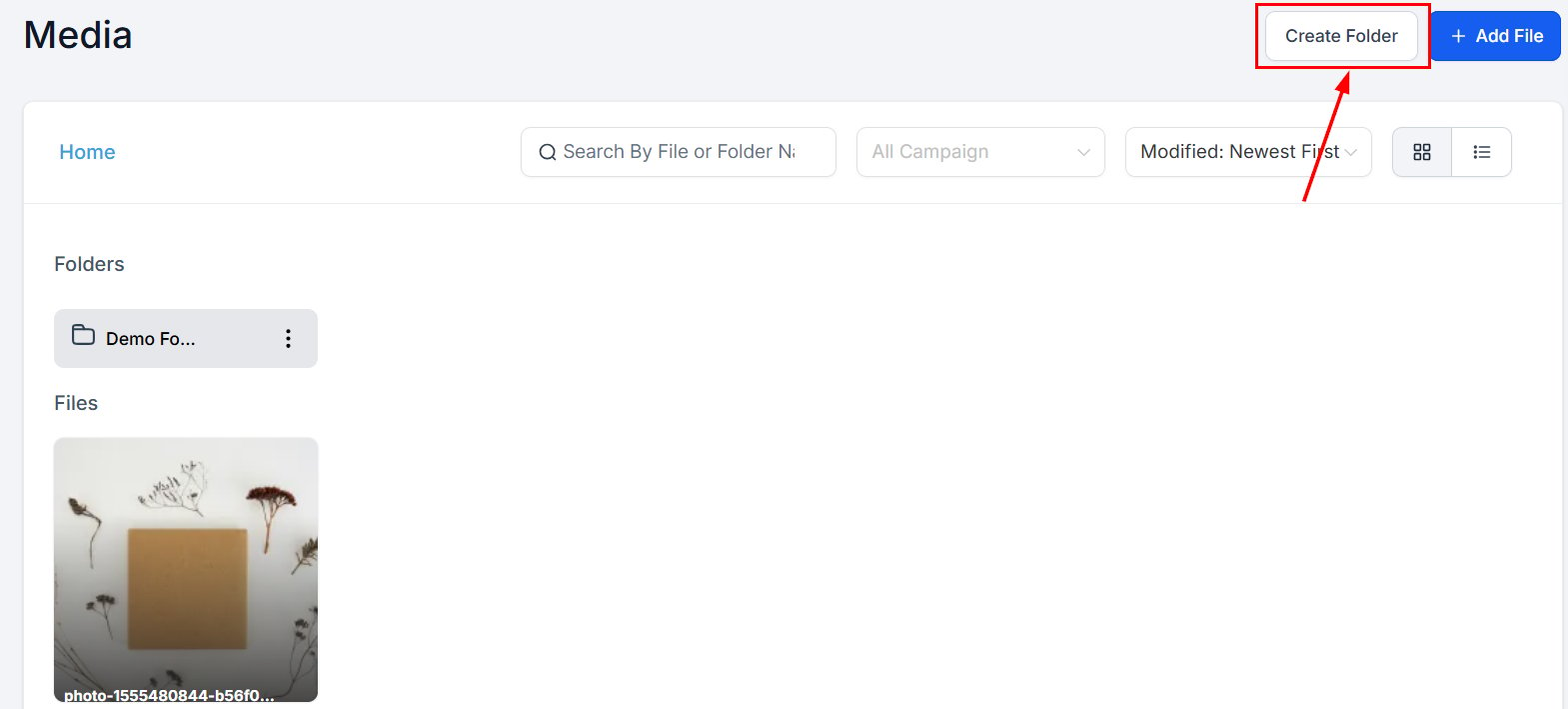
Grouping Files Using Folders in the Affiliate Manager

Add Media

Add File uploads a new asset. During upload, assign it to specific campaigns or make it universally accessible, so partners only see materials relevant to them.
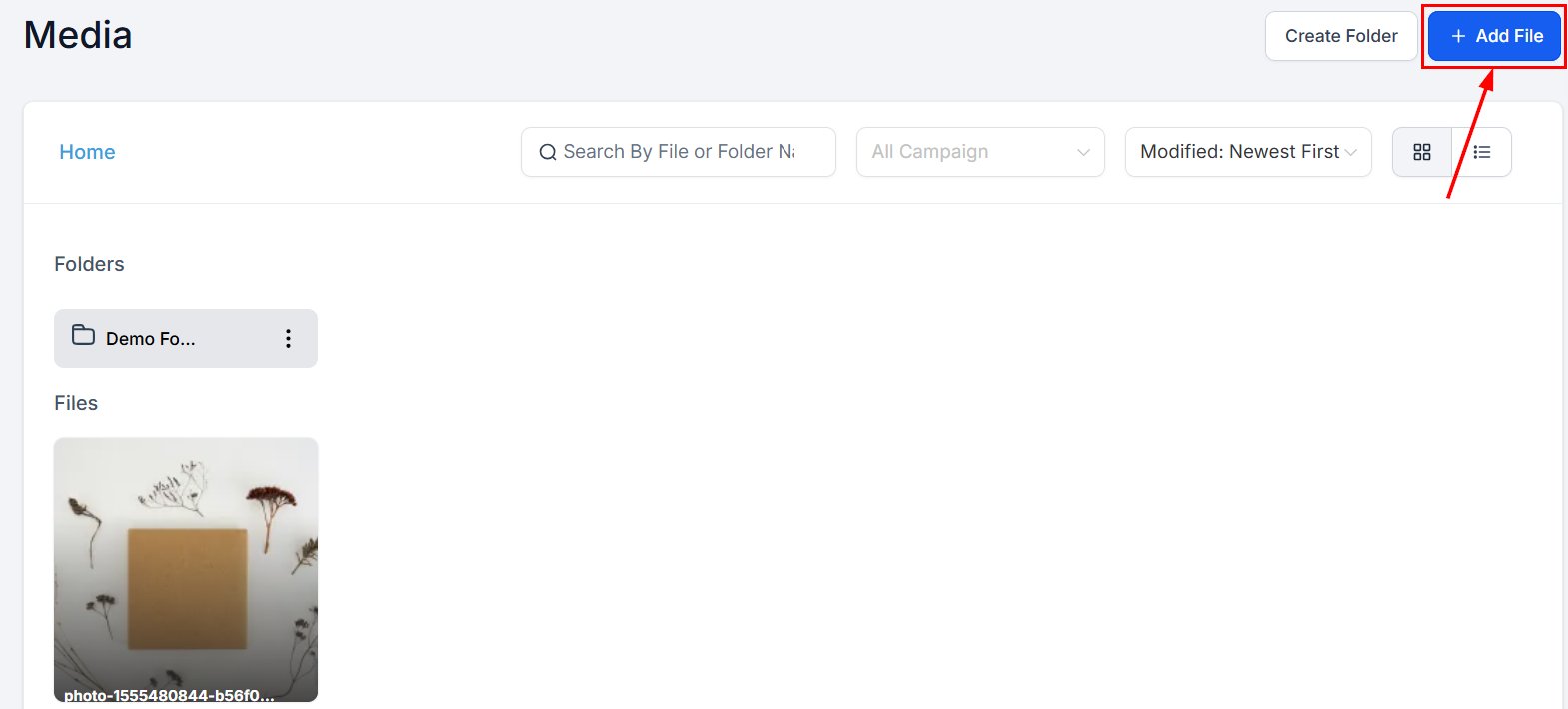
Add Media in the Affiliate Manager

Finding and viewing media

Search for files or folders by name.
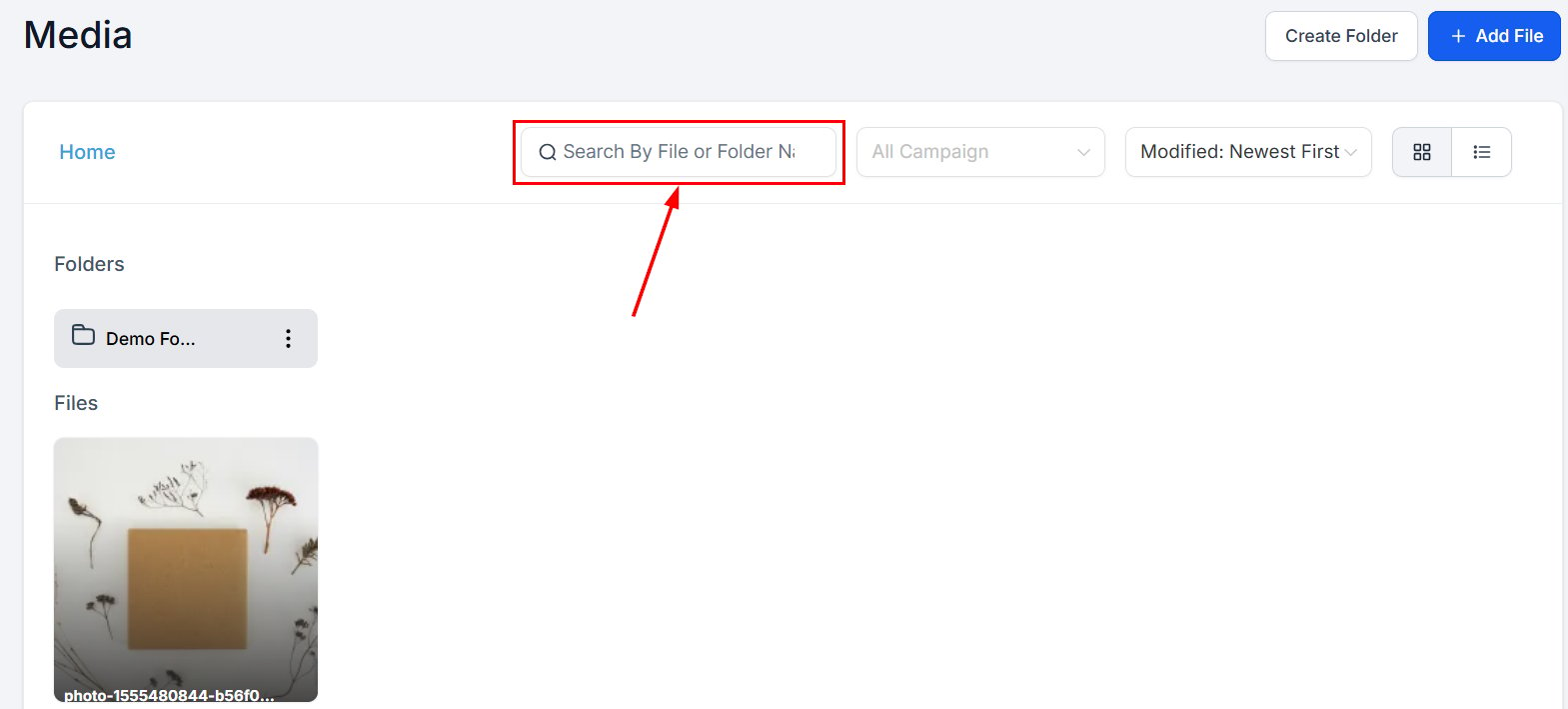
Search in the Affiliate Manager
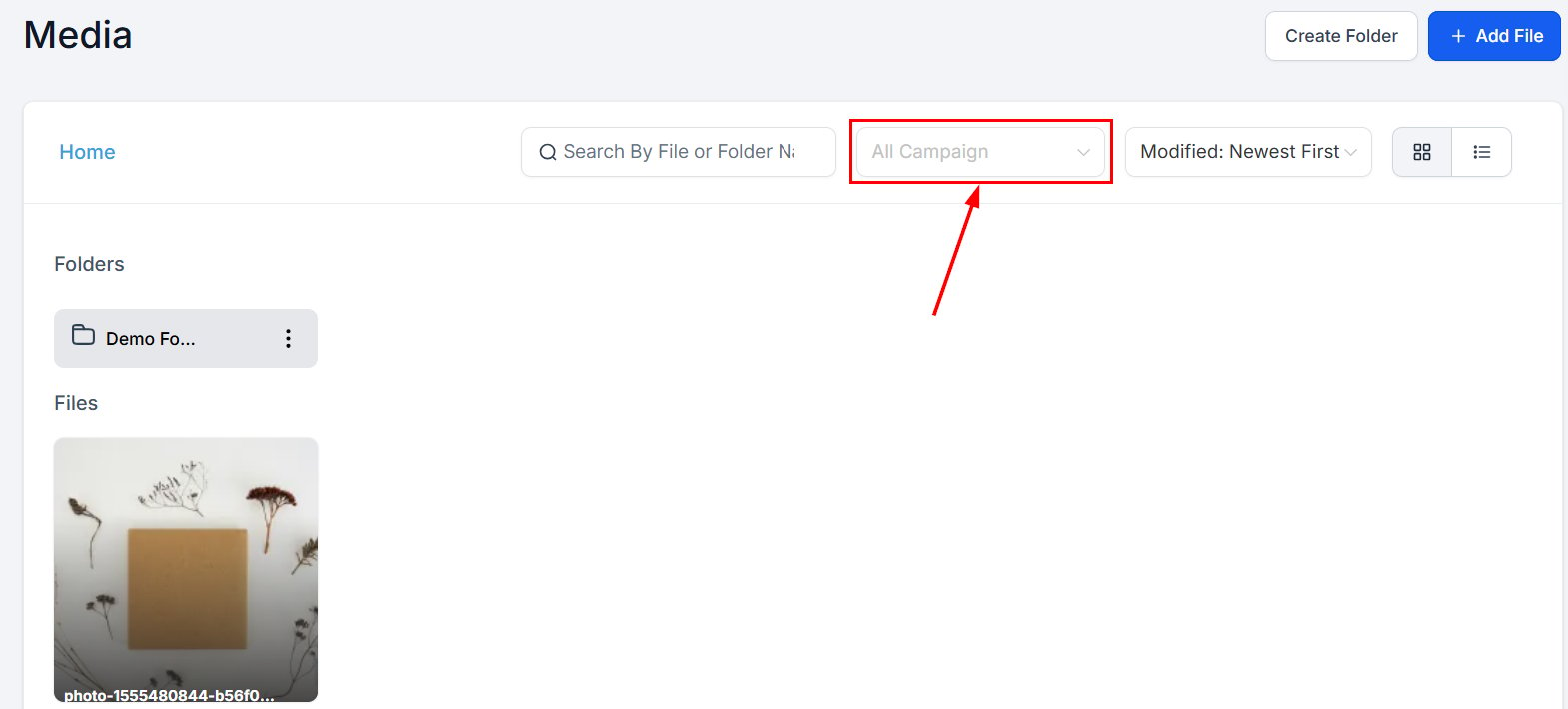
Filter to one campaign’s media with the campaign dropdown.
Campaigns in the Affiliate Manager
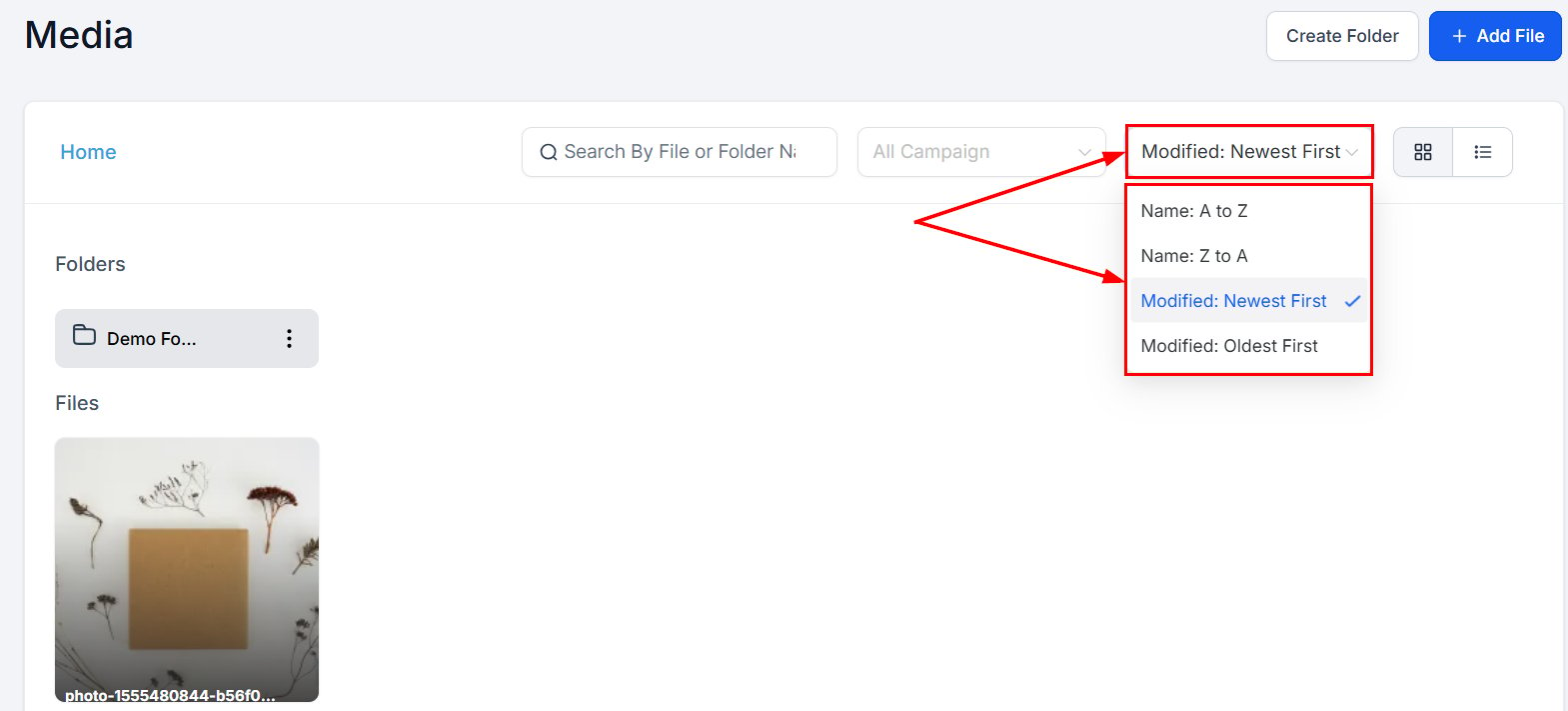
Sort alphabetically or by upload date.
Sort in the Affiliate Manager
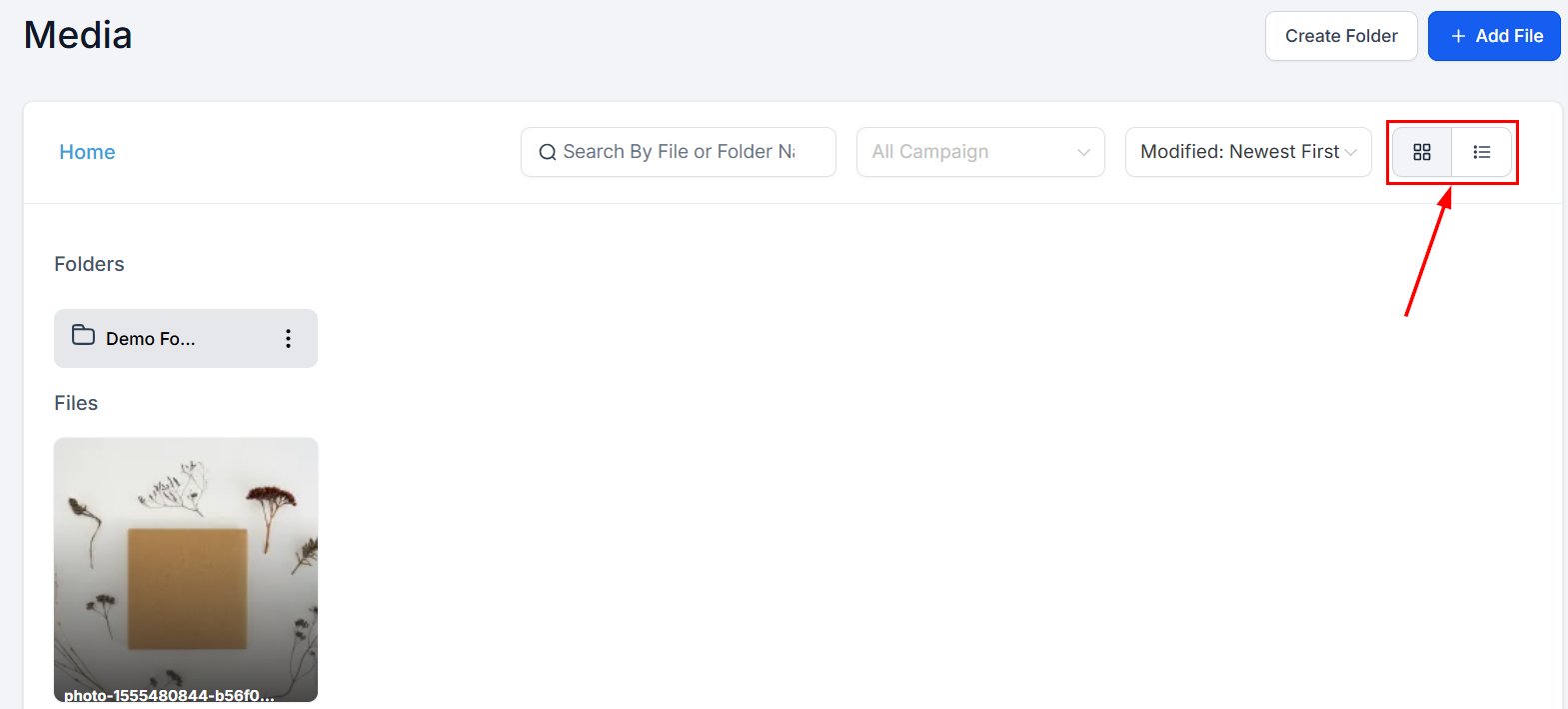
Toggle between Grid and List views.
Media Display in the Affiliate Manager
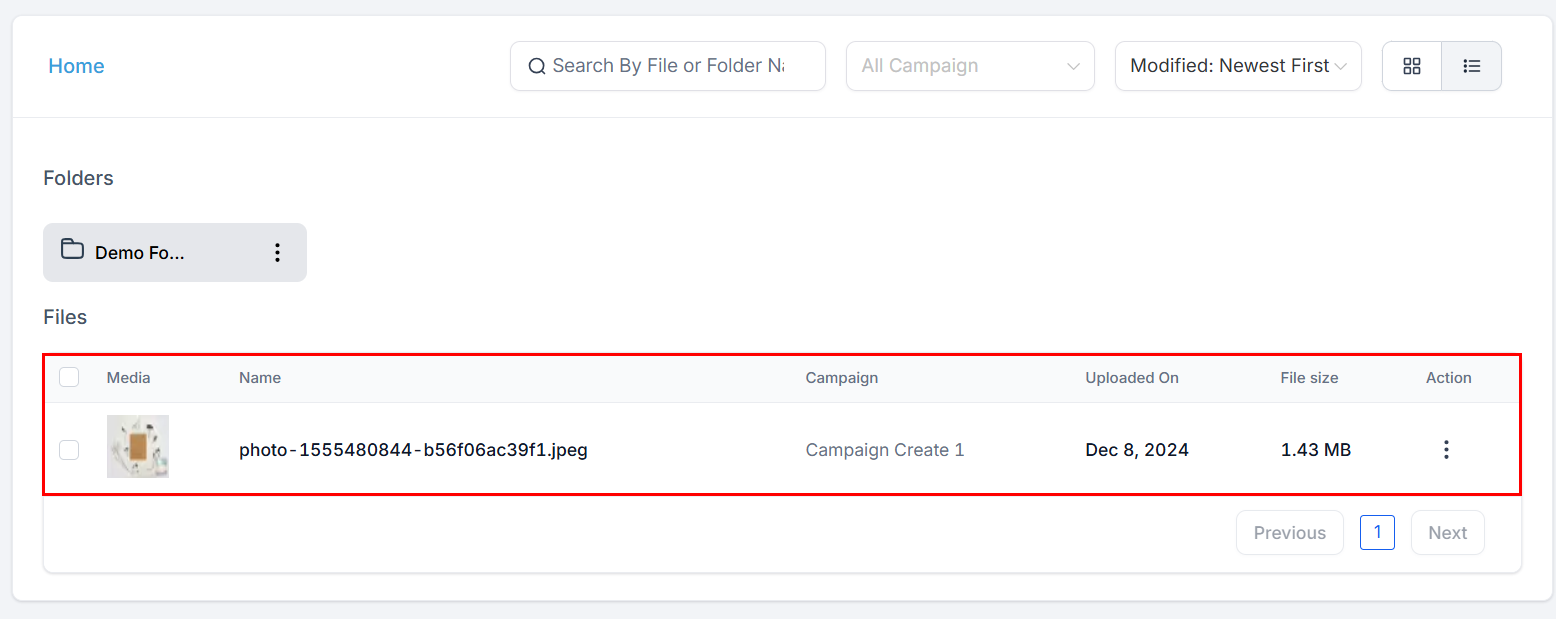
List View shows each file’s name, size, associated campaign, and upload date.
Media Display in the Affiliate Manager (2)
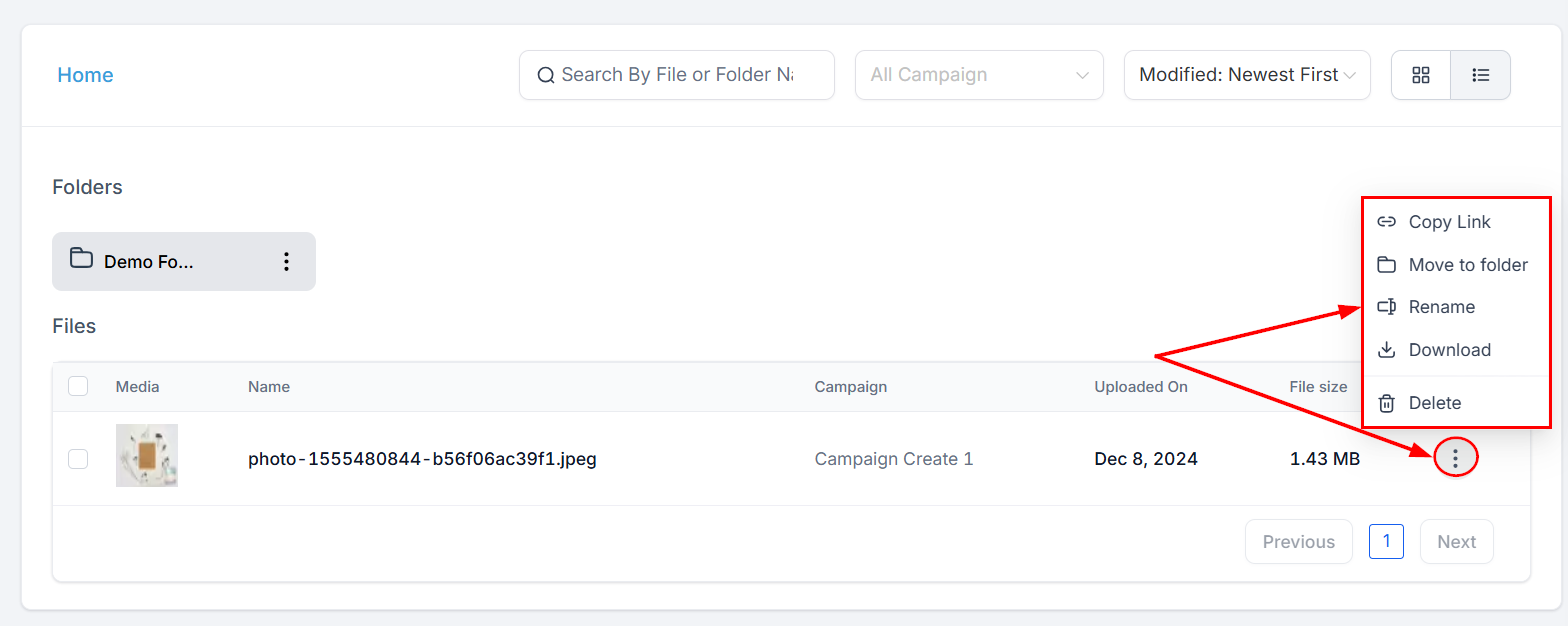
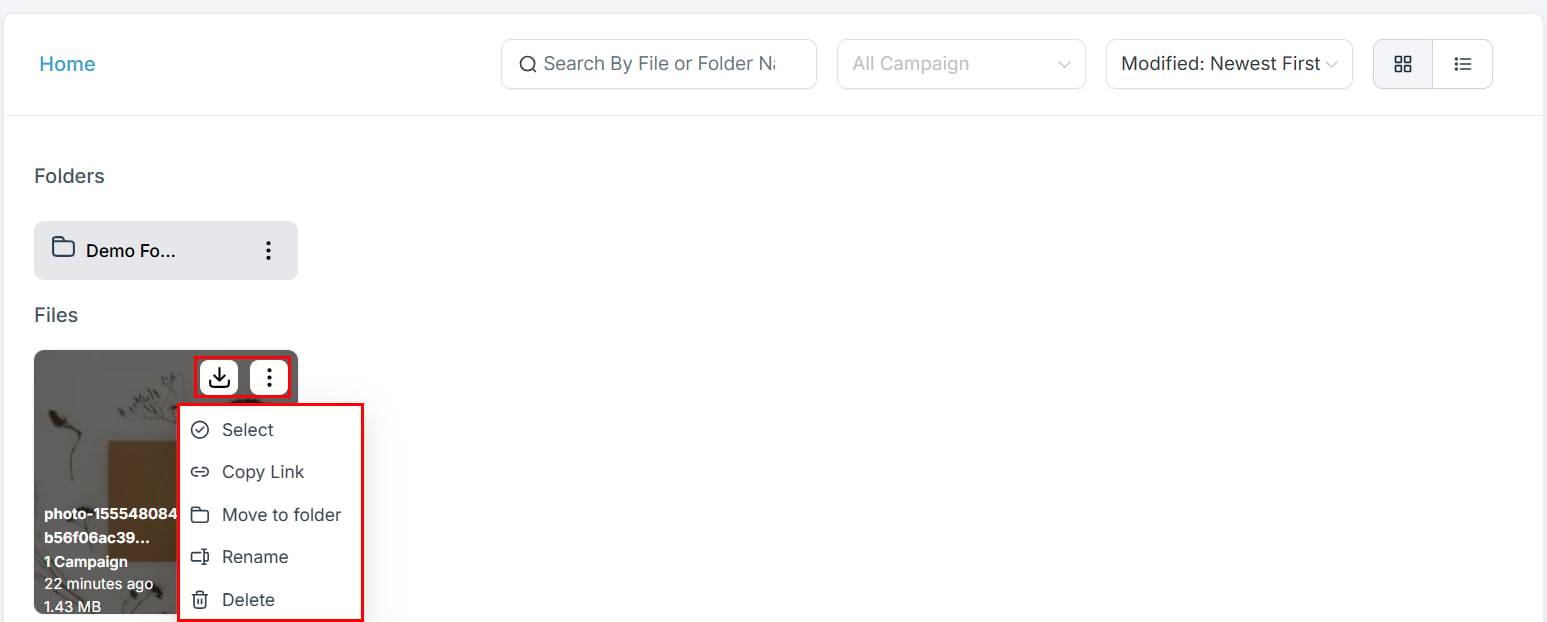
Click a file’s three dots to copy its link, move it to a folder, rename, download, or delete it.
Media Display in the Affiliate Manager (3)
In Grid View, hover over a file for the same actions.
Media Display in the Affiliate Manager (4)

Folders and files

The Folders section lists every folder; the actions menu beside each renames or deletes it.
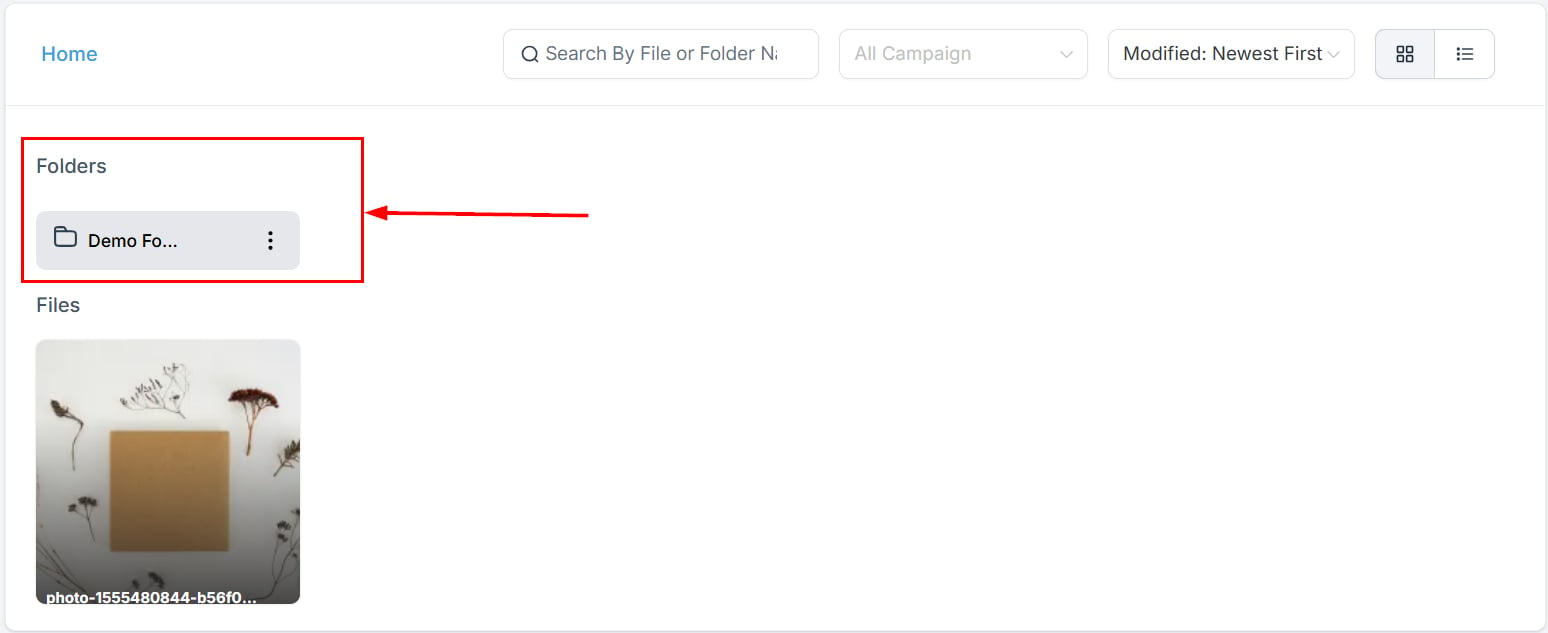
Folders in the Affiliate Manager
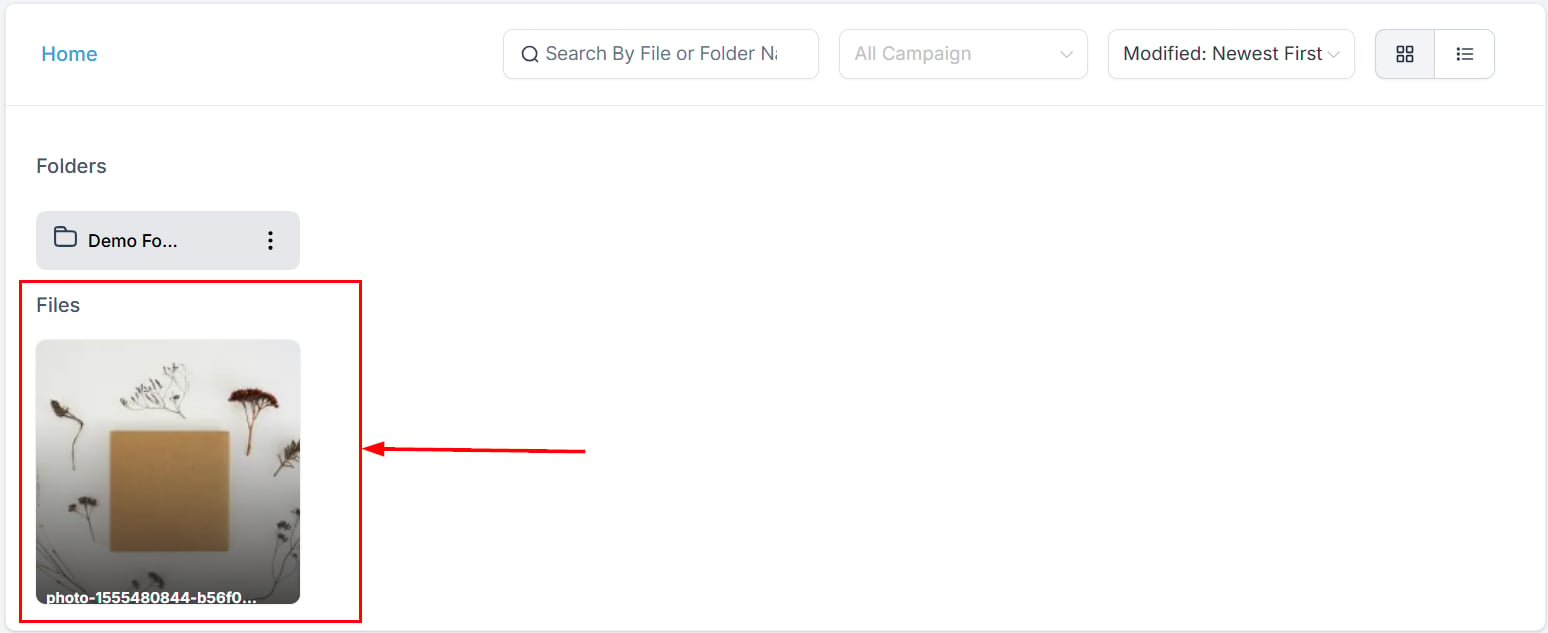
The Files section holds your uploads.
Files in the Affiliate Manager
Uploaded media is instantly available to partners in the Affiliate Portal, scoped to their campaigns.
Files in the Affiliate Manager (2)