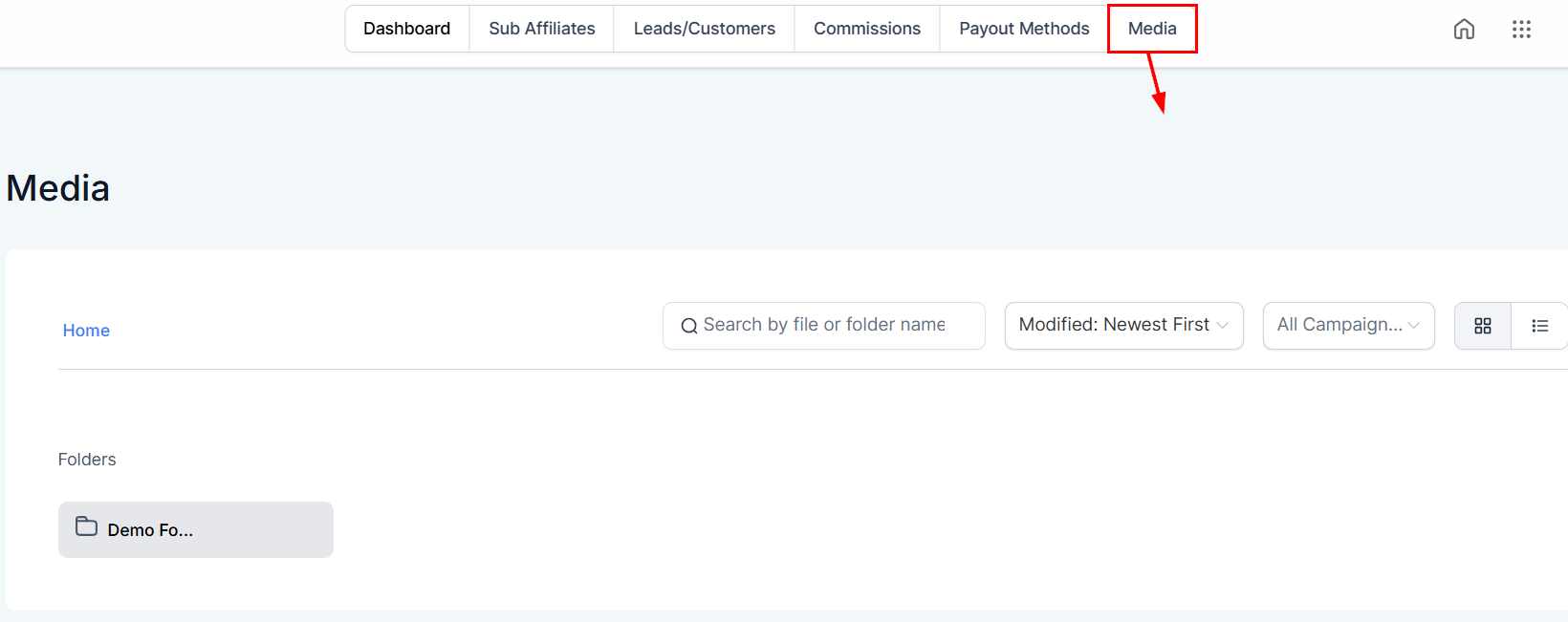

How to Use the Affiliate Portal
The Affiliate Portal is where partners log in to see their own leads, customers, commissions, referral links, and media. This page covers enabling the portal, choosing what partners see, and what each portal section does.Enable the app
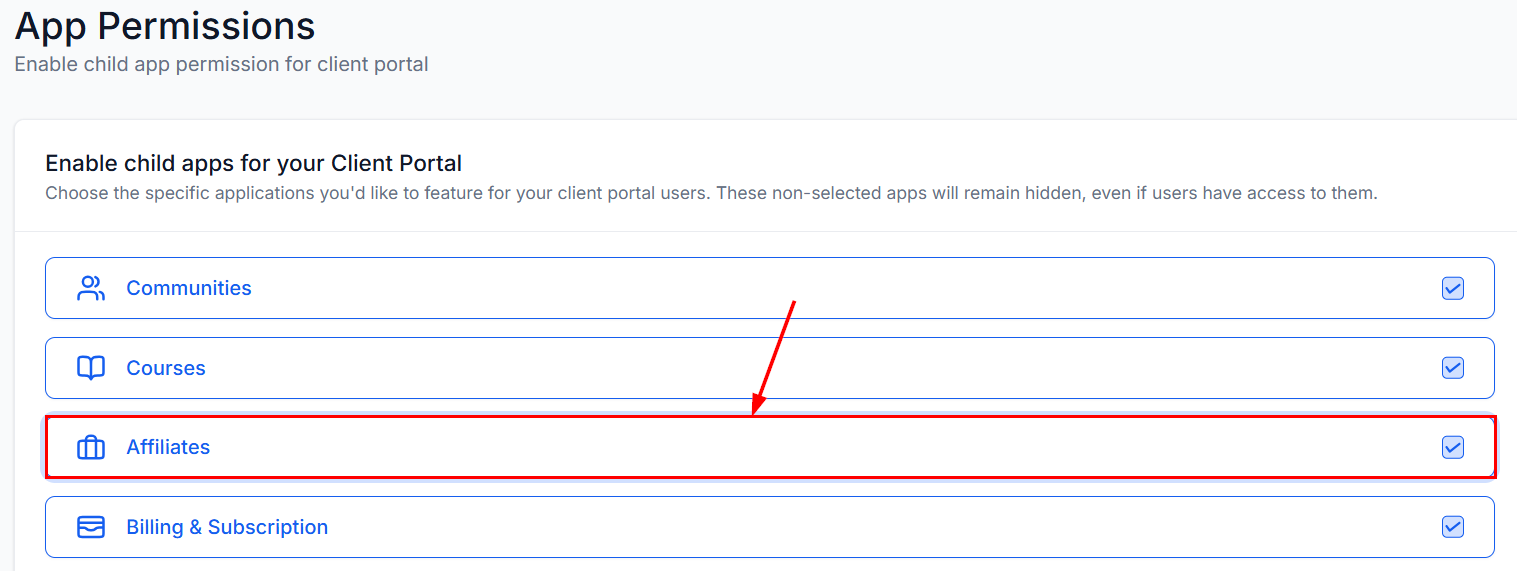
The portal is a Client Portal app. In Client Portal Settings → App Permissions: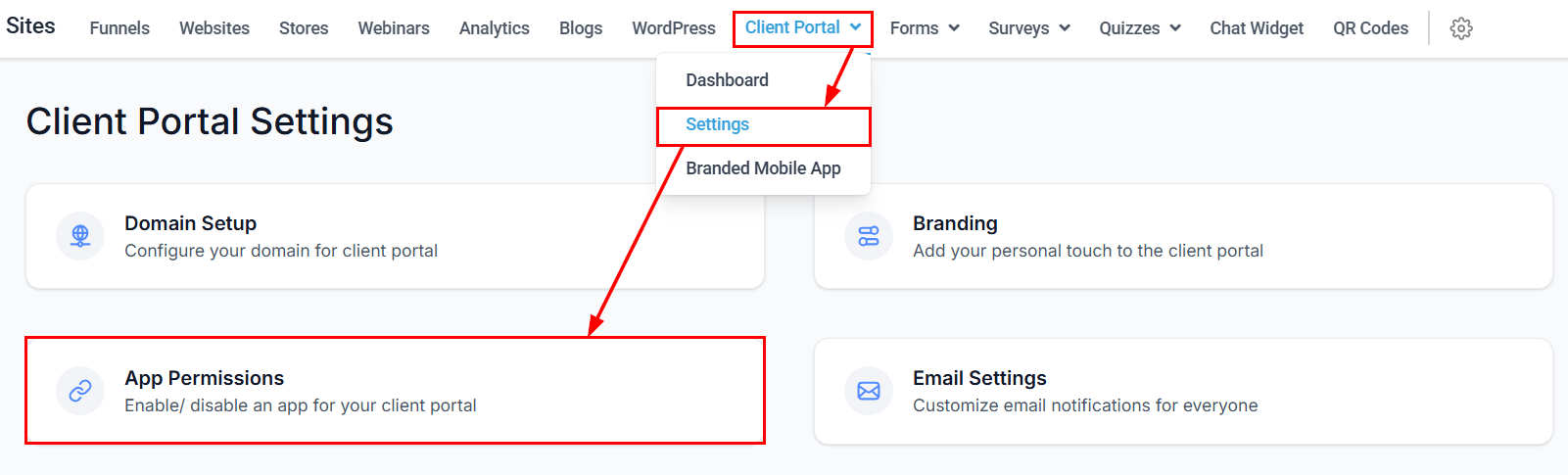
Customize available features
In Affiliate Manager → Settings → Affiliate Portal Settings: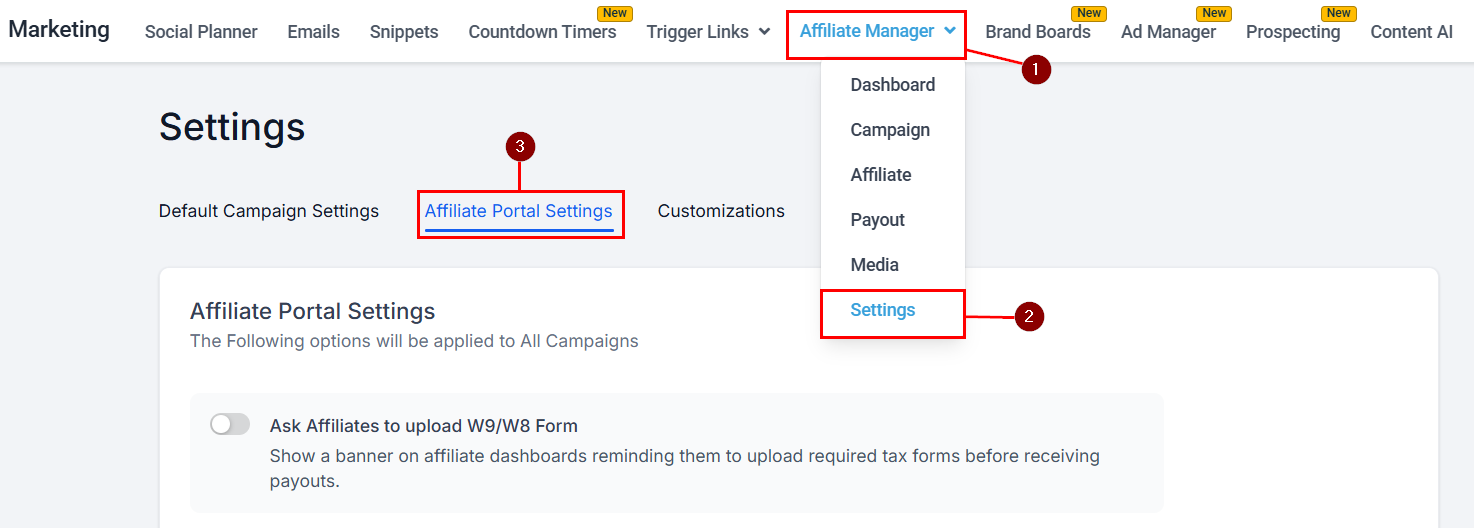
- Require W9/W8 Form Uploads — prompts partners for tax forms, preventing payout delays.
- Mask Referral Emails — obscures customer email addresses (e.g.,
john****@gmail.com) to protect lead data. - Require Payout Method Setup — prompts partners to configure a payout method (e.g., PayPal or bank account) so payments aren’t held up.
- Configure Payout Methods — controls which payout methods partners can choose.
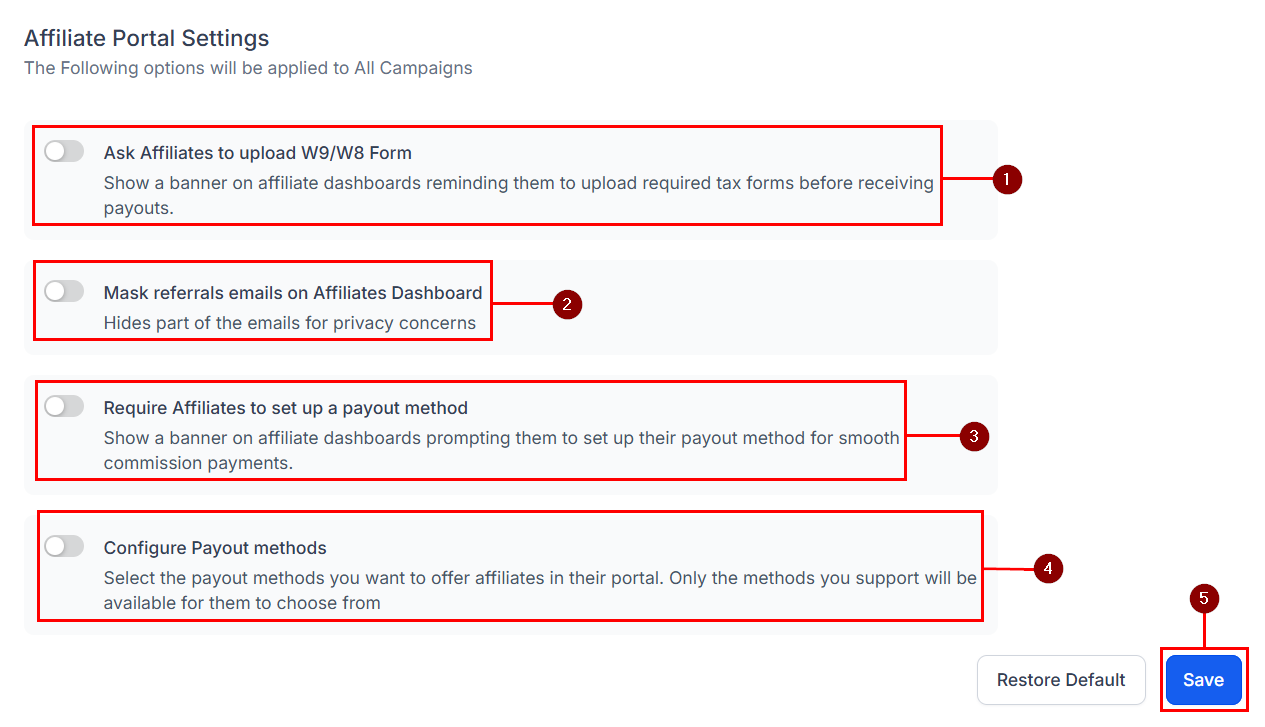
Enable at least one payout method so new partners aren’t stuck, and use referral email masking when you want to limit exposure of customer data.
How partners get access
Partners receive an invitation email automatically when added to an active campaign — make sure Invite Email is enabled in the campaign settings. They log in with the credentials from that email and land on their Affiliate Dashboard. If not redirected automatically, they can open the app switcher and select Affiliates.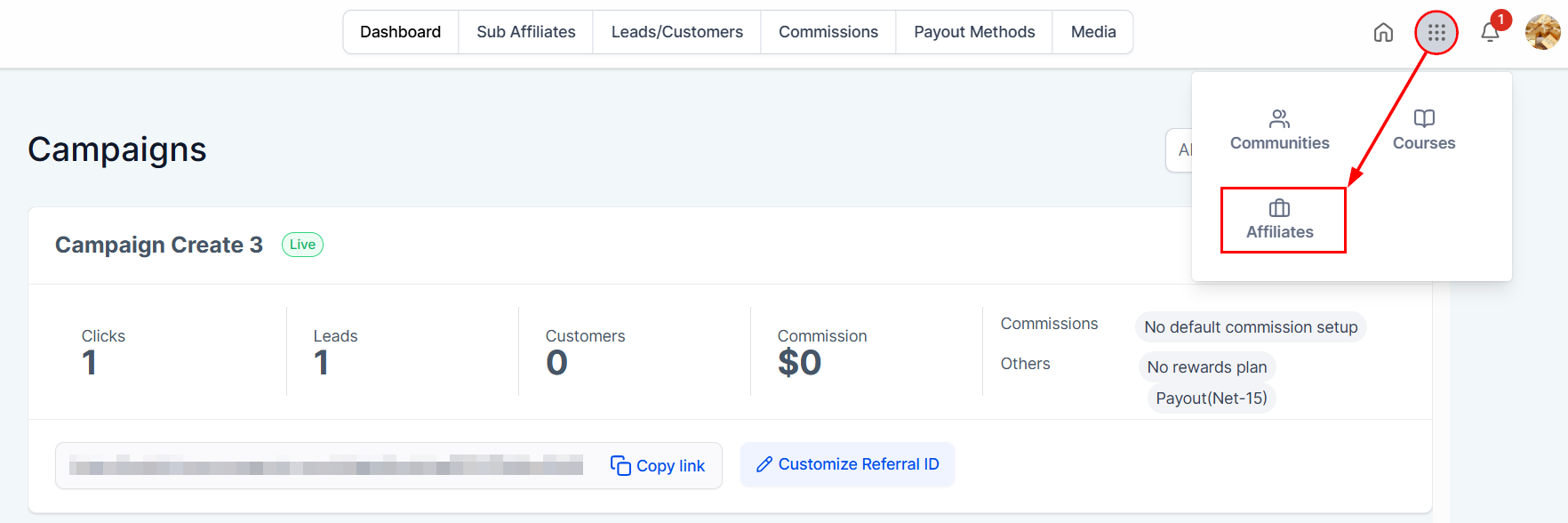
What partners see
Dashboard
All active campaigns with leads, customers, clicks, and commissions. Referral links are available right on this screen.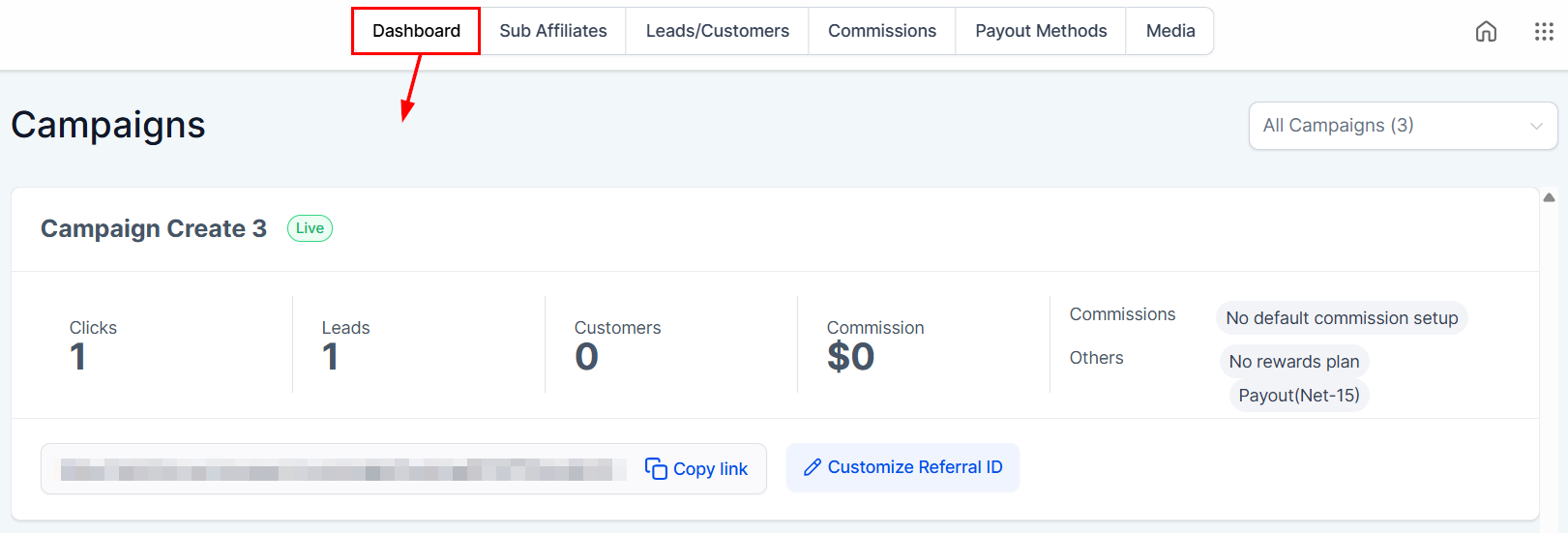
Sub-Affiliates
For programs with sub-affiliate tiers: manage sub-affiliates and share a sign-up URL to recruit new ones.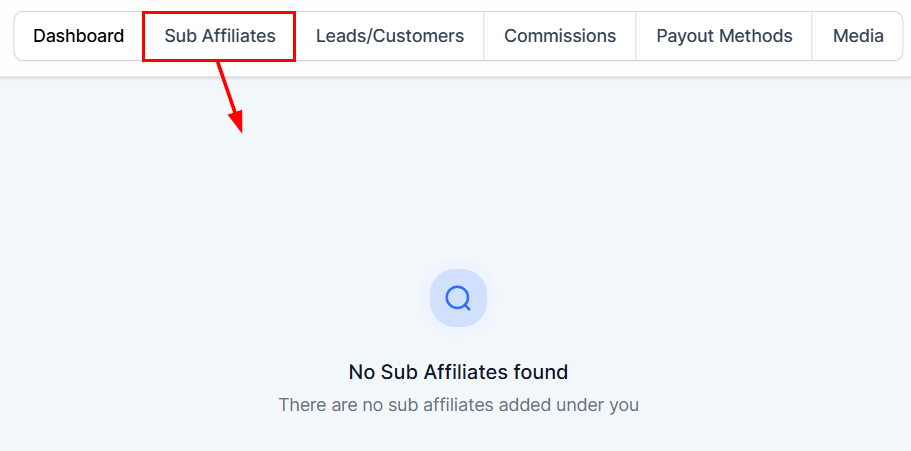
Leads/Customers
Customer activity generated through the partner’s links.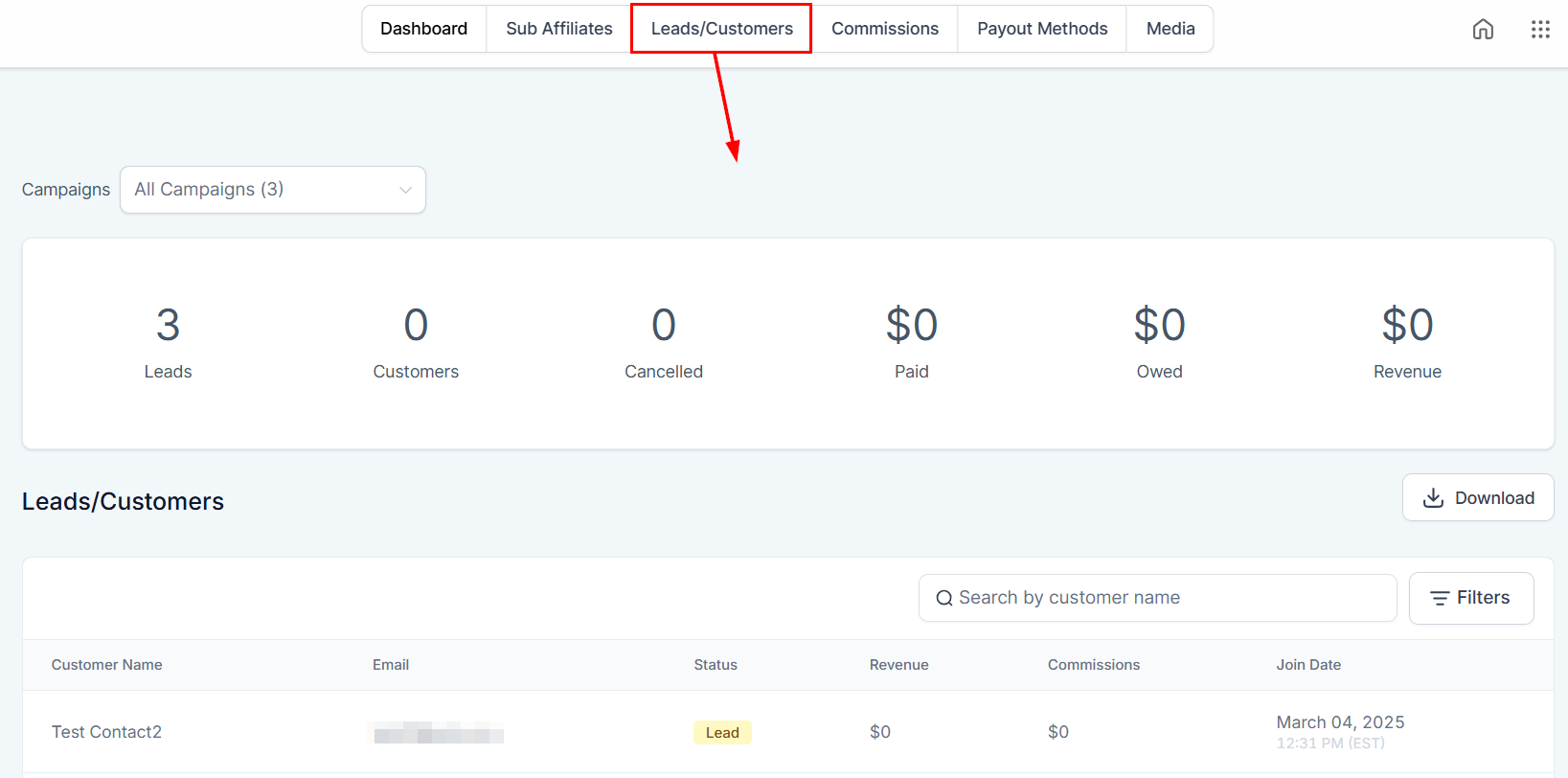
Commissions
Earned commissions, revenue generated, and payout status.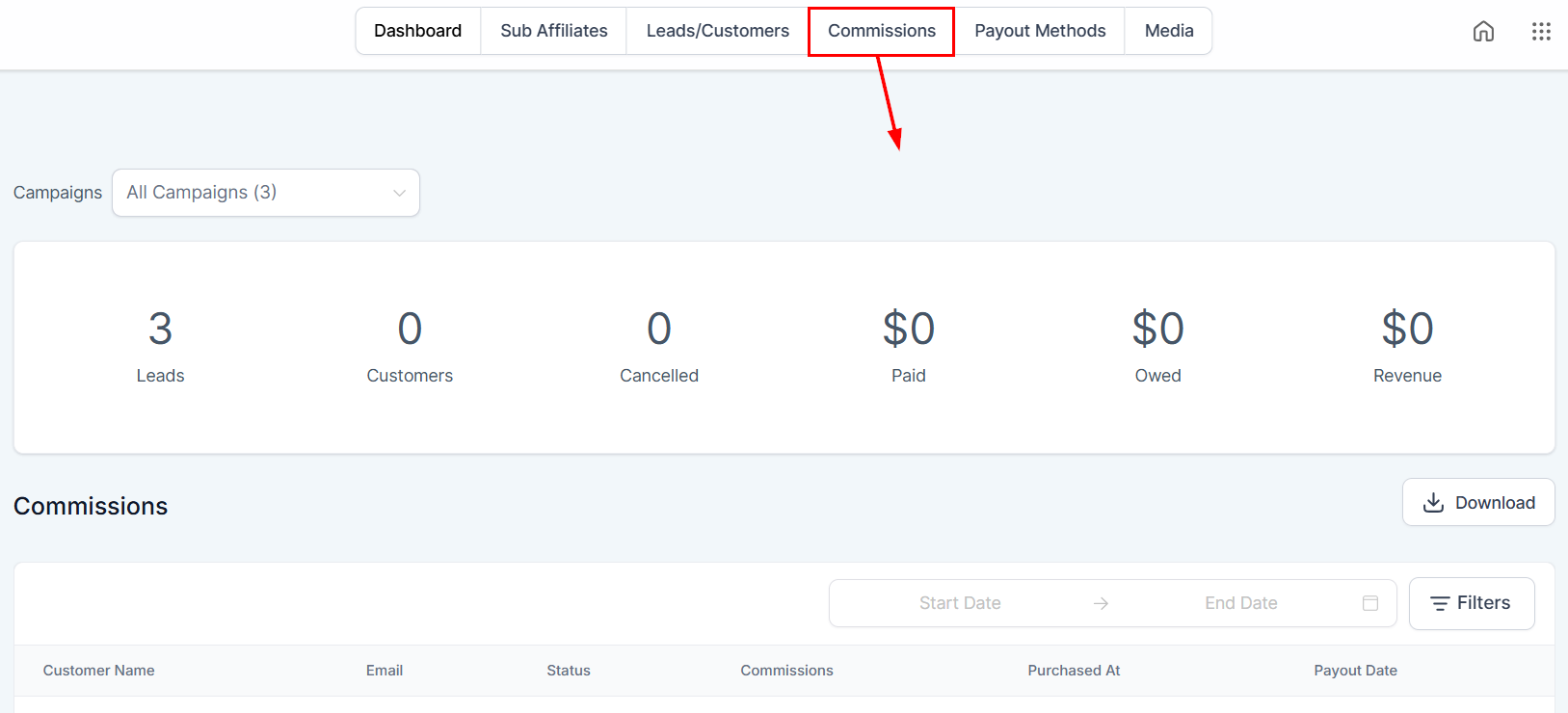
Payout Methods
Where partners add and manage payout methods and tax forms.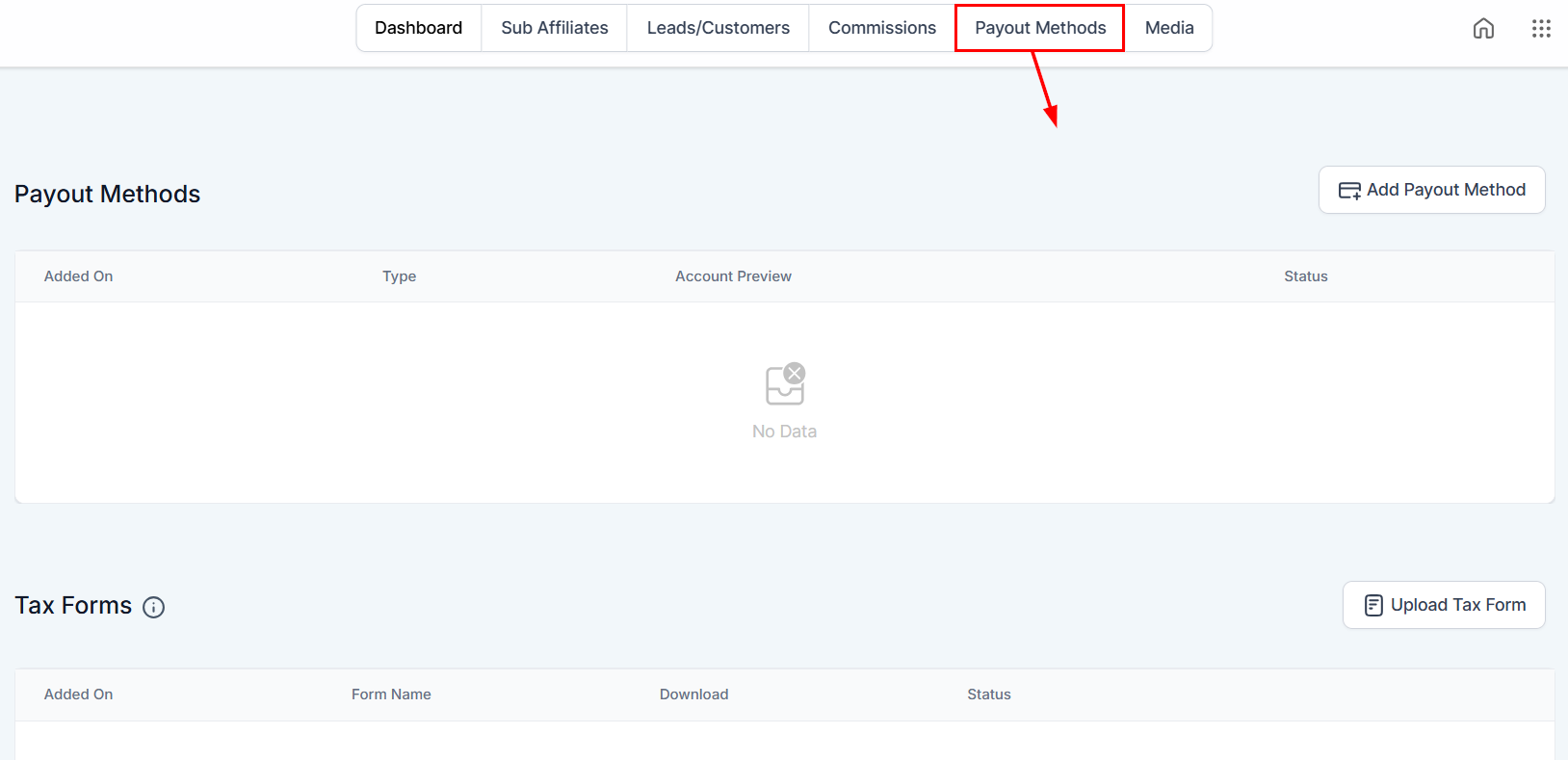
Media
Files shared by the campaign owner — partners can copy media links or download assets. See Media.