

How to Automate Partner Payouts with PayPal
Pay approved partner commissions directly through PayPal instead of exporting a CSV and paying by hand. Your PayPal account must be connected first — check Payments → Integrations; a connected account shows a Manage option.Initiate and confirm payouts
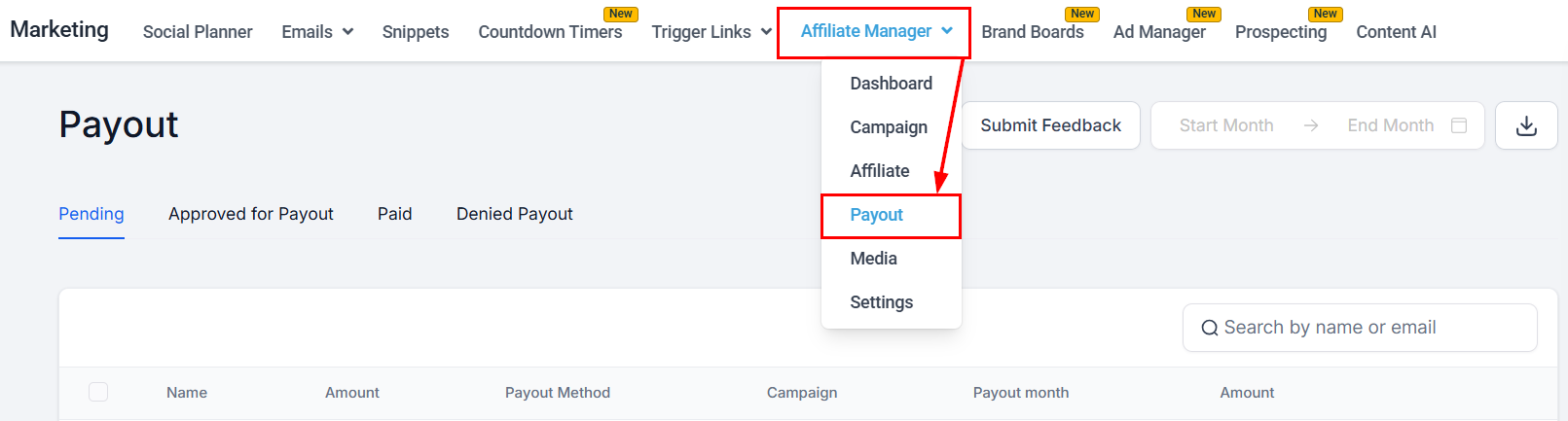
- In the marketing section, open the Payout section of your Affiliate Manager.
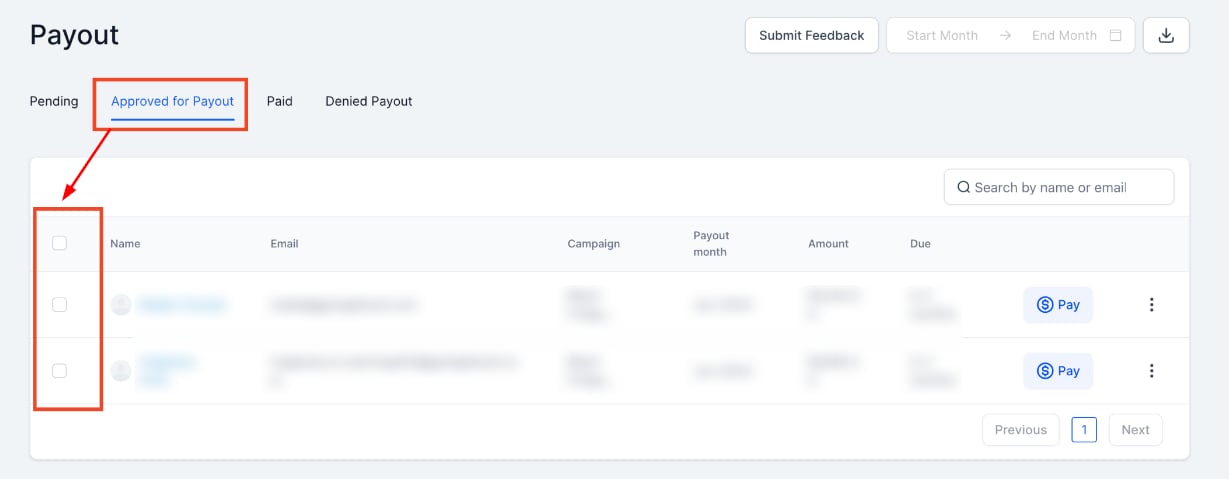
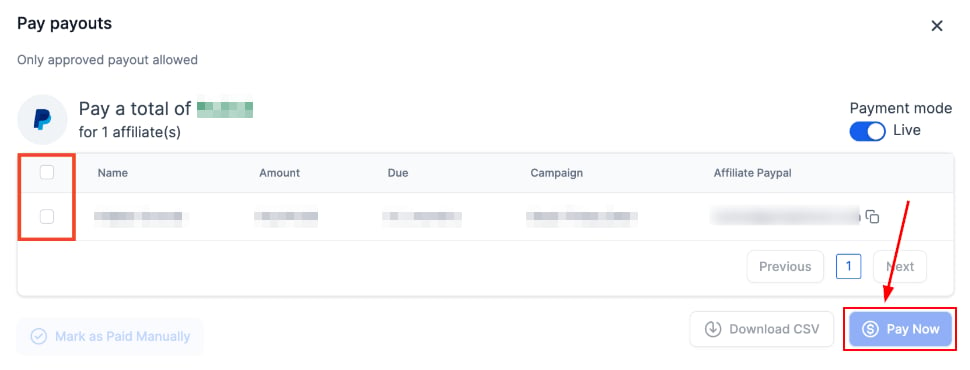
- In the Approved for Payout tab, check the box next to each partner to pay.
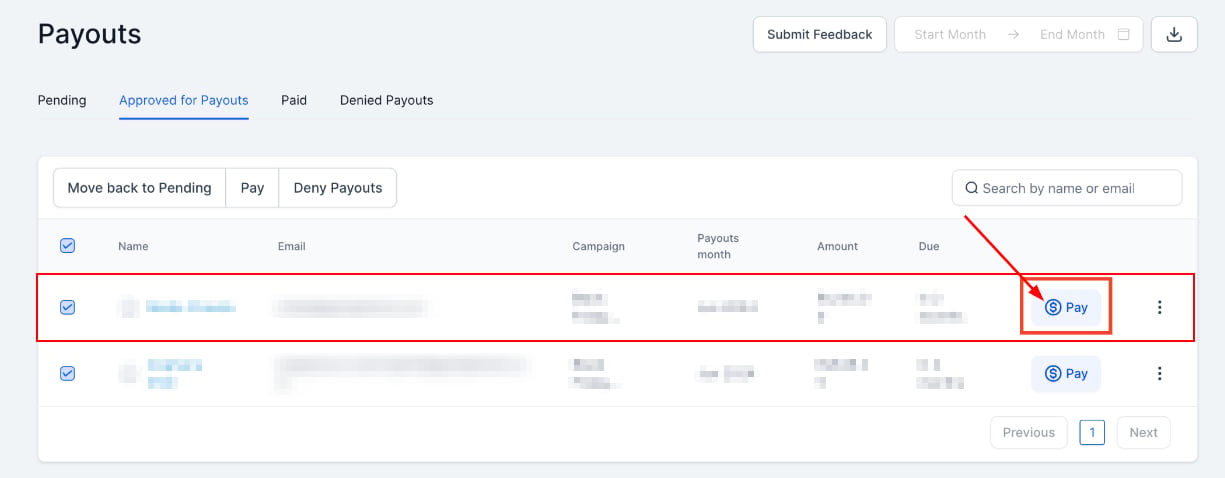
- For a single partner, click the $Pay button on their row.
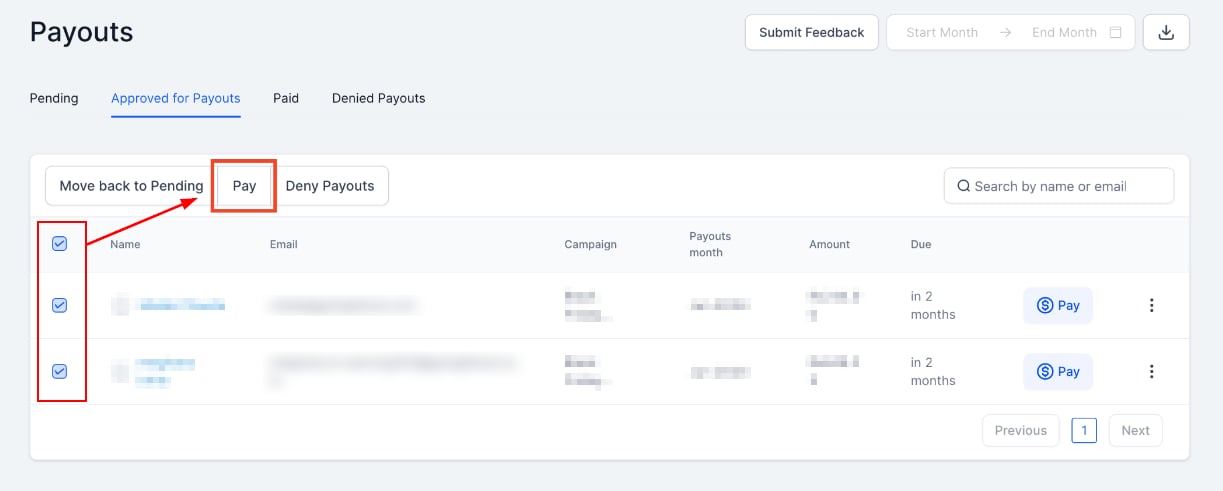
- Review the payout details and click Pay Now.
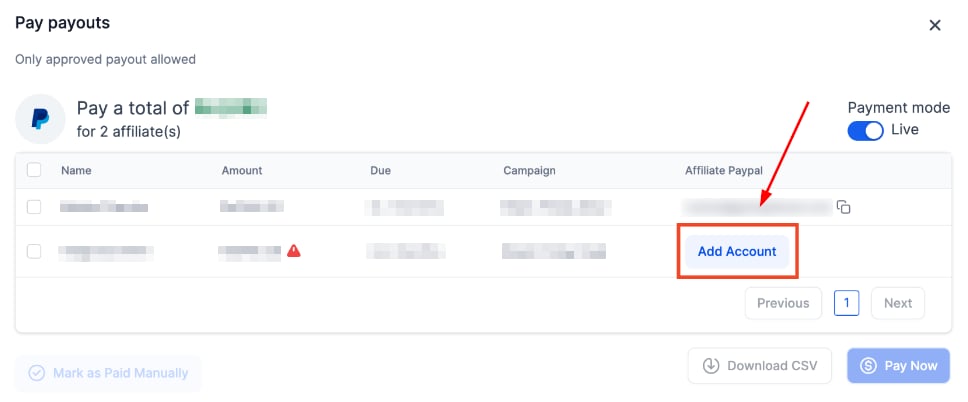
- If a partner has no PayPal account on file, click Add Account, add it, then click Pay Now.
Partners can add their own payout information in the Commissions section of their Affiliate Portal once you enable the option in Settings.
Completed payments
Successful payments appear under the Paid tab; click the three dots on a payment for details.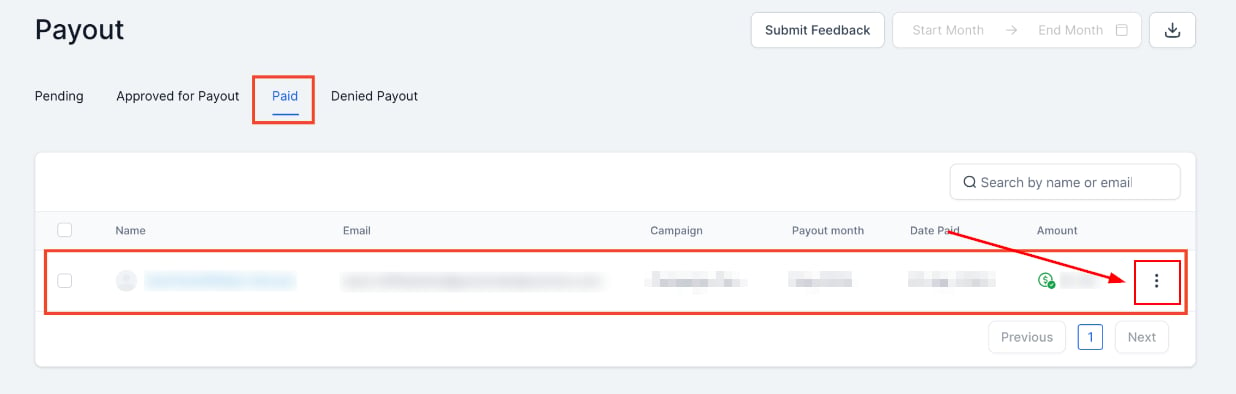
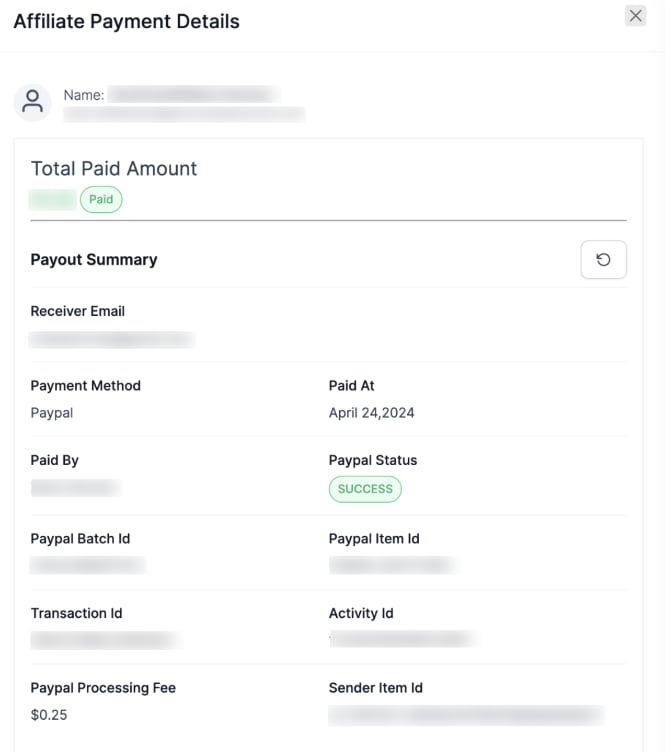
PayPal can take time to process payments, so a transaction may show “Pending” temporarily. Click the refresh icon for the latest status; partners see real-time updates in their Commissions section.