
How to Add a Partner
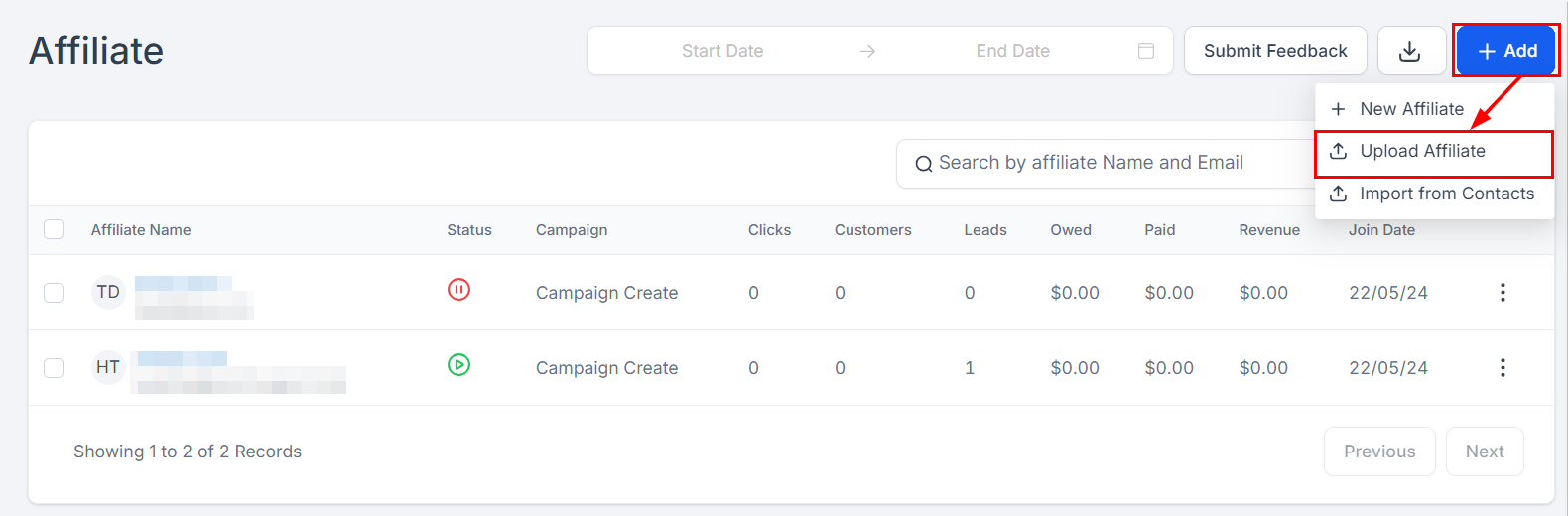
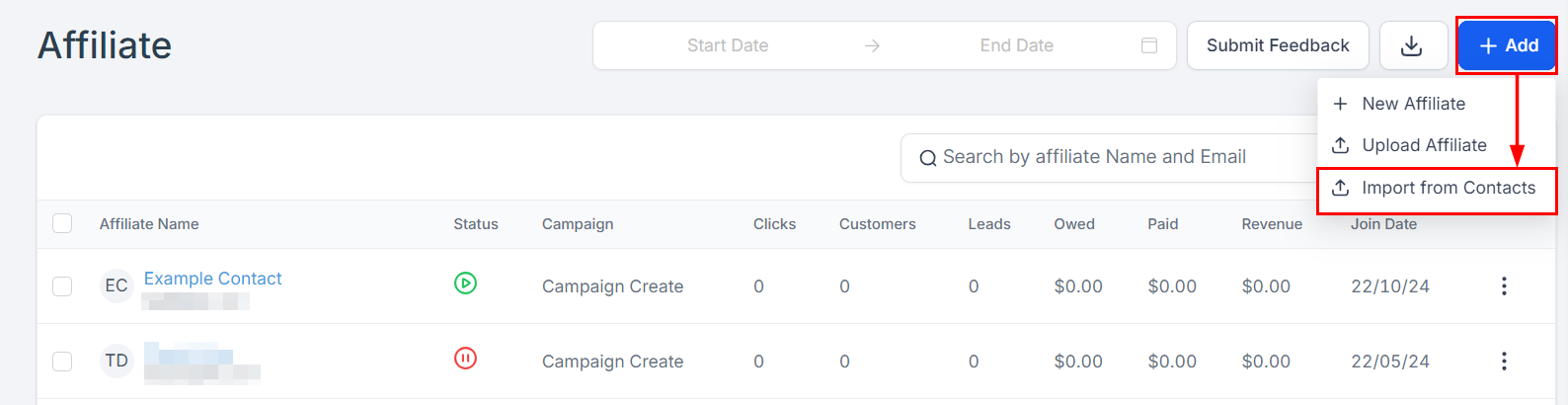
Add partners three ways: one at a time, in bulk from a CSV, or by importing existing contacts. All three start from the Add button in the top right of the Affiliate page.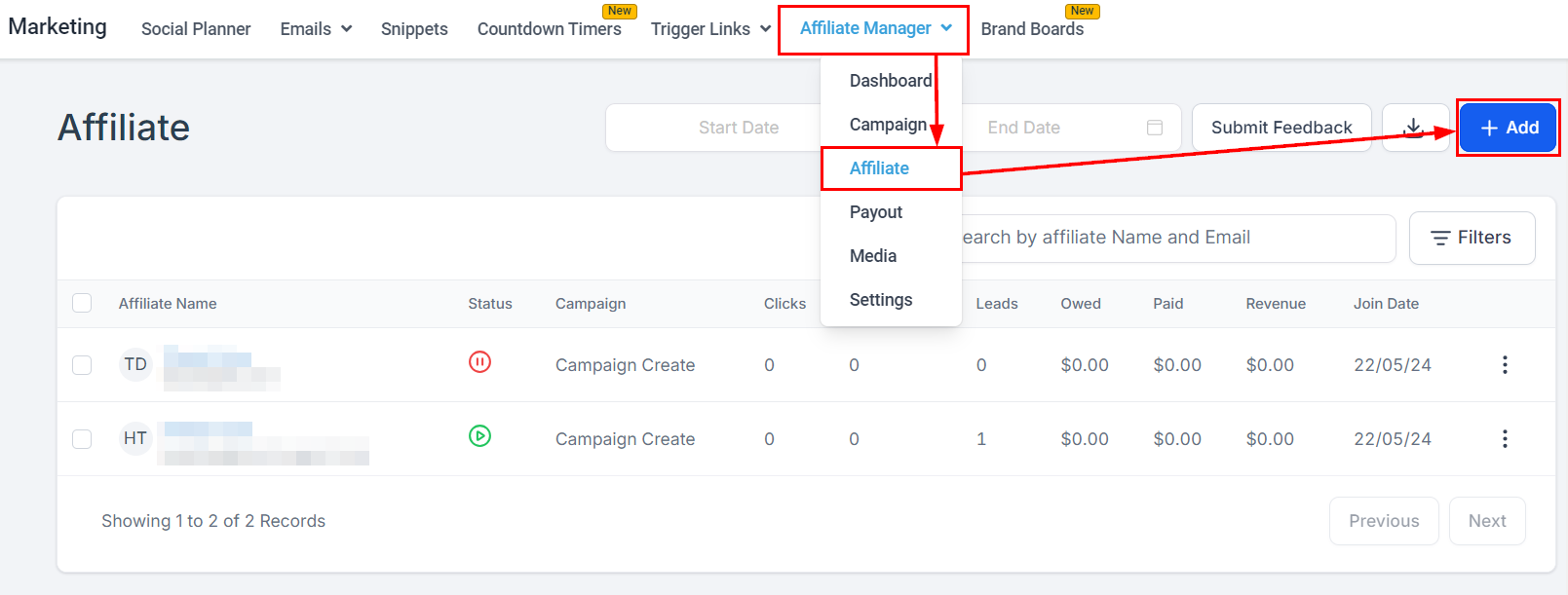
Add a partner individually
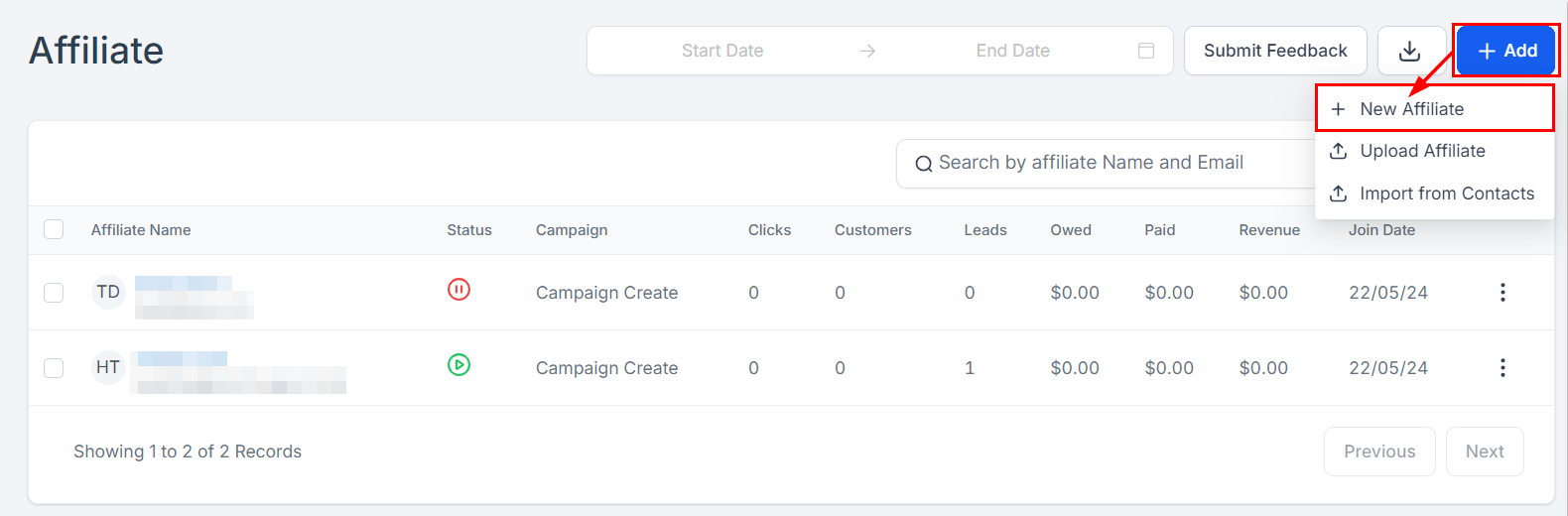
- Select + New Affiliate.
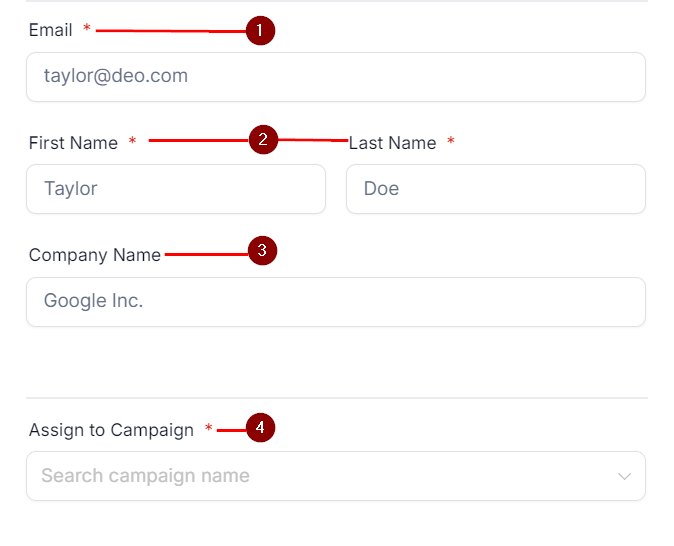
- Fill in the form: Email (their unique referral link is sent here), First and Last Name, Company Name (optional), and Assign to Campaign — only one campaign can be selected at this step.
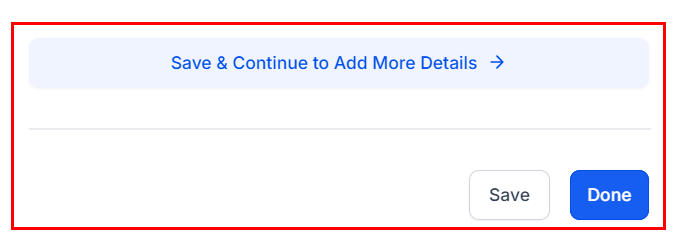
- Click Done to add the partner, or Save and Continue for advanced settings.
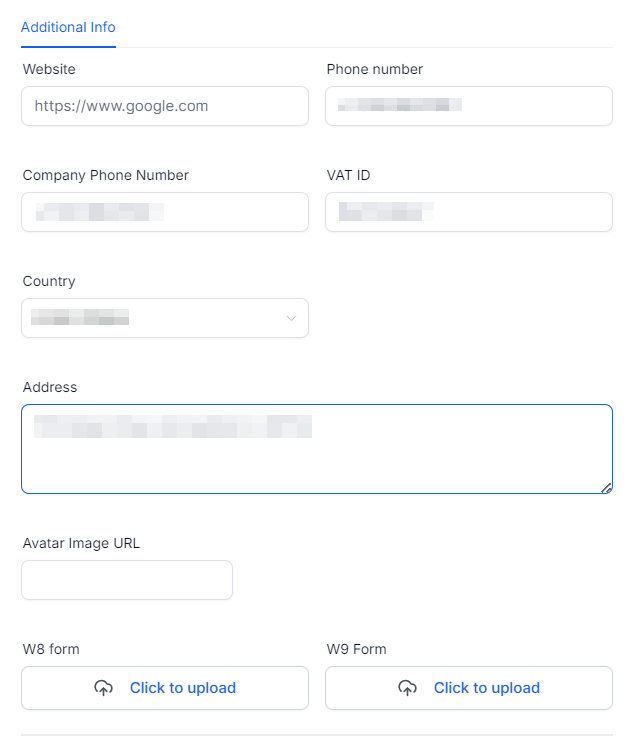
- The advanced form adds phone number, VAT ID, address, and social media links, and lets you customize the referral link or add a coupon code.
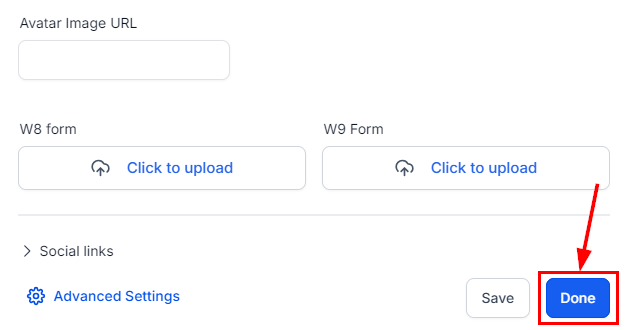
- Click Done to finish.
Upload a partner list
- Click Add, then Upload Affiliate.
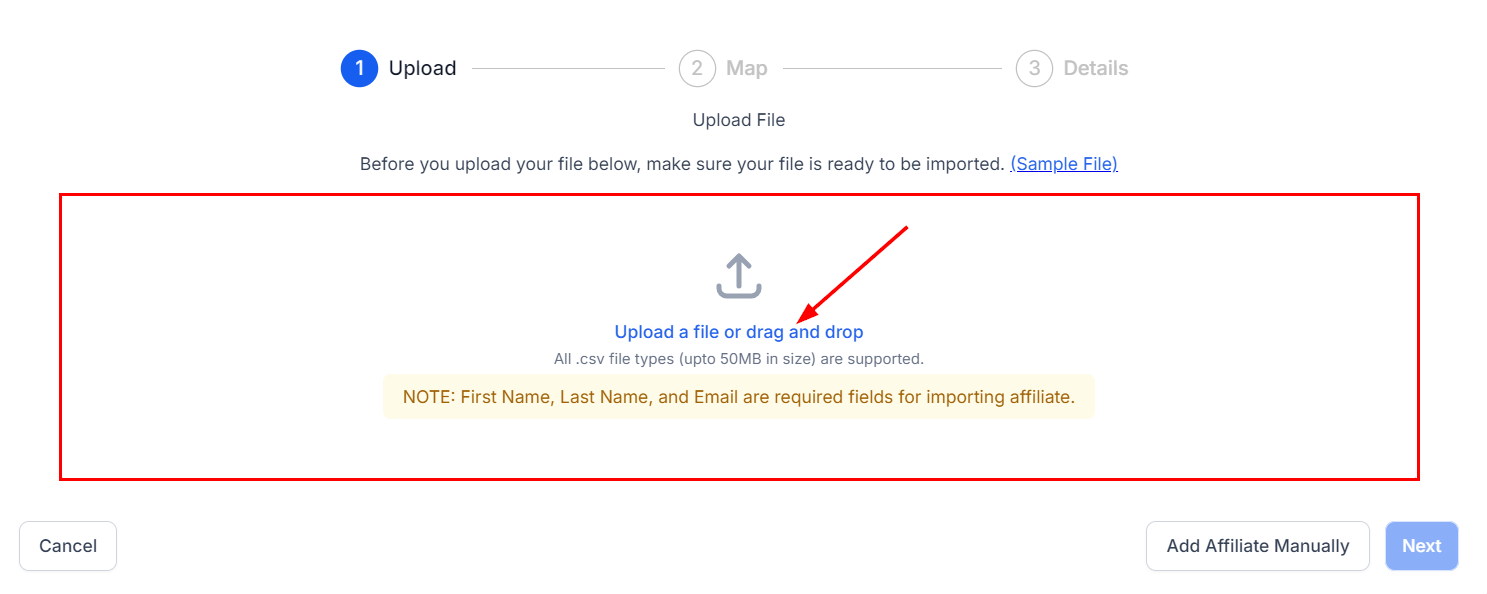
- Upload a CSV with at least First Name, Last Name, and Email (max 50MB — a sample document is available). Click Next.
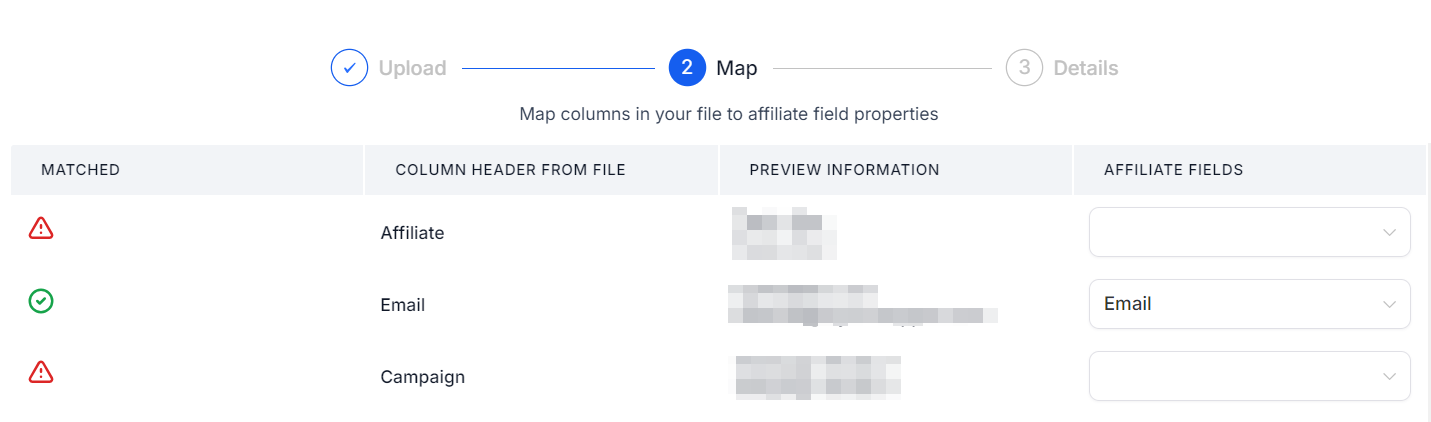
- Map your file’s columns to the partner table. Auto-matched fields show green; unmatched show red.
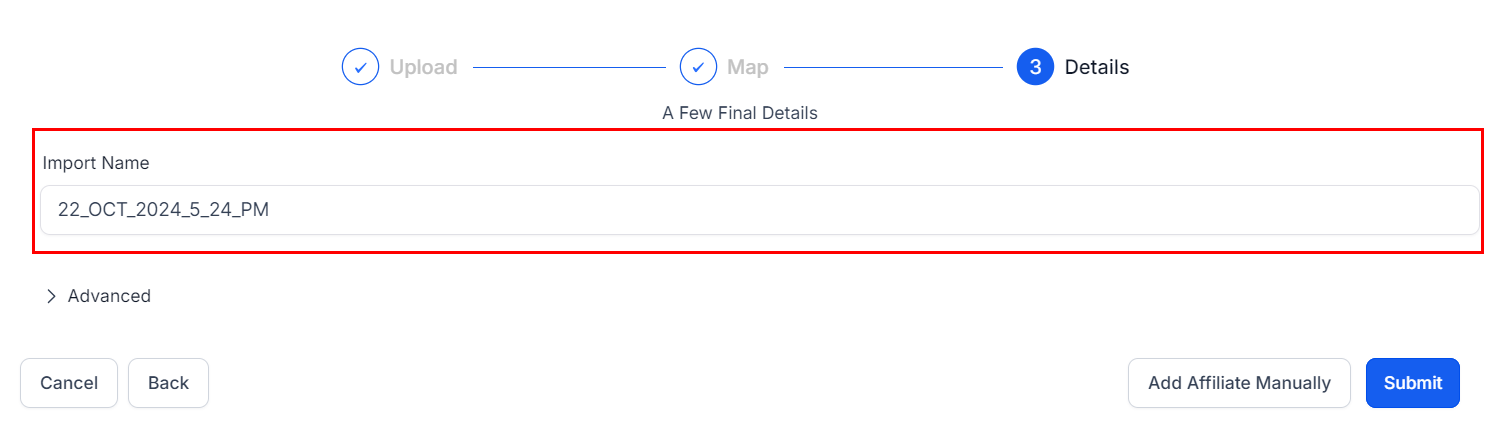
- Name the file (defaults to the date and time).
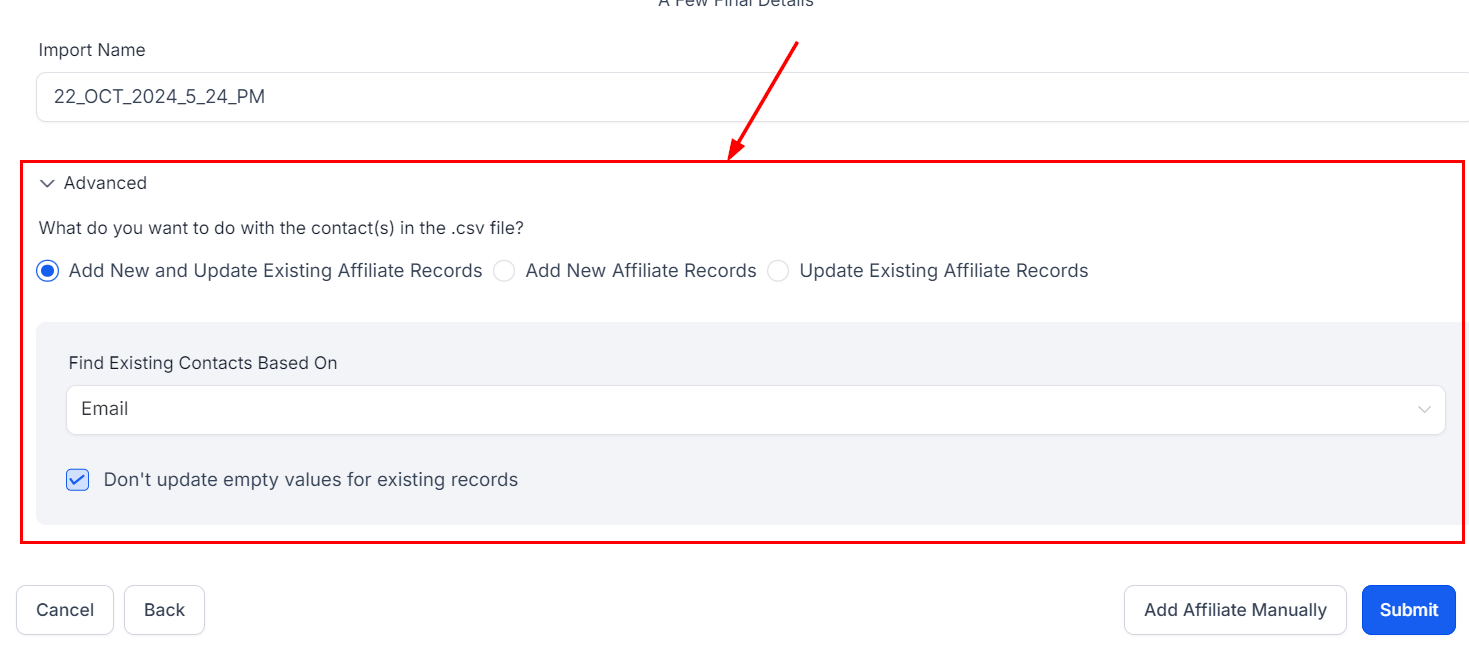
- In Advanced, choose whether to add new records, update existing ones, or both, and how to handle empty values in the CSV. Click Submit.
Import partners from contacts
- Click Add, then Import from Contacts.
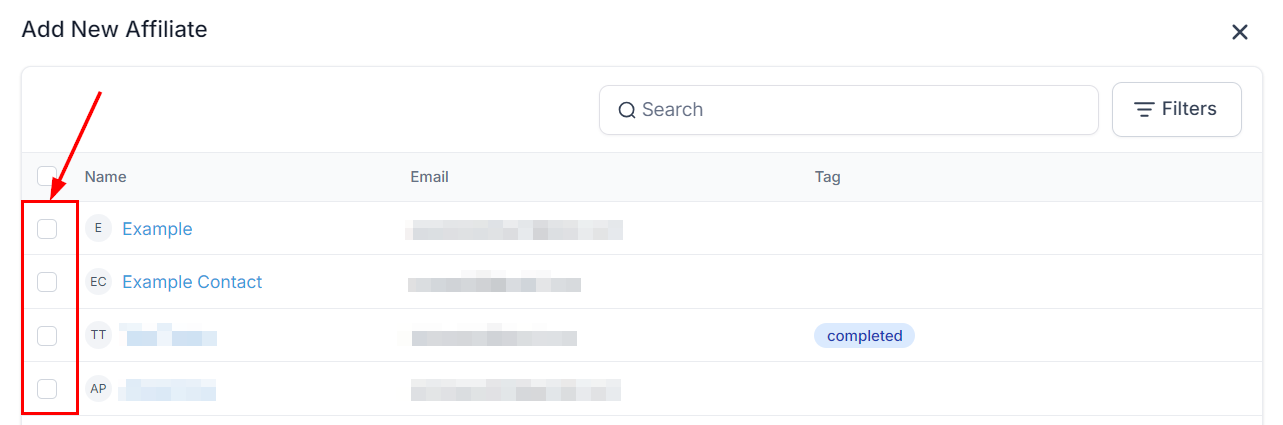
- Check the contacts to import and click Import in the lower right of the modal.